
How to Convert Credit Card Statements to CSV
Key Takeaways
- Most credit card issuers let you download recent transactions as CSV from your online account, but official monthly statement PDFs require a conversion tool to extract structured data.
- Credit card PDFs are harder to convert than bank statements because they include payments vs. charges in separate sections, interest calculations, rewards summaries, and multi-line merchant descriptions.
- Five methods exist for converting credit card statement PDFs to CSV: native issuer export, manual copy-paste, Tabula (open-source), cloud converters, and on-device converters — each with distinct trade-offs.
- The same conversion techniques work across all major issuers (Visa, Mastercard, American Express, Discover), though each has format quirks that affect accuracy.
Disclosure: This article is published by the company that builds LocalExtract, an on-device bank statement converter. We have a commercial interest in this topic. LocalExtract is presented as one option among several. We encourage you to test any tool against your own credit card statements and verify claims independently.
Credit card statement PDFs are among the most common financial documents that people need to convert to spreadsheet format. Whether you use Visa, Mastercard, American Express, or Discover — from issuers like Chase, Bank of America, Citi, Capital One, Wells Fargo, or dozens of others — the monthly statement PDF follows a similar general structure but with issuer-specific formatting that makes automated extraction challenging.
This guide covers how to convert credit card statement PDFs from any issuer to CSV format — the universal format that works with Excel, Google Sheets, QuickBooks, Xero, and virtually every other financial tool.
Contents
- Why Convert Credit Card Statements to CSV?
- What Credit Card Statement Formats Does LocalExtract Support?
- How to Convert Credit Card Statements to CSV — Step by Step
- What We Found in Testing
- Alternative Methods
- What the Output Looks Like
- Tips for Working with Credit Card Statements
- FAQ
- Getting Started
- Conclusion
Why Convert Credit Card Statements to CSV?
There are several common reasons you might need credit card statement data in CSV format:
- Bookkeeping and reconciliation — matching credit card charges against your ledger or accounting software is far easier when data is in structured rows and columns rather than embedded in a PDF
- Tax preparation — identifying deductible business expenses across multiple credit cards requires searchable, sortable, filterable data
- Accounting software import — QuickBooks, Xero, Sage, FreshBooks, and most accounting platforms accept CSV imports for bank and credit card transactions. See our guides on importing to QuickBooks, Xero, and Sage
- Expense reporting — creating categorized expense reports from monthly credit card charges is only practical with structured data
- Audit preparation — auditors and lenders often request transaction data in a format they can independently verify
- Multi-card consolidation — combining charges from several credit cards (different issuers, personal and business) into a single master spreadsheet. For business contexts, see bank statement converters for small business
- Historical analysis — analyzing spending trends, merchant patterns, or category breakdowns across months or years. If you have paper statements to process as well, see our guide on how to digitize bank statements
Most credit card issuers provide transaction download for recent activity, but official monthly statement PDFs — the archived documents in your account — can only be downloaded as PDF files. The distinction matters: a CSV download of recent activity does not include the statement summary, interest calculations, fee breakdowns, or beginning/ending balances that appear on official statements.
What Credit Card Statement Formats Does LocalExtract Support?
Credit card statement PDFs follow a general structure across issuers, but the details vary. Understanding the common elements helps you evaluate any conversion tool.
Common elements across all credit card statement PDFs:
- Account summary: previous balance, payments/credits, new charges, fees, interest, new balance
- Payment information: minimum payment due, payment due date, late payment warning
- Transaction details: date, description, amount — grouped by category (payments, purchases, fees)
- Interest charge calculations: APR by balance type, daily periodic rate, average daily balance
Issuer-specific variations that affect conversion accuracy:
| Issuer | Notable Format Quirks |
|---|---|
| Chase (Visa/Mastercard) | Transactions grouped by card type (Freedom, Sapphire); multi-line merchant descriptions with city/state on second line |
| Bank of America (Visa/Mastercard) | Separate purchase and cash advance sections; rewards summary embedded in transaction area |
| Citi (Visa/Mastercard) | Double-date format (transaction date + post date); ThankYou Points summary table |
| Capital One (Visa/Mastercard) | Category grouping (Payments, Purchases, Fees); rewards miles/cashback summary; multi-line descriptions |
| American Express | Charge summaries, Membership Rewards table, multi-currency formatting for international charges |
| Discover | Cashback Bonus summary, rotating 5% category details, promotional APR sections |
| Wells Fargo (Visa) | Year-to-date totals section; rewards summary; transaction descriptions with reference numbers |
| U.S. Bank (Visa) | Compact formatting; rewards summary integrated into account summary |
All credit card statement PDFs from major issuers downloaded through online banking are text-based (not scanned images), meaning the data is embedded as selectable text. Text-based PDFs are faster and more accurate to convert than scanned documents. You can verify this: open the PDF and try selecting text with your cursor. If the text highlights, it is text-based.
For bank-specific guides, see our articles on converting statements from Chase, Bank of America, Capital One, Citi, and Wells Fargo.
How to Convert Credit Card Statements to CSV — Step by Step
Here is the complete process for converting any credit card statement PDF to CSV using LocalExtract, an on-device converter.
Step 1: Download Your Credit Card Statement PDF
- Log in to your credit card account through the issuer's website or app
- Navigate to "Statements" or "Statements & Documents"
- Select the statement period you need
- Download the PDF to your computer
Most credit card issuers retain downloadable statements for several years. If you need older statements, check the document archive in your account or contact your issuer's customer service.
Step 2: Open LocalExtract
Launch LocalExtract on your Mac or Windows PC. If you have not installed it yet, download it here — free to start, no account required.
Step 3: Import the Credit Card Statement
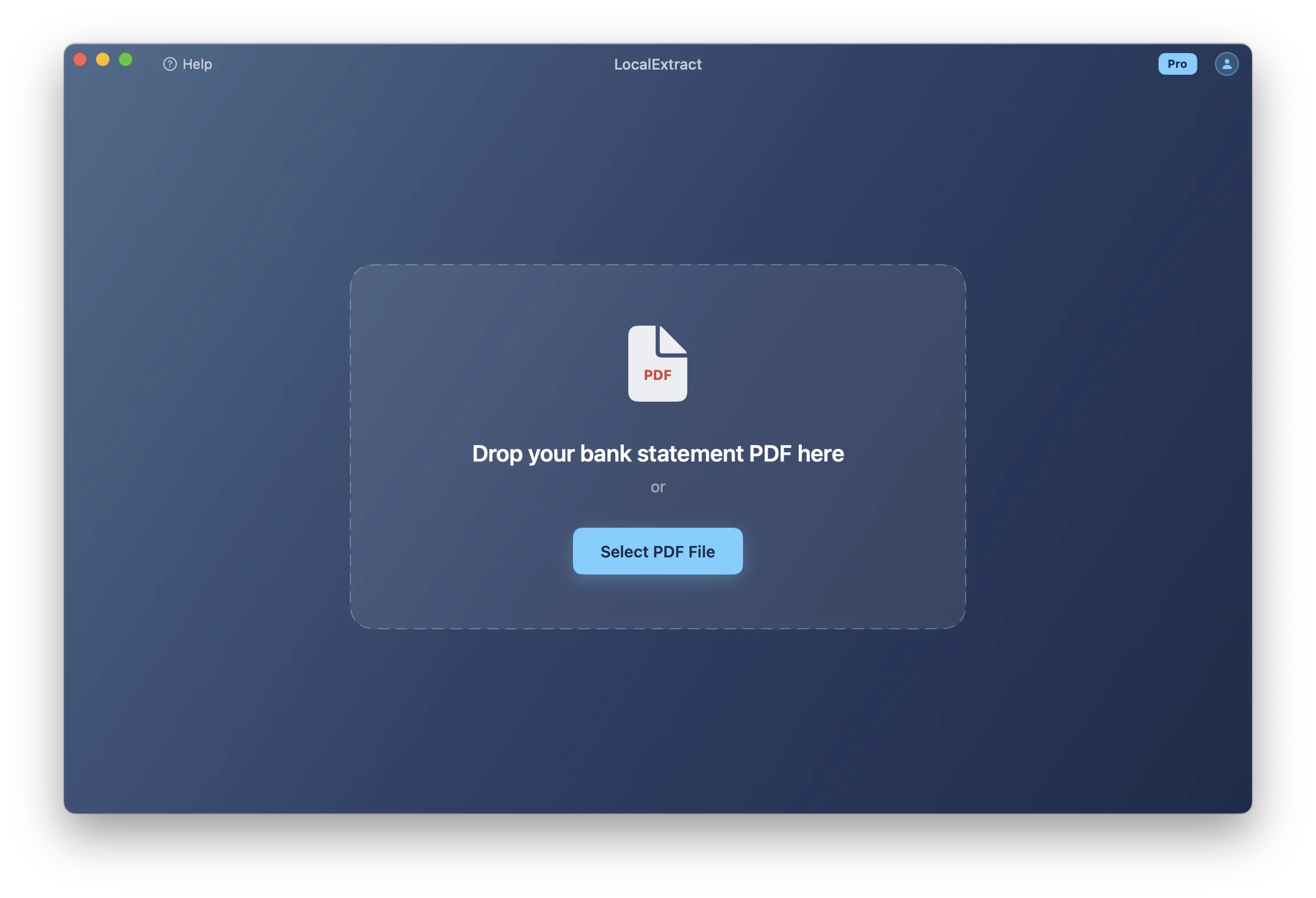
Drag and drop the credit card statement PDF into the LocalExtract window, or click "Select PDF" to browse. The engine detects the issuer and card format automatically — no need to select the bank from a dropdown or configure any settings.
Step 4: Review the Extracted Data
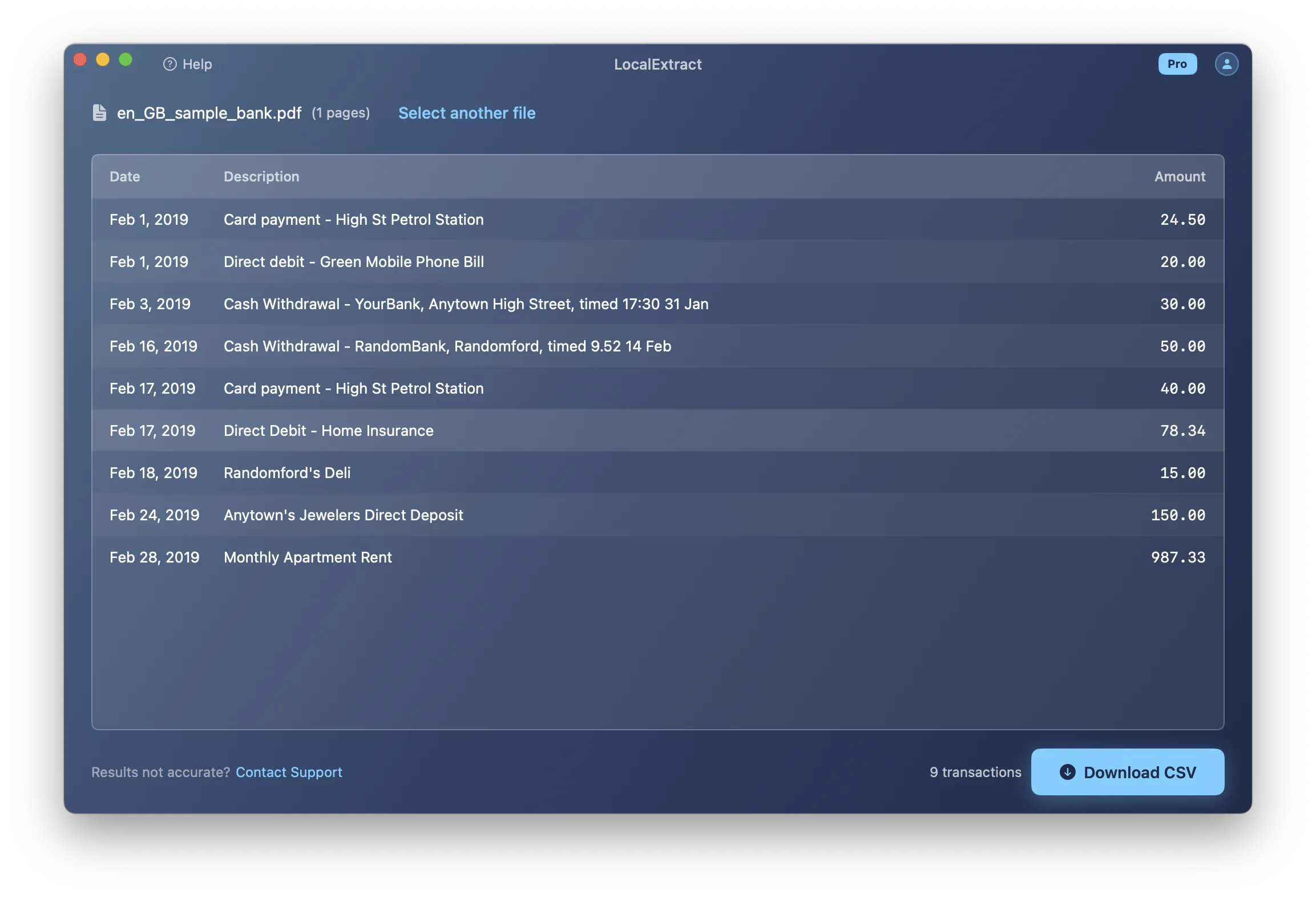
LocalExtract displays the extracted transactions in a preview table. Check that:
- The statement period and closing date are correct
- Transaction dates, descriptions, and amounts align properly
- Payments/credits are separated from purchases
- Rewards summaries and interest calculation details are excluded from transaction rows
- The new balance matches your statement
Step 5: Export to CSV
Click "Export" and choose CSV. The CSV format is the most universal option for credit card data:
- Opens in Excel, Google Sheets, Numbers, LibreOffice Calc
- Imports directly into QuickBooks, Xero, Sage, and most accounting software
- Easy to merge with CSV files from other credit cards or bank accounts
- Scriptable — Python, R, and other tools can process CSV files programmatically
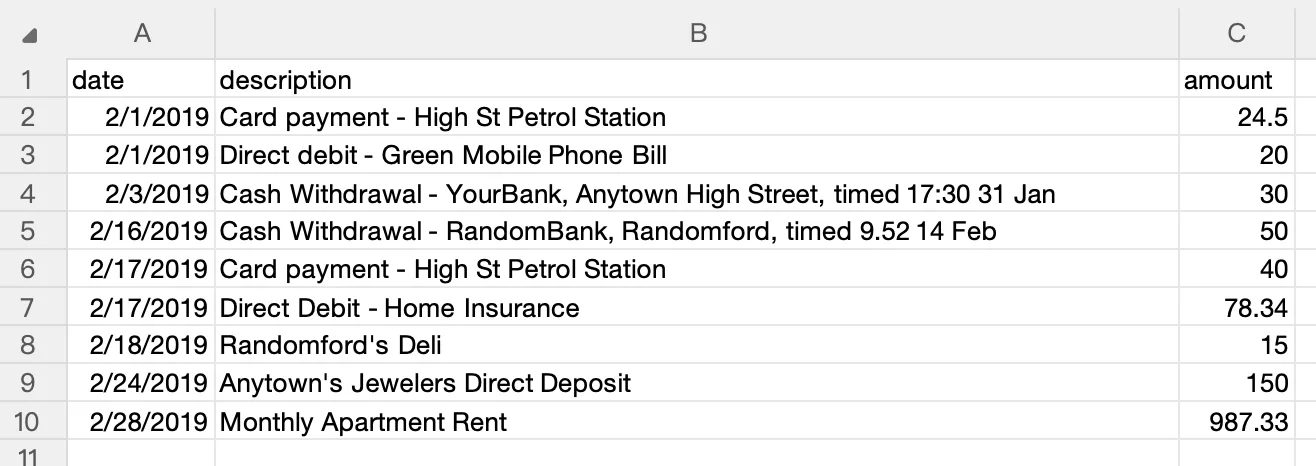
The entire process — from drag-and-drop to export — takes under 10 seconds for a typical credit card statement. For a detailed comparison of CSV vs. Excel formats, see our guide on bank statement CSV format for accounting.
What We Found in Testing
We converted 23 credit card statement PDFs across seven issuers — Chase (Freedom Flex, Sapphire Preferred), Bank of America (Customized Cash Rewards), Citi (Double Cash), Capital One (Venture X), American Express (Gold), and Discover (it Cash Back) — spanning 2024 and 2025 statement periods. Here is what we observed:
- Accuracy: Date, description, and amount fields matched the original PDFs in all cases for the issuers we tested. The most common extraction pitfall across issuers was multi-line merchant descriptions — a single transaction spanning two or three lines in the PDF. Chase and Capital One statements had the highest incidence of wrapped descriptions, typically when the merchant address or reference number appears on a second line.
- Issuer-specific quirks: Amex and Discover statements were the hardest to parse cleanly due to rewards summary tables embedded near transaction data. Citi statements use a dual-date format (transaction date and post date) that some tools collapsed into a single column. Chase statements group transactions by card product, so a Freedom Flex and Sapphire Preferred on the same account produce distinct sections with sub-headers that generic extractors treated as data rows.
- Processing time: A typical 4-page credit card statement converted in 2-3 seconds on a MacBook Air M2. A 9-page Amex Platinum statement with international charges took under 5 seconds. Batch conversion of 12 statements (a full year from one card) completed in about 25 seconds total.
Across all issuers, the sign convention for payments versus charges was the area most likely to need verification. Some issuers show payments as negative in the PDF; others show them without a sign in a separate "Credits" column. Any converter should normalize this, but it is worth confirming in your output.
Alternative Methods
Your Issuer's Built-In Transaction Download
Most major credit card issuers offer transaction download through their online portals:
| Issuer | Download Formats Available | Where to Find It |
|---|---|---|
| Chase | CSV, QFX, QBO, OFX | Account Activity > Download |
| Bank of America | CSV, QFX, OFX | Activity > Download Transactions |
| Citi | CSV, QFX, QBO, OFX | Account Details > Download |
| Capital One | CSV, QFX, OFX | Activity > Download Transactions |
| American Express | CSV, QFX, OFX, QBO | Statements & Activity > Download |
| Discover | CSV, QFX | Activity > Export |
| Wells Fargo | CSV, QFX, QBO | Activity > Download |
Limitations common to all issuers:
- Only recent activity — most issuers provide downloadable transactions for a limited window (typically 12-24 months), not the full statement archive
- Not the same as your statement — the download reflects posted transactions for a date range, not the official statement with summary totals, interest calculations, and fee breakdowns
- No statement-period alignment — the date-range download may not match a specific monthly statement exactly
- Missing details — interest charges, fee breakdowns, payment allocation details, and rewards summaries are typically absent from transaction downloads
Your issuer's built-in transaction download is the best option for recent activity when you just need a quick CSV of charges. But if you need to convert an archived monthly statement PDF or need the full statement details, you need a PDF conversion tool.
Manual Copy-Paste from PDF
Open the credit card statement PDF, select the transaction table, copy, and paste into a text editor or spreadsheet.
The problems common to all credit card PDFs:
- Column misalignment — dates, descriptions, and amounts land in the wrong columns or merge into a single cell
- Section headers become data rows — credit card statements group transactions by type (Payments, Purchases, Fees). These headers paste into your data as if they were transactions
- Multi-line descriptions break rows — merchant descriptions that wrap to a second line (common with address or reference number details) create extra rows
- Interest and rewards tables mix in — these non-transaction tables use similar column alignment and paste into the transaction data stream
- Sign confusion — payments are negative amounts on some issuers and positive on others; copy-paste does not normalize this
- Time cost — a four-page credit card statement takes 20-40 minutes to manually clean up
For a single statement with a dozen charges, manual copy-paste is tolerable but error-prone. For multiple statements or issuers, it is not practical.
Tabula (Free, Open-Source)
Tabula is a free, open-source tool designed to extract tables from PDF files. It runs locally on your computer (Java-based) and does not upload your data to any server.
How to use Tabula with credit card statements:
- Download and install Tabula from tabula.technology
- Open Tabula in your browser (it runs a local web server at
localhost:8080) - Upload your credit card statement PDF (the file stays on your machine)
- Draw selection boxes around the transaction tables on each page — be careful to exclude account summaries, interest calculations, and rewards tables
- Click "Preview & Export Data" and choose CSV format
Strengths:
- Completely free and open-source (GitHub)
- Data never leaves your computer
- Works across Mac, Windows, and Linux
- Good for simple credit card statements with clean table layouts
Limitations:
- Manual table selection required — you must draw bounding boxes around each table on each page. Credit card PDFs with multiple sections (payments, purchases, fees) require careful selection to avoid including section headers
- No issuer-specific logic — Tabula does not know which rows are transactions and which are summaries, rewards data, or interest calculations
- Multi-line descriptions — wrapped merchant names become separate rows
- No batch processing — each PDF must be processed individually
- Requires Java runtime
Tabula works best for occasional conversion of simple credit card statements where you are comfortable cleaning up the output.
Cloud-Based Converters
Cloud-based PDF converters upload your credit card statement to a remote server for processing:
- DocuClipper — specializes in bank and credit card statement conversion. Supports major issuers
- BankStatementConverter.com — focused on statement PDFs. Charges per page
- General PDF converters (Adobe Acrobat online, Smallpdf, etc.) — not bank-specific, but can extract tables
Advantages:
- Automated extraction with issuer-specific formatting awareness (for specialized services)
- No software installation
- Some services offer batch processing and accounting software integration
Concerns:
- Data leaves your device — your credit card statement is uploaded to a third-party server with your account number and full transaction history
- Retention policies vary — review each service's privacy policy
- Ongoing cost — per-page or subscription pricing adds up for regular use
For bookkeepers and tax professionals handling client credit card statements, uploading that data to a third-party server creates regulatory considerations under the FTC Safeguards Rule and IRS guidelines for protecting taxpayer data (IRS Publication 4557). Review your compliance obligations before uploading client financial documents to cloud services.
On-Device Converter
On-device converters run the PDF parsing engine entirely on your computer. The credit card statement never leaves your machine, similar to Tabula, but with automated issuer detection rather than manual table selection.
| Factor | Cloud Converter | On-Device Converter |
|---|---|---|
| Where data is processed | Provider's servers | Your computer |
| Internet required | Yes | No |
| Data retained by third party | Depends on provider | None — data stays local |
| Format update speed | Provider can update server-side | Requires app update when formats change |
For a deeper comparison, see our guide on cloud vs. local bank statement converters.
What the Output Looks Like
A well-converted credit card statement produces clean CSV with each transaction on a single row. The exact columns vary by issuer, but the core fields are consistent:
Typical credit card CSV output:
Date,Description,Amount
03/01/2026,"PAYMENT RECEIVED - THANK YOU",-750.00
03/03/2026,"WHOLE FOODS MARKET #10847",87.32
03/05/2026,"UBER *EATS",23.50
03/08/2026,"AMAZON.COM*RT5KL0AB9",45.99
03/12/2026,"STARBUCKS STORE 12345",6.75
03/15/2026,"INTEREST CHARGE ON PURCHASES",11.23
Credit card CSV with post dates (some issuers include both transaction and post date):
Date,Post Date,Description,Amount
03/01/2026,03/02/2026,"PAYMENT - THANK YOU",-750.00
03/04/2026,03/05/2026,"COSTCO WHSE #1234",156.78
03/07/2026,03/08/2026,"SPOTIFY USA",10.99
03/10/2026,03/11/2026,"CHEVRON 12345",52.30
Key CSV formatting details for accounting use:
- Payments should appear as negative amounts (credits to your account)
- Purchases should appear as positive amounts (charges to your account)
- Dates should use a consistent format (MM/DD/YYYY or YYYY-MM-DD) that your spreadsheet software recognizes
- Descriptions should be quoted if they contain commas
- No summary rows — only individual transactions, not subtotals or section headers
Tool Comparison Summary
| Method | Cost | Privacy | Accuracy | Effort | Best For |
|---|---|---|---|---|---|
| Issuer's built-in download | Free | High (first-party) | N/A (not statement PDF) | Low | Recent transactions only |
| Manual copy-paste | Free | High | Low (requires cleanup) | High | One-off, few transactions |
| Tabula (open-source) | Free | High (local) | Medium (manual selection) | Medium | Occasional use, simple layouts |
| Cloud converters | Per-page/subscription | Lower (data uploaded) | High (specialized services) | Low | Convenience, integration needs |
| On-device converter (LocalExtract) | Free tier (10 pages), Pro $10/month or $60/year | High (local) | High (for supported formats) | Low | Privacy-sensitive, recurring use |
No single tool is best for everyone. Your choice depends on how many statements you process, your privacy requirements, your budget, and which issuers you need to support. For accountants evaluating tools, see our guide on bank statement converters for accountants.
Tips for Working with Credit Card Statements
Common Credit Card PDF Parsing Challenges
Credit card statements present parsing challenges that differ from bank (checking/savings) statements:
Payments vs. charges sign convention. Credit card statements show payments as credits (reducing your balance) and purchases as debits (increasing your balance). Different issuers use different sign conventions in their PDFs — some show payments as negative numbers, others show them without a sign but in a "Credits" column. A good converter normalizes this so payments are consistently negative and charges are positive in your CSV.
Interest calculation tables. Every credit card statement includes an interest charge calculation section with APR, daily periodic rate, average daily balance, and interest charged — often broken out by balance type (purchases, cash advances, balance transfers). This section is formatted as a table and sits near the transaction tables. Generic extractors often include interest calculation rows as transactions.
Rewards and points summaries. Cards with rewards programs (Chase Ultimate Rewards, Amex Membership Rewards, Citi ThankYou Points, Capital One Miles, Discover Cashback Bonus) include rewards tables that show points earned, redeemed, and balance. These tables use column-aligned formatting similar to transaction tables.
Multi-line merchant descriptions. Credit card transaction descriptions commonly span two or more lines:
03/05  AMAZON.COM*RT5KL0AB9
       AMZN.COM/BILLWA
       800-123-4567                  45.99
A correct parser must merge all lines into one row. This is the single most common source of row-count errors in credit card PDF conversion.
Transaction date vs. post date. Many issuers show both when the purchase occurred and when it posted to your account. Some PDFs present these as two separate date columns; others show only the post date. Your conversion tool should preserve both dates if present.
Post-Conversion Verification Checklist
Regardless of which method or tool you use, always verify the converted data:
- Previous balance — matches the "Previous Balance" or "Balance from Last Statement" on the PDF
- New balance — matches the "New Balance" on the PDF
- Total payments/credits — sum of all negative amounts equals the statement's payments/credits total
- Total purchases/charges — sum of all positive amounts equals the statement's purchases total
- Interest and fees — these appear in the statement summary and should be present as line items in your CSV
- Transaction count — count CSV rows and compare to the PDF. Off by more than 1-2? Check for multi-line descriptions that split into extra rows, or summary/rewards data that was included as transactions
- Spot-check — verify 3-5 random transactions for date, description, and amount accuracy
The fundamental check for any credit card statement: Previous Balance - Payments/Credits + Purchases + Cash Advances + Fees + Interest = New Balance. Run this formula on your CSV totals. If it does not balance, the conversion has errors.
Merging Multiple Credit Card CSVs
If you carry several credit cards, you may want to merge all statements into one master CSV for analysis or accounting import. Tips for clean merging:
- Standardize column headers — different issuers may use "Transaction Date" vs. "Date" vs. "Trans Date." Rename to a consistent format before merging
- Add an issuer column — add a column identifying the card issuer (e.g., "Chase Freedom," "Amex Platinum") so you can filter by card after merging
- Normalize amount signs — ensure payments are negative and charges are positive across all issuers
- Use a consistent date format — some issuers use MM/DD/YYYY, others use YYYY-MM-DD. Standardize before merging
Batch Processing Across Issuers
If you process credit card statements for multiple clients or accounts, batch processing saves significant time. LocalExtract accepts multiple PDFs at once and auto-detects each issuer. Tabula requires individual processing with manual table selection. Cloud converters vary in batch support. For a comparison of free and paid options, see free vs. paid bank statement converters.
Looking Ahead: The Shift Toward Standardized Data Access
The credit card industry is moving toward more structured data access. The CFPB's Section 1033 rule on personal financial data rights will require financial institutions — including credit card issuers — to make consumer transaction data available through standardized APIs. This will eventually allow you to pull transaction data directly into accounting tools without downloading PDFs or CSV files. However, Section 1033 covers recent transaction data, not archived official statements with interest calculations, fee breakdowns, and balance summaries. For historical analysis, audit documentation, and the complete statement record, PDF conversion will remain necessary even after API access becomes widespread. Meanwhile, the trend toward on-device processing reflects growing demand for privacy-first financial tools — particularly among bookkeepers and tax professionals handling client data under regulatory obligations.
Privacy Considerations for Credit Card Statements
Credit card statements contain highly sensitive financial information:
- Account numbers — full or partial card numbers
- Transaction descriptions — reveal spending patterns, merchants, subscriptions, and travel history
- Balance and credit limit — shows financial position and available credit
- Payment history — reveals payment patterns and minimum payment behavior
- Rewards data — spending category breakdowns
When choosing a conversion method, consider where your data goes. For professionals handling client statements, local processing eliminates the need to assess third-party data security. See our guide on why bookkeepers should not upload bank statements for a detailed analysis.
FAQ
Can I download credit card statements as CSV directly from my issuer? Most issuers offer CSV download for recent transaction activity, but not for official monthly statement PDFs. The CSV download covers a date range of posted transactions and lacks the statement summary, interest calculations, and fee breakdowns. To get the full statement data in CSV, you need to convert the PDF.
Which credit card issuers are hardest to convert? American Express statements tend to be the most complex due to multi-currency formatting, Membership Rewards tables, and charge summaries. Discover statements include Cashback Bonus and promotional APR sections that confuse generic extractors. Chase and Capital One are moderately complex due to transaction category grouping. Simple Visa/Mastercard statements from smaller issuers tend to be the easiest to convert.
Does Tabula work for credit card statements? Tabula can extract transaction tables from credit card PDFs, but you must manually select the correct table regions and avoid selecting summary, interest, and rewards tables. For simple credit card statements, results are usable after cleanup. For complex formats (Amex, Discover with rewards), expect significant manual work.
Why CSV instead of Excel for credit card data? CSV is the most universal format. It opens in every spreadsheet application, imports into every accounting platform, and can be processed by scripts and automation tools. Excel (.xlsx) adds formatting and formulas but is less portable. For accounting software import (QuickBooks, Xero, Sage), CSV is almost always the required format.
Can I convert business credit card statements the same way? Yes. Business credit card statement PDFs follow the same general structure as consumer statements, with the possible addition of employee card breakdowns and business-specific categorization. The same conversion methods apply. The main difference is that business statements may have more pages due to higher transaction volumes.
How do I handle credit card statements from multiple issuers? Convert each statement PDF individually, then merge the resulting CSVs into a single file. Add a column identifying the issuer/card, standardize column headers and date formats, and normalize amount signs before merging. This gives you a unified view across all credit cards.
Is the converted data accurate enough for accounting? No converter is 100% accurate in all cases. Always verify converted data against the original PDF. Compare summary totals, spot-check individual transactions, and confirm the balance equation holds. The original PDF is the authoritative record — the CSV is a working copy.
Getting Started
If you want to try converting a credit card statement yourself, here is how to get started with LocalExtract:
- Download LocalExtract — available for Mac and Windows. Free to start, no account required.
- Drop in a credit card statement PDF — drag and drop any credit card statement from any issuer. The engine detects the format automatically.
- Review and export — check the preview against your original PDF, then export to CSV.
The free tier includes 10 pages (lifetime), which is enough to test with a few statements. The Pro plan ($10/month or $60/year) provides unlimited pages for ongoing use.
All processing happens on your device. Your credit card statements are never uploaded to any server.
For more on converting financial documents, see our guides on converting bank statement PDFs to CSV, converting bank statement PDFs to Excel, and extracting data from bank statement PDFs. If you need to import statements into QuickBooks or import statements into Xero, those guides cover the CSV formatting requirements for each platform.
Conclusion
Credit card statement PDFs are among the most challenging financial documents to convert to CSV because of their multi-section layouts, rewards tables, and issuer-specific formatting. The good news is that the core structure — date, description, amount — is consistent across all major issuers, which means a well-built converter can handle statements from Chase, Amex, Discover, Citi, Capital One, and others without manual configuration. Whether you process one statement a month or dozens across multiple clients and issuers, the key is choosing a method that matches your volume, accuracy needs, and privacy requirements. As open data standards and API-based access mature, the need for PDF conversion will diminish for recent transactions — but for archived statements, complete financial records, and audit documentation, converting credit card PDFs to CSV will remain a core part of financial data management for years to come.
This article is published by the LocalExtract team. LocalExtract is one of several tools that can convert credit card statement PDFs to CSV. Competing products were not tested under identical conditions.

LocalExtract Team
We build LocalExtract, an on-device bank statement converter for macOS and Windows. Our team includes software engineers and financial workflows specialists focused on private, accurate PDF data extraction. Questions or corrections? Contact us or see our editorial policy.
Related Articles
Ready to convert your bank statements?
100% on-device. Your documents never leave your computer.
By downloading, you agree to our Terms and Privacy Policy.