
Free vs. Paid Bank Statement Converters: When to Upgrade
Key Takeaways
- Free methods — manual copy-paste, open-source tools like Tabula, and bank CSV downloads — work well for occasional, low-volume conversions with simple statement layouts.
- Paid converters save meaningful time when you process statements regularly, deal with multi-page documents, or need consistent output formatting for accounting software imports.
- Privacy differs sharply by category: open-source desktop tools and on-device converters keep data local; cloud-based tools (free tier or paid) upload your files to remote servers.
- The break-even point is typically a few statements per month — beyond that, the time cost of free methods usually exceeds the dollar cost of a paid tool.
- There is no single right answer. This article provides a decision framework so you can match the tool to your actual workload.
Disclosure: This article is published by the LocalExtract team. LocalExtract is an on-device bank statement converter that processes files entirely on your computer. We have a commercial interest in this topic. All benchmark data is from our own testing on specified hardware. We cover free alternatives fairly, including options that compete with our product, and we genuinely recommend them where they fit.
If you have searched for "free bank statement converter," you have probably found a mix of results: open-source GitHub projects, web-based tools with free tiers, generic PDF-to-Excel converters, and paid software. The landscape is genuinely confusing because "free" means very different things depending on the tool.
Some free options are excellent. Some are free in price but expensive in time. And some paid tools are not worth the money for certain workflows.
This article breaks down every category of free option, compares them against paid alternatives, and gives you a framework for deciding when free is enough and when paying makes sense. If you are new to this category, our guide on what a bank statement converter actually is covers the basics. We are a paid tool (LocalExtract), so we will be transparent about where we fit — and where we do not.
Contents
- The Five Categories of Free Options
- Manual Copy-Paste
- Open-Source Tools (Tabula, pdfplumber, Camelot)
- Free Tiers of Paid Tools
- Generic PDF-to-Excel Converters
- Bank CSV Downloads
- Paid Options: What You Get for the Money
- Privacy Considerations by Category
- Decision Framework: When Free Is Enough
- LocalExtract: Where We Fit (and Our Limitations)
- FAQ
The Five Categories of Free Options
Not all free tools are the same. They differ in how much manual work they require, what formats they handle, and how they treat your data. Here is a practical breakdown.
1. Manual Copy-Paste
How it works: Open the PDF, select the transaction table, copy it, paste into a spreadsheet (Google Sheets, Excel, or LibreOffice Calc), clean up the formatting, and export as CSV.
What it costs: Nothing except your time.
When it works well:
- Single-page statements with clean, simple table layouts
- One-off conversions where you need a handful of transactions
- When you already have the PDF open and just need a few numbers
When it breaks down:
- Multi-page statements where transactions span page boundaries
- Complex layouts with merged cells, wrapped text, or multiple tables per page
- Statements from banks that use unusual formatting (right-aligned amounts mixed with left-aligned descriptions, for example)
- Any volume beyond a few statements per month
Time cost: Expect 10-30 minutes per statement depending on complexity, plus time to verify accuracy. A single misplaced decimal or transposed digit can cause reconciliation issues downstream.
Privacy: Excellent. The data never leaves your computer (assuming you use a local spreadsheet application rather than a cloud-based one).
Manual copy-paste is underrated for truly occasional use. If you convert one or two simple statements per year, no tool — free or paid — is worth installing. Just copy, paste, clean up, and move on.
2. Open-Source Tools (Tabula, pdfplumber, Camelot)
Several open-source projects can extract tables from PDF files. The three most established options for bank statement work are:
Tabula
Tabula is a free, open-source tool with a browser-based interface. You upload a PDF (locally — Tabula runs a local server on your machine), draw selection boxes around tables, and export the extracted data as CSV or TSV.
Strengths:
- Genuinely free with no usage limits
- Runs locally — your data stays on your machine
- Visual interface for selecting table regions
- Works well with clean, grid-based table layouts
Weaknesses:
- Requires Java runtime to be installed
- Struggles with statements that lack clear cell borders
- Cannot handle scanned/image-based PDFs (no OCR)
- Each page and table region must be selected manually for complex documents
- No accounting-specific formatting (you get raw table data, not QuickBooks-ready CSV)
pdfplumber (Python)
pdfplumber is a Python library for extracting text and tables from PDFs. It is not a standalone application — you need to write Python code to use it.
Strengths:
- Highly customizable extraction logic
- Can handle complex table layouts with fine-tuned parameters
- Free and open-source with no usage limits
- Runs entirely locally
Weaknesses:
- Requires Python programming knowledge
- No graphical interface — you write scripts
- Each new bank format typically requires custom code
- No OCR for scanned documents (though it can be combined with other OCR tools)
- Significant setup time for first-time users
Camelot (Python)
Camelot is another Python library specifically designed for PDF table extraction. It offers two parsing modes: "lattice" (for tables with visible borders) and "stream" (for tables without clear borders).
Strengths:
- Two parsing modes for different table styles
- Good accuracy on well-structured tables
- Free and open-source
- Runs locally
Weaknesses:
- Requires Python and has system-level dependencies (Ghostscript, Tkinter)
- Stream mode can be unreliable on bank statements with unusual layouts
- No OCR support
- Like pdfplumber, requires programming to use effectively
If you are comfortable with Python and process statements from a small number of banks, pdfplumber or Camelot can be excellent long-term solutions. Once you have a working script for a specific bank's format, it runs in seconds and costs nothing. The investment is upfront — building and testing the script — not ongoing.
The Open-Source Trade-Off
Open-source tools are genuinely powerful, but they trade money for time and technical skill. The table below summarizes the practical differences:
| Factor | Tabula | pdfplumber / Camelot |
|---|---|---|
| Setup difficulty | Low (download and run) | Medium-High (Python environment required) |
| Programming required | No | Yes |
| Per-bank customization | Manual selection each time | One-time script per format |
| OCR (scanned PDFs) | No | No (without additional tools) |
| Multi-page handling | Manual page-by-page | Automated via script |
| Output formatting | Raw CSV | Custom (whatever you code) |
3. Free Tiers of Paid Tools
Many paid bank statement converters offer a limited free tier. These typically restrict usage by page count, document count, or feature set.
How free tiers typically work:
- A set number of pages or documents per month (or lifetime)
- Core conversion features available, with advanced features (batch processing, API access, premium support) reserved for paid plans
- Same conversion engine as the paid product, so accuracy is equivalent within the free limits
When free tiers work well:
- Low-volume users who convert a few statements per month
- Evaluating a tool before committing to a subscription
- Users whose needs fit within the tier limits permanently
When they do not work well:
- Professional bookkeepers with ongoing, growing conversion needs
- Anyone who hits the limit mid-project and needs to wait or upgrade immediately
Privacy: Depends entirely on the tool's architecture. Cloud-based converters with free tiers still upload your data to their servers. On-device converters with free tiers process locally regardless of tier.
LocalExtract's free tier, for example, includes 10 pages (lifetime) with fully on-device processing. The free tier uses the same engine as Pro — the only difference is the page limit.
4. Generic PDF-to-Excel Converters
Tools like Adobe Acrobat's PDF-to-Excel export, Smallpdf, ILovePDF, and similar services can convert any PDF to a spreadsheet format. They are not designed specifically for bank statements, but they sometimes work.
When they work:
- Simple statement layouts where the transaction table is the primary content on the page
- Statements with clear, bordered table structures
- When you only need a rough extraction and plan to clean up the data manually
When they fail:
- Bank statements with headers, footers, page numbers, and summary sections mixed into the table area
- Multi-column layouts where the converter cannot distinguish the transaction table from surrounding content
- Statements that use fonts or encoding that the generic converter does not handle well
The fundamental issue: Generic PDF-to-Excel converters treat every PDF the same. They do not understand what a bank statement is. They do not know that "Date," "Description," and "Amount" are columns in a transaction table. They extract whatever table-like structures they find, which often includes page headers, account summaries, and other non-transaction data mixed in with the actual transactions.
The result is usually a spreadsheet that requires significant manual cleanup — removing extra rows, splitting merged cells, reformatting dates and amounts, and verifying that no transactions were missed or duplicated.
Privacy: Varies widely. Desktop applications like Adobe Acrobat process locally. Web-based converters (Smallpdf, ILovePDF) upload your file to their servers. Read the privacy policy before uploading bank statements to any online conversion tool.
Generic PDF converters occasionally split a single transaction across two rows or merge two transactions into one — especially when descriptions wrap to a second line. Always verify the transaction count and total against the original statement after using a generic converter.
5. Bank CSV Downloads
This option is often overlooked: many banks let you download transaction data directly as CSV from their online banking portal. No converter needed.
How it works: Log into your bank's website or app, navigate to the account's transaction history, select a date range, and look for a "Download" or "Export" option. Most major US banks offer CSV, OFX, or QFX export.
When it works well:
- You have online banking access for the account in question
- You need recent transactions (typically within the last 12-18 months, depending on the bank)
- The bank's CSV format is compatible with your accounting software
When it does not work:
- You are working with a client's statements and do not have their online banking credentials (common for bookkeepers)
- The statements are older than the bank's online history retention period
- The bank only provides PDF statements (some smaller banks, credit unions, and foreign institutions)
- You received physical or scanned statements that need to be digitized
Privacy: Excellent when available. You are downloading data directly from the bank through an authenticated session. No third party is involved.
If you have direct online banking access and need recent transactions, always check for a CSV download first. It is the fastest, most accurate, and most private option — and it is genuinely free. PDF conversion tools exist primarily for situations where direct CSV download is not available.
Paid Options: What You Get for the Money
Paid bank statement converters fall into three broad categories:
Cloud SaaS Converters
Examples: DocuClipper, PDFTables, and similar web-based services.
How they work: Upload PDFs through a browser, the service processes them on remote servers, and you download the results. Pricing is typically monthly or per-page.
What you get over free tools:
- Bank-specific parsing logic that handles complex layouts
- Support for many bank formats without per-bank configuration
- Output formatted for specific accounting software (QuickBooks, Xero, Sage)
- Batch processing for multiple documents
- Customer support when something goes wrong
Trade-off: Your financial data is uploaded to and processed on the provider's servers. Data retention policies vary by provider — some delete files after 24 hours, others retain data for months or years. For a deeper look at this trade-off, see our cloud vs. local bank statement converter comparison. For bookkeepers handling client data under the FTC Safeguards Rule, this creates compliance considerations worth evaluating with qualified counsel.
Desktop Software
Examples: MoneyThumb, Bank2CSV.
How they work: Install on your computer, open PDFs locally, and export converted data. Processing happens entirely on your machine.
What you get over free tools:
- Purpose-built for bank statements (not generic PDF extraction)
- Support for a range of bank formats out of the box
- Output formats designed for accounting software
- No data upload — local processing only
- Typically sold as one-time purchases rather than subscriptions
Trade-off: Desktop software may require updates for new bank statement formats, and support varies by vendor.
On-Device Tools with Subscription Pricing
Example: LocalExtract.
How they work: Similar to desktop software — processing happens locally on your computer — but with a subscription pricing model that funds ongoing development of the parsing engine.
What you get over free tools:
- On-device processing with no data uploads
- Bank statement-specific parsing (not generic PDF extraction)
- Regular engine updates to support new formats
- OCR for scanned or image-based statements
- Accounting-ready output formats
Trade-off: Ongoing subscription cost rather than a one-time purchase.
Privacy Considerations by Category
Privacy is not a secondary concern when dealing with bank statements. Each statement contains account numbers, balances, transaction histories, and personally identifiable information. Here is how each category handles that data:
| Category | Data Location | Third-Party Access | Network Required |
|---|---|---|---|
| Manual copy-paste | Your computer | None (if using local spreadsheet) | No |
| Open-source tools (Tabula, pdfplumber) | Your computer | None | No |
| Free tiers of cloud tools | Provider's servers | Provider and subprocessors | Yes |
| Free tiers of on-device tools | Your computer | None | No |
| Generic PDF-to-Excel (web-based) | Provider's servers | Provider and subprocessors | Yes |
| Generic PDF-to-Excel (desktop) | Your computer | None | No |
| Bank CSV download | Bank's servers (existing relationship) | None beyond bank | Yes |
| Paid cloud SaaS | Provider's servers | Provider and subprocessors | Yes |
| Paid desktop software | Your computer | None | No |
| Paid on-device tools | Your computer | None | No |
For professionals who handle client financial data — bookkeepers, accountants, tax preparers — the distinction between "data stays on your machine" and "data is uploaded to a third party" has regulatory implications under the FTC Safeguards Rule and state privacy laws like the CCPA.
This does not mean cloud tools are inherently wrong. It means the decision to upload client financial data to a third party should be a deliberate one, with appropriate client consent and data processing agreements in place.
Decision Framework: When Free Is Enough
The choice between free and paid is not about which is "better" — it is about which fits your specific workflow. Here is a practical framework:
Free is likely enough if:
- You convert fewer than 2-3 statements per month. At low volumes, even manual copy-paste is practical, and the time cost does not justify a subscription.
- Your statements come from one or two banks with simple formats. If Tabula handles them cleanly, there is no reason to pay for something else.
- You have Python skills and predictable bank formats. A pdfplumber script, once written, runs in seconds and handles the same format indefinitely.
- You have online banking access and need recent transactions. Download CSV directly from the bank. No converter needed.
- Your statements are single-page with clear table structures. Simple layouts rarely justify specialized tools.
Paid likely makes sense if:
- You process statements regularly as part of your job. Bookkeepers handling multiple clients will typically spend more time per month on manual conversion than a subscription costs.
- You deal with many different bank formats. Each new format requires either manual adaptation or a new script. Paid tools with broad format support eliminate this per-bank effort.
- Your statements are multi-page, scanned, or have complex layouts. These are where free tools struggle most. OCR, multi-page stitching, and complex table detection are the features that differentiate paid tools.
- You need accounting-ready output. If your workflow ends with importing into QuickBooks, Xero, or Excel, a tool that produces correctly formatted output saves post-processing time. Our step-by-step guide on how to convert bank statement PDF to Excel walks through the full process.
- You handle client data and need to minimize compliance risk. On-device paid tools eliminate the data-handling questions that come with cloud uploads. See our guide on bank statement converters for accountants for a deeper dive on compliance and workflow considerations.
The Break-Even Calculation
Here is a simple way to think about cost:
If a paid tool costs $10/month and saves you 20 minutes per statement, and you process 5 statements per month, that is roughly 100 minutes saved. Whether that trade-off makes sense depends on what your time is worth — but for most professionals billing by the hour, the math favors the paid tool well before 5 statements per month.
For a hobbyist tracking personal finances once a quarter, the math points the other direction. Free tools are the right choice.
Start with free. If you find yourself spending more time fighting the tool than doing productive work — cleaning up misaligned columns, re-extracting failed pages, manually handling OCR — that is the signal to evaluate paid options. Do not pay for capability you do not need.
LocalExtract: Where We Fit (and Our Limitations)
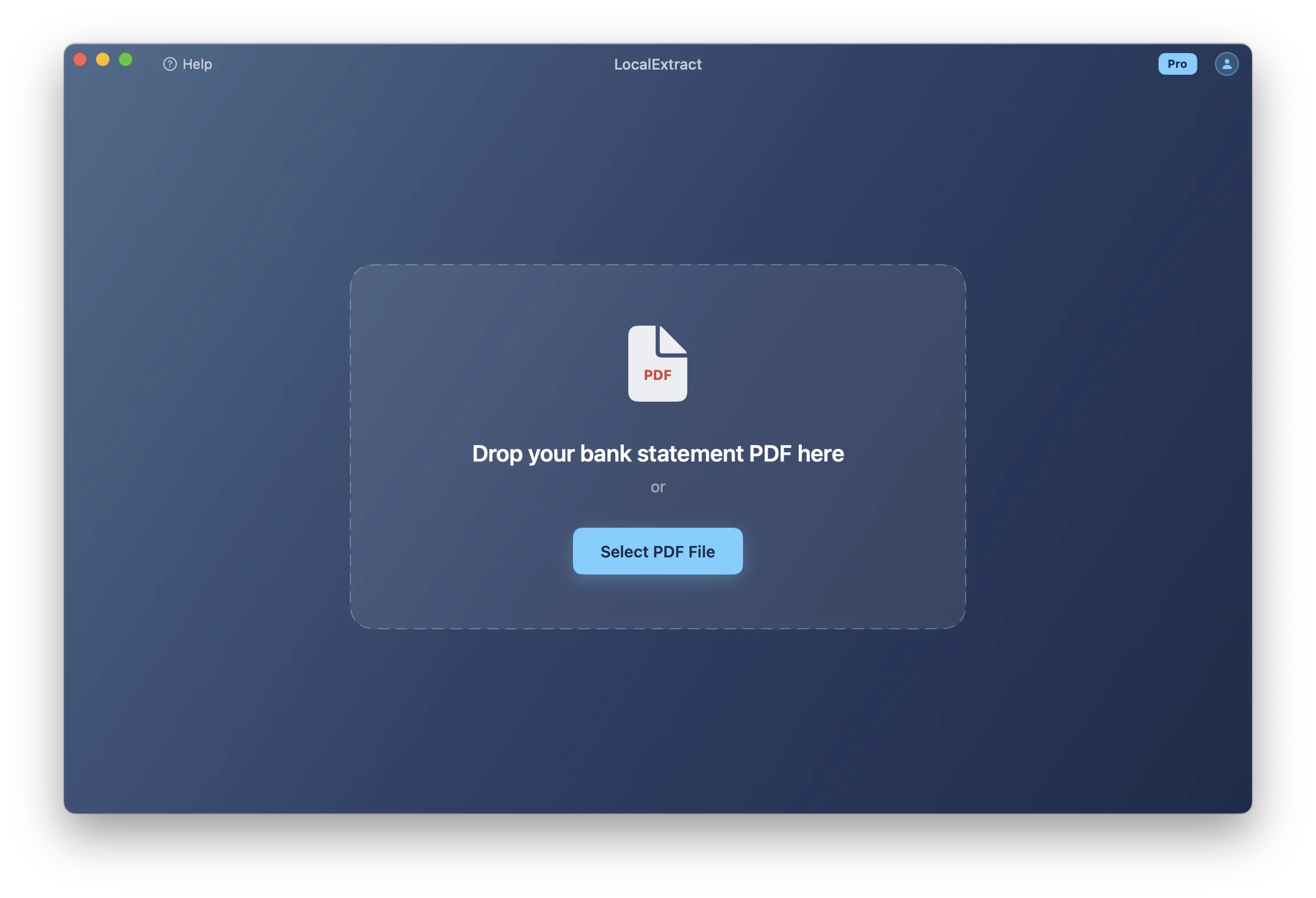
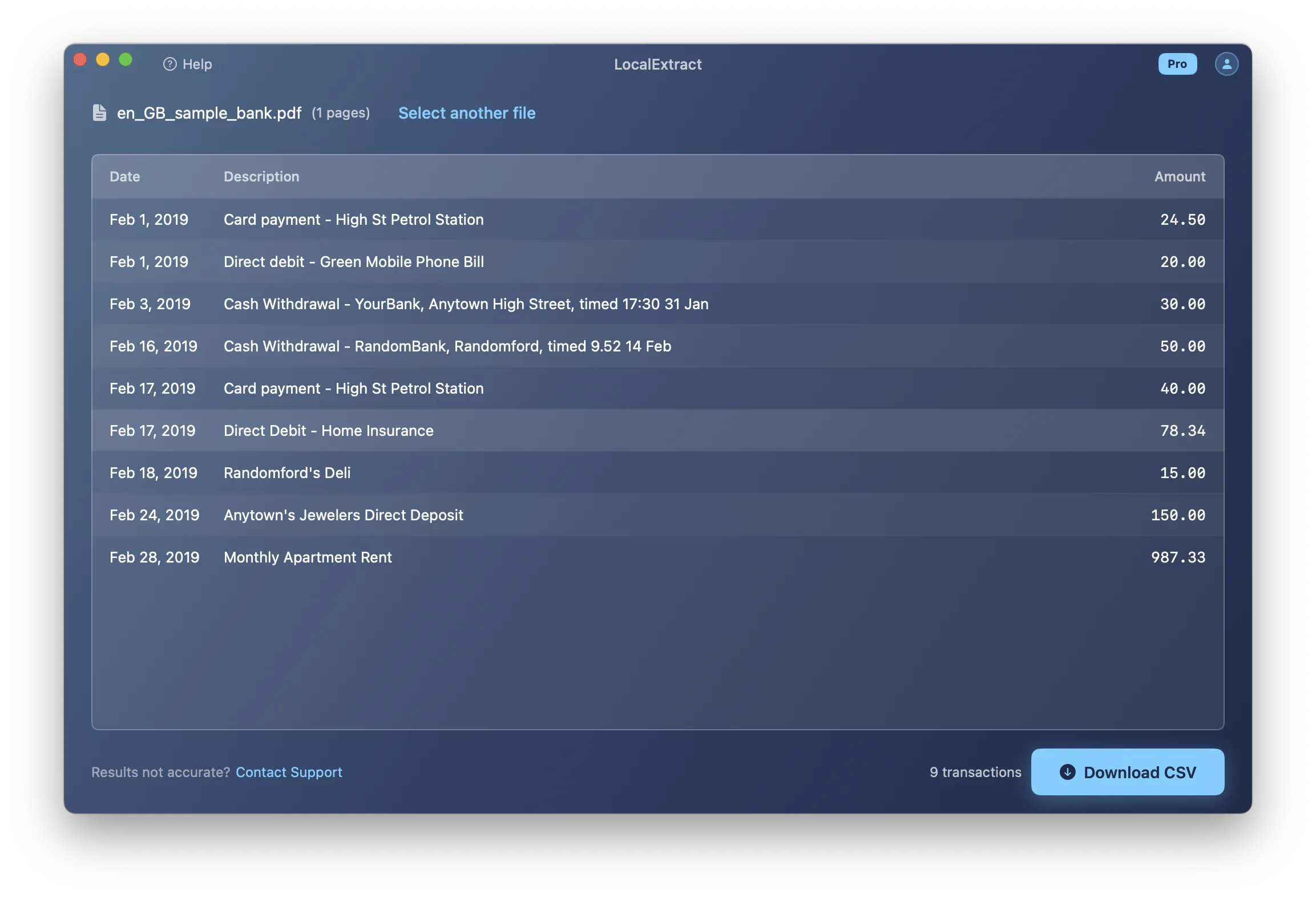
LocalExtract is an on-device bank statement converter for macOS and Windows. It processes PDF bank statements locally and outputs CSV and Excel files formatted for accounting software imports.
Pricing:
- Free tier: 10 pages lifetime. Same engine as Pro — no accuracy difference.
- Pro: $10/month or $60/year. Unlimited pages, batch processing.
What we do well:
- On-device processing — no data uploads, no cloud dependency, no internet required during processing
- Bank statement-specific parsing engine (not generic PDF extraction)
- Built-in OCR for scanned and image-based statements (using PP-OCRv5 running locally via ONNX Runtime)
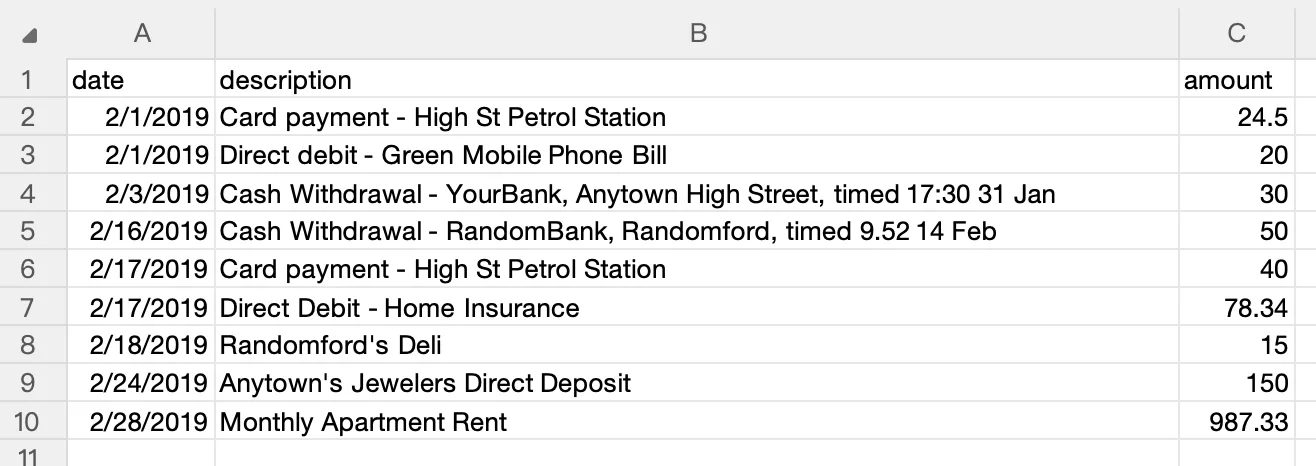
- Accounting-ready CSV output
Performance benchmarks (our own testing):
| Metric | Result | Hardware |
|---|---|---|
| Processing time (text-based PDF, single page) | 4-12ms | Apple M1, 16GB RAM |
| Processing time (scanned PDF, single page, with OCR) | 200-353ms | Apple M1, 16GB RAM |
| Processing time (multi-page, 10 pages, text-based) | 30-80ms | Apple M1, 16GB RAM |
These benchmarks are from our own internal testing on the hardware specified. Your results will vary based on hardware, PDF complexity, and statement format. We did not benchmark competitor products under controlled conditions, so we cannot make direct speed comparisons.
Limitations
We want to be straightforward about what LocalExtract does not do:
- No QBO or OFX output. We output CSV and Excel. If your workflow requires QBO format (for example, for cleaner QuickBooks Desktop imports), tools like MoneyThumb support that format.
- No API or programmatic access. LocalExtract is a desktop application. If you need to integrate statement conversion into an automated pipeline, a cloud API or a Python library like pdfplumber may be a better fit.
- Not every bank format is supported. We continuously expand format coverage, but we do not claim universal support. If your bank's statement layout is unusual, the free tier lets you test before committing.
- macOS and Windows only. No Linux version is currently available. For Linux users, Tabula or pdfplumber are solid alternatives.
- Free tier is limited. 10 pages lifetime is enough to evaluate the tool but not enough for ongoing use. If you need ongoing free conversion, Tabula or bank CSV downloads are better options.
FAQ
Is there a completely free bank statement converter with no limits? Yes — several. Tabula is free and open-source with no usage caps. Python libraries like pdfplumber and Camelot are also free with no limits. The trade-off is setup time and technical skill, not money. For non-technical users, manual copy-paste and bank CSV downloads are also genuinely free with no restrictions.
Are free bank statement converters accurate enough for bookkeeping? It depends on the tool and the statement. Tabula is highly accurate on statements with clear, bordered tables. It struggles with borderless layouts and scanned documents. Manual copy-paste is as accurate as you are — which means it is error-prone at scale. Bank CSV downloads from your bank are typically the most accurate option since they come directly from the source system. For complex or scanned statements, purpose-built tools (free or paid) generally outperform generic options.
Do free converters work with scanned bank statements? Most do not. Tabula, pdfplumber, and Camelot all require text-based PDFs — they cannot process scanned images. For scanned statements, you need a tool with built-in OCR. Some paid converters include OCR; alternatively, you can run the scanned PDF through a free OCR tool like Tesseract first, then use a table extractor on the OCR output. This two-step workflow works but adds complexity.
Is it safe to upload bank statements to online converters? "Safe" depends on your risk tolerance and obligations. Cloud converters transmit your file — including account numbers, balances, and transaction histories — to a third-party server. Reputable services use encryption in transit and at rest, but the data still exists on infrastructure you do not control. For personal use, many people consider this acceptable. For professionals handling client data under the FTC Safeguards Rule, it creates compliance questions worth discussing with qualified counsel. On-device tools and manual methods avoid this issue entirely.
When should I upgrade from a free tool to a paid one? The clearest signal is when the free tool is costing you more in time than the paid tool costs in money. If you spend 30 minutes per statement doing manual cleanup, and you process 4 statements per month, that is 2 hours. A $10/month tool that reduces each conversion to 2 minutes saves you nearly all of that time. Other signals: you are encountering bank formats your free tool cannot handle, you are processing scanned documents that need OCR, or you need consistent output formatting for accounting software imports.
Can I use Python tools like pdfplumber without programming experience? Realistically, no. pdfplumber and Camelot are Python libraries that require writing code. If you do not have Python experience, the learning curve is significant — not because the libraries are poorly designed, but because you need to understand Python basics, virtual environments, and the library's API. For non-technical users, Tabula (which has a visual interface) or a bank CSV download are better free options.
What is the difference between a bank statement converter and a generic PDF-to-Excel tool? A bank statement converter is purpose-built to understand bank statement layouts — it knows how to identify transaction tables, parse dates and amounts, separate debits from credits, and produce accounting-ready output. A generic PDF-to-Excel tool treats every PDF the same — it extracts whatever table-like structures it finds without understanding what the data represents. The practical difference is accuracy and cleanup time. Bank statement converters typically produce clean, import-ready files. Generic converters typically require manual post-processing.
Does LocalExtract work offline? Yes. LocalExtract processes files entirely on your device with no internet connection required during processing. The parsing engine, including the OCR model, runs locally. The only network activity is license validation, which happens periodically — not during file processing.
Conclusion
There is no universal answer to the free-vs-paid question — the right choice depends on your volume, the complexity of the statements you handle, and how much your time is worth. For occasional, simple conversions, free tools like Tabula, bank CSV downloads, or even manual copy-paste are genuinely sufficient. Once you find yourself processing statements regularly, dealing with scanned documents, or spending more time on cleanup than on actual bookkeeping, a purpose-built paid converter will likely save you more in time than it costs in money. Start with the free options, measure the time you spend, and upgrade only when the math makes sense for your workflow.
Disclosure: This article is published by the LocalExtract team. LocalExtract converts bank statement PDFs to CSV and Excel entirely on your device — no uploads, no cloud processing, no third-party access. We covered free alternatives fairly, including tools we do not compete with, because the right tool depends on your workflow, not ours. Download free for Mac or Windows.

LocalExtract Team
We build LocalExtract, an on-device bank statement converter for macOS and Windows. Our team includes software engineers and financial workflows specialists focused on private, accurate PDF data extraction. Questions or corrections? Contact us or see our editorial policy.
Related Articles
Ready to convert your bank statements?
100% on-device. Your documents never leave your computer.
By downloading, you agree to our Terms and Privacy Policy.