
Bank Statement CSV Format: What Your Accounting Software Expects
Key Takeaways
- Every major accounting platform accepts CSV bank statement imports, but each expects different column headers, column order, and date formats. There is no universal CSV standard.
- QuickBooks Online requires Date / Description / Amount. Xero requires Date / Amount at minimum but supports six columns. Sage, FreshBooks, and Wave each have their own layouts.
- The three most common import failures are date format mismatches (MM/DD/YYYY vs DD/MM/YYYY), currency symbols or thousands separators left in amount fields, and incorrect file encoding (ANSI instead of UTF-8).
- You can transform a CSV between formats using Excel find-and-replace, a simple Python script, or a converter tool that outputs accounting-software-ready files.
Disclosure: This article is published by the LocalExtract team. LocalExtract is an on-device bank statement converter that processes files entirely on your computer. We have a commercial interest in this topic, and we believe that makes our analysis more practical, not less. All format specifications are based on our own testing against each platform's import feature. We cover all major accounting platforms, including those we do not specifically integrate with.
This guide is for bookkeepers, accountants, and finance teams who regularly import bank statement data into accounting software. If you work with bank statements, you have encountered this problem: the CSV that imports perfectly into QuickBooks gets rejected by Xero. The file that Xero accepts has the wrong date format for Sage.
There is no single "bank statement CSV format." Each accounting platform defines its own column structure, date convention, and number formatting rules. This guide documents the exact CSV format each major platform expects, covers the formatting pitfalls that cause import failures, and shows how to transform a CSV from one format to another. If you need to convert a PDF bank statement to CSV first, see our step-by-step PDF to CSV conversion guide.
Contents
- Why There Is No Universal Bank Statement CSV Format
- CSV Format Requirements by Software
- Common Formatting Issues That Break Imports
- How to Transform CSVs Between Formats
- Getting a Properly Formatted CSV from a PDF
- LocalExtract: Capabilities and Limitations
- FAQ
Why There Is No Universal Bank Statement CSV Format
CSV stands for Comma-Separated Values. RFC 4180 defines the basic syntax — fields separated by commas, rows separated by line breaks — but it says nothing about what the columns should contain or how dates and numbers should be formatted.
Each accounting platform fills in those details differently. QuickBooks Online wants three columns. Xero supports six. Sage Business Cloud expects separate debit and credit columns. The result is that a "correct" CSV depends entirely on the destination software. A file with valid syntax can still fail to import because the columns are in the wrong order or the dates use the wrong convention.
For bookkeepers, this means you need to know your target software's exact requirements before formatting, and you may need different CSV templates for clients on different platforms.
CSV Format Requirements by Software
Below is the exact CSV format each major accounting platform expects for bank statement imports. All examples use sample transaction data so you can see the precise formatting in context.
QuickBooks Online
QuickBooks Online expects exactly three columns in this order:
Date,Description,Amount
03/15/2026,Direct Deposit - Payroll,2500.00
03/16/2026,Check #1042,-150.00
03/17/2026,"Amazon.com, Inc.",-49.99
03/18/2026,ATM Withdrawal,-200.00
Rules:
- Date format: MM/DD/YYYY
- Amount: positive = credit (money in), negative = debit (money out)
- No currency symbols, no thousands separators
- Header row is optional but recommended (QuickBooks auto-maps
Date,Description,Amount) - Fields containing commas must be wrapped in double quotes
For a complete import walkthrough, see our guide on importing bank statements into QuickBooks. You can also refer to Intuit's official CSV import documentation for the latest supported column mappings.
QuickBooks Desktop
QuickBooks Desktop supports the same three-column format as QuickBooks Online, plus an alternative four-column format with separate debit and credit columns:
Date,Description,Debit,Credit
03/15/2026,Direct Deposit - Payroll,,2500.00
03/16/2026,Check #1042,150.00,
03/17/2026,"Amazon.com, Inc.",49.99,
03/18/2026,ATM Withdrawal,200.00,
Rules:
- Date format: MM/DD/YYYY
- Each row has either a Debit value or a Credit value, never both — leave the other column empty
- All amounts are positive (the column position indicates direction)
- No currency symbols, no thousands separators
The four-column debit/credit format is often more intuitive for accountants who think in terms of debits and credits. If your bank statement PDF already separates withdrawals and deposits into different columns — which most do — this format requires less transformation than converting everything to signed amounts.
Xero
Xero supports up to six columns, but only Date and Amount are required:
Date,Amount,Payee,Description,Reference,Cheque Number
15/03/2026,2500.00,Employer Inc,Direct Deposit - Payroll,REF001,
16/03/2026,-150.00,,Check #1042,,1042
17/03/2026,-49.99,Amazon,"Amazon.com, Inc.",ORD-12345,
18/03/2026,-200.00,,ATM Withdrawal,,
Rules:
- Date format: depends on your Xero organisation's regional settings. DD/MM/YYYY for UK, Australia, and New Zealand. MM/DD/YYYY for US organisations.
- Amount: positive = credit, negative = debit
- No currency symbols, no thousands separators
- Header row is required — Xero uses it for column mapping
- Optional columns (Payee, Description, Reference, Cheque Number) can be left empty but the headers should still be present if you include those columns
For the full Xero import process, see our guide on importing bank statements into Xero. Xero's official help center also documents their CSV file format requirements.
The date format mismatch between US and non-US Xero organisations is the single most common import failure. If your Xero organisation is set to a US locale, use MM/DD/YYYY. If it is set to a UK, Australian, or New Zealand locale, use DD/MM/YYYY. Check your organisation's regional settings under Settings > General Settings > Organisation Details before importing.
Sage 50 (Desktop)
Sage 50 uses a structured CSV format with specific column headers:
Date,Reference,Description,Amount
03/15/2026,DEP001,Direct Deposit - Payroll,2500.00
03/16/2026,CHK1042,Check #1042,-150.00
03/17/2026,PUR001,"Amazon.com, Inc.",-49.99
03/18/2026,ATM001,ATM Withdrawal,-200.00
Rules:
- Date format: MM/DD/YYYY (US version) or DD/MM/YYYY (UK version) — matches your Sage regional settings
- Amount: positive = credit, negative = debit
- Reference field is optional but useful for matching during reconciliation
- No currency symbols, no thousands separators
- Header row is recommended
For a walkthrough of the Sage 50 import process, see our Sage bank statement import guide. Sage also provides official guidance on importing bank transactions for their cloud product.
Sage Business Cloud (Online)
Sage Business Cloud accepts a slightly different format:
Date,Details,Paid Out,Received
15/03/2026,Direct Deposit - Payroll,,2500.00
16/03/2026,Check #1042,150.00,
17/03/2026,"Amazon.com, Inc.",49.99,
18/03/2026,ATM Withdrawal,200.00,
Rules:
- Date format: typically DD/MM/YYYY (check your organisation settings)
- Separate columns for money in (Received) and money out (Paid Out)
- All amounts are positive
- Header row is required
FreshBooks
FreshBooks supports CSV import for expenses and bank transactions:
Date,Description,Amount,Currency
03/15/2026,Direct Deposit - Payroll,2500.00,USD
03/16/2026,Check #1042,-150.00,USD
03/17/2026,"Amazon.com, Inc.",-49.99,USD
03/18/2026,ATM Withdrawal,-200.00,USD
Rules:
- Date format: YYYY-MM-DD or MM/DD/YYYY (FreshBooks accepts both)
- Amount: positive = income, negative = expense
- Currency column is optional — defaults to your account's base currency if omitted
- No currency symbols in the Amount column
- Header row is required
Wave
Wave's CSV import expects this structure:
Date,Description,Amount
2026-03-15,Direct Deposit - Payroll,2500.00
2026-03-16,Check #1042,-150.00
2026-03-17,"Amazon.com, Inc.",-49.99
2026-03-18,ATM Withdrawal,-200.00
Rules:
- Date format: YYYY-MM-DD (ISO 8601) or MM/DD/YYYY
- Amount: positive = deposit, negative = withdrawal
- No currency symbols, no thousands separators
- Header row is required
- Wave also accepts OFX and QFX files
Side-by-Side Comparison
| Feature | QBO | QB Desktop | Xero | Sage 50 | Sage Cloud | FreshBooks | Wave |
|---|---|---|---|---|---|---|---|
| Required columns | 3 | 3 or 4 | 2-6 | 3-4 | 4 | 3-4 | 3 |
| Date format | MM/DD/YYYY | MM/DD/YYYY | Regional | Regional | Regional | YYYY-MM-DD or MM/DD/YYYY | YYYY-MM-DD or MM/DD/YYYY |
| Amount style | Signed | Signed or split | Signed | Signed | Split | Signed | Signed |
| Header required | No | No | Yes | Recommended | Yes | Yes | Yes |
| Encoding | UTF-8 | UTF-8 or ANSI | UTF-8 | System default | UTF-8 | UTF-8 | UTF-8 |
"Signed" means a single Amount column with positive/negative values. "Split" means separate Debit/Credit (or Paid Out/Received) columns.
Common Formatting Issues That Break Imports
Regardless of which accounting software you use, the same formatting problems cause the majority of import failures. Here is what to watch for.
Date Format Mismatches
This is the most frequent cause of rejected imports. The value 03/07/2026 is ambiguous — it could mean March 7 or July 3. If your bank statement uses DD/MM/YYYY and your software expects MM/DD/YYYY, the import either fails or (worse) silently swaps months and days.
How to fix it: Verify three things before importing: (1) what date format your bank statement uses, (2) what format your software expects, and (3) that every date in the CSV matches. Pay special attention to dates in the first twelve days of the month, where MM and DD values are interchangeable.
Number Formatting
Bank statements from different countries use different conventions for numbers:
| Convention | Example | Used in |
|---|---|---|
| Period decimal, comma thousands | 1,250.00 | US, UK, Australia |
| Comma decimal, period thousands | 1.250,00 | Germany, France, Brazil |
| Space thousands | 1 250.00 | Canada (French), South Africa |
All major US accounting platforms expect the US convention: period as decimal separator, no thousands separator in the CSV. This means you need to:
- Remove currency symbols —
$2,500.00becomes2500.00 - Remove thousands separators —
1,250.00becomes1250.00 - Use period as decimal — if your source data uses comma decimals, swap them
- Handle parenthetical negatives — some bank statements use
(150.00)instead of-150.00for debits
The thousands separator issue is particularly tricky because commas are also the CSV field delimiter. A value like 1,250.00 without quotes will be split into two fields: 1 and 250.00. Either remove thousands separators or ensure values with commas are wrapped in double quotes. Removing the separators is the safer approach since some accounting platforms ignore quotes in amount fields.
File Encoding
Most accounting platforms expect UTF-8 encoding. If you see garbled characters (like é instead of e) after import, the file was saved in ANSI or Windows-1252 encoding instead.
How to fix it: Open the file in a text editor that shows encoding (VS Code, Notepad++, Sublime Text). If the status bar says ANSI or Windows-1252, re-save as UTF-8. In Notepad++: Encoding > Convert to UTF-8. In VS Code: click the encoding label and select "Save with Encoding > UTF-8."
Excel on Windows sometimes saves CSV files in ANSI encoding by default, even if the source data was UTF-8. If you use Excel to edit a CSV before importing into accounting software, explicitly choose "CSV UTF-8 (Comma delimited)" from the Save As file type dropdown — not just "CSV (Comma delimited)."
Line Endings
Windows uses CR+LF (\r\n), macOS/Linux uses LF (\n). Most modern accounting software handles both, but some older versions of Sage 50 and QuickBooks Desktop have issues with mixed line endings. If you edit a CSV on macOS and import on Windows, verify consistency.
Extra Rows and Metadata
Bank statement PDFs often contain non-transaction data: account numbers, statement periods, page headers, summary totals. If this metadata ends up in your CSV, the accounting software will try to parse it as a transaction and fail. A clean CSV should contain only one optional header row and transaction rows — no blank rows, no summaries, no page footers.
How to Transform CSVs Between Formats
If you have a CSV that works in one accounting platform but need to import it into another, you have several options.
Method 1: Excel (Manual)
For one-off conversions, open the CSV using Excel's Text Import Wizard (File > Open, select CSV, choose "Delimited" and "Comma") — do not double-click, which triggers auto-formatting. Then rearrange columns, reformat dates using Format Cells > Custom, and if needed split signed amounts into debit/credit using =IF(C2<0, -C2, "") and =IF(C2>0, C2, ""). Rename headers to match the target software and Save As > CSV UTF-8.
When converting between signed-amount and split-debit/credit formats, double-check that you handle zero-value transactions correctly. Some bank statements include $0.00 entries for fee waivers or reversed charges. Decide whether these should appear in the Debit column, the Credit column, or be excluded.
Method 2: Python (Batch or Repeating Workflows)
For recurring conversions — say you process statements monthly for multiple clients — a short Python script with pandas is more reliable and much faster than manual Excel work:
import pandas as pd

# Read the source CSV (e.g., QuickBooks format)
df = pd.read_csv("statement_qbo.csv")

# Convert date format from MM/DD/YYYY to YYYY-MM-DD (for Wave/FreshBooks)
df["Date"] = pd.to_datetime(df["Date"], format="%m/%d/%Y").dt.strftime("%Y-%m-%d")

# Split signed Amount into Debit/Credit (for Sage Business Cloud)
df["Paid Out"] = df["Amount"].apply(lambda x: abs(x) if x < 0 else "")
df["Received"] = df["Amount"].apply(lambda x: x if x > 0 else "")

# Rename columns for Sage Business Cloud
df_sage = df[["Date", "Description", "Paid Out", "Received"]]
df_sage.columns = ["Date", "Details", "Paid Out", "Received"]

# Save
df_sage.to_csv("statement_sage.csv", index=False, encoding="utf-8")
This approach is reproducible — save the script, run it again next month. It also eliminates the manual formatting errors that accumulate with Excel-based workflows.
Method 3: Use a Converter That Outputs the Right Format
Some PDF-to-CSV converters can output CSV files pre-formatted for specific accounting platforms. This eliminates the transformation step entirely.
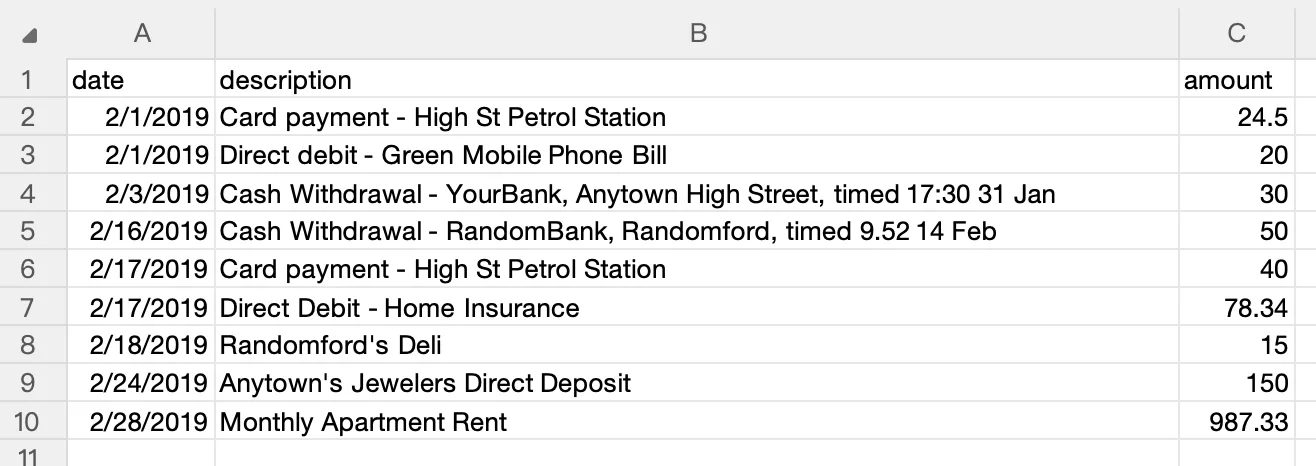
LocalExtract outputs CSV files with clean formatting: no currency symbols, no thousands separators, properly quoted fields, and UTF-8 encoding. The column structure (Date, Description, Amount) aligns with QuickBooks Online's expected format and can be used directly or transformed for other platforms with minimal adjustment.
Getting a Properly Formatted CSV from a PDF
The formatting challenges above are amplified when the CSV originates from a bank statement PDF. PDF stores text by position on a page, not in rows and columns, so extracting tabular data always requires interpretation.
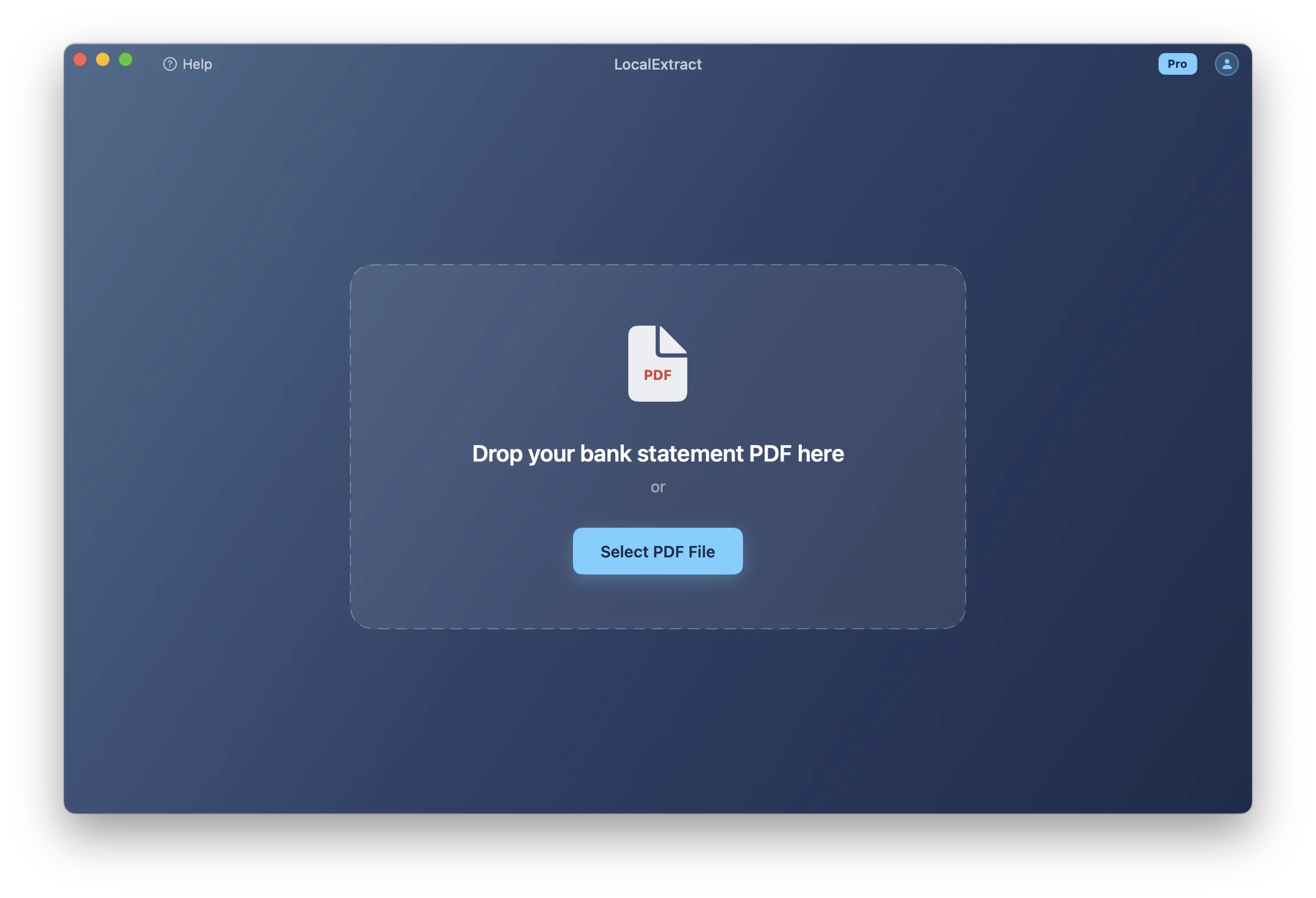
Manual copy-paste typically produces the messiest output — merged columns, lost decimal alignment, and multi-page tables requiring separate passes. Cloud-based converters produce cleaner results but require uploading bank statements (account numbers, balances, transaction details) to third-party servers, which creates compliance considerations under the FTC Safeguards Rule. On-device converters process the PDF locally with no data leaving your computer. LocalExtract is one example — it runs on macOS and Windows, handles both text-based and scanned (OCR) PDFs, and outputs CSV files with clean formatting.
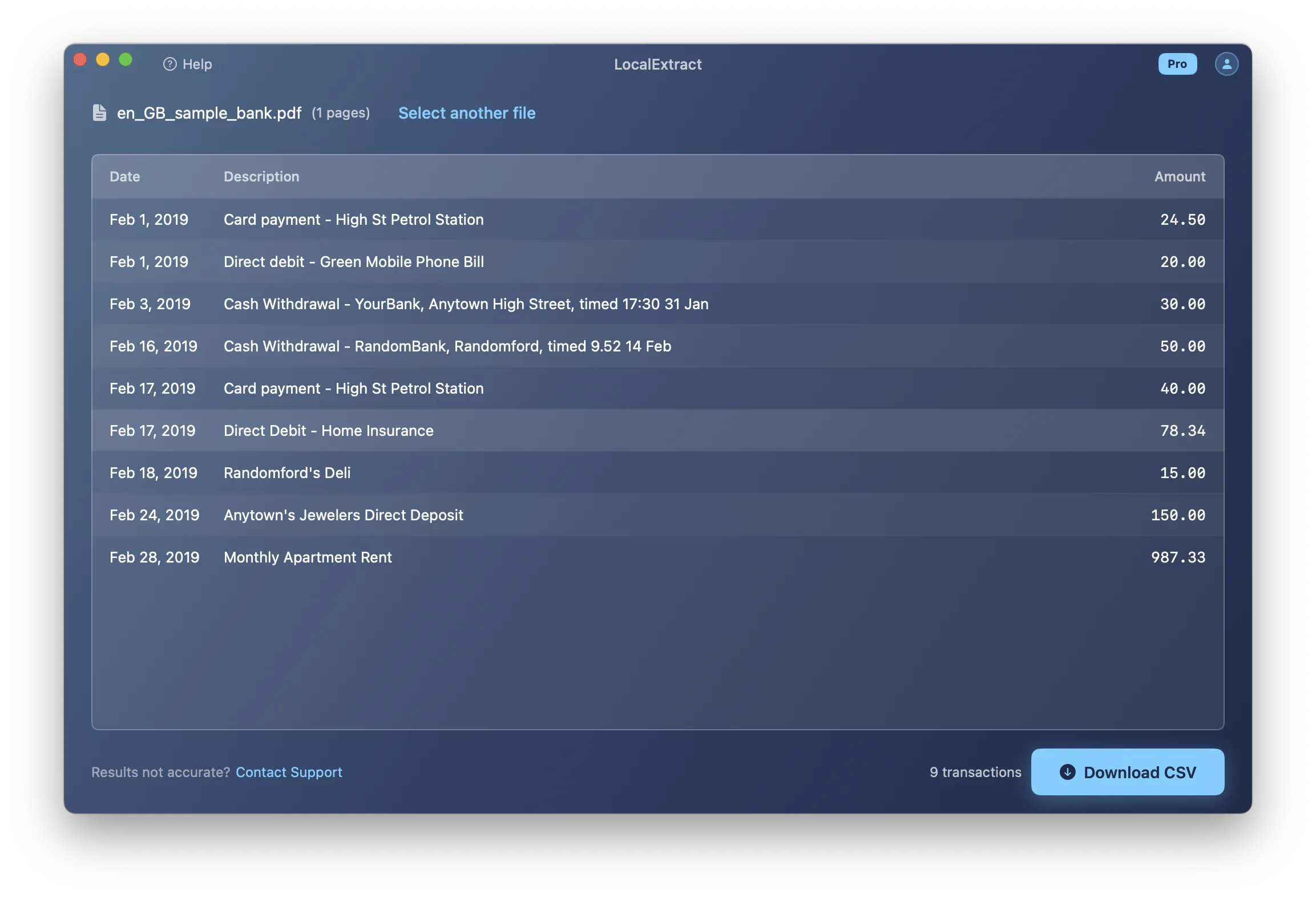
LocalExtract: Capabilities and Limitations
LocalExtract converts bank statement PDFs to CSV and JSON entirely on your device. Here is what it does and does not do.
Capabilities:
- Processes text-based and scanned (OCR) bank statement PDFs
- Outputs CSV with clean number formatting (no currency symbols, no thousands separators, UTF-8 encoding)
- Handles multi-page statements as a single output file
- Runs on macOS and Windows with no internet connection required during processing
- Free tier: 10 pages (lifetime). Pro plan: $10/month or $60/year for unlimited pages and batch processing.
Limitations:
- CSV output uses a single-amount column format (Date, Description, Amount). If your target software requires split debit/credit columns (like Sage Business Cloud), you will need to transform the CSV after export — using Excel or a script as described above.
- Does not output QBO, OFX, QIF, or IIF formats. If your workflow specifically requires one of these formats, you will need a different tool or an additional conversion step.
- Does not integrate directly with any accounting platform. It produces a file; you import that file manually.
- OCR accuracy depends on scan quality. Low-resolution or skewed scans may produce errors that require manual correction.
- Does not auto-detect the target accounting software or auto-format for a specific platform. The output format is consistent; adjustments for specific platforms are the user's responsibility.
Conclusion
Getting bank statement CSVs to import cleanly comes down to knowing your target software's exact requirements: the right column headers, the right date format, and clean number formatting with no currency symbols or thousands separators. There is no universal CSV format that works everywhere, so bookmark the comparison table above for quick reference when switching between platforms. If you are starting from a PDF bank statement, converting to a clean CSV first eliminates most formatting headaches downstream. For platform-specific import walkthroughs, see our guides for QuickBooks, Xero, and Sage.
FAQ
Do all accounting platforms accept CSV for bank statement imports? Yes. QuickBooks (Online and Desktop), Xero, Sage 50, Sage Business Cloud, FreshBooks, and Wave all support CSV imports. However, each expects a different structure — different column headers, column order, and date formats. A CSV formatted for one platform will not necessarily work in another without modification.
What is the safest date format to use across multiple platforms? There is no single date format accepted by all platforms without configuration. MM/DD/YYYY works for QuickBooks (both versions) and US-locale Xero and Sage installations. YYYY-MM-DD (ISO 8601) works for FreshBooks and Wave and is unambiguous, but QuickBooks does not accept it. If you serve clients on different platforms, you will need to maintain different date formats — there is no shortcut around this.
Should I use a single Amount column or separate Debit/Credit columns? It depends on the target software. QuickBooks Online, Xero, FreshBooks, and Wave use a single signed Amount column (positive for deposits, negative for withdrawals). QuickBooks Desktop and Sage Business Cloud support or require separate Debit and Credit columns with positive values only. If you are unsure, start with the signed-amount format — it is more widely supported and easier to convert to split columns than the reverse.
Why does my CSV look correct in Excel but fail to import? Excel applies its own formatting to CSV data. It may silently reformat dates (changing the order of month and day), strip leading zeros from reference numbers, convert long numbers to scientific notation, or change the file encoding on save. The accounting software reads the raw file, not Excel's visual interpretation. Always verify your CSV in a plain text editor (Notepad, TextEdit, VS Code) before importing — what you see there is what the accounting software will see.
How do I handle bank statements with multiple accounts in one PDF? If your converter outputs a single CSV with multiple accounts mixed together, split the file before importing — each platform expects transactions for one account per import. Sort by account, separate into individual CSV files, and import each into the corresponding account.
Can I automate the CSV format conversion for recurring imports? Yes. A Python script using pandas (as shown in the transformation section above) is the most efficient approach for recurring conversions. Write one script per target format, run it each month, and the output is ready for import without manual formatting.
What encoding should I use for CSV files? UTF-8 in virtually all cases. It is the default expected by QuickBooks Online, Xero, FreshBooks, and Wave. Sage 50 on Windows can work with ANSI encoding, but UTF-8 is compatible too. When in doubt, use UTF-8.
Does LocalExtract format CSVs specifically for each accounting platform? LocalExtract outputs a consistent CSV format: Date, Description, Amount, with clean number formatting and UTF-8 encoding. This is directly compatible with QuickBooks Online and Wave. For other platforms, you may need to adjust column headers, reorder columns, or convert the date format. See the Limitations section for details.
Disclosure: This article is published by the LocalExtract team. LocalExtract converts bank statement PDFs to CSV and Excel entirely on your device — no uploads, no cloud processing, no third-party access. We documented format requirements for all major accounting platforms, including those we do not specifically target. Download free for Mac or Windows.

LocalExtract Team
We build LocalExtract, an on-device bank statement converter for macOS and Windows. Our team includes software engineers and financial workflows specialists focused on private, accurate PDF data extraction. Questions or corrections? Contact us or see our editorial policy.
Related Articles
Ready to convert your bank statements?
100% on-device. Your documents never leave your computer.
By downloading, you agree to our Terms and Privacy Policy.