
Bank Statement Converter for Small Business Owners
Key Takeaways
- Small businesses often juggle statements from multiple bank accounts, credit cards, and lending relationships — manually entering this data into spreadsheets or accounting software is a significant time drain.
- A bank statement converter extracts transaction data from PDF statements into structured formats like CSV or Excel, ready for import into QuickBooks, Xero, Wave, or a plain spreadsheet.
- Tools range from free open-source options (Tabula, pdfplumber) to cloud services, legacy desktop software, generic PDF tools, and purpose-built on-device converters — each with different trade-offs in cost, accuracy, and data privacy.
- Small businesses handling their own finances should evaluate how each tool handles sensitive financial data, especially when dealing with client or vendor information.
Disclosure: This article is published by the LocalExtract team. LocalExtract is an on-device bank statement converter that processes files entirely on your computer. We have a commercial interest in this topic. We cover alternative tools fairly, including free and open-source options, and we note our own product's limitations. All benchmarks reference only our own product and testing environment.
Running a small business means wearing many hats. One of them — often the least favorite — is bookkeeping. And bookkeeping inevitably involves bank statements.
Whether you are reconciling transactions, preparing for quarterly estimated taxes, or just trying to figure out where the money went last month, you need the transaction data locked inside those PDF bank statements. The problem is that PDFs are designed for reading, not for data extraction. You cannot sort a PDF. You cannot filter it. You cannot import it into QuickBooks or Excel without first pulling the data out.
This guide covers how small business owners can convert bank statement PDFs into usable formats, what tools exist across different categories, and what to watch out for when choosing one. If you are looking for a step-by-step walkthrough, see our guide on how to convert bank statement PDFs to CSV or how to convert them to Excel.
Contents
- Why Small Businesses Need a Bank Statement Converter
- Where Conversion Fits in the Bookkeeping Workflow
- Five Categories of Conversion Tools
- Cloud-Based Converters
- Open-Source Tools: Tabula and pdfplumber
- Legacy Desktop Converters
- Generic PDF Extraction Tools
- On-Device Purpose-Built Converters
- Privacy and Data Handling for Small Businesses
- Choosing the Right Tool for Your Situation
- LocalExtract Limitations
- Looking Ahead: Trends in Bank Statement Processing
- FAQ
Why Small Businesses Need a Bank Statement Converter
Small businesses face a specific set of pain points that make bank statement conversion a workflow necessity rather than a convenience.
Reconciliation across multiple accounts. A typical small business might have a checking account, a savings account, one or two credit cards, and a line of credit. Each generates a monthly statement. The U.S. Small Business Administration recommends separating personal and business finances across dedicated accounts — sound advice that also multiplies the number of statements to reconcile every month.
Quarterly tax preparation. Businesses paying estimated quarterly taxes need to pull three months of transaction data from every account, categorize each transaction, and sum the totals. A converter that outputs CSV or Excel lets you handle categorization with formulas or accounting software in minutes instead of hours of manual entry.
Managing multiple bank relationships. Different banks produce statements in different formats — different column orders, date formats, and terminology. A converter that handles multiple formats normalizes these inconsistencies into a single, standardized output.
Limited IT budget. Most small businesses lack a dedicated IT team. They need tools that are affordable, simple, and do not require complex setup. The ideal converter is one you can install, point at a PDF, and get usable output.
Where Conversion Fits in the Bookkeeping Workflow
The typical small business bookkeeping cycle runs: collect statements, extract transaction data, import into accounting software, categorize, reconcile, and report. The extraction step — getting structured data out of a PDF — is the bottleneck when done manually. A converter automates it.
If your accounting software connects to your bank via direct bank feeds, you may not need a converter for current transactions. Converters become essential when bank feeds are unavailable, unreliable, or when you need to process historical statements that predate your feed connection.
Five Categories of Conversion Tools
Bank statement converters fall into five broad categories, each with distinct strengths and trade-offs. The right choice depends on your volume, budget, technical comfort, and how you feel about uploading financial data to third-party servers.
Cloud-Based Converters
Cloud converters run in your web browser. You upload a PDF, the service processes it on a remote server, and you download the result. Examples include DocuClipper and PDFTables.
The main advantage is convenience — no software to install, broad format support, and features like automatic column detection. The trade-off is that your bank statement, including account numbers, balances, and transaction histories, is uploaded to a third-party server. For a deeper look at the privacy implications, read our comparison of cloud vs. local bank statement converters. Cloud services vary in how long they retain uploaded documents. Review the privacy policy before uploading financial data — for example, DocuClipper publishes theirs at docuclipper.com/privacy-policy and PDFTables at pdftables.com/privacy.
Pricing is typically subscription-based. DocuClipper starts at approximately $20/month; PDFTables offers plans from around $10/month. Verify current pricing on each product's website.
Cloud converters are practical when you need broad format coverage and are comfortable with the service's data handling practices. For small businesses processing only their own statements (not client data), the privacy trade-off may be acceptable.
Open-Source Tools: Tabula and pdfplumber
Tabula is a free, open-source tool with a graphical interface. You open a PDF, draw a box around the transaction table, and export it as CSV. It runs locally — no data is uploaded. The downsides: it requires Java, only works with text-based PDFs (not scanned images), and has no awareness of bank statement structure. You will likely need to clean the output manually, removing headers, subtotals, and page breaks.
pdfplumber is a Python library for extracting tables from PDFs. It is highly customizable and excellent for batch processing once a script is written, but it requires programming knowledge. Like Tabula, it does not handle scanned PDFs without a separate OCR step.
Open-source tools work well if you have some technical skill and deal with a small number of bank formats. Write a pdfplumber script once for your Chase checking account, and it works every month. But maintaining scripts for many different bank formats becomes a development project.
Legacy Desktop Converters
Products like MoneyThumb (PDF2CSV, PDF2QBO) and Bank2CSV are established desktop applications that process files locally. Their key advantage is support for specialized output formats like QBO and OFX, which import more cleanly into QuickBooks than CSV. Some have historically offered one-time purchase pricing rather than subscriptions — appealing for budget-conscious small businesses.
The trade-offs include dated interfaces, variable update frequency when banks change statement formats, and limited documentation. Check each product's website for current pricing, as some have transitioned to subscription models.
Generic PDF Extraction Tools
Generic PDF tools — Adobe Acrobat's export function, Camelot (open-source), and various online PDF-to-Excel converters — extract tables from any PDF, not just bank statements. They are versatile, and Adobe Acrobat is software many small businesses already own.
The weakness is that these tools have no understanding of bank statement structure. The output often requires significant manual cleanup: removing page headers, statement summaries, and promotional content, then reformatting columns. They also handle multi-page tables poorly. Generic tools are reasonable for one-off conversions of simple statements but impractical for regular use.
On-Device Purpose-Built Converters
This category combines local processing with software specifically designed to understand bank statement structure. LocalExtract is one such tool — a desktop application for macOS and Windows that converts bank statement PDFs to CSV and Excel entirely on your device. No internet connection is required, and no data is uploaded.
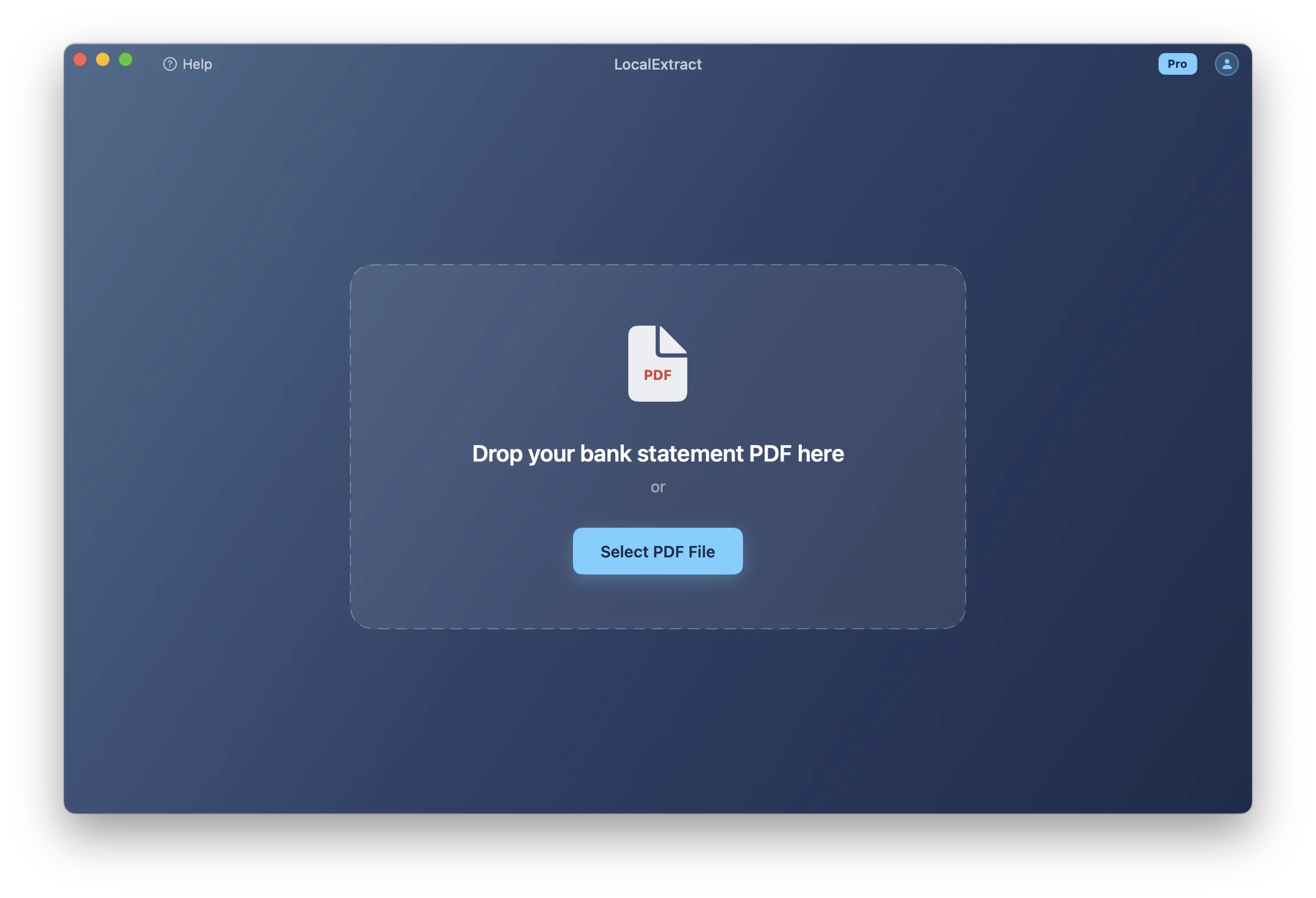
Features relevant to small businesses include multi-page support, automatic parsing of various US bank formats, built-in OCR for scanned statements, and batch processing (Pro tier) for quarterly or year-end work.
Pricing: Free tier includes 10 pages (lifetime). Pro plan is $10/month or $60/year.
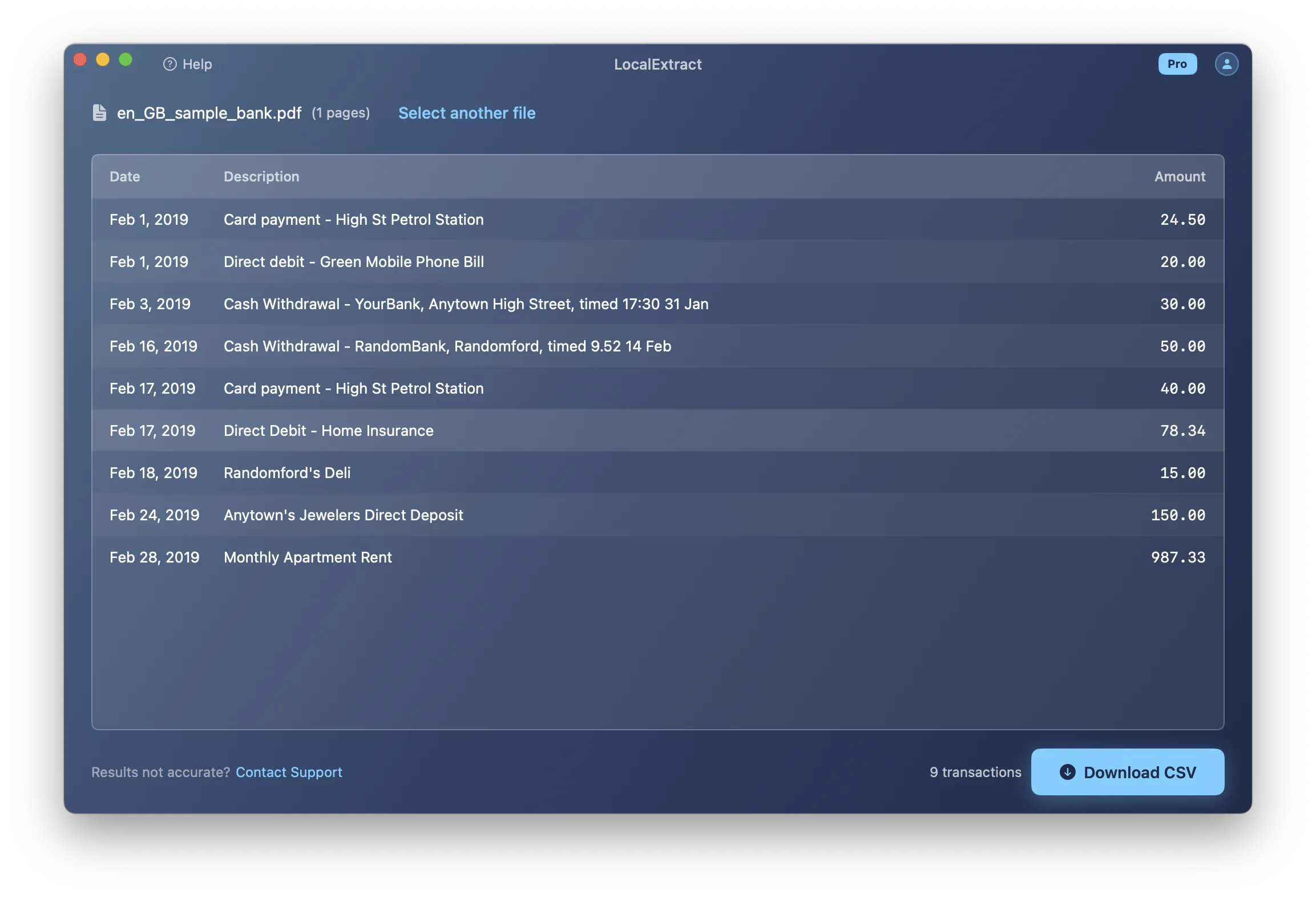
Performance note: On an Apple M1 MacBook Air (8 GB RAM), LocalExtract processes a typical 5-page text-based bank statement in under 3 seconds and a 5-page scanned statement (requiring OCR) in approximately 8-12 seconds. Tested on 15 sample bank statements from 8 different banks, averaging 3 pages each. Each file was processed 3 times to account for variance. These are our own measurements on our own product. We have not tested competitor products under identical conditions, so we do not make comparative speed claims.
Privacy and Data Handling for Small Businesses
Bank statements contain account numbers, routing numbers, full transaction histories, running balances, and payee names that may include employees, vendors, and clients. For a small business, this data is commercially sensitive.
The FTC Safeguards Rule applies to financial institutions and extends to certain businesses that handle customer financial information. If your small business processes financial data for clients — as a bookkeeper, tax preparer, or financial advisor — this rule may apply. State-level regulations like the California Consumer Privacy Act (CCPA) add further requirements around data collection and sharing. Uploading bank statements to cloud services may create disclosure or compliance obligations depending on your jurisdiction.
Questions to ask before choosing a tool
When evaluating any bank statement converter, consider: Where is the file processed — on your device or a remote server? Is the file retained after processing, and for how long? Who can access uploaded files? What happens to the data if the service is acquired or shut down?
On-device tools sidestep most of these questions. If the file never leaves your computer, there is no data transmission, no third-party retention, and no access control issues beyond your own machine's security. For more on why this matters, see why bookkeepers should not upload bank statements to cloud services.
If you process bank statements that contain information about other people — such as a freelancer processing statements that show client payment details, or a property manager handling tenant rent deposits — you have a heightened responsibility to handle that data carefully. Consider whether uploading those statements to a cloud service aligns with your obligations to those third parties.
Choosing the Right Tool for Your Situation
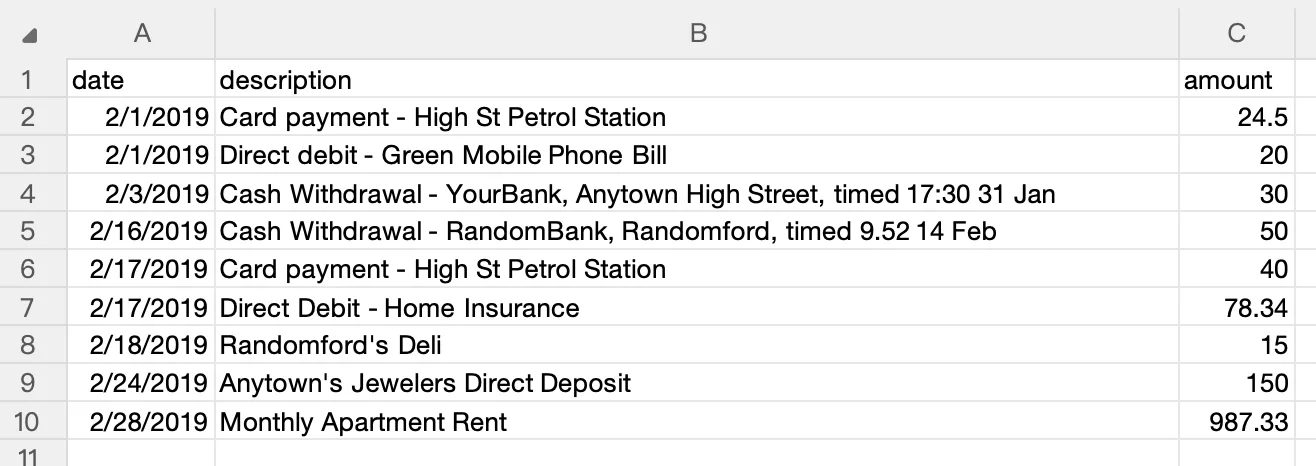
There is no single best tool for every small business. Here is a summary to help match your situation to the right category:
| Situation | Recommended Approach |
|---|---|
| Occasional use, simple statements | Free tools — Tabula or manual copy-paste |
| Regular monthly processing, limited budget | LocalExtract free tier (10 pages) or Tabula if technically comfortable |
| Multiple banks, quarterly tax prep | Purpose-built converter with broad format support |
| Processing client financial data | On-device processing to simplify compliance |
| Scanned or image-based statements | A tool with built-in OCR (cloud converters, LocalExtract) |
| Need QBO/OFX output | MoneyThumb or a cloud service supporting those formats |
| Tool Category | Typical Cost |
|---|---|
| Open-source (Tabula, pdfplumber) | Free |
| Generic PDF tools | Free to ~$15/month |
| On-device purpose-built (LocalExtract) | Free (10 pages) or $10/month / $60/year |
| Legacy desktop (MoneyThumb, Bank2CSV) | Varies — check websites |
| Cloud converters | $10-$50+/month |
Pricing reflects publicly available information as of March 2026. Verify on each product's website.
LocalExtract Limitations
We believe in being transparent about what our product does not do:
- Output formats are limited to CSV and Excel. No QBO, OFX, or IIF support. If your workflow requires those formats, MoneyThumb may be a better fit.
- No direct accounting software integration. You import the output files manually — there is no one-click sync with QuickBooks, Xero, or Wave. See our guide on importing bank statements into QuickBooks for a manual workflow.
- Bank format coverage is not exhaustive. We support many US banks and credit unions but cannot guarantee support for every institution or layout variation. International banks and heavily customized business statements may not parse correctly.
- OCR accuracy depends on scan quality. Low-resolution, skewed, or faded scans may produce errors requiring manual review.
- Free tier is limited. Ten pages lifetime is enough to evaluate the product, not for ongoing use. Regular users need the Pro plan ($10/month or $60/year).
- Desktop only. No iOS, Android, or web-based version.
Looking Ahead: Trends in Bank Statement Processing
The bank statement conversion landscape is shifting in several directions that small business owners should watch.
Open banking APIs are gradually reducing the need for PDF conversion in some scenarios. As more banks adopt standardized data-sharing protocols — accelerated by regulations like the CFPB's Section 1033 rulemaking in the US — accounting software may be able to pull transaction data directly from banks without intermediary files. However, open banking adoption is uneven, and PDF statements will remain the primary data format for historical records, smaller institutions, and cross-border banking relationships for years to come.
On-device AI models are making local processing more capable. Advances in lightweight OCR and document understanding models — many running via ONNX Runtime or Apple's Core ML — mean that desktop applications can now match or exceed cloud accuracy for structured documents like bank statements, without requiring an internet connection. This trend favors privacy-first tools that process everything on the user's machine.
Regulatory momentum around financial data privacy continues to grow. The FTC's updated Safeguards Rule, state-level privacy laws expanding beyond California, and increasing scrutiny of third-party data sharing all point toward a future where how you handle financial documents matters as much as what you extract from them. Small businesses that adopt privacy-conscious workflows now will be better positioned as these requirements tighten.
Bank statements are a fact of small business life, and extracting usable data from PDFs does not have to be a manual chore. Whether you choose a free open-source tool, a cloud service, or an on-device converter, the key is finding a workflow that fits your volume, budget, and comfort level with how your financial data is handled. Start by identifying your biggest pain point — is it the number of statements, the variety of bank formats, or the sensitivity of the data? — and pick the tool category that addresses it. If you want to try on-device conversion, LocalExtract's free tier lets you process 10 pages to see if it fits your workflow before committing.
FAQ
What is the easiest way for a small business to convert a bank statement PDF to Excel? For a one-time conversion of a short statement, copying and pasting from the PDF into a spreadsheet may be fastest. For regular use, a dedicated converter saves significant time. Tools like LocalExtract, DocuClipper, and Tabula can all produce output that opens directly in Excel.
Do I need a bank statement converter if I use QuickBooks or Xero? If your accounts are connected via direct bank feeds, you may not need a converter for current transactions. Converters become valuable when bank feeds are unavailable (some smaller banks and credit unions do not support them), when you need to process historical statements, or when feed connections break and you need to fill gaps.
Is it safe to upload bank statements to a cloud converter? That depends on the service's security practices and data retention policies. Review the privacy policy to understand how uploaded files are handled and how long they are retained. For small businesses that prefer not to send financial data to third-party servers, on-device converters process files locally without any data transmission.
How do I handle statements from multiple banks with different formats? Commercial converters — both cloud-based and on-device — are designed to handle multiple bank formats automatically. Open-source tools like Tabula require manual table selection for each format, and pdfplumber requires a separate script for each layout. If you deal with many different banks, a tool with broad built-in format support will save the most time.
Can a converter handle my credit card statements too? Many bank statement converters also support credit card statements, since the underlying format is similar. Credit card statements often have additional complexity — multiple transaction types, foreign currency entries, and reward summaries mixed in with financial data. Check whether your specific format is supported before committing to a tool.
What should I do if the converter makes errors? Always review the converted output against the original PDF before importing into accounting software. A good practice is to verify that the transaction count matches the original statement and that the sum of amounts matches the change between opening and closing balance.
How much time does a bank statement converter actually save? Manual data entry for a typical single-page statement with 20-30 transactions takes 15-30 minutes. A converter handles the same page in seconds. For a small business processing 5-10 statements per month, that is roughly 2-5 hours of manual work reduced to minutes of conversion plus review time.
Can I use a bank statement converter for tax deduction tracking? A converter gives you raw transaction data in a structured format that you can filter and categorize — office supplies, travel, utilities, contractor payments — to identify deductible expenses. The converter does not categorize transactions itself (that is what accounting software does), but it eliminates the data entry bottleneck that prevents many small business owners from tracking deductions systematically.
Disclosure: This article is published by the LocalExtract team. LocalExtract converts bank statement PDFs to CSV and Excel entirely on your device — no uploads, no cloud processing, no third-party access. We covered multiple tool categories including free and open-source alternatives to help you find the right fit for your business. Download free for Mac or Windows.

LocalExtract Team
We build LocalExtract, an on-device bank statement converter for macOS and Windows. Our team includes software engineers and financial workflows specialists focused on private, accurate PDF data extraction. Questions or corrections? Contact us or see our editorial policy.
Related Articles
Ready to convert your bank statements?
100% on-device. Your documents never leave your computer.
By downloading, you agree to our Terms and Privacy Policy.