
How to Import Bank Statements into Sage
Key Takeaways
- Sage does not accept PDF bank statements directly — you must convert them to CSV before importing.
- Sage 50 (desktop) and Sage Business Cloud (online) have different CSV format requirements and different import workflows.
- The most common Sage import failures come from date format mismatches, extra header rows in the CSV, and amount columns that include currency symbols.
- On-device converters like LocalExtract produce CSV files from PDF bank statements without uploading sensitive financial data to third-party servers, simplifying compliance for bookkeepers and accountants.
Disclosure: This article is published by the LocalExtract team. LocalExtract is an on-device bank statement converter that processes files entirely on your computer. We have a commercial interest in this topic, and we believe that makes our analysis more practical, not less. We cover alternative tools and methods fairly, including options we do not support.
If you use Sage for accounting, you have probably faced this: a client sends PDF bank statements, and those transactions need to land in Sage for bank reconciliation. The problem is that Sage — whether Sage 50 or Sage Business Cloud — cannot read PDFs. It needs structured data, typically a CSV file.
Manually keying transactions from a PDF into Sage is tedious and risky. A single monthly statement can contain dozens of transactions. Multiply that by several accounts and several months, and manual entry becomes a significant time cost with a real risk of transcription errors.
This guide covers the entire workflow: converting a PDF bank statement to CSV, formatting the CSV so Sage accepts it, and importing into both Sage 50 (desktop) and Sage Business Cloud (online).
Contents
- Step 1: Convert Your PDF Bank Statement to CSV
- Step 2: Format the CSV for Sage
- Step 3: Import into Sage Business Cloud
- Step 4: Import into Sage 50
- Sage Business Cloud vs Sage 50: Import Differences
- Common Sage Import Errors and How to Fix Them
- Choosing a Conversion Method
- LocalExtract Limitations
- Privacy Considerations for Financial Data
- FAQ
- Conclusion
Step 1: Convert Your PDF Bank Statement to CSV
Sage cannot parse PDF files. The first step is always to extract the transaction data from the PDF and save it as a CSV file. Here are four ways to do this:
Manual copy-paste. Open the PDF, select the transaction table, copy it into a spreadsheet, reformat the columns, and export as CSV. This works for simple, single-page statements but breaks down with multi-page documents. Expect 10-30 minutes per statement.
Cloud-based converter. Upload the PDF to a web service that returns a CSV. Convenient, but requires sending your client's bank statement — account numbers, balances, full transaction history — to a third-party server. For professionals with obligations under the FTC Safeguards Rule, this creates compliance considerations worth evaluating.
Open-source tools. Libraries like Tabula or Camelot extract tabular data from PDFs and run locally. The trade-off is setup complexity: they require Python or Java, command-line familiarity, and manual tuning for each bank's format.
On-device converter. A desktop application that processes the PDF locally — no upload, no internet required. LocalExtract is one such tool. It runs on macOS and Windows, processes bank statement PDFs entirely offline, and outputs CSV files. The free tier includes 10 pages (lifetime). The Pro plan ($10/month or $60/year) removes page limits and adds batch processing.
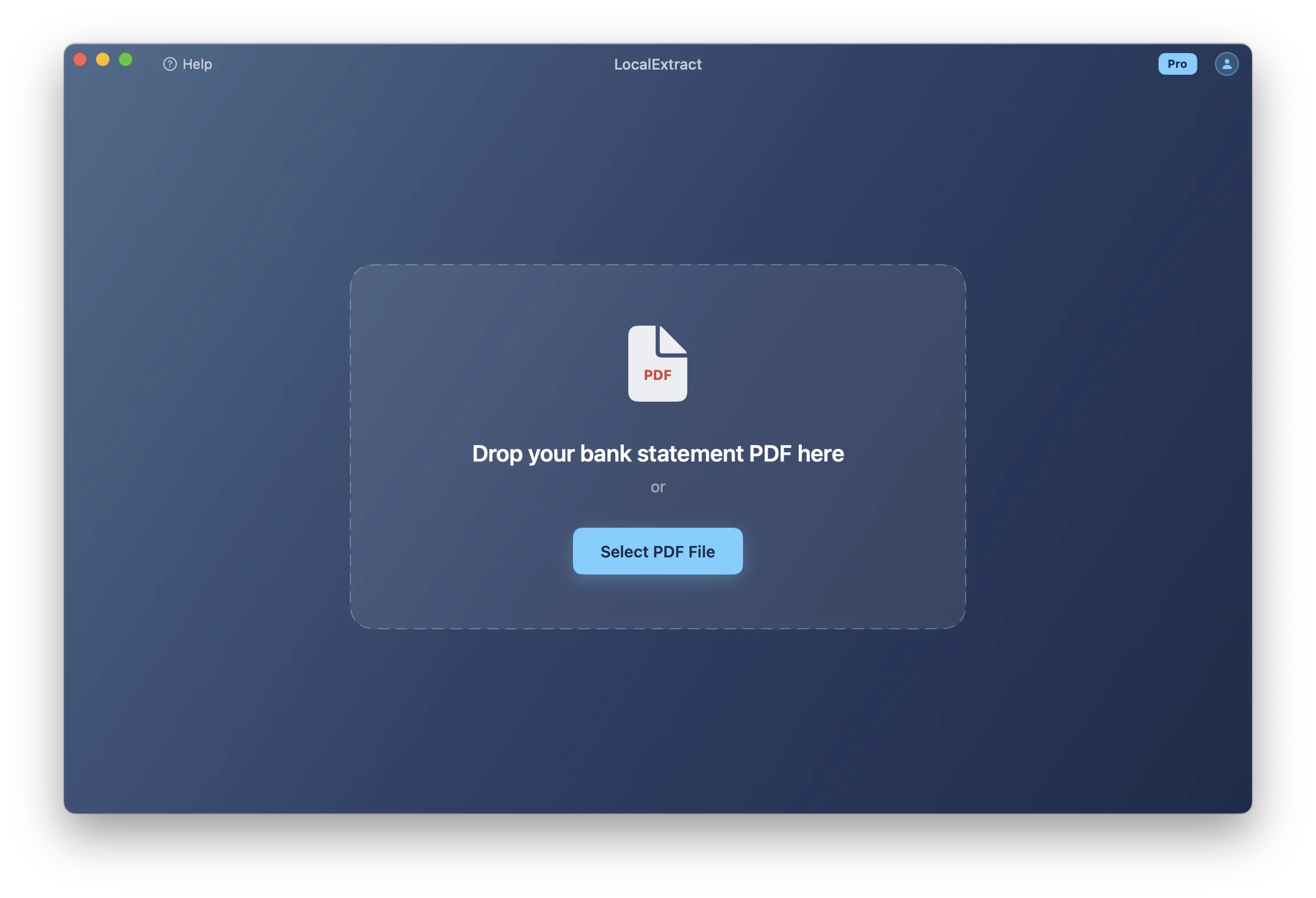
For a detailed walkthrough of the conversion process itself, see our guide on how to convert a bank statement PDF to CSV.
Whichever method you choose, always open the resulting CSV in a plain text editor before importing into Sage. Spreadsheet applications like Excel silently reformat dates, strip leading zeros, and convert long numbers to scientific notation — all of which can cause Sage import failures.
Step 2: Format the CSV for Sage
A CSV that opens correctly in Excel may still fail to import into Sage. Both Sage products are strict about column layout, date formatting, and number formatting — and they each have different requirements.
Sage Business Cloud: Required CSV Format
Sage Business Cloud (Sage Accounting) expects a CSV with these columns:
| Column | Header | Format | Example |
|---|---|---|---|
| 1 | Date | DD/MM/YYYY | 10/03/2026 |
| 2 | Description | Text | Direct Deposit - Payroll |
| 3 | Amount | Number (negative = money out) | -150.00 |
It also accepts a four-column format with separate "Money In" and "Money Out" columns instead of a single signed Amount.
Sage defaults to DD/MM/YYYY — different from the MM/DD/YYYY format used by QuickBooks and most US banks. If your CSV has US-formatted dates, you need to reformat them before importing. This is one of the most common stumbling blocks for US-based bookkeepers using Sage.
Sage 50: Required CSV Format
Sage 50 (desktop) uses a more detailed CSV structure. The standard bank transaction import expects up to 10 columns:
| Column | Header | Format | Example |
|---|---|---|---|
| 1 | Type | Transaction type code | BP or BR |
| 2 | Account Reference | Bank nominal code | 1200 |
| 3 | Nominal Code | Category code | 7500 |
| 4 | Department | Dept code (0 if unused) | 0 |
| 5 | Date | DD/MM/YYYY | 10/03/2026 |
| 6 | Reference | Check number or ref | CHK1042 |
| 7 | Details | Description | Office Supplies |
| 8 | Net Amount | Number (always positive) | 150.00 |
| 9 | Tax Code | Tax code | T0 |
| 10 | Tax Amount | Tax amount | 0.00 |
The Type column is critical. Use BP (Bank Payment) for money out and BR (Bank Receipt) for money in. Unlike Sage Business Cloud, you cannot use positive/negative amounts to indicate direction.
Sage 50 requires the Type column to distinguish between payments and receipts. If you omit or misconfigure this column, the import will fail or post transactions to the wrong side. The Bank Feeds module (Sage 50 v2018+) offers a simpler alternative that does not require Type codes — see Step 4.
Formatting Rules for Both Versions
- Remove currency symbols and thousands separators.
$2,500.00must become2500.00. - Use a period as the decimal separator (for US-locale installations).
- Use DD/MM/YYYY for dates. US bank statements use MM/DD/YYYY, so conversion is almost always necessary.
- Use UTF-8 encoding without BOM. Some export tools add a Byte Order Mark that Sage may not handle.
- Quote fields containing commas.
"Amazon.com, Inc."— otherwise Sage splits it into two columns. - Remove non-transaction rows. Strip bank name headers, account summaries, page numbers, and footer totals.
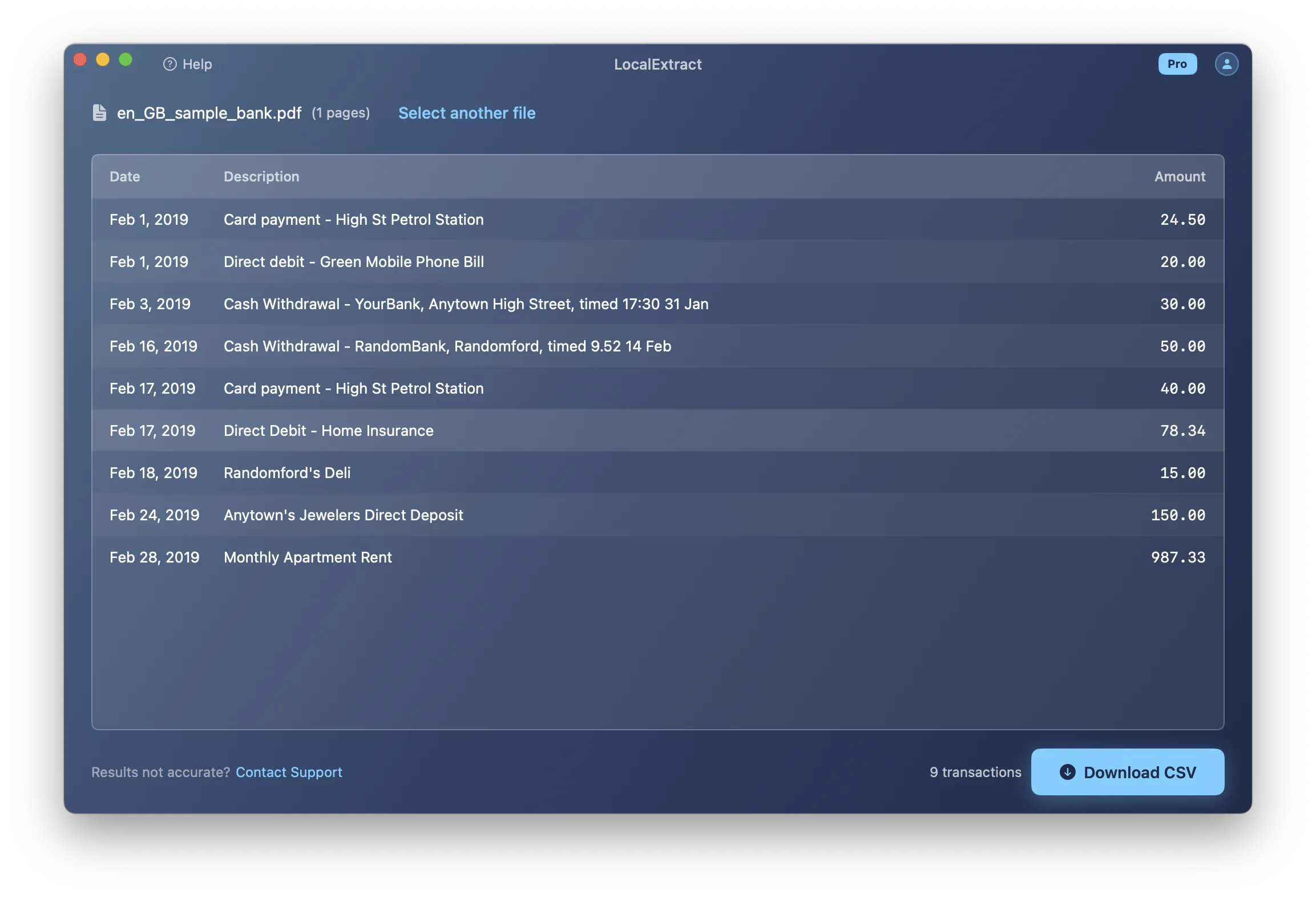
If you need guidance on what a clean, import-ready CSV should look like, see bank statement CSV format for accounting software.
Step 3: Import into Sage Business Cloud
- Log in to Sage Business Cloud and navigate to Banking.
- Select the bank account (or create one under Settings > Chart of Accounts > Bank Accounts).
- Click Import Statement (or Import Transactions depending on your region).
- Browse and select your CSV file.
- Sage displays a mapping screen. Map columns to Date, Description, and Amount (or Money In / Money Out).
- Select the date format that matches your CSV.
- Review the transaction preview for obvious issues.
- Click Import. Transactions appear in the bank account, ready for matching and reconciliation.
Sage Business Cloud supports automatic bank feeds for many banks. CSV import is most valuable when direct feeds are unavailable, when you need to import historical statements, or when you are working with a client's PDF statements.
Step 4: Import into Sage 50
Sage 50 offers two import paths:
Method 1: File Import (Standard)
- Go to File > Import and select Bank Transactions.
- Browse to your CSV file.
- Map columns if not automatically detected. Sage highlights rows with errors (missing Type codes, invalid dates, unrecognized Nominal Codes).
- Fix any flagged errors in the preview or cancel and fix the CSV.
- Click Import to post the transactions.
Method 2: Bank Feeds Module (Sage 50 v2018+)
- Go to Bank Accounts > Bank Feeds and select the target account.
- Click Import and choose your CSV file.
- Map columns: Date, Description, Money In, Money Out.
- Review and import.
This method does not require Type codes or Nominal Codes — Sage assigns those during the review step.
The Bank Feeds module is the recommended approach if your Sage 50 version supports it. It simplifies CSV format requirements significantly and provides a review workflow similar to Sage Business Cloud.
Sage Business Cloud vs Sage 50: Import Differences
| Feature | Sage Business Cloud | Sage 50 (Desktop) |
|---|---|---|
| CSV format | Simple (3-4 columns) | Complex (up to 10 columns) or simple via Bank Feeds |
| Type codes required | No | Yes for File > Import; No for Bank Feeds |
| Nominal codes required | No — assigned after import | Yes for File > Import; No for Bank Feeds |
| Date format | DD/MM/YYYY (selectable during import) | DD/MM/YYYY (must match system settings) |
| Column mapping | Interactive wizard with preview | Preview with inline error highlighting |
| OFX/QIF import | Yes | Yes |
The key practical difference: Sage Business Cloud's import wizard is more forgiving and lets you adjust column mapping and date format interactively. Sage 50's standard import is stricter, but the Bank Feeds module closes that gap.
If you also work with other accounting platforms, we have similar step-by-step guides for importing bank statements into QuickBooks and importing bank statements into Xero.
Common Sage Import Errors and How to Fix Them
"Invalid date format." The CSV uses MM/DD/YYYY but Sage expects DD/MM/YYYY, or dates use dashes instead of slashes. Fix: convert all dates to DD/MM/YYYY with forward slashes. In Excel, use =TEXT(A2,"DD/MM/YYYY"), paste-as-values, and re-export.
"Unrecognized Type code" (Sage 50). The Type column contains invalid values. Fix: use BP (Bank Payment) for debits and BR (Bank Receipt) for credits.
"Invalid Nominal Code" (Sage 50). The Nominal Code does not exist in your chart of accounts. Fix: update the CSV to use valid codes, or create the missing codes in Sage under Settings > Chart of Accounts.
Amounts importing as zero or text. The amount field contains currency symbols, thousands separators, or parentheses. Fix: strip all non-numeric characters except the decimal point and minus sign. Replace ($150.00) with -150.00.
"File contains no valid transactions." Non-transaction rows (bank headers, page numbers, footer totals) are confusing the parser. Fix: remove all rows except the column header and transaction data.
Duplicate transactions. The CSV date range overlaps with existing data. Fix: check the last imported transaction date before importing, and filter your CSV accordingly.
Choosing a Conversion Method
| Method | Best For | Pros | Cons |
|---|---|---|---|
| Manual copy-paste | One-off, single-page statements | No software needed | Slow, error-prone |
| Cloud converter | Quick conversions, varied formats | Easy to use | Uploads financial data to third-party servers |
| Open-source tools | Technical users, single bank format | Free, runs locally | Requires programming skills |
| On-device converter | Regular use, privacy-sensitive data | Runs locally, no uploads | Paid plans for higher volume |
For bookkeepers and accountants who regularly process client bank statements, an on-device converter provides the best balance of speed, accuracy, and data privacy.
LocalExtract Limitations
LocalExtract handles many bank statement formats, but it has limitations relevant to Sage users:
- No Sage-specific output. LocalExtract outputs CSV and JSON, not OFX or QIF. It does not generate Sage 50 Type codes (BP/BR) or Nominal Codes — you need to add these manually or with a spreadsheet formula.
- Date format. Output dates match the original bank statement format. If your bank uses MM/DD/YYYY, you will need to convert to DD/MM/YYYY for Sage.
- Scanned statements. OCR accuracy depends on scan quality. Low-resolution or skewed scans may require manual correction.
- Bank coverage. Not every bank's statement layout is supported. Unusual or highly customized formats may not extract correctly.
Privacy Considerations for Financial Data
Bank statements contain sensitive data: account numbers, routing numbers, transaction histories, and balances. How you handle these files during conversion matters — both ethically and legally.
The FTC Safeguards Rule requires certain professional service providers to implement safeguards for customer financial information. According to the FTC's guidance, these requirements can extend to tax preparers and accountants. State-level laws like the CCPA add further requirements around data handling.
When you upload a client's bank statement to a cloud converter, that data is transmitted to a third-party server — creating a data handling event that may need documentation under your firm's information security program.
On-device converters process the PDF locally. No data leaves your computer, no internet connection is needed, and no third party accesses the contents. LocalExtract processes all files entirely on-device with no data uploads.
FAQ
Can I import a PDF bank statement directly into Sage? No. Neither Sage 50 nor Sage Business Cloud supports direct PDF imports. You must first convert the PDF to CSV (or OFX/QIF). This guide focuses on the CSV path because it is the most flexible format across both Sage versions.
What date format does Sage expect? Both versions default to DD/MM/YYYY — different from the MM/DD/YYYY used by most US banks. Sage Business Cloud lets you select the date format during import. Sage 50 requires dates to match your system's regional settings.
Do I need Nominal Codes to import into Sage 50? It depends on the import method. File > Import requires Nominal Codes and Type codes. The Bank Feeds module (v2018+) accepts a simpler format without them — you assign categories after import.
What is the difference between Sage 50 and Sage Business Cloud for bank imports? Sage Business Cloud accepts a simple 3-4 column CSV and maps fields interactively. Sage 50's standard import requires up to 10 columns with Type codes and Nominal Codes, though the Bank Feeds module simplifies this significantly.
How do I handle multi-page bank statements? Manual copy-paste requires extracting transactions from each page separately. Automated converters handle multi-page documents automatically, producing a single CSV regardless of page count.
What if my bank statement is a scanned image? Scanned statements require OCR before extraction. Some converters, including LocalExtract, include OCR capability. Accuracy depends on scan quality — high-resolution, straight scans convert well; low-quality scans may need manual correction.
Can I use OFX or QIF files instead of CSV? Yes. Both Sage products support OFX and QIF imports, which include structured metadata that can streamline the process. However, most PDF converters output CSV, making it the most practical format for the PDF-to-Sage workflow.
Is LocalExtract free? LocalExtract offers a free tier of 10 pages (lifetime). The Pro plan is $10/month or $60/year for unlimited pages and batch processing. Both tiers process files entirely on your device with no data uploads.
Conclusion
Importing bank statements into Sage does not have to be a manual, error-prone process. The core workflow is straightforward: convert the PDF to a properly formatted CSV, then use Sage's built-in import tools to bring the transactions in. The formatting step is where most issues occur — particularly date formats (DD/MM/YYYY), Type codes for Sage 50, and stray non-numeric characters in amount fields. If you follow the formatting rules and error fixes outlined above, the import itself is quick.
For bookkeepers handling statements from multiple clients, investing a few minutes in a reliable PDF-to-CSV conversion workflow pays off across every import — whether you are working in Sage, QuickBooks, or Xero.
Disclosure: This article is published by the LocalExtract team. LocalExtract converts bank statement PDFs to CSV and Excel entirely on your device — no uploads, no cloud processing, no third-party access. We covered multiple conversion methods and both Sage 50 and Sage Business Cloud import workflows, including approaches we do not directly support, to help you find the right workflow. Download free for Mac or Windows.

LocalExtract Team
We build LocalExtract, an on-device bank statement converter for macOS and Windows. Our team includes software engineers and financial workflows specialists focused on private, accurate PDF data extraction. Questions or corrections? Contact us or see our editorial policy.
Related Articles
Ready to convert your bank statements?
100% on-device. Your documents never leave your computer.
By downloading, you agree to our Terms and Privacy Policy.