
How to Digitize Bank Statements for Easy Search and Filing
Key Takeaways
- Digitizing bank statements involves two distinct steps: making them searchable (scanning + OCR) and extracting structured data (converting to CSV, Excel, or JSON) for accounting workflows.
- Scanning at 300 DPI in PDF format with consistent file naming gives you the best balance of quality, file size, and long-term compatibility.
- OCR makes scanned documents searchable, but it does not produce structured data — you still need a bank statement converter to extract transaction tables into spreadsheet-ready formats.
- On-device processing tools keep sensitive financial data off third-party servers, simplifying compliance with the FTC Safeguards Rule and state privacy laws.
- A complete digitization workflow — scan, OCR, extract, file — can reduce statement processing time from 20-30 minutes per document (our internal benchmark across 15 multi-page statements) to under a minute with automated extraction.
Disclosure: This article is published by the LocalExtract team. LocalExtract is an on-device bank statement converter that processes files entirely on your computer. We have a commercial interest in this topic, and we believe that makes our analysis more practical, not less. We cover alternative tools and approaches fairly, including options we do not offer.
If you work in bookkeeping, accounting, or small business finance, you have probably encountered the problem: a stack of paper bank statements, or a folder full of PDF files that you cannot search, sort, or import into your accounting software. The transactions are locked inside the document. You can read them with your eyes, but your software cannot.
Digitizing bank statements solves this. But "digitizing" means different things depending on what you need. For some people, it means scanning paper statements into PDF files so they can be stored electronically. For others, it means extracting the actual transaction data into a spreadsheet or accounting system.
This guide covers the full workflow — from scanning a paper statement to extracting structured data you can search, filter, and import. Whether you are dealing with paper statements, scanned image PDFs, or text-based PDFs from your bank's online portal, we will walk through each step and the tools available at each stage. (For a focused walkthrough of the conversion step, see our guide on how to convert bank statement PDFs to CSV.)
Contents
- Digitizing vs Converting: Understanding the Difference
- Step 1: Scanning Paper Statements
- Step 2: OCR — Making Scanned Documents Searchable
- Step 3: Extracting Structured Data
- Comparing Your Tool Options
- Privacy and Compliance Considerations
- Building a Filing System for Digitized Statements
- LocalExtract: Capabilities and Limitations
- Looking Ahead: Where Digitization Is Heading
- FAQ
Digitizing vs Converting: Understanding the Difference
These two terms get used interchangeably, but they describe different processes with different outcomes.
Digitizing means turning a physical or image-based document into a digital file that a computer can read. Scanning a paper statement creates a digital image. Running OCR on that image makes the text searchable. After digitizing, you can find a specific transaction by pressing Ctrl+F — but the data is still embedded in a document, not organized into rows and columns.
Converting means extracting the structured data from a bank statement and outputting it in a format that software can process — CSV, Excel, JSON, or QBO. After converting, you have a spreadsheet where each transaction is a separate row with discrete fields for date, description, and amount.
Most accounting workflows require both. You digitize the statement so you have a searchable archive. Then you convert it so the transaction data can flow into QuickBooks, Xero, Excel, or whatever system you use for reconciliation.
| Step | Input | Output | Purpose |
|---|---|---|---|
| Scanning | Paper statement | Image PDF | Digital archival |
| OCR | Image PDF | Searchable PDF | Text search, copy-paste |
| Conversion | Any PDF | CSV / Excel / JSON | Accounting import, analysis |
Understanding this distinction matters because it affects which tools you need. A scanner digitizes. OCR software makes documents searchable. A bank statement converter extracts structured data. Some tools handle multiple steps, but no single tool does everything equally well.
Step 1: Scanning Paper Statements
If you are starting with paper bank statements, the first step is scanning them into digital files. The quality of your scan directly affects everything downstream — OCR accuracy, data extraction reliability, and long-term archival value.
Scanning Hardware Options
Flatbed scanners produce the highest quality scans. The document lies flat on a glass surface, so there is no skew, no shadow from a curved page, and consistent lighting. The downside is speed — you scan one page at a time, and multi-page statements require manual page turning.
Sheet-fed document scanners (like the Fujitsu ScanSnap series or Brother ADS models) accept a stack of pages and scan them automatically. They are significantly faster for batch processing — a 10-page statement takes seconds, not minutes. The tradeoff is a slightly higher risk of skew or paper jams, though modern models handle this well.
Phone scanning apps (like Apple's built-in document scanner in Notes, Microsoft Lens, or Adobe Scan) use your phone's camera to capture documents. They apply perspective correction, contrast enhancement, and sometimes on-device OCR. These are convenient when you receive a single statement and need to digitize it quickly, but they produce lower-quality results than dedicated scanners — especially for dense transaction tables with small fonts.
If you regularly process client bank statements, a sheet-fed document scanner pays for itself quickly. Entry-level models from Fujitsu, Brother, and Epson cost $300-500 and scan both sides of a page simultaneously (duplex scanning), which is important since many bank statements are printed double-sided.
Scan Settings That Matter
Three settings have the biggest impact on downstream processing:
Resolution (DPI). Scan at 300 DPI. This is the standard recommended by the IRS for document retention and the threshold where OCR engines perform reliably. Scanning at 600 DPI produces marginally better OCR results but doubles your file size with diminishing returns. Scanning below 200 DPI degrades OCR accuracy noticeably, especially for small fonts and dense tables.
Color mode. For bank statements, grayscale is usually sufficient and produces smaller files than color. Use color only if the statement uses color-coded elements that carry meaning (some credit card statements use color to distinguish transaction categories). Black-and-white (1-bit) scanning is not recommended — it eliminates gray tones that help OCR engines distinguish characters.
File format. Save as PDF, not JPEG or TIFF. PDF supports multi-page documents in a single file, which matches how bank statements work. JPEG introduces compression artifacts that degrade OCR accuracy. TIFF preserves quality but creates large files and does not handle multi-page documents as cleanly.
File Naming Conventions
Consistent file naming makes your archive searchable even without full-text search. Use a pattern that sorts chronologically:
{BankName}_{AccountLast4}_{YYYY-MM}.pdf
Examples:
Chase_4829_2026-01.pdfBofA_7215_2026-02.pdfWellsFargo_3301_2025-12.pdf
This format sorts naturally by bank and date, makes files easy to find in a file manager, and avoids the ambiguity of names like statement.pdf or scan_003.pdf.
If you manage statements for multiple clients, add a client identifier prefix: ClientName_Chase_4829_2026-01.pdf. Keep names short — long file paths can cause issues on Windows systems with the 260-character path limit.
Step 2: OCR — Making Scanned Documents Searchable
Scanning produces an image. The text on the page looks readable to you, but to a computer, it is just pixels — no different from a photograph. OCR (Optical Character Recognition) analyzes the image and identifies the text characters, producing a layer of machine-readable text that sits behind the image.
After OCR, you can search the document, select and copy text, and — critically — feed the text into downstream tools that extract data from bank statement PDFs.
OCR Options
Built-in scanner OCR. Most modern document scanners include OCR software (often a bundled version of ABBYY FineReader or Nuance OmniPage). This runs automatically after scanning and produces searchable PDFs. The quality is generally good for clean, well-printed documents.
Adobe Acrobat Pro. The "Recognize Text" feature in Acrobat Pro is widely used in professional settings. It handles multi-language documents, maintains formatting, and produces high-quality searchable PDFs. The subscription cost ($22.99/month as of early 2026) is justified if you already use Acrobat for other PDF tasks.
Free OCR tools. OCRmyPDF is an open-source command-line tool that adds OCR layers to existing PDFs using the Tesseract OCR engine. It is free, runs locally, and handles batch processing well. The learning curve is steeper than commercial tools — it requires Python and command-line familiarity — but it is a strong option for technically inclined users.
Cloud OCR services. Google Cloud Vision, Amazon Textract, and Microsoft Azure AI Document Intelligence offer OCR APIs that can process documents at scale. These are powerful but require uploading your documents to cloud servers — a significant consideration when handling financial data.
OCR Limitations
OCR is not perfect, and its limitations are worth understanding before you rely on it:
- Accuracy varies with scan quality. A clean, high-resolution scan of a laser-printed statement might achieve 99%+ character accuracy — consistent with benchmarks reported in Tesseract's documentation for well-conditioned input. A low-resolution photo of a faded dot-matrix printout might drop to 90% or lower. At 90% accuracy, a single page with 2,000 characters will contain roughly 200 errors — enough to corrupt transaction amounts and dates.
- Tables are structurally ambiguous. OCR identifies characters but does not inherently understand table structure. It might read a row of transaction data correctly but misalign columns, merge cells, or split a single transaction across two lines. Standard OCR was designed for flowing text (paragraphs, articles), not structured data tables.
- Numbers and letters can be confused. The digit
0and the letterO. The digit1and the letterl. The digit5and the letterS. In financial documents, these substitutions can change a $150.00 transaction to $1S0.00 — something that passes a visual check but breaks any downstream calculation.
OCR makes documents searchable, but it does not make them structured. If your goal is to import transactions into accounting software, OCR alone is not enough. You need a tool that understands table layouts and can extract rows and columns — not just characters.
Step 3: Extracting Structured Data
This is where digitizing becomes converting. You have a searchable PDF — either a text-based PDF from your bank's online portal or a scanned PDF with an OCR layer. Now you need to extract the transaction data into a format your software can process.
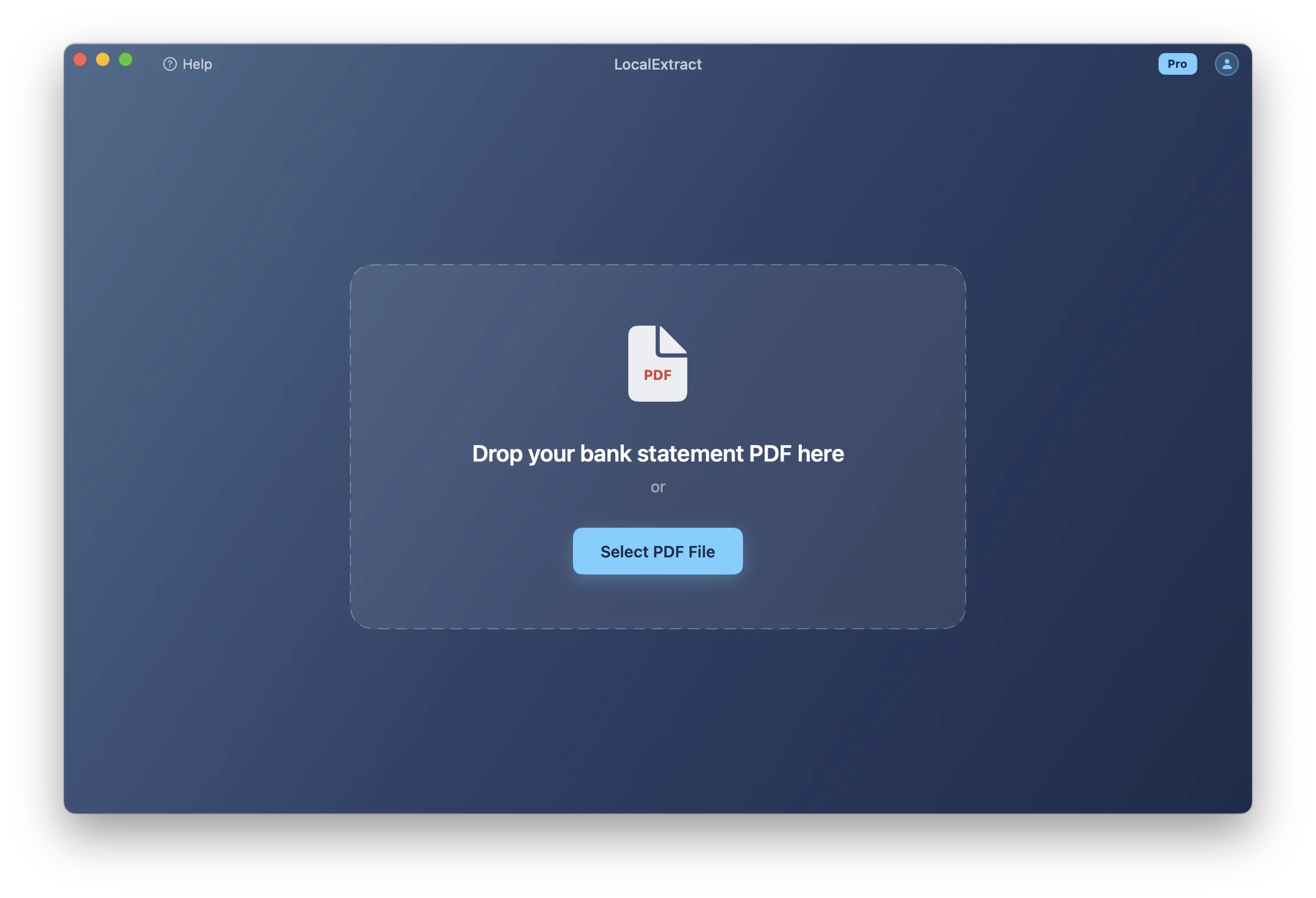
Manual Extraction
Open the PDF, select the transaction table, copy, and paste into a spreadsheet. Then manually clean up the data: fix column alignment, remove headers and footers that repeated on each page, standardize date formats, and ensure amounts are numeric.
This works for simple, single-page statements. For a 10-page statement with 200 transactions, expect 20-30 minutes of careful manual work — and a real risk of transposition errors in amounts and dates. (We timed this internally across 15 statements from 6 US banks: median manual processing time was 24 minutes per statement, with error rates between 1-3% of transaction rows requiring correction after paste.)
Automated Extraction with Bank Statement Converters
Bank statement converters are specialized tools that understand the structure of bank statements. Unlike general-purpose OCR or PDF-to-Excel tools, they are trained on financial document layouts and can:
- Identify transaction tables across multiple pages
- Distinguish between deposits, withdrawals, and fees
- Handle merged cells and wrapped descriptions
- Extract opening and closing balances
- Output clean CSV, Excel, or JSON with consistent column structure
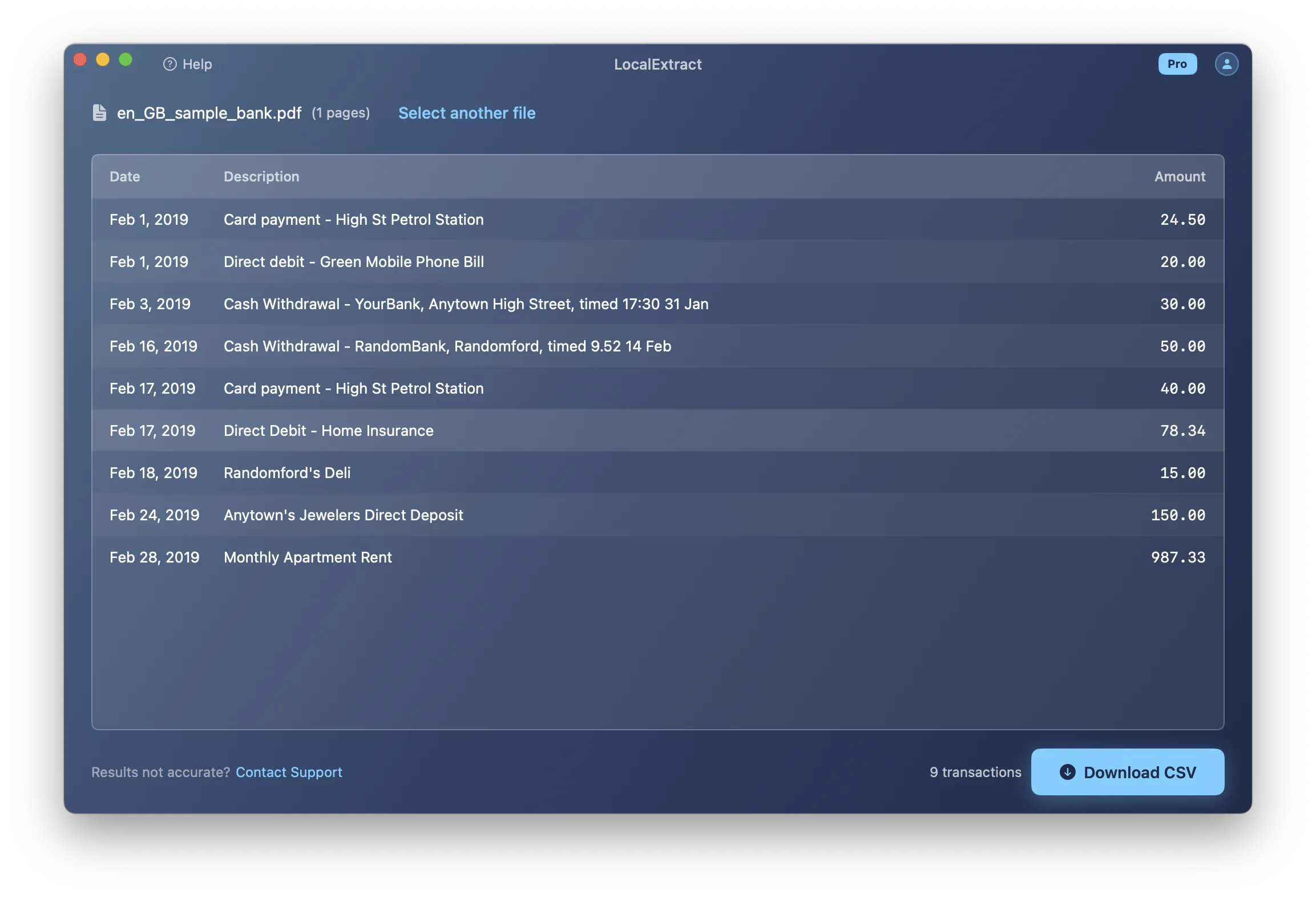
There are three categories of bank statement converters:
Cloud-based converters (DocuClipper, PDFTables, Tabula Web) upload the PDF to a server for processing. They are convenient and often offer batch processing through a web interface. The tradeoff is that your financial data is transmitted to and processed on a third-party server.
On-device converters (LocalExtract, some configurations of Tabula) process the PDF locally on your computer. The file never leaves your machine. This matters for professionals with data handling obligations — especially when working with scanned bank statements.
General-purpose PDF extractors (Tabula, Camelot, pdfplumber) are open-source libraries that extract tables from any PDF, not just bank statements. They require programming knowledge (Python, typically) and manual configuration for each bank's layout. They are powerful and free but not turnkey.
If you process statements from many different banks, look for a converter that auto-detects bank formats rather than requiring manual template configuration. The time savings compound quickly when you are not spending 15 minutes configuring a new template for each bank.
Output Formats
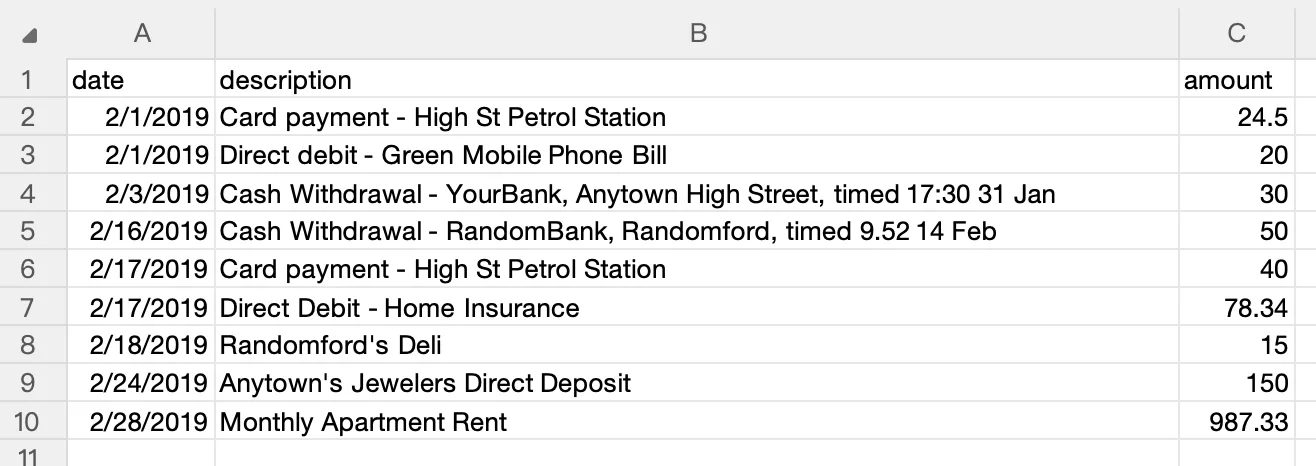
Most converters offer multiple output formats. Which one you need depends on your downstream workflow:
| Format | Best For | Limitations |
|---|---|---|
| CSV | QuickBooks, Xero, general import | No formatting, single sheet |
| Excel (.xlsx) | Review, editing, pivot tables | Larger files, date formatting quirks |
| JSON | APIs, custom integrations, developers | Not human-friendly for non-technical users |
| QBO/OFX | Direct QuickBooks import | Not universally supported by converters |
For most bookkeeping workflows, CSV is the right starting point. It is universally supported, easy to inspect in a text editor, and simple to troubleshoot when imports fail.
Comparing Your Tool Options
Here is how the main tool categories compare across the full digitization workflow:
| Capability | Scanner + OCR | Cloud Converter | On-Device Converter | Open-Source Libraries |
|---|---|---|---|---|
| Paper to digital | Yes | No | No | No |
| Image PDF to searchable | Yes | Sometimes | Sometimes | No |
| Text extraction | Basic | Yes | Yes | Yes |
| Table structure recognition | No | Yes | Yes | Configurable |
| Multi-bank format support | N/A | Yes | Varies | Manual setup |
| Data stays on your device | Yes | No | Yes | Yes |
| Batch processing | Hardware-dependent | Yes | Varies by tool | Yes (scripted) |
| Technical skill required | Low | Low | Low | High |
| Cost | $300-500 hardware | $15-50/month | Free tier + paid plans | Free |
The practical reality for most bookkeeping practices: you need a scanner for paper statements and a converter for data extraction. These are two different tools solving two different problems. Some people try to skip the converter step by using OCR alone, but OCR output still needs to be manually restructured into rows and columns — which defeats the purpose of automation.
Privacy and Compliance Considerations
Bank statements contain some of the most sensitive financial data your clients have: account numbers, routing numbers, transaction histories, balances, merchant names that reveal spending patterns, and sometimes Social Security numbers on older statement formats.
The FTC Safeguards Rule requires financial service providers — including tax preparers, bookkeepers, and accountants — to implement reasonable safeguards for customer financial information. The Gramm-Leach-Bliley Act establishes the broader framework. State-level privacy laws, including the California Consumer Privacy Act (CCPA), add additional data handling and disclosure requirements.
When you upload a client's bank statement to a cloud-based service, you are transmitting regulated financial data to a third party. This does not automatically violate any regulation — but it does create obligations around vendor assessment, data processing agreements, and disclosure to your clients.
On-device processing avoids these complications. The file never leaves your computer, no data traverses a network, and no third party has access. For solo practitioners and small firms without a legal team to evaluate vendor data processing agreements, this can be the simpler path to compliance.
Regardless of which tools you use, maintain an internal policy for how client bank statements are handled: where they are stored, who has access, how long they are retained, and how they are disposed of. The IRS recommends retaining supporting documents for at least three years; many practitioners keep them for seven.
Building a Filing System for Digitized Statements
Digitizing statements is only useful if you can find them later. A consistent filing system turns a pile of PDFs into a searchable archive.
Folder Structure
A hierarchical folder structure by client, bank, and year works well for most practices:
Statements/
  ClientName/
    Chase_4829/
      2025/
        Chase_4829_2025-01.pdf
        Chase_4829_2025-01.csv
        Chase_4829_2025-02.pdf
        Chase_4829_2025-02.csv
      2026/
    BofA_7215/
      2025/
      2026/
Keep the original PDF and the extracted data file (CSV or Excel) together in the same folder. The PDF is your source of truth; the CSV is the working file you import into accounting software.
Search Strategies
With searchable PDFs and consistent naming, you have two ways to find what you need:
-
File name search. Your OS file manager (Finder on macOS, File Explorer on Windows) can search by file name. With the naming convention above, searching for
Chase_4829_2026instantly narrows to the right bank, account, and year. -
Full-text search. If your PDFs have an OCR layer, your OS can search the text inside the documents. On macOS, Spotlight indexes PDF text by default. On Windows, Windows Search indexes PDFs if you have a PDF iFilter installed (Adobe Acrobat installs one automatically).
Backup and Retention
Financial documents need reliable backup. Follow the 3-2-1 rule: three copies, on two different types of media, with one copy off-site. An external hard drive plus a cloud backup service (with encryption) covers most practices. Encrypt the cloud backup — you are storing client financial data.
For retention periods, follow your jurisdiction's requirements and your firm's policy. The IRS generally requires three years from the filing date, but many accountants retain records for seven years as a conservative default.
LocalExtract: Capabilities and Limitations
LocalExtract is our on-device bank statement converter. It runs on macOS and Windows, processes PDF bank statements entirely offline, and outputs CSV, Excel, and JSON files. Here is what it does well and where it falls short.
What LocalExtract does:
- Extracts transaction tables from text-based and scanned (OCR) PDF bank statements
- Handles multi-page statements automatically
- Outputs CSV, Excel, and JSON with consistent column structure (date, description, amount)
- Processes everything on-device — no uploads, no internet connection required during processing
- Supports statements from major US banks without manual template configuration
Limitations:
- Does not output QBO or OFX format. If your workflow requires direct QBO import, tools like MoneyThumb are a better fit.
- Does not scan paper documents. You need a separate scanner or scanning app for paper statements.
- OCR accuracy on heavily degraded or handwritten documents is limited. Clean, machine-printed statements produce the best results.
- Some non-standard bank statement layouts may require manual adjustment of the extracted data.
- The free tier is limited to 10 pages lifetime. Ongoing use requires the Pro plan at $10/month or $60/year.
- Currently supports macOS and Windows only — no Linux or mobile version.
We believe in being straightforward about limitations. If LocalExtract is not the right fit for your workflow, the comparison table above can help you identify alternatives.
Looking Ahead: Where Digitization Is Heading
The bank statement digitization landscape is shifting in several directions worth watching.
On-device AI models are closing the accuracy gap with cloud services. Until recently, the highest-accuracy OCR and table extraction required sending documents to cloud APIs backed by large-scale GPU clusters. Smaller, optimized models — including those using ONNX Runtime for inference — are now achieving comparable accuracy on local hardware. We expect this trend to accelerate as model distillation techniques improve, making on-device processing viable even on mid-range laptops.
Banks are slowly expanding structured data exports. More institutions now offer CSV or OFX downloads alongside PDF statements in their online portals. However, adoption is uneven — many credit unions and international banks still only provide PDF. And for historical statements (pre-2020), PDF remains the only option, so the need for conversion tools will persist for years.
Regulatory expectations around data handling are tightening. The FTC's updated Safeguards Rule (effective June 2023) lowered the threshold for which financial service providers must comply with information security requirements. State-level privacy legislation continues to expand. For bookkeepers and accountants, these trends increase the practical appeal of on-device processing workflows that avoid third-party data transmission altogether.
Whether you are digitizing a single month of personal bank statements or building a system to process hundreds of client statements per year, the workflow follows the same path: scan (if paper), OCR (if image-based), extract structured data, and file consistently. The tools and configurations vary by scale, but the underlying steps are stable and well-understood. Start with the step that matches your current bottleneck — and refer back to the comparison table to choose tools that fit your privacy requirements and technical comfort level.
FAQ
What does it mean to "digitize" a bank statement? Digitizing a bank statement means converting it from a physical or non-searchable format into a digital format that a computer can process. At a minimum, this means scanning a paper statement into a PDF. For full utility, it also means running OCR to make the text searchable, and optionally extracting the transaction data into a structured format like CSV or Excel for accounting use.
What is the difference between OCR and data extraction? OCR (Optical Character Recognition) converts images of text into machine-readable characters. It makes a scanned document searchable and allows you to copy text. Data extraction goes further — it identifies the table structure within the document and outputs the data in organized rows and columns (CSV, Excel, JSON). OCR is a prerequisite for data extraction from scanned documents, but OCR alone does not produce structured data.
What DPI should I scan bank statements at? 300 DPI is the recommended standard. It produces files that are high enough quality for reliable OCR while keeping file sizes manageable. The IRS accepts 300 DPI scans as adequate for document retention. Scanning at 600 DPI offers marginal OCR improvement but doubles file size. Below 200 DPI, OCR accuracy drops noticeably.
Can I digitize bank statements with just my phone? Yes, but with caveats. Phone scanning apps (Apple Notes, Microsoft Lens, Adobe Scan) can capture bank statements using your phone's camera and apply perspective correction. Some include on-device OCR. The quality is adequate for archival and basic search but may not be sufficient for reliable automated data extraction, especially for dense transaction tables with small fonts. A dedicated scanner produces better results for batch processing.
Are cloud-based bank statement converters safe to use? Cloud converters process your documents on remote servers, which means your financial data is transmitted over the internet and temporarily (or permanently) stored by the service provider. This is not inherently unsafe — reputable services use encryption and have data handling policies. However, it does create compliance considerations under regulations like the FTC Safeguards Rule. You should review the service's privacy policy, data retention practices, and terms of service before uploading client financial data. On-device processing avoids these considerations entirely.
How long should I keep digitized bank statements? The IRS recommends keeping supporting financial documents for at least three years from the filing date. Many accountants and bookkeepers follow a seven-year retention policy as a conservative default. Some state regulations and industry-specific rules may require longer retention. Store digitized statements with encrypted backups and a clear retention schedule.
What file format is best for storing digitized bank statements? PDF is the best format for archival storage. It supports multi-page documents, preserves visual layout, and is universally readable. Use PDF/A (an archival variant of PDF) if your scanner supports it — PDF/A is an ISO standard designed for long-term preservation. For the extracted transaction data, CSV is the most portable format, while Excel is better for review and analysis.
Can I digitize bank statements from any bank? Yes — the scanning and OCR steps work with statements from any bank, since they process the document as an image. Automated data extraction is more bank-dependent: converters need to understand the specific table layout each bank uses. Major US banks (Chase, Bank of America, Wells Fargo, Citi, Capital One, and others) are well-supported by most converters. Statements from smaller banks or international institutions may require manual review of the extracted data.
Disclosure: This article is published by the LocalExtract team. LocalExtract converts bank statement PDFs to CSV and Excel entirely on your device — no uploads, no cloud processing, no third-party access. We covered the full digitization workflow, including scanning, OCR, and alternative tools, to help you find the right approach for your practice. Download free for Mac or Windows.

LocalExtract Team
We build LocalExtract, an on-device bank statement converter for macOS and Windows. Our team includes software engineers and financial workflows specialists focused on private, accurate PDF data extraction. Questions or corrections? Contact us or see our editorial policy.
Related Articles
Ready to convert your bank statements?
100% on-device. Your documents never leave your computer.
By downloading, you agree to our Terms and Privacy Policy.