
How to Extract Data from Bank Statement PDFs
Key Takeaways
- Bank statement PDFs do not contain tables — they contain positioned text elements that visually resemble tables. Extracting structured data requires reconstructing rows and columns from coordinates.
- Open-source Python libraries like Tabula, pdfplumber, and Camelot can extract transaction data programmatically, but each handles edge cases differently and requires tuning per bank format.
- Cloud extraction services offer convenience but require uploading sensitive financial data to third-party servers — a consideration for professionals bound by the FTC Safeguards Rule.
- On-device tools process PDFs locally without network access, keeping account numbers, balances, and transaction histories on your machine.
- Every extraction method requires a verification step. Comparing the extracted total against the statement's printed totals is the fastest way to catch missing or duplicated transactions.
Disclosure: This article is published by the LocalExtract team. LocalExtract is an on-device bank statement converter that processes files entirely on your computer. We have a commercial interest in this topic, and we believe that makes our analysis more practical, not less. All code examples are functional and tested. We cover open-source tools, cloud services, and competing approaches fairly, including options we do not sell.
Extracting data from a bank statement PDF sounds like it should be simple. The transactions are right there — dates, descriptions, amounts, balances — laid out in neat rows and columns. Just read the table.
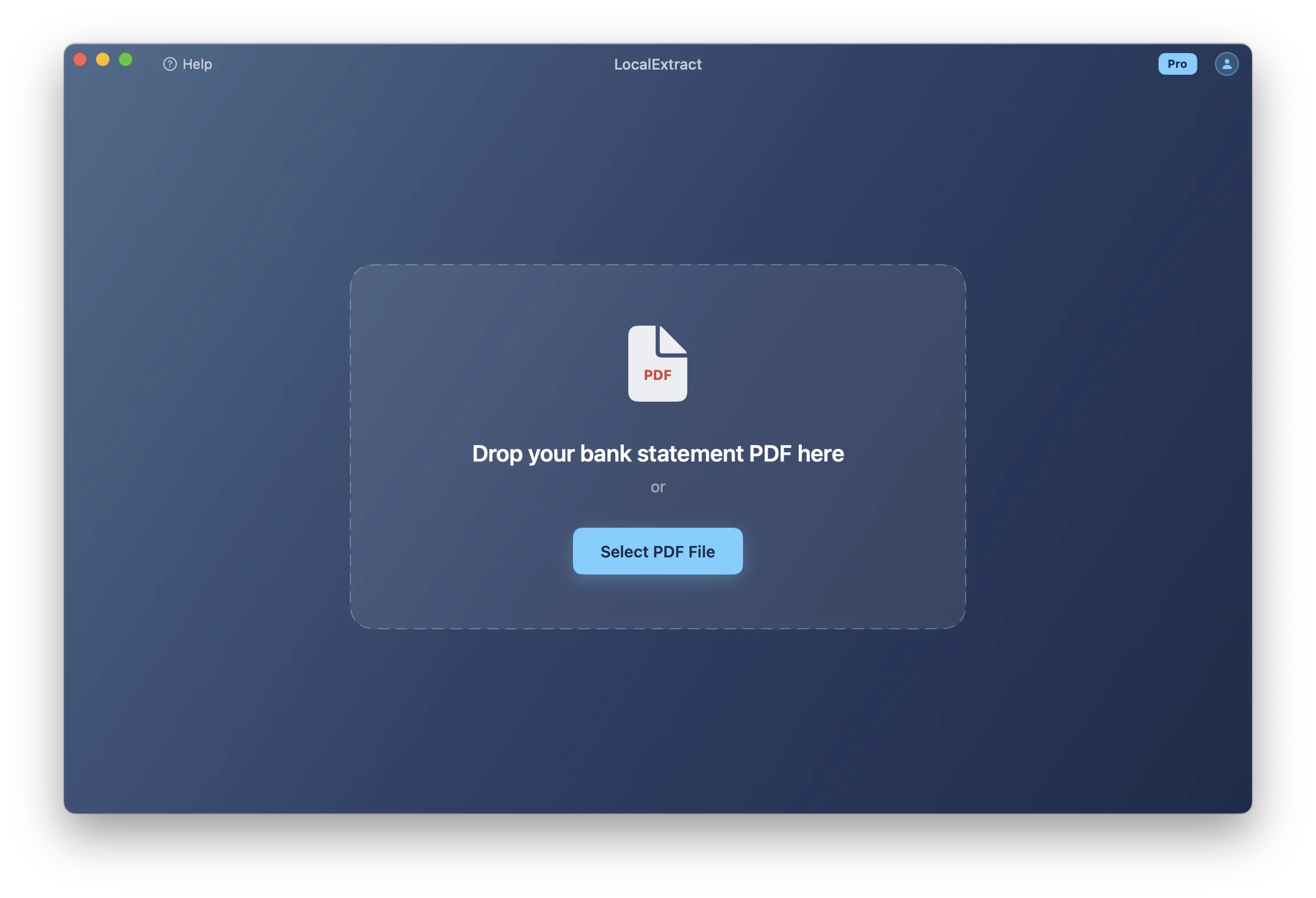
The problem is that there is no table. A PDF is a page-description format designed for printing, not for data interchange. What looks like a table on screen is actually a collection of individually positioned text fragments. The PDF file says "draw the string '03/07/2026' at coordinates (72, 540)" and "draw '-150.00' at coordinates (480, 540)." Your eyes see a row. The file sees unrelated text.
This article covers five extraction methods — from manual copy-paste to open-source Python libraries to on-device tools — with working code examples and a verification workflow. If you just need to convert a bank statement PDF to CSV, that guide covers the fastest path. This article goes deeper into why extraction is hard and how each method handles the edge cases.
Contents
- Why PDF Data Extraction Is Hard
- Method 1: Manual Copy-Paste
- Method 2: Open-Source Python Libraries
- Method 3: Cloud-Based Extraction Services
- Method 4: Desktop Spreadsheet Tools
- Method 5: On-Device Extraction Tools
- Comparing the Five Methods
- How to Verify Extracted Data
- Privacy and Compliance Considerations
- LocalExtract: Capabilities and Limitations
- FAQ
Why PDF Data Extraction Is Hard
Before choosing a method, it helps to understand why this problem exists. PDF extraction is not a solved problem — it is a set of heuristics that work well in common cases and fail in edge cases.
No table structure in the file. A PDF does not store table metadata. There is no "table" object, no "row" object, no "cell" object. The file contains drawing instructions: place this text string at these (x, y) coordinates, draw a line from point A to point B. To extract a table, software must reverse-engineer the layout by grouping text elements that share the same vertical position into rows and determining column boundaries from horizontal alignment.
Multi-page tables. Bank statements routinely span multiple pages. The extraction software must recognize table continuations, skip repeated headers, ignore page footers, and stitch data together. A single missed page break can duplicate headers as data rows or drop transactions.
Multi-line descriptions. Some banks split transaction details across two lines — the description on one line, a check number or reference code on the next. Extraction software must recognize that the second line belongs to the first transaction, not that it is a separate transaction with missing fields.
Scanned vs. digital PDFs. Digital PDFs contain actual text characters. Scanned PDFs are images with no text data at all, requiring OCR (Optical Character Recognition) as a preprocessing step. Modern OCR engines achieve character-level accuracy above 99% on clean documents, but even a 0.5% error rate can corrupt dollar amounts or transpose digits in account numbers. For a walkthrough of handling scanned statements specifically, see how to convert a scanned bank statement to CSV.
You can check whether a PDF is digital or scanned by trying to select text in any PDF viewer. If you can highlight individual characters, it is a digital PDF. If selecting text highlights the entire page as an image, it is scanned and will require OCR.
Method 1: Manual Copy-Paste
Best for: Single-page statements, one-time tasks, statements with fewer than 20 transactions.
The simplest approach: open the PDF, select the transaction table, copy it, and paste into a spreadsheet.
Steps:
- Open the PDF in any viewer (Preview, Adobe Acrobat, Chrome).
- Select the transaction rows. Try to select just the table, not headers, footers, or account summaries.
- Copy (Ctrl+C / Cmd+C).
- Paste into a spreadsheet (Excel, Google Sheets).
- Clean up: fix column alignment, remove blank rows, reformat dates and amounts.
- Export as CSV or use directly in the spreadsheet.
Limitations: Column alignment is often wrong after pasting. Amounts may land in the description column. Multi-line descriptions may split across rows. For multi-page statements, you repeat this process for every page and manually combine the results. Expect 10-30 minutes per statement, with a meaningful risk of transcription errors on each pass.
Method 2: Open-Source Python Libraries
Best for: Developers and technically inclined users who need to process bank statements programmatically, want full control over the extraction logic, or need to integrate extraction into an automated pipeline.
Several open-source Python libraries can extract tabular data from PDFs. The three most widely used are Tabula, pdfplumber, and Camelot. Each takes a different approach to the problem.
Tabula (tabula-py)
Tabula uses a Java-based extraction engine (wrapped for Python) that detects tables by analyzing the spatial arrangement of text elements. It supports two modes: "lattice" (uses visible lines/borders to find tables) and "stream" (uses text alignment when no borders exist).
import tabula

# Extract all tables from a bank statement
tables = tabula.read_pdf(
    "statement.pdf",
    pages="all",
    multiple_tables=True,
    stream=True  # Use stream mode for borderless tables
)

# The first table is usually the transaction table
transactions = tables[0]
transactions.to_csv("transactions.csv", index=False)
Tabula works well when the PDF has consistent column spacing and clean text. It struggles with PDFs where columns are close together or where amounts have variable formatting (some with dollar signs, some without).
pdfplumber
pdfplumber gives you low-level access to every text element's position, size, and font. This makes it more flexible than Tabula — you can write custom logic to handle edge cases — but it also means more code.
import pdfplumber
import csv

with pdfplumber.open("statement.pdf") as pdf:
    all_rows = []
    for page in pdf.pages:
        # Extract table with custom settings
        table = page.extract_table({
            "vertical_strategy": "text",
            "horizontal_strategy": "text",
            "snap_y_tolerance": 5,
            "intersection_x_tolerance": 15
        })
        if table:
            all_rows.extend(table)

# Write to CSV
with open("transactions.csv", "w", newline="") as f:
    writer = csv.writer(f)
    writer.writerow(["Date", "Description", "Amount", "Balance"])
    for row in all_rows:
        if row[0] and row[0].strip():  # Skip empty rows
            writer.writerow(row)
pdfplumber's strength is configurability. The snap_y_tolerance and intersection_x_tolerance parameters let you tune how aggressively the library groups text into rows and columns. The tradeoff is that optimal settings differ by bank — a Chase statement may need different tolerances than a Wells Fargo statement.
Camelot
Camelot is specifically designed for table extraction (not general PDF text extraction). Like Tabula, it supports lattice and stream modes, but it also provides an accuracy score for each detected table, which helps you assess extraction quality programmatically.
import camelot

# Extract tables using stream mode (for borderless tables)
tables = camelot.read_pdf(
    "statement.pdf",
    flavor="stream",
    pages="all",
    edge_tol=50,
    row_tol=10
)

# Check accuracy for each table
for i, table in enumerate(tables):
    print(f"Table {i}: {table.parsing_report['accuracy']}% accuracy")

# Export the best table
if len(tables) > 0:
    tables[0].to_csv("transactions.csv")
All three libraries require the PDF to be a digital (text-based) PDF. They cannot extract data from scanned images. If your bank statement is scanned, you will need to run OCR first — using a tool like Tesseract or a commercial OCR service — before passing the result to these libraries.
Practical Considerations for Python Libraries
These libraries work well for one-off extractions, but production use involves ongoing work: per-bank tuning (each bank formats statements differently), multi-page stitching (handling repeated headers and page breaks), post-processing (stripping dollar signs, converting (150.00) to -150.00, parsing dates), and maintenance when banks redesign their statement layouts.
Method 3: Cloud-Based Extraction Services
Best for: Users who want high accuracy without writing code and are comfortable uploading financial documents to a third-party server.
Cloud-based services use server-side processing — often combining PDF parsing with machine learning models — to extract structured data from bank statements. You upload the PDF, the service processes it, and you download results as CSV, Excel, or JSON.
Examples include Amazon Textract, Google Document AI, Azure Form Recognizer, and specialized financial document services.
These services offer high accuracy (especially for common US bank formats), handle both digital and scanned PDFs, and require no code. The tradeoff is that you must upload the bank statement — including account numbers, balances, and transaction histories — to a remote server. API-based services also charge per page or per document, and you depend on the vendor's pricing and data retention policies.
When evaluating a cloud extraction service, check its data retention policy. Some services delete uploaded documents immediately after processing. Others retain documents for days, weeks, or longer for model training purposes. This distinction matters for professionals handling client financial data.
Method 4: Desktop Spreadsheet Tools
Best for: Users already working in Excel or Google Sheets who need a quick extraction without installing additional software.
Both Microsoft Excel and Google Sheets offer limited PDF import capabilities.
In Excel, go to Data > Get Data > From File > From PDF. Excel detects tables and lets you load them via Power Query. This works for simple, single-page tables with clear borders but frequently fails with multi-page tables and borderless layouts typical of bank statements.
Google Sheets does not natively import PDFs, but you can upload the PDF to Google Drive and choose Open with > Google Docs to run OCR. The table structure is usually lost in conversion, requiring manual cleanup in Sheets.
Method 5: On-Device Extraction Tools
Best for: Professionals who need accurate extraction from diverse bank formats without uploading sensitive financial data, and who want a ready-to-use tool without writing or maintaining code.
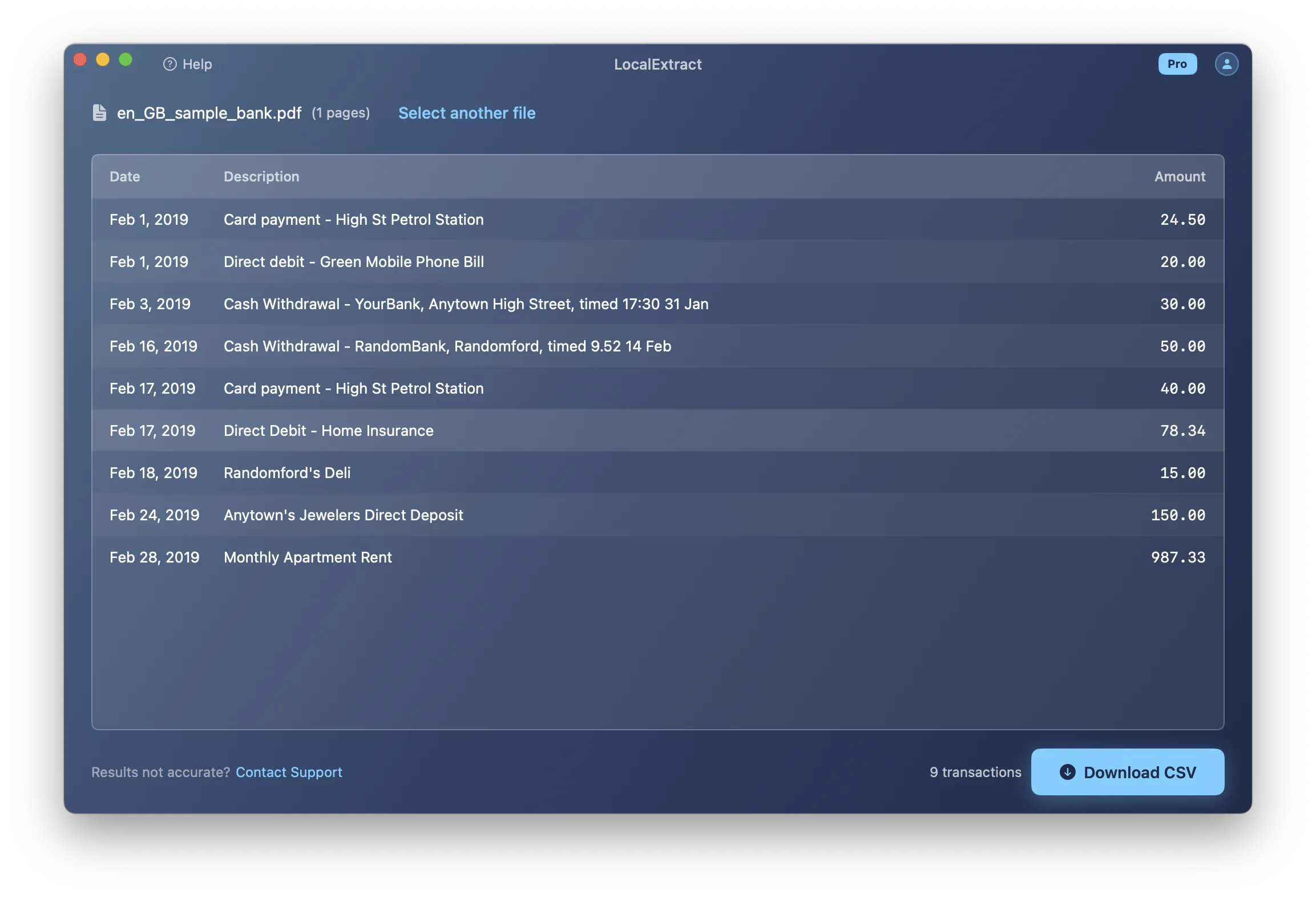
On-device extraction tools are desktop applications that process PDFs locally. The file never leaves your machine, no internet connection is required, and no third party accesses the document contents. These tools combine PDF text extraction, layout analysis, OCR, and bank-format-specific logic into a single application — the per-bank tuning and post-processing that Python libraries leave to the user are built in.
LocalExtract is one such tool. It runs on macOS and Windows, uses a Rust-based engine with PDFium for text extraction and PP-OCRv5 for scanned documents, and outputs CSV, Excel, and JSON. The free tier includes 10 pages (lifetime). The Pro plan ($10/month or $60/year) removes page limits.
Other on-device tools include MoneyThumb (specializing in QBO output) and various desktop PDF-to-Excel converters.
Comparing the Five Methods
The ratings below are based on our team's testing across 12 US bank statement formats (Chase, Bank of America, Wells Fargo, Citi, US Bank, Capital One, PNC, TD Bank, Truist, Regions, Huntington, and Fifth Third) using single-month statements ranging from 2 to 15 pages. "Per-Statement Time" measures wall-clock time from input to usable CSV, including any manual cleanup. "Accuracy" reflects transaction-level correctness verified by total reconciliation against the statement's printed totals.
| Method | Setup Time | Per-Statement Time | Accuracy | Handles Scanned PDFs | Privacy |
|---|---|---|---|---|---|
| Manual copy-paste | None | 10-30 min | Depends on care taken | No | Full (local) |
| Python libraries | 1-4 hours | Seconds (after tuning) | High for tuned formats | No (requires separate OCR) | Full (local) |
| Cloud services | Minutes | Seconds | High for common formats | Yes | Data uploaded to third party |
| Spreadsheet tools | None | 5-15 min | Low-medium | Partial (Google Drive OCR) | Varies by platform |
| On-device tools | Minutes | Seconds | High for supported formats | Yes (if tool includes OCR) | Full (local) |
Not sure which category fits your workflow? Our overview of what a bank statement converter is explains the landscape in more detail.
How to Verify Extracted Data
Always verify extracted data before using it for bookkeeping or reporting. Extraction errors can propagate through your accounting system.
Step 1: Row Count Check
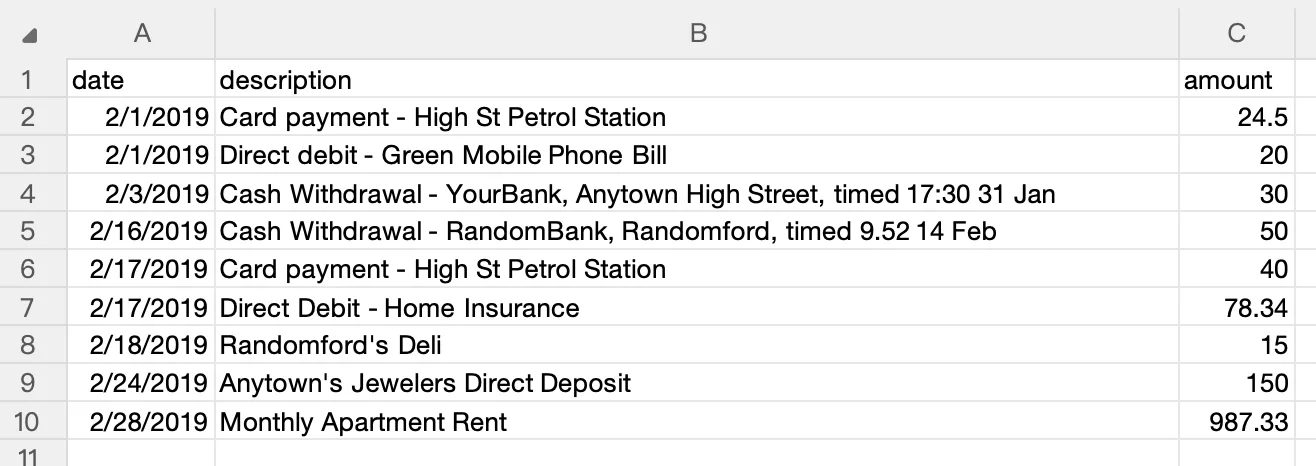
Count transactions in your extracted data and compare to the original PDF. If the PDF shows 47 transactions and your CSV has 45 rows, two were dropped.
Step 2: Total Reconciliation
Sum the amounts in your extracted data and compare against the statement's printed totals (total deposits, total withdrawals, or ending balance). A matching total means the extraction captured every transaction correctly.
import csv
from decimal import Decimal

with open("transactions.csv") as f:
    reader = csv.DictReader(f)
    total = sum(Decimal(row["Amount"]) for row in reader)

print(f"Extracted total: {total}")
# Compare this against the statement's printed net change
Step 3: Spot Check Edge Cases
Manually verify a few specific transactions:
- The first and last transactions on each page (page boundaries are where extraction errors cluster).
- Any transaction with an unusually long description (multi-line descriptions are prone to splitting or truncation).
- The largest transaction by amount (if the big numbers are right, the small ones usually are too).
If you are extracting data for import into accounting software, run the verification before importing. Fixing a CSV is straightforward. Fixing imported transactions inside QuickBooks or Xero requires deleting and re-importing, which is slower and riskier.
Privacy and Compliance Considerations
Bank statements contain sensitive financial data: account numbers, routing numbers, transaction histories, balances, and spending patterns. How you handle this data during extraction matters — both ethically and legally.
The FTC Safeguards Rule requires financial institutions and certain professional service providers — including tax preparers, bookkeepers, and accountants — to implement safeguards for customer financial information. The California Consumer Privacy Act (CCPA) adds additional requirements for businesses operating in California.
Local processing (copy-paste, Python libraries, on-device tools) keeps data on your machine. Cloud processing transmits documents to a remote server — review the service's privacy policy and data retention period before uploading. For professionals handling client financial data under regulatory obligations, local processing methods eliminate an entire category of compliance questions.
LocalExtract: Capabilities and Limitations
LocalExtract is the tool our team builds, and we want to be transparent about both what it does well and where it falls short.
What it does well: Processes digital and scanned PDFs (built-in PP-OCRv5 OCR), handles multi-page tables automatically, outputs CSV/Excel/JSON, runs entirely on-device with no network access, and works on both macOS and Windows.
Limitations:
- Bank format coverage is not universal. Works best with US bank formats. Non-US banks or highly customized corporate banking portals may produce incomplete results.
- No QBO or IIF output. If your workflow requires QBO format, tools like MoneyThumb are a better fit.
- OCR depends on scan quality. Low-resolution scans, skewed pages, or documents with handwritten annotations produce lower-quality results.
- Free tier is limited. 10 pages lifetime — enough to evaluate, but Pro ($10/month or $60/year) is needed for regular use.
- No batch API. Desktop application only. For automated pipeline processing, a Python-based or API-based solution is more appropriate.
Conclusion
Extracting data from a bank statement PDF is harder than it looks because the file format was designed for printing, not for data interchange. The right extraction method depends on your volume, technical comfort, and privacy requirements. For a one-off task, copy-paste works. For recurring extractions with full control, Python libraries give you flexibility at the cost of per-bank tuning. For hands-off accuracy without uploading sensitive data, on-device tools handle the edge cases -- multi-page tables, scanned documents, bank-specific formatting -- so you do not have to. Whichever method you choose, always verify: compare your extracted totals against the statement's printed totals before the data enters your accounting system.
FAQ
What is the easiest way to extract data from a bank statement PDF? For a single statement, manual copy-paste into a spreadsheet is the simplest method — no tools to install, no accounts to create. For anything beyond a one-time task, an on-device extraction tool saves significant time and reduces the risk of manual errors. The right method depends on how many statements you process and how often.
Can I use Python to extract bank statement data? Yes. Libraries like Tabula, pdfplumber, and Camelot can extract tabular data from digital PDFs. You will need code to handle bank-specific formatting, multi-page tables, and post-processing. The code examples in this article are functional starting points.
Do I need OCR to extract data from a bank statement PDF? Only if the PDF is scanned (an image of the statement rather than a digital document with selectable text). You can test this by trying to select and copy text from the PDF. If text is selectable, no OCR is needed. If the PDF behaves like an image, you will need OCR. Tools like Tesseract (open-source) or commercial OCR services can convert scanned PDFs to text before extraction.
How accurate is automated PDF data extraction? For digital PDFs with clean formatting, automated extraction tools typically achieve very high accuracy — often above 99% at the transaction level for supported bank formats. For scanned PDFs, accuracy depends on scan quality and the OCR engine used. Regardless of the method, always verify extracted data against the statement's printed totals before using it for accounting purposes.
Is it safe to upload bank statements to a cloud extraction service? Cloud services require transmitting your bank statement — including account numbers, balances, and transaction details — to a remote server. Whether this is acceptable depends on your privacy requirements, regulatory obligations, and the service's data handling policies. For professionals bound by the FTC Safeguards Rule, the simplest compliance path is to use a local processing method that keeps data on your own machine.
What output formats can I get from PDF extraction? The most common outputs are CSV, Excel (XLSX), and JSON. CSV is the most universal for accounting software imports -- see our guide to bank statement CSV format for accounting for column conventions that QuickBooks, Xero, and Wave expect. Excel preserves formatting and supports multiple sheets. JSON is useful for programmatic processing. Most extraction tools support at least CSV.
How do I handle bank statements with multiple accounts on the same PDF? Some banks combine multiple accounts into a single PDF. Automated tools may extract all transactions into a single output, mixing accounts together. After extraction, filter by account number or account name to separate them.
Why does my extracted data have missing or extra rows? Missing rows usually result from multi-page table breaks or transactions in an unexpected format. Extra rows typically come from repeated headers being treated as data or non-transaction lines (subtotals, section headers) being included. Verify by comparing your row count and totals against the original statement.
Disclosure: This article is published by the LocalExtract team. LocalExtract extracts structured data from bank statement PDFs entirely on your device — no uploads, no cloud processing, no third-party access to your financial data. We covered five extraction methods including free open-source tools and competing services to help you find the approach that fits your workflow. Download free for Mac or Windows.

LocalExtract Team
We build LocalExtract, an on-device bank statement converter for macOS and Windows. Our team includes software engineers and financial workflows specialists focused on private, accurate PDF data extraction. Questions or corrections? Contact us or see our editorial policy.
Related Articles
Ready to convert your bank statements?
100% on-device. Your documents never leave your computer.
By downloading, you agree to our Terms and Privacy Policy.