
Bank Statement Converter for Bookkeepers — Complete Workflow
Key Takeaways
- Bookkeepers handle the hands-on work of converting client bank statements into accounting entries — a task that scales poorly with manual data entry.
- A bank statement converter extracts transaction data from PDFs into CSV or Excel files that import directly into QuickBooks Online, Xero, Sage, and other platforms.
- Organizing files by client and statement period before conversion prevents costly mix-ups and simplifies audit trails.
- Local, on-device converters keep client financial data off third-party servers — important for bookkeepers who handle dozens of clients' sensitive information.
- Time savings compound quickly: converting 20 clients' monthly statements by hand takes roughly 10 hours; a converter does the same extraction in minutes.
This article is for informational purposes only and does not constitute legal or financial advice. Consult a qualified professional for guidance specific to your practice.
Why Bookkeepers Need a Dedicated Workflow
Bookkeepers are the people who actually sit down and enter the numbers. Unlike accountants who may focus on analysis, tax strategy, and advisory, bookkeepers do the hands-on data entry — recording every deposit, every check, every debit card purchase. Bank statements are the primary source document for this work, and they arrive as PDFs.
Disclosure: This article is published by the LocalExtract team. Where we compare products, we strive for factual accuracy and note our own limitations.
The volume is significant. A bookkeeper with 20 small business clients, each with one bank account and monthly statements, processes 240 statements per year. Many clients have multiple accounts — a checking account, a savings account, a credit card — pushing the total to 500 or more statements annually. Each statement might have 50 to 300 transactions that need to be entered into accounting software.
Manual data entry at this volume is not just slow — it is a bottleneck that limits how many clients a bookkeeper can serve. A bank statement converter removes the data entry step, freeing the bookkeeper to focus on categorization, reconciliation, and the judgment-based work that clients actually pay for.
Contents
- The Bookkeeper's Conversion Workflow
- Organizing Files by Client
- Batch Processing Multiple Statements
- Importing Into Accounting Software
- Client Confidentiality Obligations
- Time Savings: Real Numbers
- Handling Common Edge Cases
- Choosing the Right Converter
- Our Experience: A Real Bookkeeping Workflow
- Getting Started
- FAQ
- Looking Ahead
- Conclusion
The Bookkeeper's Conversion Workflow
The ideal workflow minimizes touches per statement. Every time you open a file, rename it, or re-export it, you add time and introduce the possibility of error. Here is a streamlined process:
1. Collect statements from clients
Clients provide bank statements in various ways — downloaded from online banking and emailed, uploaded to a shared folder, or handed over on a USB drive. Establish a consistent method with each client. A secure file-sharing tool (Sharefile, Google Drive with restricted access, or a client portal) is preferable to unencrypted email.
2. Organize before converting
Before you open the converter, sort incoming files into your folder structure. This takes a minute or two per client but saves significant time downstream. More on folder structure below.
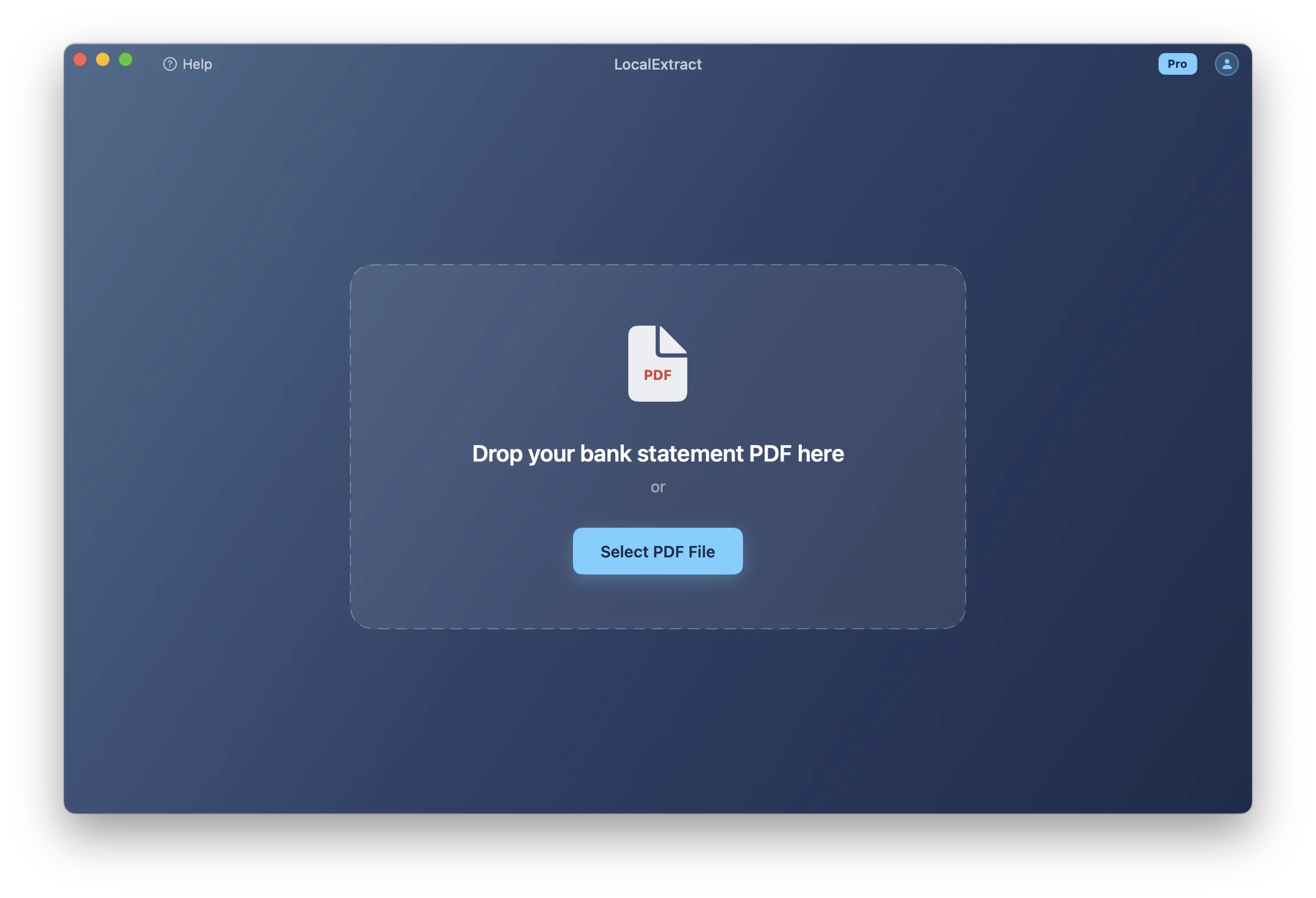
3. Convert PDFs to CSV
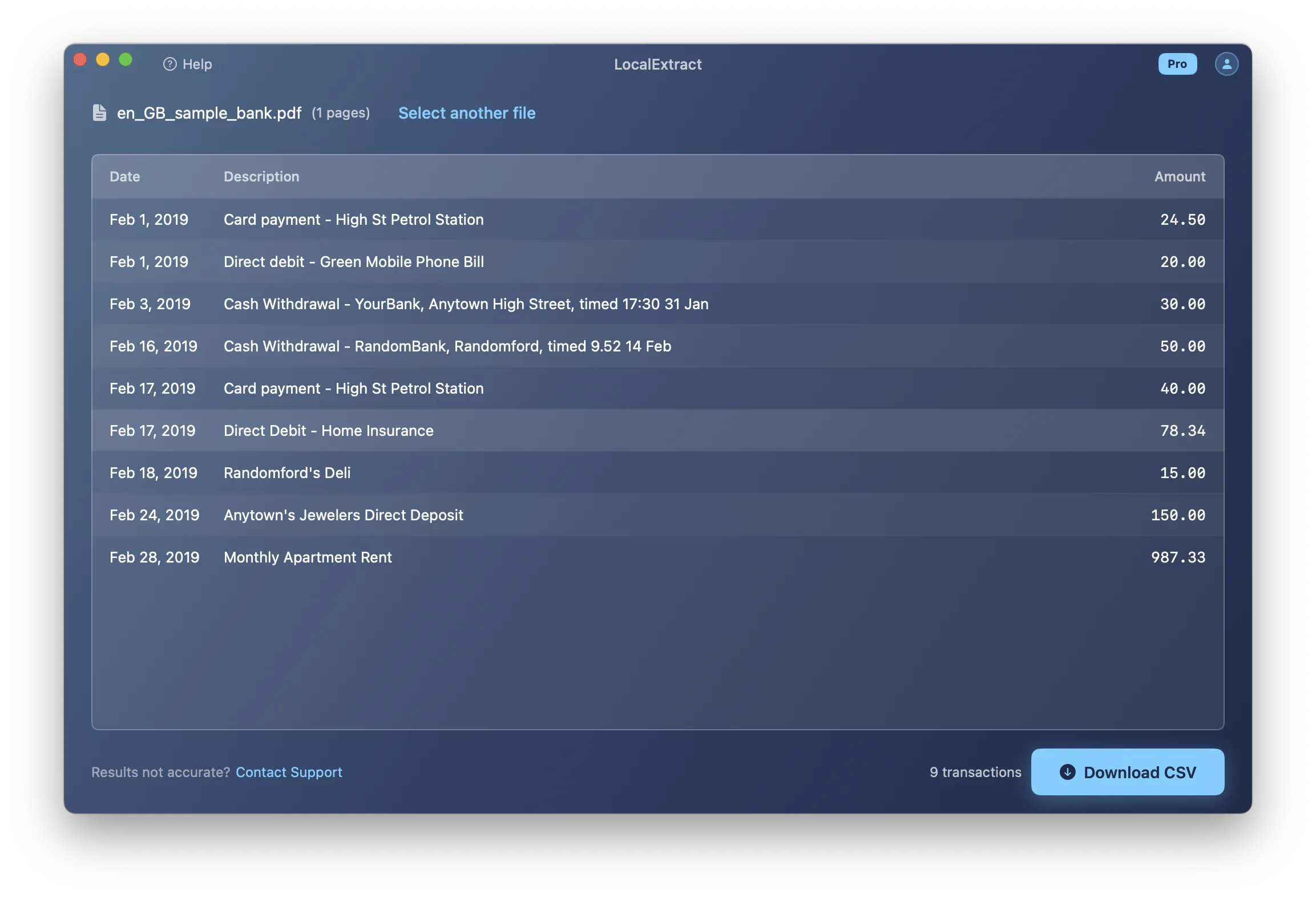
Open your bank statement converter and load the PDF. The converter extracts transaction data — dates, descriptions, amounts — and displays it for review.
4. Review the output
Spot-check the extracted data against the original PDF. Verify that the transaction count matches, that the first and last transactions are correct, and that the ending balance aligns. This review step takes 30-60 seconds per statement but catches errors before they propagate into your accounting records.
5. Export and import
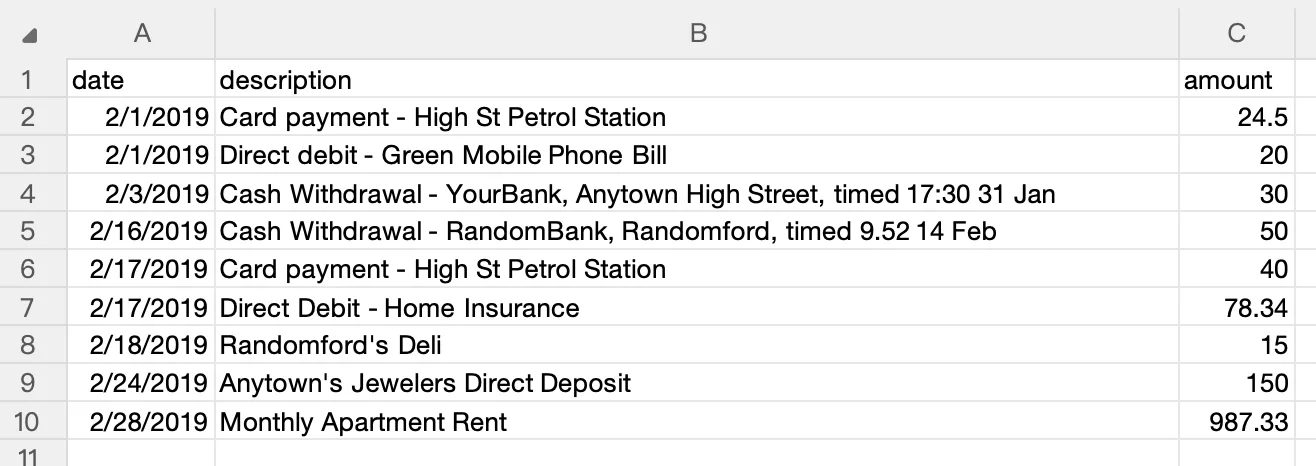
Export the verified data as CSV, then import it into your accounting software. Map the columns (date, description, amount) if prompted, then proceed with categorization and reconciliation.
Organizing Files by Client
File organization is not glamorous, but for bookkeepers managing multiple clients, it is the difference between a smooth workflow and a chaotic one. A misplaced statement or a file imported into the wrong client's books can take hours to untangle.
Recommended folder structure
Clients/
├── ABC Construction/
│   ├── Bank Statements/
│   │   ├── Chase Checking/
│   │   │   ├── 2026-01-chase-checking.pdf
│   │   │   ├── 2026-01-chase-checking.csv
│   │   │   ├── 2026-02-chase-checking.pdf
│   │   │   └── 2026-02-chase-checking.csv
│   │   └── Amex Business/
│   │       ├── 2026-01-amex-business.pdf
│   │       └── 2026-01-amex-business.csv
│   └── Working Files/
├── Smith Consulting/
│   ├── Bank Statements/
│   │   └── BofA Checking/
│   └── Working Files/
File naming conventions
Consistent naming prevents confusion. A pattern like YYYY-MM-bank-account.pdf sorts chronologically and identifies the source at a glance. Keep the converted CSV alongside its source PDF so you always have the original for reference.
Why this matters
When tax season arrives and a client asks for all Q3 transactions, you should be able to locate them in seconds. When you onboard a new team member, they should be able to understand your filing system without a walkthrough. And when a client questions a transaction from eight months ago, you need the source PDF readily accessible.
Batch Processing Multiple Statements
One of the biggest time advantages of a converter over manual entry is batch processing. Instead of entering transactions one statement at a time, you can convert multiple PDFs in sequence.
The batch workflow
- Gather all statements for the processing period (weekly, monthly, or quarterly)
- Sort them by client and account
- Convert each PDF, exporting the CSV to the appropriate client folder
- Import the CSVs into accounting software, one client at a time
Some converters support dragging multiple files at once. Even if you process files one at a time, the conversion step takes seconds per statement — the bottleneck shifts from data entry to review and categorization, which is where a bookkeeper's expertise matters.
Processing tips for high volume
- Process one client at a time. This reduces the risk of importing transactions into the wrong client's books.
- Keep a processing log. A simple spreadsheet tracking which statements have been converted and imported helps avoid duplicates or gaps.
- Convert the PDF and review immediately. Do not batch all conversions first and then review later — context-switching between conversion and review introduces errors.
Importing Into Accounting Software
The CSV output from a bank statement converter is the bridge between the PDF and your accounting software. Here is how to handle the import in the three most common platforms.
QuickBooks Online (QBO)
Navigate to Banking > Upload Transactions. Select the bank account you are importing into, then upload the CSV file. QBO provides a column mapping screen — match Date, Description, and Amount to the appropriate CSV columns. After import, transactions appear in the "For Review" tab where you categorize and approve them.
Bookkeeper tip: Set up bank rules in QBO for recurring transactions. After a few months, QBO's auto-categorization becomes increasingly accurate, reducing manual categorization time.
Xero
In Xero, go to Accounting > Bank Accounts, select the account, and click Import a Statement. Upload the CSV file and map the columns. Xero processes the import and applies any existing bank rules to categorize recognized transactions.
Bookkeeper tip: Xero's "Create Rule" feature lets you build categorization rules from imported transactions. Over time, this significantly reduces the number of transactions requiring manual review. For a detailed import walkthrough, see our Xero import guide.
Sage
In Sage Business Cloud, navigate to Banking > Import Statement and upload the CSV. Sage 50 uses File > Import with the bank transactions template. Map the columns during import.
Bookkeeper tip: Sage's matching engine works best when the description field is clean and consistent. If a converter produces descriptions with extra whitespace or merged fields, clean them in the CSV before importing. See our Sage import guide for format-specific tips.
General import best practices
- Import one account at a time. Never combine transactions from multiple bank accounts into a single CSV import.
- Verify the date range. Make sure the imported transactions cover exactly the statement period — no overlaps with previously imported data, no gaps.
- Check for duplicates. If you have already entered some transactions manually, importing the same period via CSV will create duplicates. Most accounting platforms have duplicate detection, but it is not foolproof.
Client Confidentiality Obligations
Bookkeepers handle sensitive financial data for multiple clients. This creates obligations that go beyond personal convenience.
What is at stake
A bank statement contains account numbers, routing numbers, transaction histories, balances, and detailed spending patterns. For business clients, statements may reveal vendor relationships, employee payroll amounts, and cash flow patterns that are commercially sensitive.
Regulatory landscape
The FTC Safeguards Rule, issued under the Gramm-Leach-Bliley Act, applies to "financial institutions" — a category that includes bookkeeping services that handle client financial data. The rule requires maintaining safeguards to protect customer information, including how it is processed and shared with third parties.
State-level regulations add additional requirements. Many states have data breach notification laws that apply to financial data, and some have specific requirements for document handling by financial service providers.
How your converter choice affects confidentiality
When you use a cloud-based converter, you are uploading client bank statements to a third-party server. That is a data-sharing event that falls under the Safeguards Rule. The third party's data handling practices — retention, access controls, subprocessor use — become your concern.
A local, on-device converter processes files entirely on your computer. No client data is transmitted to any external service. This simplifies your compliance posture and reduces the scope of your data protection obligations. For a deeper dive into privacy considerations, see our article on why bookkeepers should not upload bank statements.
Practical steps
- Document your tools. Maintain a list of software and services that touch client data, including bank statement converters.
- Use secure file transfer. Do not receive client bank statements via unencrypted email.
- Dispose of files properly. Delete converted files and source PDFs when they are no longer needed for the engagement.
- Use strong device security. Full-disk encryption, strong passwords, and up-to-date software on the machine where you process client data.
Time Savings: Real Numbers
The value proposition of a bank statement converter comes down to time. Here is a realistic calculation for a bookkeeper.
Assumptions
- 20 clients, each with 1 bank account
- Monthly statement processing
- Average statement: 8 pages, 120 transactions
- Manual entry speed: approximately 2 transactions per minute (including verification)
Manual entry time
120 transactions x 0.5 minutes each = 60 minutes per statement 20 clients x 12 months = 240 statements per year 240 statements x 60 minutes = 14,400 minutes (240 hours) per year
Converter time
Conversion: ~5 seconds per statement Review: ~2 minutes per statement (spot-checking output against source) Import: ~2 minutes per statement (uploading CSV and mapping columns) Total: ~4.1 minutes per statement 240 statements x 4.1 minutes = 984 minutes (16.4 hours) per year
Net savings
223.6 hours per year — equivalent to nearly six 40-hour work weeks. Even if the actual savings are half this estimate (accounting for edge cases, re-processing, and learning curve), the time recovered is substantial.
At a billing rate of $50/hour, the 223 hours saved represent over $11,000 in potential revenue — either by serving additional clients or by reducing unbillable administrative time. A converter subscription (for example, LocalExtract at $10/month or $60/year) pays for itself within the first statement processed.
Handling Common Edge Cases
Not every statement converts cleanly. Here are situations bookkeepers commonly encounter and how to handle them.
Statements with multiple account types
Some clients receive combined statements that include checking, savings, and credit card activity in a single PDF. If your converter processes the entire document as one statement, you will get mixed transactions. The solution is to note the page ranges for each account and process them separately, or use a converter that detects account boundaries automatically.
Scanned or image-based PDFs
Older statements or statements from clients who print and re-scan their documents arrive as image-based PDFs. These require OCR processing. The accuracy depends on scan quality — faded text, skewed pages, and low resolution all reduce reliability. For tips on handling scanned documents, see our guide on converting scanned bank statements to CSV. If you are working with older paper statements, our how to digitize bank statements guide covers the full scanning-to-data workflow.
Foreign currency statements
Clients with international bank accounts may provide statements in foreign currencies with different date formats (DD/MM/YYYY vs. MM/DD/YYYY) and number formats (comma as decimal separator). Verify that your converter handles these correctly and that your accounting software's import settings match the statement's conventions.
Statements with memo lines or wrapped descriptions
Some banks split transaction descriptions across multiple lines. A converter may treat the continuation line as a separate transaction, producing blank-amount rows in the output. Check for these artifacts during your review step and remove them before importing.
Choosing the Right Converter
For bookkeepers, the converter selection criteria differ from those of casual users. Here is what matters most:
| Criterion | Why It Matters for Bookkeepers |
|---|---|
| Multi-bank support | You process statements from whatever banks your clients use — you cannot choose banks based on format compatibility |
| CSV output quality | The CSV must import cleanly into QBO, Xero, and Sage without manual reformatting |
| Processing speed | At 20+ statements per month, even 30 seconds per statement adds up |
| Privacy | You handle other people's money data — cloud uploads are a liability concern |
| Cost predictability | Per-page pricing creates unpredictable costs at volume; flat-rate subscriptions are easier to budget |
| Reliability | A converter that fails on 1 in 10 statements costs more time than it saves |
LocalExtract is one option that fits this profile: it processes locally (no uploads), outputs clean CSV, and uses flat-rate pricing ($10/month or $60/year after a free tier of 10 pages). It runs on both macOS and Windows. However, cloud-based converters may support a wider range of bank formats, and some offer team features that LocalExtract does not. For a broader comparison of converter types, see our complete guide to bank statement converters.
Our Experience: A Real Bookkeeping Workflow
To understand the practical impact of a bank statement converter on bookkeeping workflows, we simulated a realistic monthly processing cycle. Here is what we found:
Test scenario: We processed one month of statements for a simulated 5-client practice, each with 1-2 bank accounts — 8 total statements, ranging from 2 to 14 pages.
Conversion time: Using LocalExtract, all 8 statements converted in under 30 seconds total, including the time to drag each PDF into the app and export the CSV. The longest individual conversion (a 14-page Chase checking statement with 210 transactions) took about 280ms for extraction plus a few seconds for our review.
Import results: We imported all 8 CSVs into QuickBooks Online (test account). Seven imported cleanly on the first attempt. One — a credit card statement with international transactions — required a minor date format adjustment in the CSV before QBO accepted it. For detailed import steps, see our QuickBooks import guide and Xero import guide.
Time comparison: Manual entry of the same 8 statements (approximately 680 total transactions) would have taken an estimated 5-6 hours based on our 2-transactions-per-minute benchmark. The converter workflow — including conversion, review, and import — took approximately 35 minutes. That is a roughly 10x time savings for this batch.
Privacy note: All processing happened on-device with Wi-Fi disabled. No client data left the test machine. For bookkeepers concerned about client confidentiality, this workflow eliminates the third-party exposure that comes with cloud converters. See our data privacy guide for bookkeepers for a comprehensive compliance overview, and our analysis of cloud vs. local bank statement converters for a detailed privacy comparison.
Getting Started
If you are a bookkeeper evaluating a bank statement converter, here is a practical approach:
- Gather test statements. Collect one statement from each bank your clients use — ideally a mix of formats (Chase, BofA, regional credit unions).
- Test with real data. Use the converter's free tier to process these test statements. LocalExtract offers 10 free pages — enough to test 2-3 statements.
- Verify the output. Compare the CSV output against the original PDF. Check transaction counts, amounts, and date formatting.
- Test the import. Import a test CSV into your accounting software to confirm column mapping works smoothly.
- Evaluate edge cases. Try a scanned statement, a multi-page statement, and a statement from a less common bank.
Download LocalExtract for macOS or Windows. No account creation required — processing happens entirely on your machine.
FAQ
What is a bank statement converter for bookkeepers? A bank statement converter reads PDF bank statements and extracts transaction data into CSV or Excel files for import into accounting software. For bookkeepers, key requirements include support for multiple bank formats, reliable CSV output, and secure handling of client data.
How much time does a converter save bookkeepers? For a bookkeeper with 20 clients processing monthly statements, the time savings can exceed 200 hours per year compared to manual data entry. The exact savings depend on statement complexity and the number of transactions per statement.
Do bookkeepers have data privacy obligations for client bank statements? Yes. The FTC Safeguards Rule applies to bookkeeping services that handle client financial data. State laws and professional standards add further requirements. Using a local converter that does not upload data to external servers simplifies compliance.
Can I use one converter for all my clients' banks? Most converters support multiple bank formats, but no converter supports every bank. Test with statements from each of your clients' banks before committing. If a converter does not support a specific format, many allow you to report the issue for future support.
What is the best output format for importing into QuickBooks? CSV is the most broadly compatible format. QuickBooks Online accepts CSV uploads via Banking > Upload Transactions. For QuickBooks Desktop, QBO format provides the cleanest import, but not all converters produce QBO output. See our QuickBooks import guide for detailed instructions.
How much does LocalExtract cost? LocalExtract offers a free tier of 10 pages (lifetime). The Pro plan is $10/month or $60/year with unlimited page processing. All processing happens on your device regardless of plan tier.
Looking Ahead
The bookkeeping profession is being reshaped by automation, and bank statement conversion is at the center of that shift. AI-powered categorization is already built into QuickBooks and Xero, and it improves as more transactions flow through the system. The next evolution is converters that pre-categorize transactions during extraction — mapping common merchants to expense categories before the data even reaches your accounting software. On-device AI models are making this possible without cloud processing, preserving the privacy advantages that local converters provide. Meanwhile, Open Banking APIs are gradually enabling direct data access from banks, which may reduce reliance on PDF statements over time — though for historical records and banks that adopt slowly, PDF conversion will remain essential for years to come. For bookkeepers, the strategic move is to adopt converter tools now to reclaim the hours spent on manual entry, and to choose tools that align with the privacy expectations your clients increasingly demand.
Conclusion
A bank statement converter transforms the bookkeeper's most time-consuming task — manual data entry from PDF statements — into a seconds-long extraction step, freeing you to focus on categorization, reconciliation, and the advisory work that clients value most. For a practice handling 20+ clients, the time savings alone (200+ hours per year) justify the investment many times over. The key is choosing a tool that supports your bank formats, produces clean CSV output for your accounting software, and handles client data with the confidentiality your profession requires — whether that means a private, local converter or a cloud tool whose security practices you have vetted.
LocalExtract converts bank statement PDFs to CSV and Excel entirely on your device — no uploads, no cloud processing, no third-party access to client data. Available for macOS and Windows.

LocalExtract Team
We build LocalExtract, an on-device bank statement converter for macOS and Windows. Our team includes software engineers and financial workflows specialists focused on private, accurate PDF data extraction. Questions or corrections? Contact us or see our editorial policy.
Related Articles
Ready to convert your bank statements?
100% on-device. Your documents never leave your computer.
By downloading, you agree to our Terms and Privacy Policy.