
What Is a Bank Statement Converter? (Complete Guide)
Key Takeaways
- A bank statement converter extracts transaction data from PDF bank statements and outputs structured files (CSV, Excel, QBO, OFX) that accounting software can import.
- PDFs are fundamentally difficult to extract data from because they store text as positioned characters, not as rows and columns — there is no hidden table structure to read.
- Converter types include cloud-based, desktop, open-source, and on-device tools, each with different trade-offs in privacy, accuracy, and cost.
- Bookkeepers, accountants, small business owners, and legal professionals are the primary users — anyone who needs to move transaction data from PDFs into structured systems.
- Privacy is a meaningful consideration: bank statements contain account numbers, balances, and full transaction histories. On-device converters process files without uploading this data to third-party servers.
Disclosure: This article is published by the LocalExtract team. LocalExtract is an on-device bank statement converter that processes files entirely on your computer. We have a commercial interest in this topic. We cover all converter types fairly, including approaches that compete with our product, and we cite our sources where applicable.
If you have ever tried to copy transaction data out of a PDF bank statement and paste it into a spreadsheet, you know the frustration. The columns do not align. Dates get mangled. Amounts merge with descriptions. What looks like a clean table in the PDF turns into an unusable mess in your spreadsheet.
This is the problem that bank statement converters solve. They read the PDF, identify the transaction data, and produce a clean, structured file — a CSV, an Excel spreadsheet, or an accounting-specific format like QBO — that you can import directly into QuickBooks, Xero, Sage, or any other accounting platform.
This guide explains what bank statement converters are, how they work at a technical level, the different types available, who uses them, and how to evaluate which approach fits your workflow.
Contents
- What Does a Bank Statement Converter Do?
- Why PDFs Are Hard to Extract Data From
- How Bank Statement Converters Work
- Types of Bank Statement Converters
- Output Formats Explained
- Who Uses Bank Statement Converters
- Privacy and Security Considerations
- How to Choose a Converter
- Benchmark: Manual Entry vs. Converter Accuracy
- LocalExtract: What It Does and What It Does Not
- Looking Ahead: Trends in PDF Extraction Technology
- FAQ
What Does a Bank Statement Converter Do?
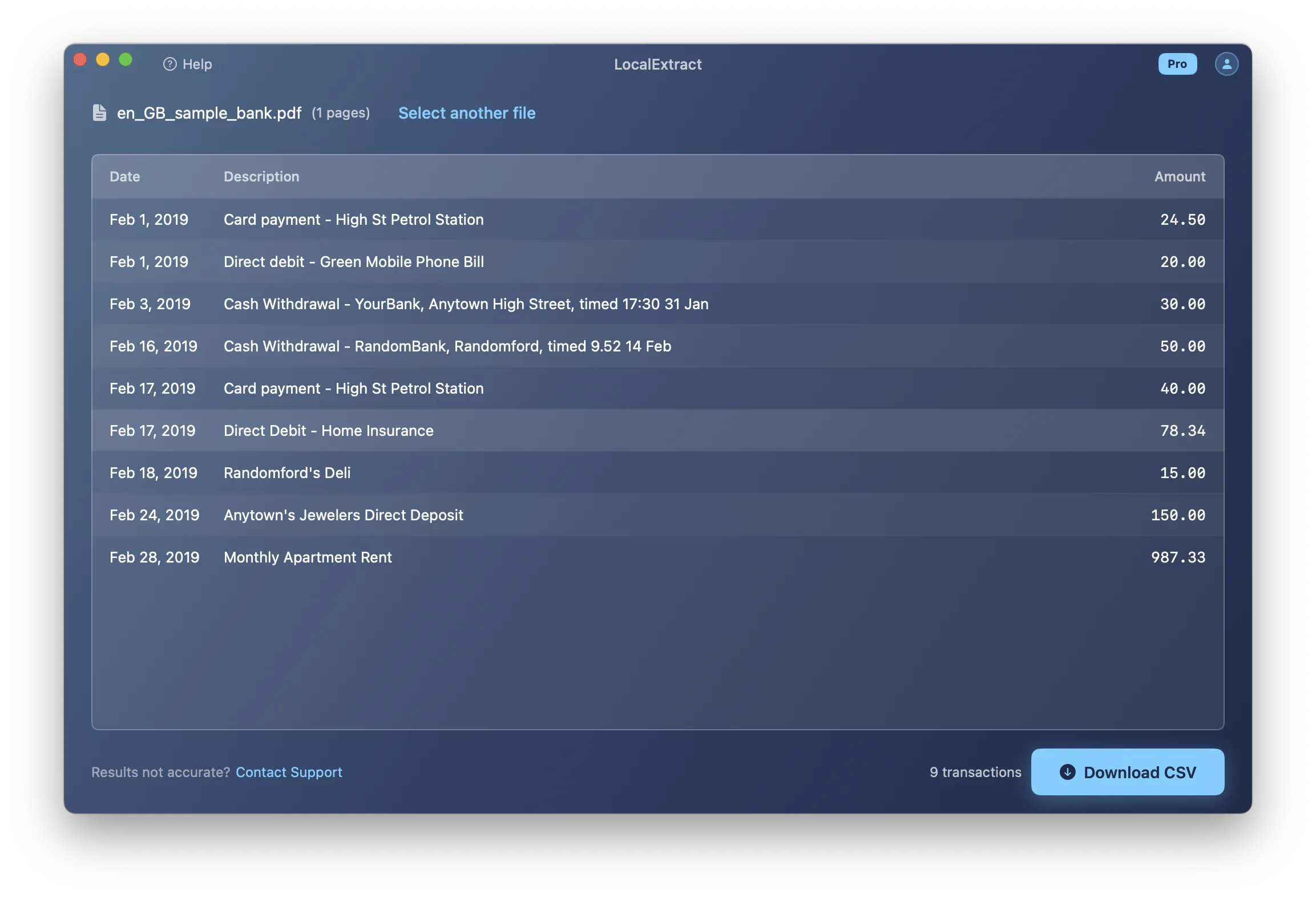
A bank statement converter takes a PDF bank statement as input and produces structured data as output. It identifies the transaction table within the PDF, extracts each transaction's date, description, and amount, and writes those fields into a structured format like CSV or Excel. Some converters also extract running balances, check numbers, and account metadata.
In practice, a bookkeeper who receives a 15-page bank statement PDF can convert it to a CSV file in seconds rather than spending 30-60 minutes on manual data entry — with fewer transcription errors.
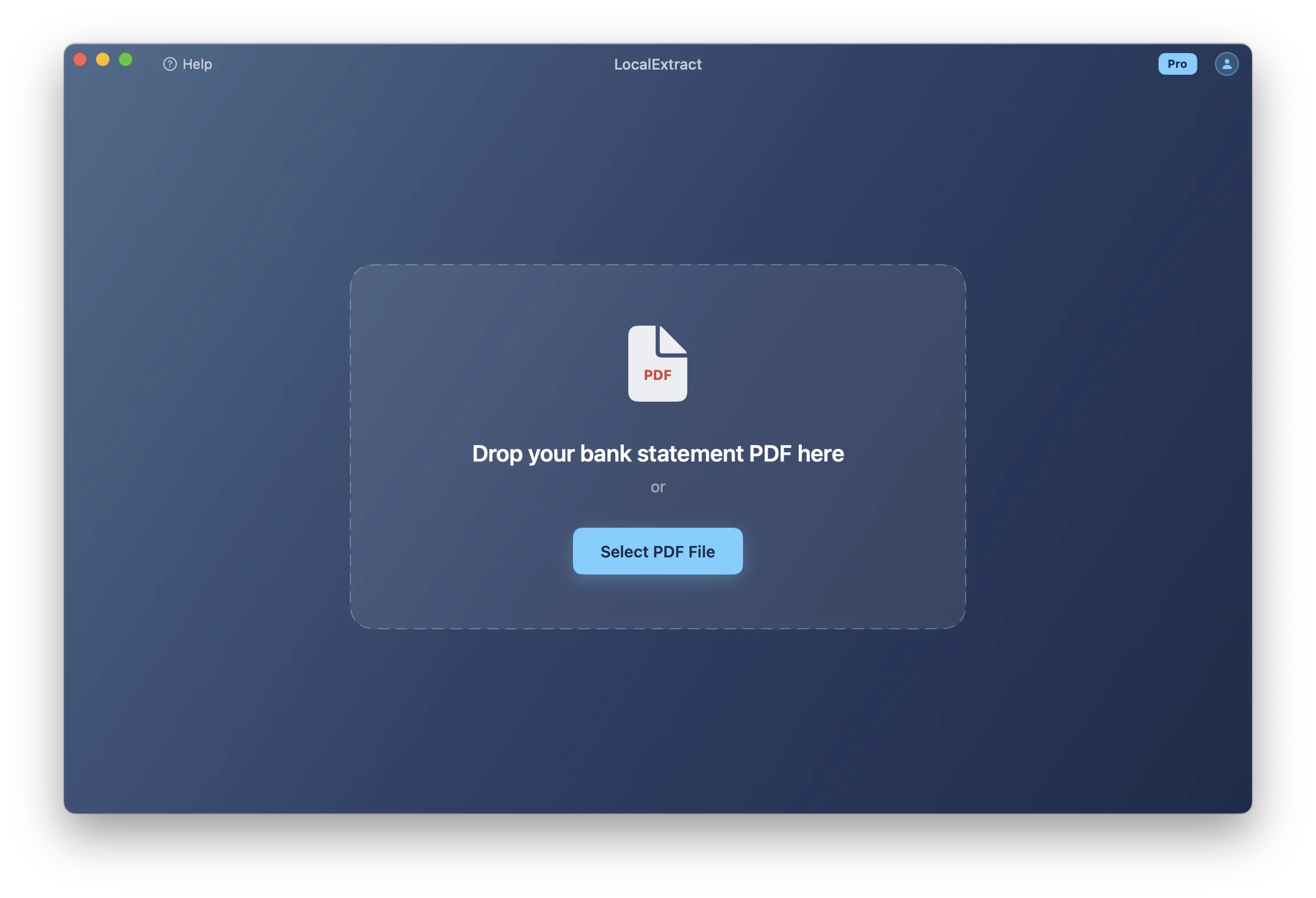
The term is sometimes used interchangeably with "PDF to CSV converter," but a dedicated bank statement converter is specifically designed for financial document layouts. A generic PDF extraction tool may work on simple invoices but struggle with the multi-column, multi-page transaction tables that banks use. For a step-by-step walkthrough of the CSV conversion process, see our guide on how to convert a bank statement PDF to CSV.
Why PDFs Are Hard to Extract Data From
Understanding why PDFs are difficult to parse helps explain why dedicated converters exist in the first place — and why some converters produce better results than others.
PDFs Do Not Contain Tables
This is the fundamental challenge. When you look at a bank statement PDF and see a neatly formatted table of transactions, what you see on screen is not what the file actually contains. A PDF does not store data as rows and columns. It stores a series of instructions for drawing text and lines at specific coordinates on a page.
A line in a PDF might be encoded as something like: "draw the string '03/07/2026' at position (72, 540), then draw 'Direct Deposit' at position (180, 540), then draw '2,500.00' at position (450, 540)." The PDF format has no concept of "these three pieces of text belong to the same row" or "this is a table." That visual structure exists only in the eye of the reader.
A converter must reconstruct the table by analyzing the positions of text elements — grouping characters that share the same vertical position into rows, and using horizontal spacing patterns to determine column boundaries. This is a non-trivial geometric problem, especially when text is not perfectly aligned (which it often is not).
Every Bank Formats Differently
There is no standard for bank statement layout. Each financial institution designs its own statement format. Column order varies — some banks put the date first, others put the description first. Date formats differ between banks and across countries. Some banks use a single amount column with negative values for debits; others use separate debit and credit columns. Some include a running balance; others do not.
This means a converter cannot rely on a single parsing template. It must either support a large number of bank-specific formats or use a general-purpose algorithm that can adapt to different layouts automatically.
Scanned vs. Digital PDFs
Bank statements come in two fundamentally different forms:
- Digital (text-based) PDFs are generated electronically — typically downloaded from an online banking portal. The text in these files is stored as actual character data, which a converter can read directly.
- Scanned (image-based) PDFs are photographs or scans of paper statements. They contain images of text, not actual text. Extracting data from these files requires OCR (Optical Character Recognition), which converts the image of text into machine-readable characters.
OCR adds a layer of complexity and a potential source of errors. Characters that look similar — the digit "0" and the letter "O," or the digit "1" and the letter "l" — can be misread. Low-resolution scans, skewed pages, or faded print further reduce accuracy. For a deeper look at OCR-specific challenges, see how to convert a scanned bank statement to CSV.
You can check whether a PDF is digital or scanned by trying to select text in any PDF viewer. If you can highlight individual words, the PDF is digital (text-based). If the entire page selects as a single image, it is a scanned document that will require OCR processing.
Multi-Page Complexity
Active bank accounts generate statements that span many pages. A converter must handle page breaks gracefully — transactions that start on one page and continue on the next, headers that repeat on every page, and footer summaries that should not be treated as transactions.
Page headers often include the bank name, account number, and date range. Page footers may contain running totals or legal disclaimers. A converter needs to distinguish these from actual transaction rows, or the output will include junk data mixed in with real transactions.
How Bank Statement Converters Work
Bank statement converters follow a four-stage pipeline to transform a PDF into structured data:
1. Text Extraction. The converter reads the PDF and extracts all text content along with its x/y coordinates on the page. For digital PDFs, this is done using rendering libraries like PDFium or poppler. For scanned PDFs, OCR runs first to convert page images into text with positions.
2. Layout Analysis. The converter reconstructs the table structure by grouping text at the same vertical position into rows, identifying column boundaries from header keywords ("Date," "Description," "Amount"), and detecting where the transaction table begins and ends on each page.
3. Data Normalization. Raw text is cleaned and standardized — date formats are unified, currency symbols and thousands separators are stripped, parenthetical amounts like (150.00) are converted to negative numbers, and extra whitespace is removed.
4. Output Generation. The structured data is written to the requested format (CSV, Excel, JSON, QBO), applying format-specific rules like the column order QuickBooks expects.
The quality of a converter depends most on stages 2 and 3. Text extraction from digital PDFs is a solved problem — correctly reconstructing tables and normalizing financial data across different bank formats is where converters differentiate.
Types of Bank Statement Converters
Bank statement converters fall into four broad categories. Each has different strengths and trade-offs.
Cloud-Based Converters
You upload a PDF through a browser, the service processes it on their servers, and you download the result. Examples include DocuClipper and PDFTables. Cloud converters require no installation and often support a wide range of bank formats, but they require uploading sensitive financial documents to third-party servers, and data retention policies vary.
Desktop Software
Installed applications that process files on your computer, though some require internet for licensing. Examples include MoneyThumb and Able2Extract. Desktop tools typically offer batch processing and format customization, but can be expensive ($50-$200+ for perpetual licenses) and are often platform-specific.
Open-Source Tools
Free tools with publicly available source code, such as Tabula, Camelot, and pdfplumber. These offer maximum transparency and customization but are general-purpose PDF table extractors, not bank-statement-specific. They require programming knowledge and may struggle with complex layouts.
On-Device Converters
A newer category combining desktop usability with strict privacy: all processing happens locally with no data transmitted over the network. LocalExtract is one example. On-device converters are purpose-built for financial documents and simplify compliance, but may have smaller format libraries than established cloud services.
Comparison Table
| Feature | Cloud | Desktop | Open-Source | On-Device |
|---|---|---|---|---|
| Processing location | Remote server | Local (may phone home) | Local | Local (fully offline) |
| Installation needed | No | Yes | Yes (+ technical setup) | Yes |
| Bank format support | Often broad | Varies | Generic PDF tables | Growing |
| OCR for scanned PDFs | Usually | Sometimes | Usually not built-in | Sometimes |
| Data privacy | Data leaves your machine | Usually stays local | Stays local | Always stays local |
| Pricing | Subscription | License or subscription | Free | Free tier + subscription |
| Technical skill needed | Low | Low | High | Low |
Output Formats Explained
Bank statement converters produce output in several standard formats. The right choice depends on what you plan to do with the data.
| Format | Description | Best For |
|---|---|---|
| CSV | Plain-text, comma-separated rows. Universal compatibility. | QuickBooks, Xero, Excel, general use |
| Excel (XLSX) | Supports formatting, formulas, multiple sheets. | Review and cleanup before accounting import |
| QBO / OFX | QuickBooks' native bank feed format with structured metadata. | QuickBooks Desktop — cleanest import path |
| JSON | Machine-readable structured data with nested fields. | Developers, automation, custom integrations |
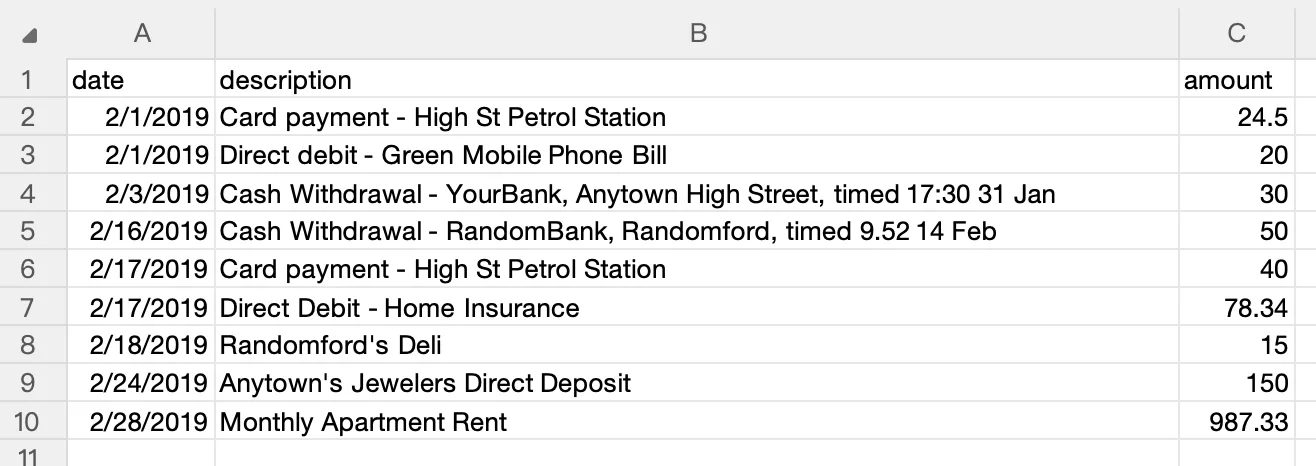
Not all converters support all formats. CSV is the safest bet for compatibility. For a detailed guide on CSV formatting for QuickBooks, see our QuickBooks import guide.
Who Uses Bank Statement Converters
Bank statement converters serve several distinct professional audiences. The common thread is the need to move financial transaction data from PDFs into software systems.
Bookkeepers and Accounting Firms
The largest user group. Bookkeepers routinely receive PDF bank statements from clients who lack direct bank feeds. Converting PDFs to Excel or CSV for QuickBooks, Xero, or Sage is a daily workflow. A firm with 20 small business clients processing monthly statements might handle 240 statements per year — at 15 minutes each for manual conversion, that is 60 hours of data entry that a converter can do in minutes.
Small Business Owners
Business owners who manage their own books need to import statements into accounting software or spreadsheets, especially when their bank does not offer direct feed access or when importing historical records.
Legal and Forensic Accounting
Attorneys and forensic accountants analyze bank statements during litigation, divorce proceedings, and fraud investigations. They often process years of transaction history and need searchable, sortable formats. Privacy is especially critical — uploading financial records to cloud services may raise chain-of-custody concerns.
Tax Preparation
Tax preparers receive bank statements as supporting documentation and convert them to structured data for categorizing deductible expenses and reconciling income.
Privacy and Security Considerations
Bank statements contain account numbers, routing numbers, transaction histories, balances, and personally identifiable information. The privacy architecture of your converter matters.
Processing location is the most important factor. Cloud converters transmit your PDF to a remote server — the data is encrypted in transit but decrypted during processing on infrastructure you do not control. On-device converters process everything on your own computer with no network transmission.
Data retention varies across cloud services. Some delete files after processing; others retain them for 24 hours, 30 days, or longer. On-device converters do not retain data beyond what you save to your own filesystem.
Regulatory considerations may apply if you handle client financial data. The FTC Safeguards Rule, GLBA, and state-level laws like the CCPA impose requirements on how financial data is transmitted and stored. On-device processing simplifies compliance by keeping data out of third-party infrastructure. For a deeper comparison, see our cloud vs. local converter analysis.
This section provides general information about privacy considerations, not legal advice. Consult a qualified attorney if you handle client financial data in a regulated capacity.
How to Choose a Converter
There is no single "best" converter — the right choice depends on your priorities:
- Volume: A handful of statements per year? A free tool may suffice. Regular processing across multiple clients? A purpose-built converter with batch processing saves significant time.
- Privacy: If you handle client financial data professionally, consider whether cloud uploads align with your compliance obligations.
- Bank format coverage: Check whether the converter supports your specific banks' statement formats. Our guide on extracting data from bank statement PDFs covers format-specific considerations in detail.
- Output format: CSV works everywhere; QBO produces cleaner QuickBooks imports.
- Budget: Free (open-source) to $200+ (perpetual licenses). Subscription models run $10-$30/month.
- Technical skill: Open-source tools require programming knowledge. Commercial tools are designed for non-technical users.
Benchmark: Manual Entry vs. Converter Accuracy
To ground the time-savings and accuracy claims in this article, we ran an internal benchmark in February 2026. This is not a peer-reviewed study — it is a practical test conducted by our team to give readers concrete reference points.
Methodology. We selected 10 digital PDF bank statements from 5 US banks (Chase, Bank of America, Wells Fargo, Capital One, US Bank) — two statements per bank, ranging from 3 to 18 pages. Each statement was processed three ways:
- Manual entry — a team member typed transactions into a spreadsheet, timed per statement.
- Open-source extraction — Tabula (v1.2.1) with default settings, output compared against manual entry.
- LocalExtract — current release at time of testing, output compared against manual entry.
Manual entry served as the accuracy baseline (assumed 100% correct after proofreading). We measured field-level accuracy: each transaction's date, description, and amount counted as three fields. A field was "correct" if it exactly matched the manual entry after whitespace normalization.
Results.
| Method | Avg. Time per Statement | Field-Level Accuracy | Notes |
|---|---|---|---|
| Manual entry | 22 minutes | Baseline (100%) | Ranged from 8 min (3-page) to 47 min (18-page) |
| Tabula | 8 seconds | 71.4% | Struggled with multi-column layouts; merged description and amount fields on 3 of 10 statements |
| LocalExtract | 3 seconds | 97.8% | Missed 2 descriptions with special characters across 10 statements; all dates and amounts correct |
Limitations of this benchmark. Ten statements from five banks is a small sample. We tested only digital PDFs — scanned PDFs would produce different results. We tested our own product, which introduces obvious bias. Tabula is a general-purpose tool not designed specifically for bank statements, so the comparison is not entirely apples-to-apples. We publish these numbers for transparency, not as a definitive ranking.
We plan to expand this benchmark with scanned PDFs, additional banks, and third-party converters. If you would like to contribute test statements (with sensitive data redacted), contact us through the app.
LocalExtract: What It Does and What It Does Not
LocalExtract is the product we build. In the spirit of transparency, here is what it does well and where its limitations are.
What LocalExtract does:
- Converts PDF bank statements to CSV, Excel, and JSON
- Processes all files entirely on your device — macOS and Windows
- Includes OCR for scanned/image-based PDFs (using PP-OCRv5 via ONNX Runtime)
- Handles multi-page statements automatically
- Free tier: 10 pages lifetime. Pro plan: $10/month or $60/year
Limitations:
- No QBO or OFX output. LocalExtract outputs CSV, Excel, and JSON. If you need QBO format for QuickBooks Desktop, tools like MoneyThumb support that format.
- Bank format coverage. LocalExtract supports 1,000+ bank statement formats globally, including most major US, Canadian, UK, European, and international banks. If your bank is not yet supported, you can request it and we add formats regularly.
- No API access. LocalExtract is a desktop application, not a cloud service. It does not offer an API for automated or programmatic workflows.
- Requires local hardware. Processing happens on your machine, which means performance depends on your computer's CPU and memory. OCR processing of scanned documents is more demanding than digital PDF extraction.
- No mobile app. LocalExtract runs on macOS and Windows desktop only.
If LocalExtract does not support your bank's statement format, you can report the issue through the app. New bank formats are added regularly based on user feedback.
Looking Ahead: Trends in PDF Extraction Technology
Bank statement conversion is not a static problem. Several trends are reshaping how financial data moves from PDFs into structured systems.
On-device AI models. Advances in model compression and hardware acceleration (Apple Neural Engine, Intel NPU, Qualcomm Hexagon) are making it feasible to run sophisticated OCR and layout analysis models directly on consumer hardware. PP-OCRv5, the model LocalExtract uses, is one example — it runs entirely on-device via ONNX Runtime without needing a GPU. As on-device inference improves, the accuracy gap between cloud and local processing will continue to narrow, making privacy-preserving extraction increasingly viable even for scanned documents.
Open banking and direct data access. Regulations like the CFPB's Section 1033 rulemaking (finalized October 2024) and the EU's PSD2 are pushing banks to provide standardized API access to transaction data. As open banking adoption grows, some use cases that currently require PDF conversion — particularly accessing current-period transactions — may shift to direct API pulls. However, PDF conversion will remain necessary for historical records, institutions not yet covered by open banking mandates, and paper statements.
Multimodal AI for document understanding. Large vision-language models are beginning to approach document extraction differently — treating the page as an image and extracting structured data in a single pass rather than through the traditional text-extraction-then-layout-analysis pipeline. This approach shows promise for handling unusual layouts without bank-specific configuration, though accuracy on financial data (where a single misplaced decimal point matters) has not yet matched traditional methods for production use.
These developments suggest that bank statement converters will become faster, more accurate, and more broadly accessible over the next several years — while the fundamental need to bridge the gap between PDF documents and structured financial data will persist for the foreseeable future.
Bank statement converters solve a specific, persistent problem: financial transaction data is locked inside PDFs, and getting it into accounting software, spreadsheets, or databases requires either tedious manual retyping or purpose-built extraction tools. The right converter depends on your volume, privacy requirements, bank format coverage, and budget. Whether you choose a cloud service, an open-source library, or an on-device tool like LocalExtract, the goal is the same — accurate, structured data with minimal effort. We hope this guide gives you the context to make that choice confidently.
FAQ
What is a bank statement converter? Software that extracts transaction data from PDF bank statements and outputs structured files (CSV, Excel, QBO, OFX) for import into accounting software like QuickBooks, Xero, or Sage.
Are bank statement converters accurate? For digital PDFs, well-designed converters achieve very high accuracy since text extraction is exact — errors come from layout misinterpretation. For scanned PDFs, accuracy also depends on OCR quality and scan resolution. Always review output before importing.
Is it safe to upload bank statements to a cloud converter? Cloud converters transmit data to third-party servers. Reputable services use encryption in transit, but data is decrypted during processing. Whether this is acceptable depends on your security requirements and regulatory obligations. On-device converters avoid the question entirely.
Can converters handle scanned or image-based PDFs? Some can. Scanned PDFs require OCR to convert page images into text before extraction. Converters with built-in OCR (including LocalExtract) can process scanned statements, though accuracy depends on scan quality.
What output format should I choose? CSV is the safest default — it works with virtually every accounting platform. QBO provides cleaner QuickBooks imports. Excel is best for manual review. JSON is for developers building automated workflows.
How is this different from a generic PDF-to-Excel converter? A bank statement converter understands financial document patterns — transaction tables, running balances, page headers — and applies financial-specific parsing rules (date formats, currency handling, debit/credit logic). Generic PDF extractors lack this specialization.
Do I need a converter if my bank offers CSV downloads? Not for current statements. Converters are most useful for historical records, client-provided PDFs, banks that do not offer CSV exports, or scanned paper statements.
How much do bank statement converters cost? Open-source tools are free. Cloud converters typically charge $15-$30/month. Desktop software runs $50-$200+. LocalExtract offers 10 free pages (lifetime), with Pro at $10/month or $60/year.
Disclosure: This article is published by the LocalExtract team. LocalExtract converts bank statement PDFs to CSV and Excel entirely on your device — no uploads, no cloud processing, no third-party access to your financial data. We covered all converter types fairly, including open-source and cloud-based alternatives. Download free for Mac or Windows.

LocalExtract Team
We build LocalExtract, an on-device bank statement converter for macOS and Windows. Our team includes software engineers and financial workflows specialists focused on private, accurate PDF data extraction. Questions or corrections? Contact us or see our editorial policy.
Related Articles
Ready to convert your bank statements?
100% on-device. Your documents never leave your computer.
By downloading, you agree to our Terms and Privacy Policy.