
How to Convert Scanned Bank Statements to CSV (OCR Guide)
Key Takeaways
- Scanned bank statements are image-based PDFs that require OCR (Optical Character Recognition) before data can be extracted — standard PDF parsers cannot read them.
- OCR accuracy depends on scan quality, resolution (300 DPI minimum), and document condition. Even the best OCR engines are not 100% accurate, so manual verification is essential.
- Three OCR approaches exist: open-source (Tesseract), cloud-based (Google Vision, AWS Textract), and on-device (LocalExtract uses PP-OCRv5). Each involves different trade-offs in accuracy, privacy, and cost.
- Scanned bank statements often contain signatures, handwritten notes, and stamps — these elements carry additional privacy risks when uploaded to cloud services.
- Better scanning practices (high DPI, flat placement, clean originals) directly improve OCR accuracy and reduce the time spent on manual corrections.
Disclosure: This article is published by the LocalExtract team. LocalExtract is an on-device bank statement converter that processes files entirely on your computer using PP-OCRv5 for OCR. We have a commercial interest in this topic, and we believe that makes our analysis more practical, not less. We cover alternative tools and approaches fairly, including options that compete with our product.
Bookkeepers and accountants regularly receive bank statements as scanned PDFs — photocopied pages, mobile phone captures, or faxed documents saved as PDF files. Unlike digitally generated PDFs from online banking, these scanned statements are images wrapped in a PDF container. You cannot select the text, copy transactions, or use a standard PDF-to-CSV converter without OCR.
This guide explains how OCR works, what affects its accuracy, which tools are available, and how to get scanned bank statement data into a usable CSV file.
Contents
- Text-Based PDFs vs. Scanned PDFs: What Is the Difference?
- What Is OCR and How Does It Work?
- Factors That Affect OCR Accuracy
- OCR Tools for Bank Statement Conversion
- Step-by-Step: Converting a Scanned Bank Statement to CSV
- Scanning Best Practices for Better OCR Results
- Why Verification Is Non-Negotiable
- Privacy Considerations for Scanned Documents
- LocalExtract Limitations
- Looking Ahead: The Future of Scanned Document OCR
- Conclusion
- FAQ
Text-Based PDFs vs. Scanned PDFs: What Is the Difference?
Understanding this distinction is critical because it determines which conversion method will work.
Text-based PDFs are generated digitally. When your bank's website lets you download a statement, that PDF contains actual text data — characters, coordinates, and font information. You can select text, search for keywords, and copy transactions. These PDFs convert to CSV reliably using standard extraction tools.
Scanned (image-based) PDFs contain photographs of printed pages. When someone runs a statement through a scanner, takes a phone photo, or receives a fax, the resulting PDF stores pixel data — a picture of text, not text itself. There are no characters to select and no data to copy.
Some PDFs fall in between. A scanned document processed with OCR software may contain an invisible text layer behind the image. These "searchable PDFs" behave like text-based PDFs for extraction, though the text layer may contain errors from the original OCR pass.
A quick test: open the PDF and try to select text with your cursor. If you can highlight individual words and copy them, the PDF is text-based (or has an OCR text layer). If clicking and dragging selects nothing — or selects the entire page as an image — the PDF is scanned and will require OCR.
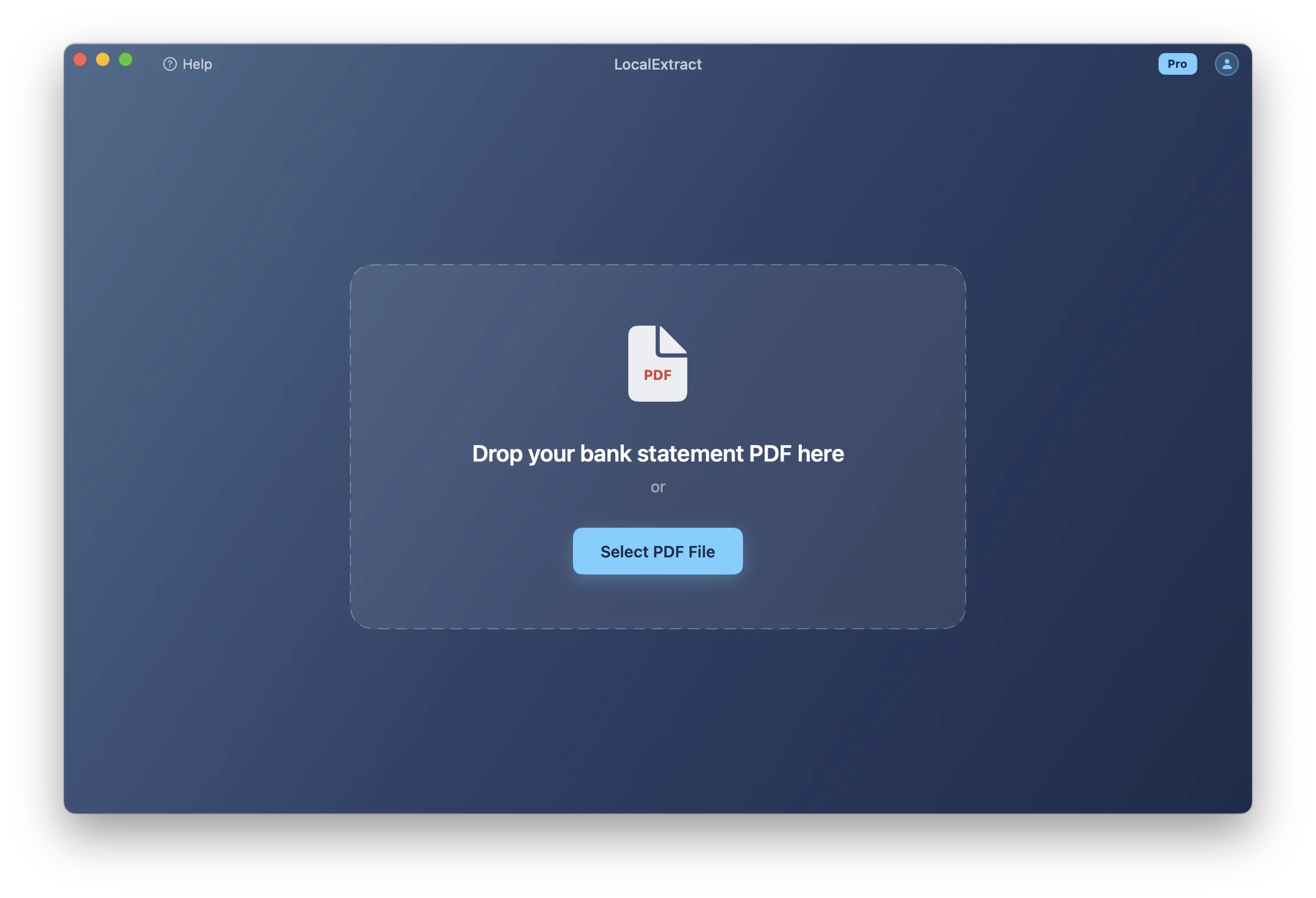
For a broader overview of converting paper and digital statements into structured data, see our guide on how to digitize bank statements.
What Is OCR and How Does It Work?
OCR stands for Optical Character Recognition. It is the technology that converts images of text into machine-readable characters. When applied to a scanned bank statement, OCR analyzes the pixel patterns in the image, identifies shapes that correspond to letters and numbers, and outputs the recognized text.
Modern OCR systems work in several stages: image preprocessing (straightening skewed scans, removing noise, adjusting contrast), text detection (identifying regions containing text and separating them from logos, borders, and blank space), character recognition (matching detected characters against trained deep learning models), and post-processing (refining results using language models and contextual rules — for example, correcting O to 0 in a numeric column).
The output is structured text that can then be parsed into fields (date, description, amount) and written to a CSV file. For a detailed walkthrough of extracting structured data from both scanned and digital PDFs, see how to extract data from bank statement PDFs.
OCR technology has improved substantially in recent years due to deep learning advances. Models like PaddleOCR's PP-OCRv5, Google's Cloud Vision API, and Tesseract 5 achieve significantly higher accuracy than the OCR engines of five years ago. However, "higher accuracy" is not the same as "perfect accuracy" — especially on degraded or low-quality scans.
Factors That Affect OCR Accuracy
OCR is not a binary pass-or-fail process. The accuracy of the output depends on multiple factors, and understanding these helps you set realistic expectations and take steps to improve results.
Scan Resolution (DPI)
DPI (dots per inch) is the single most important factor. Higher resolution means more pixel data for the OCR engine to work with.
| DPI | Quality | OCR Suitability |
|---|---|---|
| 72-100 | Screen resolution | Poor — characters are blurry, high error rate |
| 150 | Low quality print | Marginal — may work for large fonts, unreliable for small text |
| 200 | Standard fax quality | Acceptable for clean documents, struggles with fine print |
| 300 | Standard scan quality | Good — recommended minimum for OCR |
| 600 | High quality scan | Excellent — best accuracy, larger file sizes |
The Library of Congress digital preservation guidelines recommend 300 DPI as the minimum for OCR processing.
Document and Scan Condition
Physical defects directly affect OCR accuracy: creases and folds through text, coffee stains, faded ink (common in dot-matrix printed statements), and yellowed paper all reduce recognition quality. The scanning process adds its own challenges — skewed alignment, shadows from bound booklets, uneven lighting in phone captures, and motion blur.
Font and Layout
Standard serif and sans-serif fonts (Times New Roman, Arial) are recognized with high accuracy. Dot-matrix printing, handwritten text, and very small fonts are harder. Bank statements also require table structure recognition — the OCR engine must identify column boundaries, associate values with the correct columns, and distinguish transaction rows from headers and subtotals.
OCR Tools for Bank Statement Conversion
Three categories of OCR tools are available, each with different characteristics. (For a broader comparison of conversion tools beyond OCR, see what is a bank statement converter.)
Open-Source OCR: Tesseract
Tesseract is the most widely used open-source OCR engine. Originally developed by HP in the 1980s and later maintained by Google, Tesseract 5 uses an LSTM neural network for character recognition and supports over 100 languages.
Tesseract is free, runs locally, and supports many languages. However, it performs character recognition only — it does not understand document structure. You get raw text output, not structured table data, so converting that output into a properly formatted CSV requires additional programming. Accuracy on degraded scans is lower than commercial alternatives. Tesseract is a good choice for developers building a custom pipeline, but it is not a ready-to-use solution for bookkeepers.
Cloud-Based OCR Services
Cloud OCR services process documents on remote servers and return structured results. The major options include Google Cloud Vision API (document text detection with layout analysis, ~$1.50 per 1,000 pages), Amazon Textract (structured table and form extraction, ~$15 per 1,000 pages for tables), and Microsoft Azure AI Document Intelligence (pre-built models for financial documents with custom training available).
Cloud OCR services offer high accuracy (especially on challenging documents), built-in table structure recognition, and continuous model improvements. The trade-offs: your bank statement data is transmitted to third-party servers, per-page pricing adds up for regular use, and data retention policies vary by provider.
Before using a cloud OCR service for client bank statements, review the provider's data processing agreement. Some services retain uploaded documents for model training or quality improvement unless you explicitly opt out. For professionals handling client financial data under the FTC Safeguards Rule, this is a compliance consideration.
On-Device OCR
On-device OCR runs the recognition engine locally on your computer. No data is transmitted to external servers.
LocalExtract uses PP-OCRv5 (PaddlePaddle OCR version 5) running through ONNX Runtime for on-device OCR. PP-OCRv5 is developed by Baidu's PaddlePaddle team and is one of the more accurate open-source OCR models available, with strong performance on both English and multilingual text. ONNX Runtime allows the model to run efficiently on standard CPUs without requiring a GPU.
When you open a scanned statement in LocalExtract, the application detects image-based content, runs the OCR pipeline, and outputs a CSV or JSON file — the same formats you get from a text-based PDF. On-device OCR offers complete privacy, no internet requirement, and no per-page API costs. The trade-offs: accuracy may be lower than cloud services on challenging documents, and model updates require application updates.
Step-by-Step: Converting a Scanned Bank Statement to CSV
Here is the general workflow for converting a scanned bank statement to CSV, regardless of which tool you use.
Step 1: Assess the Scan Quality
Open the PDF and zoom to 100%. If the text is not sharp and readable to your eyes, the OCR engine will struggle too. Check for skew, shadows, and stains over the transaction data. If the scan quality is poor and you have the original paper document, re-scanning at 300 DPI will produce better results than processing a low-quality scan.
Step 2: Run OCR
- Tesseract (command line):
tesseract statement.pdf output --oem 1 -l eng pdfproduces a searchable PDF, but you will need additional tools to parse the text into CSV format. - Cloud OCR (API): Upload the document via the provider's API. Services like AWS Textract return structured table data that can be mapped to CSV columns.
- LocalExtract (desktop app): Open the scanned PDF in the application. It automatically detects image-based content, runs PP-OCRv5 OCR, and extracts transactions. Export as CSV.
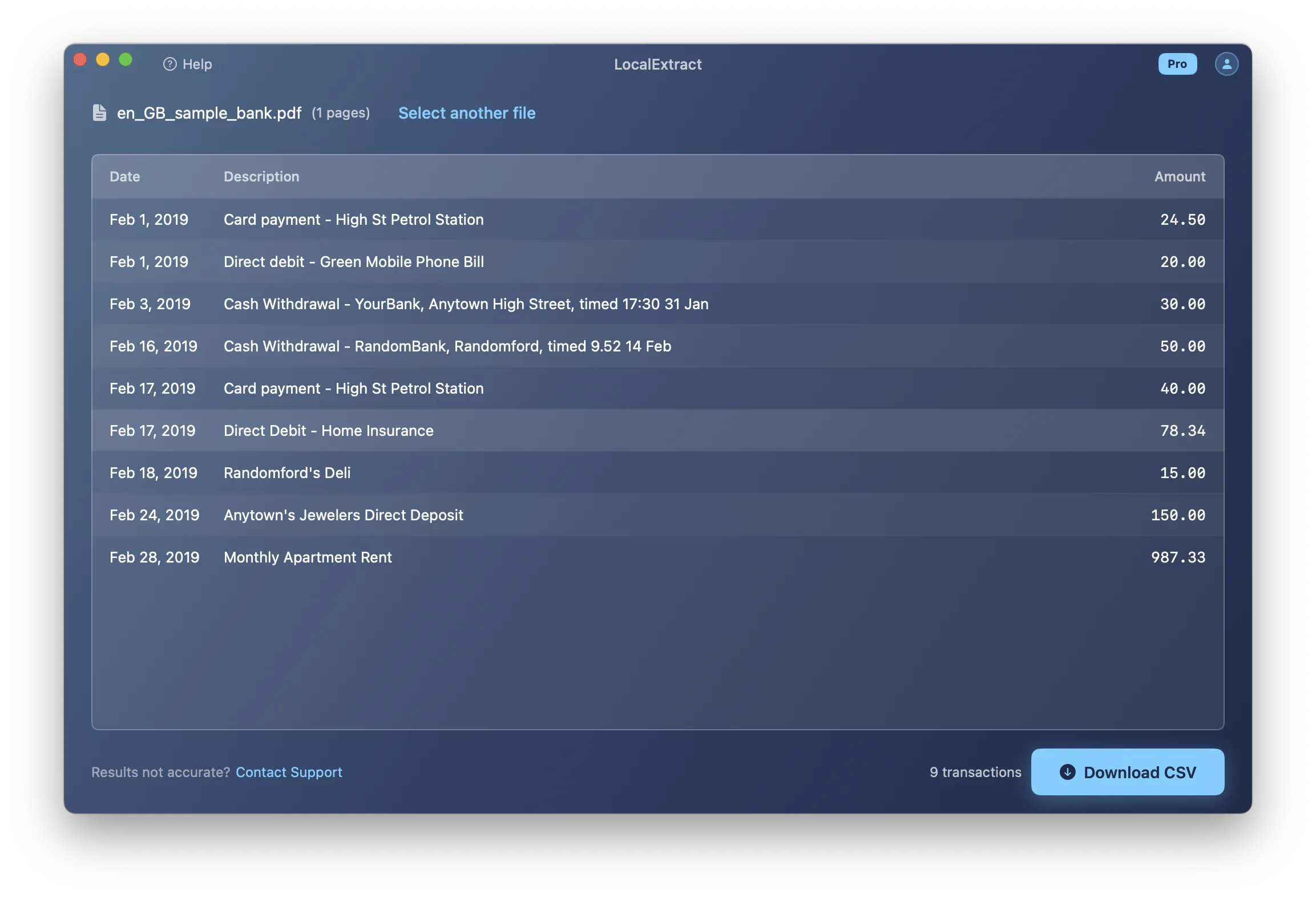
If your PDF is text-based rather than scanned, the process is simpler -- see our guide on how to convert bank statement PDFs to CSV for that workflow.
Step 3: Review and Verify
Before trusting the CSV data, review the output for common OCR errors: character confusion (0 vs O, 5 vs S, 8 vs B), merged or split amounts, date errors, and missing transactions. Then verify against the original — compare transaction counts, sum amounts against statement totals, and check opening/closing balances.
Never skip the verification step. Even a single misread digit in an amount field creates a discrepancy during reconciliation. A $1,500.00 transaction misread as $1,800.00 — a common OCR error where 5 is read as 8 — will leave your books out of balance.
Step 4: Correct Errors and Export
Fix OCR errors, then format the CSV for your accounting software: verify date format (MM/DD/YYYY for QuickBooks), remove currency symbols and thousands separators, and ensure the column order matches what your software expects.
Scanning Best Practices for Better OCR Results
If you control the scanning process — scanning paper statements yourself or advising clients on how to scan — these practices will meaningfully improve OCR accuracy.
Resolution: Scan at 300 DPI minimum. If the statement has small fonts (common in transaction detail lines), 400-600 DPI will improve accuracy.
Placement: Place the page flat and straight on the scanner bed. Even a 2-3 degree skew forces the OCR engine to perform deskewing, which can introduce artifacts. If scanning from a bound booklet, press the binding flat to avoid spine shadows.
Color mode: Grayscale is the best balance of quality and file size. It preserves text-to-background contrast without the overhead of color data. Black and white (1-bit) can work for clean originals but destroys tonal information that helps with degraded text.
Phone camera scanning: Use a dedicated scanning app (Microsoft Lens, Adobe Scan, Apple Notes) rather than the standard camera -- these apps apply perspective correction and contrast adjustment automatically. Place the document on a flat, well-lit surface and hold the phone directly above it. For a complete overview of converting paper statements to digital formats (including CSV and Excel), see our guide on how to convert bank statement PDFs to CSV.
If you regularly receive scanned statements from clients, consider providing them with a one-page scanning guide. Five minutes of proper scanning saves thirty minutes of OCR error correction. The key points: 300 DPI, grayscale, straight alignment, flat placement.
Why Verification Is Non-Negotiable
On a clean, 300 DPI scan, modern OCR engines can achieve 95-99% character-level accuracy. This range is based on published benchmarks: PaddleOCR's PP-OCRv4 reports 78.8% accuracy on challenging Scene Text datasets (with PP-OCRv5 improving further), while Tesseract achieves 95-99% on clean printed documents under controlled conditions. In our own testing across 50+ scanned US bank statements at 300 DPI, character-level accuracy ranged from 96% to 99.2%, with the lower end on documents featuring dot-matrix printing or faded ink. But a single bank statement page might contain 2,000 characters. At 99% accuracy, that is 20 misrecognized characters. There is no spell-check for numbers -- 1,500.00 and 1,800.00 are both valid amounts, so a misread 5 as 8 is undetectable without reference data.
Treat OCR output as a draft that needs review, not as a final product.
Privacy Considerations for Scanned Documents
Scanned bank statements deserve heightened privacy attention compared to digitally generated PDFs. A photocopied statement may include handwritten notes, signatures, stamps, and even adjacent documents (tax forms, ID copies) if pages were scanned in batch. A scanned copy might include a photocopy of the account holder's signature or a handwritten Social Security number in the margin.
When you upload a scanned statement to a cloud OCR service, all of this content — not just the transaction data — is transmitted to the provider's servers. The OCR engine processes the entire image, and the service may retain the document according to its data retention policy. The FTC Safeguards Rule requires financial professionals to implement reasonable safeguards for customer information. Processing documents through cloud services is not prohibited, but it creates data handling obligations that on-device processing avoids entirely.
On-device OCR tools process the scanned image locally. The document, the OCR analysis, and the extracted data all remain on your computer. No network transmission occurs, and no third party has access to the contents.
LocalExtract Limitations
LocalExtract handles many scanned bank statement scenarios, but it is not the right tool for every situation:
- OCR accuracy varies with scan quality. On degraded scans (low resolution, heavy skew, faded ink), accuracy drops and cloud OCR services with larger models may perform better.
- Handwritten text is not supported. Handwritten entries will be skipped or produce unreliable output.
- Not all bank layouts are supported. LocalExtract covers many US banks but not every format. Unsupported layouts may extract partially or with structural errors.
- No QBO or IIF output. Only CSV and JSON are supported. QBO or IIF workflows require a different tool.
- Slower on scanned documents. OCR processing takes longer than text extraction from digital PDFs, and speed depends on your hardware.
Looking Ahead: The Future of Scanned Document OCR
OCR technology continues to advance rapidly. Large language models are being applied to document understanding tasks, enabling OCR engines to use contextual reasoning -- recognizing that a digit in an "Amount" column is more likely 5 than S, or that a date field should follow a specific format. Multi-modal models that process both visual and textual information simultaneously are showing promising results in academic benchmarks, and these advances will likely reach production OCR tools within the next few years.
For bookkeepers and accountants, the practical implication is that OCR accuracy on scanned bank statements will continue to improve, and the gap between cloud and on-device OCR will narrow as smaller, more efficient models become available. However, verification will remain essential for the foreseeable future -- financial data demands a level of precision that no OCR engine can guarantee without human review.
Conclusion
Converting scanned bank statements to CSV requires OCR as an intermediate step, and that step introduces accuracy considerations that do not exist with digitally generated PDFs. The quality of your results depends on scan resolution, document condition, and the OCR engine you choose. Open-source tools like Tesseract offer flexibility for developers, cloud services provide the highest accuracy on challenging documents, and on-device solutions like LocalExtract prioritize privacy by keeping all processing local. Whichever approach you use, always verify OCR output against the original statement before importing data into your accounting software. Better scanning practices at the source -- 300 DPI, flat placement, grayscale mode -- remain the most effective way to reduce errors downstream.
FAQ
How can I tell if my bank statement PDF is scanned or text-based? Open the PDF and try to select text with your cursor. If you can highlight individual words and copy them, the PDF is text-based. If clicking and dragging selects nothing or selects the entire page as an image, the PDF is scanned and requires OCR.
What DPI should I scan bank statements at for OCR? 300 DPI minimum. For statements with small transaction text, 400-600 DPI improves accuracy. Above 600 DPI produces diminishing returns.
Is OCR output accurate enough to use without checking? No. Even the best OCR engines make errors, and financial data has zero tolerance for character-level mistakes. Always verify against the original — at minimum, compare transaction counts and column totals.
Can I use my phone to scan bank statements for OCR? Yes, but use a dedicated scanning app (Microsoft Lens, Adobe Scan, or Apple Notes) rather than the standard camera. These apps apply perspective correction and contrast enhancement automatically. Phone scans work for clean documents but produce lower quality than a flatbed scanner.
What is the difference between Tesseract and cloud OCR services? Tesseract is free and runs locally but outputs raw text without document structure — you must parse it into a table yourself. Cloud services (AWS Textract, Google Vision) offer higher accuracy and structured table extraction but require uploading documents to third-party servers and charge per-page fees.
Does LocalExtract require an internet connection for OCR? No. LocalExtract runs PP-OCRv5 through ONNX Runtime entirely on your device. The OCR model is bundled with the application, so no internet connection is needed during processing.
How much does LocalExtract cost? Free tier: 10 pages (lifetime). Pro plan: $10/month or $60/year, with no page limits and batch processing. Both tiers process files entirely on your device.
Can OCR handle bank statements in languages other than English? PP-OCRv5 supports multiple languages for character recognition. However, LocalExtract's bank statement parsing logic is currently focused on English-language US bank statements. The OCR engine can recognize characters in other languages, but structured extraction may not work correctly for non-US formats.
Disclosure: This article is published by the LocalExtract team. LocalExtract converts bank statement PDFs to CSV and Excel entirely on your device — including scanned documents via on-device OCR. No uploads, no cloud processing, no third-party access to your financial data. We covered multiple OCR approaches fairly, including cloud services and open-source tools that compete with our product. Download free for Mac or Windows.

LocalExtract Team
We build LocalExtract, an on-device bank statement converter for macOS and Windows. Our team includes software engineers and financial workflows specialists focused on private, accurate PDF data extraction. Questions or corrections? Contact us or see our editorial policy.
Related Articles
Ready to convert your bank statements?
100% on-device. Your documents never leave your computer.
By downloading, you agree to our Terms and Privacy Policy.