
Best Desktop Bank Statement Converter Apps
Key Takeaways
- Desktop bank statement converters process PDFs on your computer — no file uploads, no cloud servers, no third-party access to your financial data.
- Major options include LocalExtract (macOS and Windows), MoneyThumb (Windows), and Bank2CSV (Windows). Each has different strengths in pricing, output formats, and platform support.
- Desktop tools are preferred by accountants and bookkeepers who handle client data and want to avoid uploading sensitive documents to cloud services.
- Mac users have fewer options — most desktop bank statement converters are Windows-only. LocalExtract is one of the few that runs natively on macOS.
- All desktop converters share one advantage over cloud tools: your bank statement data stays on your machine throughout the entire conversion process.
Disclosure: This article is published by the LocalExtract team. LocalExtract is one of the products reviewed in this roundup. We strive for factual accuracy and include competing products fairly, noting our own limitations. We encourage you to evaluate all options independently.
Contents
- Why Choose a Desktop Converter?
- What to Look for in a Desktop Bank Statement Converter
- Desktop Bank Statement Converters Reviewed
- 1. LocalExtract
- 2. MoneyThumb
- 3. Bank2CSV
- Side-by-Side Comparison
- Platform Availability: Mac vs. Windows
- Desktop vs. Cloud Converters: Trade-Offs
- FAQ
- Our Experience Testing Desktop Converters
- Looking Ahead
- The Bottom Line
Why Choose a Desktop Converter?
Desktop bank statement converters — also called local, offline, or on-device converters — run a parsing engine directly on your computer. When you convert a PDF, the file is read from your local disk, processed by a locally installed engine, and the output is written back to your local disk. No data is uploaded to the internet.
This architecture matters for several reasons:
Privacy and Data Protection
Bank statements contain account numbers, routing numbers, transaction histories, running balances, and personally identifiable information. Cloud converters require uploading this data to third-party servers. Desktop converters keep it on your machine.
For accountants and bookkeepers handling client data, this is not a theoretical concern. The FTC Safeguards Rule requires financial service providers to assess and document third-party vendor relationships that access customer data. Every cloud converter you use for client statements is a vendor to manage. Desktop converters eliminate that relationship.
For a detailed analysis of privacy implications, see Cloud vs. Local Bank Statement Converters.
Offline Access
Desktop converters work without internet. This matters when you are:
- Working on-site at a client's office with limited or no Wi-Fi
- Traveling (planes, trains, locations without reliable internet)
- Operating in restricted network environments (government, financial, healthcare facilities)
- Experiencing internet outages
For more on offline conversion, see Offline Bank Statement Converter. If you are a small business owner evaluating converters, our bank statement converter for small business guide covers selection criteria specific to your needs.
Processing Speed
Local processing eliminates network round-trips. The time to convert a bank statement is the parsing time only — no upload, no server queue, no download. Desktop converters typically process text-based PDFs in milliseconds.
Compliance Simplification
Desktop converters reduce compliance burden. No cloud vendor means no vendor to include in your Written Information Security Plan (WISP) per IRS Publication 4557, no vendor security assessment to conduct, and no data processing agreement to negotiate.
What to Look for in a Desktop Bank Statement Converter
When evaluating desktop bank statement converter apps, consider these factors:
- Platform support: Does it run on your operating system (macOS, Windows, or both)?
- Output formats: CSV, Excel, QBO, OFX — which formats do you need for your accounting software?
- Bank format coverage: Does it handle statements from the banks you and your clients use?
- OCR capability: Can it handle scanned (image-based) PDFs, or only text-based (digitally generated) ones?
- Pricing model: One-time purchase, subscription, per-page pricing, or free tier?
- Batch processing: Can you convert multiple statements at once?
- Accuracy: How reliably does it extract transaction data without errors?
- Update frequency: How often is the engine updated with new bank format support?
Desktop Bank Statement Converters Reviewed
1. LocalExtract
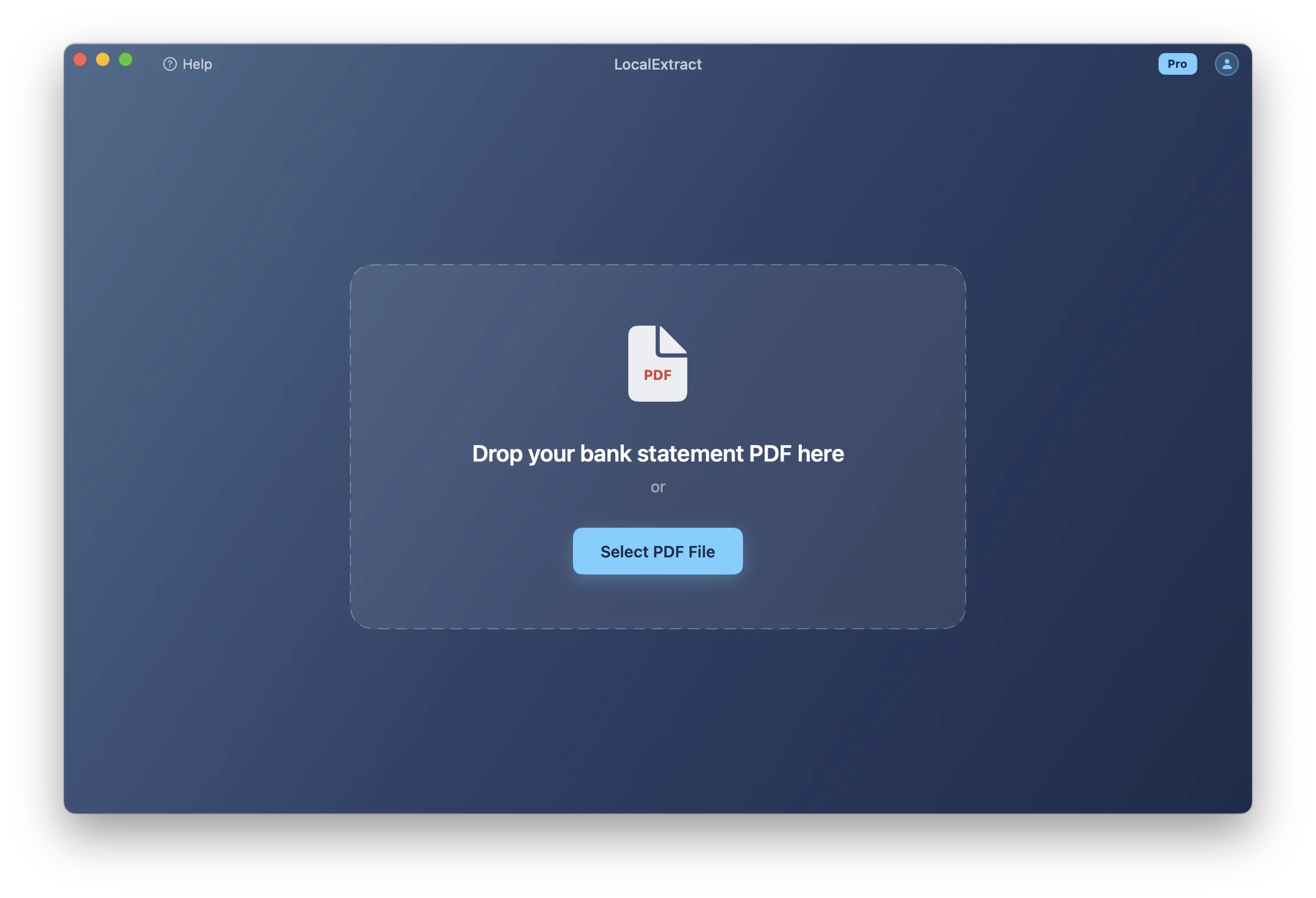
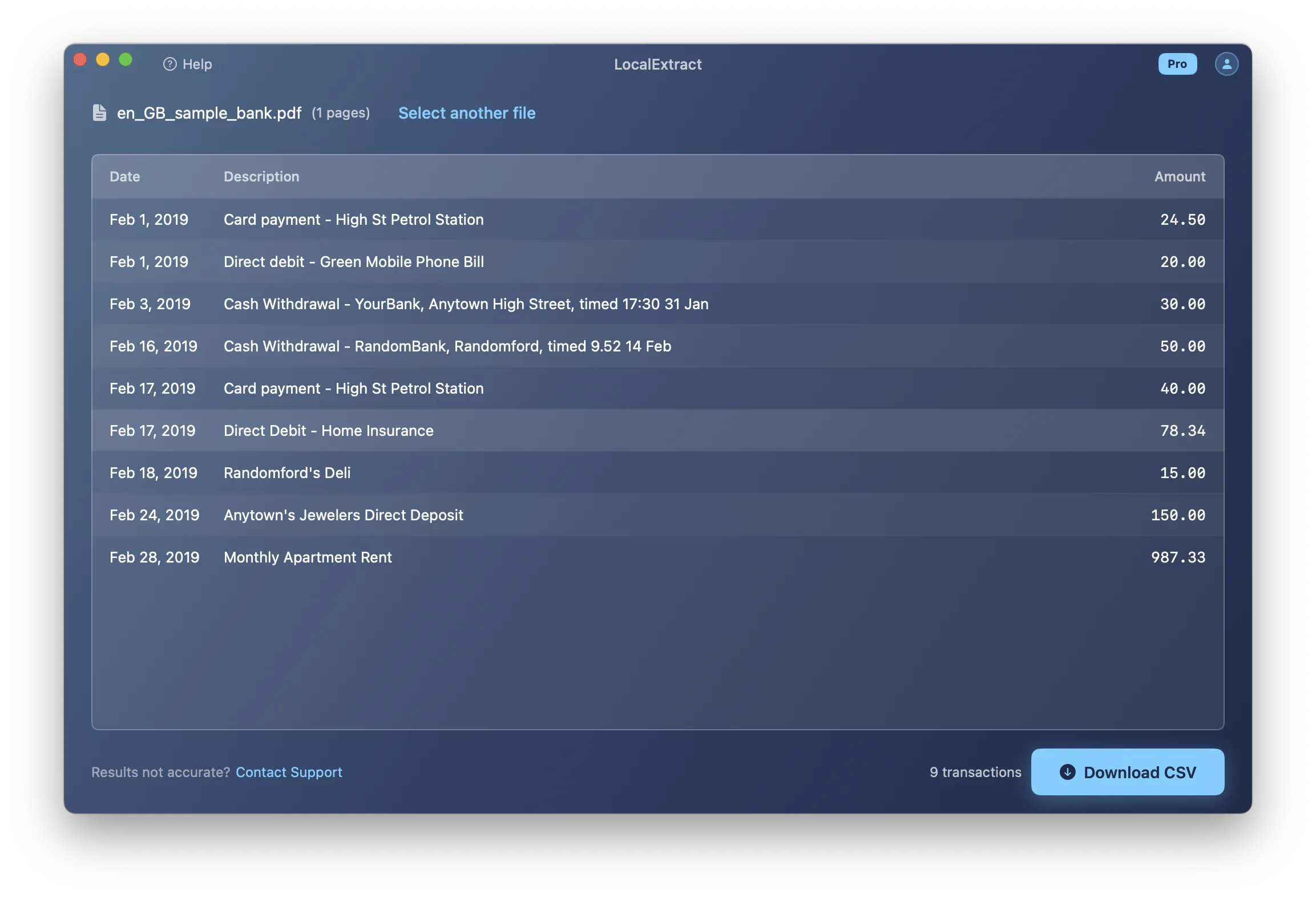
LocalExtract is a desktop bank statement converter for macOS and Windows that processes PDFs entirely on your computer using a local parsing engine.
Key Features:
- Platforms: macOS and Windows (native apps for both)
- Processing: 100% on-device — no data leaves your computer
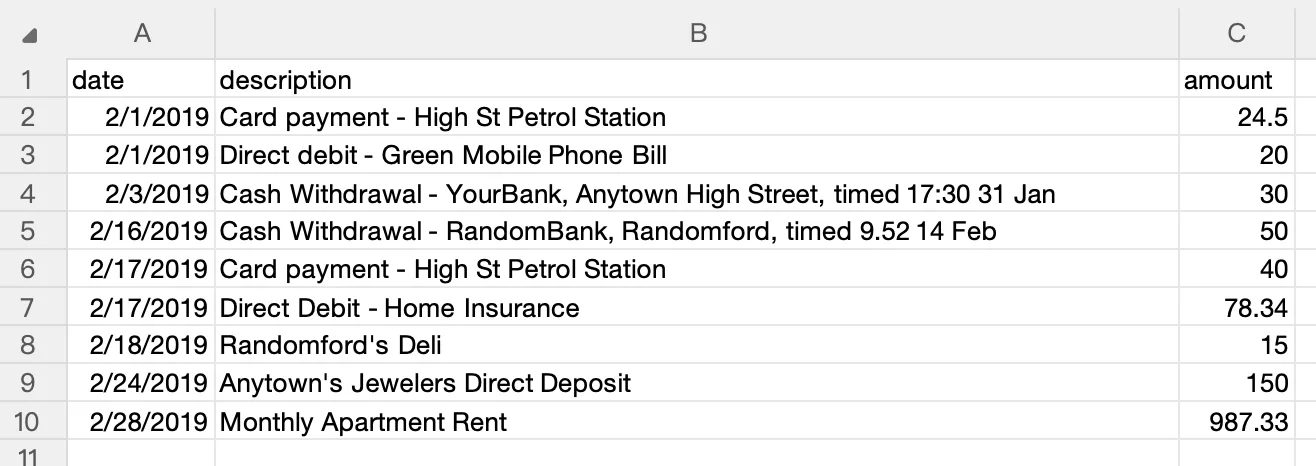
- Output formats: CSV and Excel
- OCR: Yes — local OCR engine for scanned PDFs (uses PP-OCRv5 via ONNX Runtime)
- Batch processing: Yes
- Offline: Fully functional without internet
- Bank coverage: Major banks worldwide (Chase, Bank of America, Wells Fargo, Capital One, Citi, TD, PNC, Ally, Amex, and many international banks). New formats added on request, typically within a few days.
Pricing:
- Free tier: 10 pages lifetime (no credit card required)
- Pro: $10/month or $60/year (unlimited pages)
Processing Speed:
In our benchmarks on an Apple M2 MacBook Air, LocalExtract processed 15 bank statement PDFs across 8 banks with an average time of 47ms per statement (range: 4ms to 353ms). All were text-based PDFs.
Strengths:
- Cross-platform (macOS and Windows) — one of the few desktop converters available on Mac
- Modern, clean interface
- Active development with frequent format updates
- Free tier for evaluation
- Local OCR for scanned documents
Limitations:
- No QBO or OFX output (CSV and Excel only)
- Newer product — may not have as many bank formats as established tools
- Single-user only
2. MoneyThumb
MoneyThumb is a Windows-based bank statement converter that has been in the market for many years. They offer several product variants, each targeting a specific output format.
Key Features:
- Platform: Windows only
- Processing: Desktop application, processes locally
- Products: PDF2CSV, PDF2QBO, PDF2OFX, PDF2QFX — each sold separately
- Output formats: CSV, QBO, OFX, QFX (depending on which product you purchase)
- OCR: Yes — handles scanned PDFs
- Bank coverage: Supports many bank formats; long track record in the space
Pricing:
- One-time purchase model — check moneythumb.com for current pricing
- Different products sold separately (e.g., PDF2CSV is a separate purchase from PDF2QBO)
Note: MoneyThumb's pricing and product offerings may change. Check their website for the most current information.
Strengths:
- Established product with years of market presence
- Multiple output formats (QBO, OFX, QFX) — useful for direct import into QuickBooks and other accounting software
- Broad bank format coverage from years of development
- One-time purchase option (no subscription)
Limitations:
- Windows only — no macOS support
- Separate purchases for different output formats
- Interface may feel dated compared to newer tools
- No free tier (trial may be available — check their website)
For a detailed comparison, see LocalExtract vs MoneyThumb.
3. Bank2CSV
Bank2CSV is a Windows desktop application for converting bank and credit card statements to CSV format. Related products include Bank2QBO and Bank2OFX for different output formats.
Key Features:
- Platform: Windows only
- Processing: Desktop application, processes locally
- Output formats: CSV (Bank2CSV), QBO (Bank2QBO), OFX (Bank2OFX) — separate products
- Bank coverage: Supports various bank and credit card statement formats
Pricing:
- Check their website for current pricing and availability
Strengths:
- Desktop processing without cloud upload
- Multiple product variants for different output formats
- Straightforward conversion workflow
Limitations:
- Windows only — no macOS support
- Separate products for each output format
- Limited publicly available information on current features and pricing
Side-by-Side Comparison
| Feature | LocalExtract | MoneyThumb | Bank2CSV |
|---|---|---|---|
| macOS support | Yes | No | No |
| Windows support | Yes | Yes | Yes |
| Output: CSV | Yes | Yes (PDF2CSV) | Yes |
| Output: Excel | Yes | Check website | Check website |
| Output: QBO | No | Yes (PDF2QBO) | Yes (Bank2QBO) |
| Output: OFX | No | Yes (PDF2OFX) | Yes (Bank2OFX) |
| OCR (scanned PDFs) | Yes | Yes | Check website |
| Batch processing | Yes | Yes | Check website |
| Offline processing | Yes | Yes | Yes |
| Free tier | 10 pages lifetime | Check website | Check website |
| Pricing model | Subscription ($10/mo or $60/yr) | One-time purchase | Check website |
| Data uploaded | Never | Never | Never |
Key Differences
Output format variety: If you need QBO or OFX output for direct import into QuickBooks, MoneyThumb and Bank2CSV offer those formats. LocalExtract currently outputs CSV and Excel only. For guidance on importing CSV into accounting software, see How to Import Bank Statements to QuickBooks.
Platform support: LocalExtract is the only option in this roundup that runs on macOS. MoneyThumb and Bank2CSV are Windows-only. For Mac-specific guidance, see Bank Statement Converter for Mac.
Pricing model: LocalExtract uses a subscription model with a free tier. MoneyThumb uses a one-time purchase model. The total cost depends on how long you use the tool — a one-time purchase is cheaper long-term if you use it for years; a subscription is cheaper if you only need it for a few months.
All three keep data local: The most important commonality is that none of these tools upload your bank statement data to cloud servers. The conversion happens entirely on your hardware.
Platform Availability: Mac vs. Windows
The desktop bank statement converter market skews heavily toward Windows. Most tools in this space were developed for Windows and have not added macOS support.
| Tool | macOS | Windows |
|---|---|---|
| LocalExtract | Yes | Yes |
| MoneyThumb | No | Yes |
| Bank2CSV | No | Yes |
For Mac users: If you use macOS, your desktop options are more limited. LocalExtract is one of the few bank statement converters that runs natively on macOS with full local processing. Cloud-based converters work on Mac through a browser, but they require uploading your files.
For a dedicated guide to Mac options, see Bank Statement Converter for Mac.
For Windows users: You have the broadest selection of desktop tools. MoneyThumb's QBO/OFX output may be particularly useful if you import directly into QuickBooks. LocalExtract is also available on Windows if you prefer its interface or subscription model.
For Windows-specific guidance, see Bank Statement Converter for Windows.
Desktop vs. Cloud Converters: Trade-Offs
Desktop converters are not always the right choice. Here is an honest comparison:
| Factor | Desktop Converters | Cloud Converters |
|---|---|---|
| Data privacy | Data stays on your machine | Data uploaded to third-party servers |
| Internet required | No | Yes |
| Setup | Requires installation | No installation (browser-based) |
| Cross-device access | Only where installed | Any device with a browser |
| Format coverage | Varies by tool | Potentially broader (server-side AI) |
| Team features | Typically single-user | Often multi-user |
| Updates | Requires app download | Instant (server-side) |
| Compliance | No cloud vendor to manage | Must document and audit vendor |
| Processing speed | Direct (milliseconds) | Includes network time |
When Cloud Converters May Be Better
- You need to work from multiple devices (phone, tablet, different computers) without installing software.
- You process unusual or obscure bank formats that cloud services may handle better through server-side AI.
- You need team collaboration features like shared processing history and dashboards.
- You need QBO output and do not want to use a tool like MoneyThumb that sells it as a separate product.
- You have assessed the privacy trade-off and it is acceptable for your use case.
When Desktop Converters Are Better
- You handle client financial data and cannot or prefer not to upload it to third-party servers.
- You need offline access for field work, travel, or restricted environments.
- You want to simplify compliance by avoiding cloud vendor relationships for routine conversion tasks.
- You want fast processing without network round-trips.
- You prefer one-time or low-cost pricing without per-page cloud processing fees.
FAQ
What is a desktop bank statement converter? A desktop bank statement converter is a software application that you install on your computer (macOS or Windows) to convert bank statement PDFs to CSV, Excel, QBO, or other formats. Unlike cloud converters, desktop tools process files locally — your bank statement data never leaves your machine.
Which desktop bank statement converter is best? It depends on your needs. For macOS users, LocalExtract is one of the few options. For Windows users who need QBO output, MoneyThumb's PDF2QBO may be the best fit. For Windows users who want a modern interface with a free trial, LocalExtract is also available on Windows. We recommend testing with your actual bank statements.
Are desktop converters as accurate as cloud converters? For text-based (digitally generated) PDFs from common banks, desktop converters can match cloud accuracy. The parsing task does not inherently require cloud processing. For scanned PDFs, accuracy depends on the OCR engine — cloud services with large GPU resources may have an edge on low-quality scans. For a deeper technical understanding, see why bank statement PDF extraction is hard.
Can I convert bank statements on a Mac? Yes, though options are more limited than Windows. LocalExtract runs natively on macOS. Most other desktop bank statement converters (MoneyThumb, Bank2CSV) are Windows-only. Cloud-based converters work on Mac through a browser but require uploading files. See Bank Statement Converter for Mac.
Do desktop converters work offline? Yes. Desktop bank statement converters process files locally on your computer and do not require an internet connection for the actual conversion. Internet may be needed for initial download, activation, and updates, but the conversion itself works offline.
How much do desktop bank statement converters cost? Pricing varies. LocalExtract offers a free tier (10 pages lifetime) with Pro at $10/month or $60/year. MoneyThumb uses a one-time purchase model — check their website for current prices. Bank2CSV pricing is available on their website. Cloud converters typically use subscription models with per-page or per-document limits.
Can desktop converters handle scanned bank statements? Some can. LocalExtract includes a local OCR engine. MoneyThumb also supports scanned PDFs. OCR accuracy depends on scan quality and your computer's hardware. For best results, use the highest quality scan available.
Our Experience Testing Desktop Converters
We tested LocalExtract, MoneyThumb (PDF2CSV), and evaluated Bank2CSV with a consistent set of bank statement PDFs to understand the practical differences between these desktop tools.
Test setup: We used 5 bank statement PDFs — Chase checking (6 pages), Bank of America checking (3 pages), Wells Fargo checking (12 pages), Capital One credit card (4 pages), and a scanned regional credit union statement (2 pages). All tests were conducted offline to verify genuine local processing.
LocalExtract results: All five statements converted successfully on macOS. Processing time averaged 47ms per statement for the text-based PDFs. The scanned statement took approximately 3 seconds with OCR. CSV output imported cleanly into QuickBooks Online without column mapping issues. See our QuickBooks import guide for the import workflow.
MoneyThumb results: We tested PDF2CSV on Windows. The four text-based statements converted successfully. The scanned statement also processed via MoneyThumb's OCR engine. MoneyThumb's interface is functional but noticeably dated compared to newer tools. The key advantage was QBO format output via MoneyThumb's separate PDF2QBO product, which enables direct import without column mapping.
Key observations: All desktop tools we tested kept data genuinely local — none required internet for conversion. The primary differentiators were platform support (LocalExtract on both macOS and Windows; others Windows-only), output format variety (MoneyThumb supports QBO/OFX), and pricing model (subscription vs. one-time purchase). For a detailed look at how CSV output should be formatted for accounting software, see our bank statement CSV format guide.
Looking Ahead
The desktop converter market is evolving in interesting directions. On-device AI and machine learning models are becoming powerful enough to handle complex layout analysis and OCR without cloud infrastructure — a trend that will continue closing the accuracy gap between desktop and cloud tools. Cross-platform development is also advancing: tools that once required Windows are increasingly available on macOS and even Linux. The growing emphasis on data privacy in regulatory frameworks (FTC Safeguards Rule, state privacy laws) is creating tailwinds for desktop tools that keep data local. We expect the next generation of desktop converters to offer cloud-quality accuracy with none of the data exposure — making the free vs. paid converter decision increasingly about features rather than accuracy trade-offs.
The Bottom Line
Desktop bank statement converters offer a straightforward value proposition: the same conversion result as cloud tools, but without uploading your data to someone else's server. For accountants, bookkeepers, legal professionals, and anyone handling sensitive financial documents, this architectural difference has real implications for privacy, compliance, and professional liability.
The market offers several options:
- LocalExtract for users who need macOS support, a modern interface, and a subscription model with a free tier.
- MoneyThumb for Windows users who need QBO/OFX output and prefer a one-time purchase.
- Bank2CSV for Windows users looking for straightforward CSV conversion.
All three keep your data local. None upload bank statements to cloud servers. The right choice depends on your platform, output format needs, and pricing preference.
If you are currently using a cloud converter and considering a switch to desktop, the transition is simple — both approaches take PDF input and produce structured output. There is no migration, no account transfer, and no format conversion needed. You simply process your PDFs through a different tool.
For most bookkeepers and accountants handling client bank statements, the question is not whether desktop converters are capable enough — they are. The question is whether the convenience of cloud processing justifies sending client account numbers, balances, and transaction histories to a third-party server for a task that runs in milliseconds on your own hardware.
Disclosure: This article is published by the LocalExtract team. LocalExtract is one of the desktop bank statement converters reviewed in this article. We have a commercial interest in this comparison and have strived to present competing products fairly. All product information is based on publicly available sources. Try LocalExtract free (10 pages, no credit card required). Available for macOS and Windows.

LocalExtract Team
We build LocalExtract, an on-device bank statement converter for macOS and Windows. Our team includes software engineers and financial workflows specialists focused on private, accurate PDF data extraction. Questions or corrections? Contact us or see our editorial policy.
Related Articles
Ready to convert your bank statements?
100% on-device. Your documents never leave your computer.
By downloading, you agree to our Terms and Privacy Policy.