
One person on a SharePoint link? Check the other grants
Updated · 4 min read
Choosing “People you choose” for one SharePoint or work/school OneDrive link does not revoke earlier links or group access. Inspect the current link audience and the other displayed access routes before describing who can open a bank document. Intended recipient and actual possible audience are different questions.
The desktop apps export date, description, and amount as CSV. Open CSV in Excel to save an XLSX workbook. Statement support varies: verify the result against your own PDF.
Collect a current access inventory without creating a link
A link has an audience and a permission level; a file can also have direct or group grants. The following documents what an authorized reviewer can see. It does not prove complete tenant-wide effective access or recall files already downloaded.
- In the document library, select the actual file/folder and Share. Inspect Link settings, audience and permission selections without copying, sending, inviting anyone or saving changed grants.
- Distinguish Anyone, organization, existing access and People you choose. Record the displayed selection rather than assuming an addressed email limits the link to that person.
- Under Share, use the people/group circles at the lower left to open Manage Access. Inspect People, Groups and Links separately.
- Select an existing name to inspect Access summary, including displayed groups with site access. Record the observation time, your role and any unresolved group/inherited visibility.
- Hand unresolved group membership, inherited routes or effective-access questions to the authorized owner/admin. Do not treat this panel inventory as a complete permission audit or change a grant to test the result.
Microsoft’s sharing guidance describes audiences and policy restrictions. Its access-view instructions describe Manage Access and Access summary. The instructions apply to the documented work/school services; organization policy can limit available options.
A narrow new link does not erase the old routes
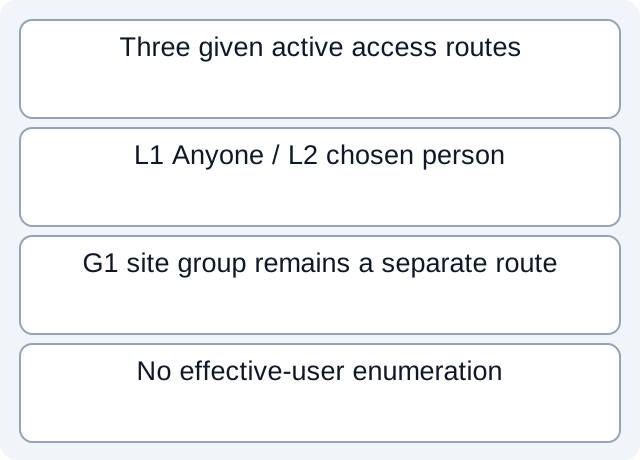
Our fictional inventory contains three active observed routes: L1 is an Anyone/view link, L2 is a People-you-choose-X/view link and G1 is a site-members/edit group route. The current register therefore has two links and one group route. Selecting or describing L2 does not remove L1 or G1 from that inventory.
The case does not expand the site group into individual users or test whether an individual can access the file. It only demonstrates why “we chose X on the latest link” cannot support “only X has access.” The older Anyone link is especially relevant because it can reach forwarded holders, including people outside the organization.
| Fictional active route | Audience / permission | Review boundary |
|---|---|---|
| L1 | Anyone / view | Still present alongside L2 |
| L2 | People you choose X / view | This link’s audience only |
| G1 | Site members / edit | Members/effective access not enumerated |
Read the fictional observed-grant register and executed inventory counts. The script reads three constructed rows; it does not query SharePoint, enumerate users, create a link, alter permissions or test real access.
Preserve what the panel cannot establish
An organization link can be used by organization users with that link. An existing-access link grants no new permission; it is not evidence that other grants disappeared. View/edit permissions and download restrictions also need separate observation. A disabled choice may reflect policy, rather than prove that no older route exists.
Password, expiry and download controls are conditional on the product and organization settings. Record what is actually shown rather than promising every account offers the same protection. A narrower link does not revoke a direct grant, another link or group membership, and changing any current grant cannot recall a copy already downloaded.
For a comprehensive question, ask the authorized owner/admin to establish the relevant tenant, inheritance, group membership and retention scope. Keep those unresolved facts distinct from the observed inventory. This article teaches collection and interpretation, not a guarantee that confidential bank data is accessible to only one person.
For the distinction between conversion processing and storage, see LocalExtract privacy information; a permission inventory does not establish whether local folders synchronized. For conversion, download LocalExtract to process one PDF locally into date,description,amount CSV. Check the output and choose your storage location carefully; the app does not manage SharePoint permissions or existing shared copies.
Official documentation checked October 17, 2026.
LocalExtract Team
We build LocalExtract, a desktop bank statement converter. Questions or corrections? Contact · Editorial policy