
Bank PDFs on Mac Desktop: check iCloud folder settings
Updated · 3 min read
A bank PDF saved on a Mac’s Desktop is not necessarily outside iCloud. Inspect Sync this Mac and Desktop & Documents Folders, then record the PDF and CSV locations separately. Turning a setting off now does not prove that the file was never stored in iCloud.
The desktop apps export date, description, and amount as CSV. Open CSV in Excel to save an XLSX workbook. Statement support varies: verify the result against your own PDF.
Inspect configured scope without changing it
This is a read-only collection method for a user reviewing bank-document locations. Configured synchronization scope, a local file’s location and actual remote-copy history are separate facts. Opening a file locally does not settle all three.
- Open
Apple menu → System Settings → your name → iCloud → Driveor iCloud Drive, according to the displayed version. - Inspect Sync this Mac and Desktop & Documents Folders without toggling them. Record the relevant Apple Account context, current values, macOS version and observation time.
- Locate the actual source PDF and exported CSV separately in Finder. Retain their full locations; do not infer that both files share a storage route because one was created from the other.
- Read the version-specific Finder location. Apple documents Desktop/Documents under Favorites in macOS Tahoe 26 or later, and under the iCloud sidebar section in earlier versions.
- Record which path falls within the configured Desktop/Documents scope and what remains unknown. Ask the authorized owner for any required remote/history investigation; do not use deletion or a setting change as the test.
Apple’s Desktop and Documents iCloud guidance documents the settings, Finder differences and storage behavior. The path and menu labels here identify the Apple feature; they do not promise that LocalExtract’s interface supports a particular language or that it controls iCloud.
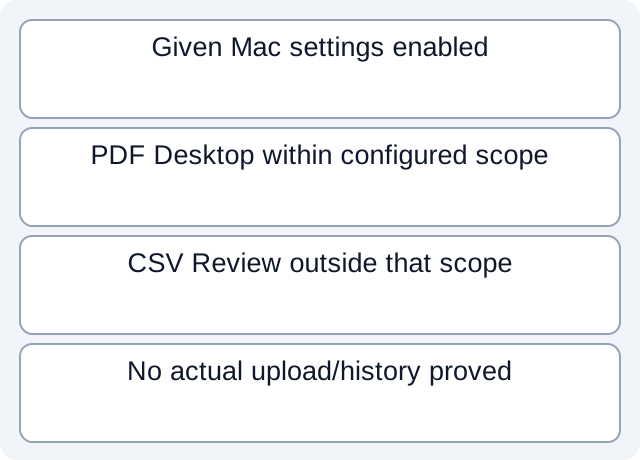
Configuration can explain scope without proving an upload
The fictional register gives macOS 26, Sync this Mac enabled and Desktop/Documents enabled. Its PDF is under the fictional user’s Desktop; its CSV is in a separate Review folder. Reading the rows places the PDF within that configured Desktop/Documents scope and the CSV outside that particular scope.
The result is a configuration/path observation only. It does not show whether either file actually synchronized, whether Review has another backup route, or whether other devices retain copies. The method never reads the real Apple Account or scans this machine’s files.
| Fictional observation | Current scope result | Open question |
|---|---|---|
| PDF on Desktop; both settings enabled | Within given Desktop/Documents scope | Actual synchronization/history unknown |
| CSV in separate Review folder | Outside that particular scope | Other cloud/backup routes unknown |
| macOS 26 | Use documented Favorites location | Finder placement is not remote-copy evidence |
Inspect the fictional settings/path register and executed scope check. The script reads constructed paths and given settings. It does not observe iCloud traffic, synchronization delays, a real device or the existence/absence of remote files.
Do not confuse disabling sync with recalling copies
Apple explains that enabling this feature moves existing files into iCloud and stores new Desktop/Documents files there. That is why local access alone cannot establish local-only storage. Current settings are useful evidence of configured behavior, with actual historical outcomes still separate.
Apple also explains that turning off Desktop/Documents leaves files in iCloud Drive and creates new local Desktop/Documents folders. It is not retroactive removal. Deleting a synchronized file can delete it on other devices using the same Apple Account; that is a consequential action, not a read-only diagnostic step.
Preserve the observation and refer remaining storage/history questions to the authorized owner. Do not claim that a switch, moved file or absent local icon proves every cloud/backup copy is gone. Other storage providers have their own settings; a Windows provider’s menus do not replace these Apple instructions.
For the product’s conversion boundary, see privacy information. Download LocalExtract to process one PDF locally into date,description,amount CSV, then check it against the original. Conversion does not require uploading the PDF; account/subscription functions need network access, and the app cannot certify the cloud history of the folder you choose.
Official documentation checked October 17, 2026.
LocalExtract Team
We build LocalExtract, a desktop bank statement converter. Questions or corrections? Contact · Editorial policy