
Black rectangle on a bank PDF: overlay or applied redaction?
Updated · 4 min read
A black rectangle over a bank account number is not evidence that the PDF no longer contains it. In Adobe’s documented workflow, marking, applying redaction and saving the output are separate steps. Hidden information also requires its own sanitization scope.
The desktop apps export date, description, and amount as CSV. Open CSV in Excel to save an XLSX workbook. Statement support varies: verify the result against your own PDF.
Use applied-and-saved redaction on an authorized copy
This guide distinguishes a visual overlay from content removal and verification. Keep the original controlled and work on an authorized copy. The saved output’s actual filename and version matter: checking an unsaved preview or another file does not verify the file you intend to share.
- In the current documented Acrobat flow, open
All tools → Redact a PDF → Redact text and images. Select or drag over the relevant text/image occurrences, then Apply. - In that integrated flow, retain the hidden-information sanitization choice, then Continue → Save Sanitized Document. Choose the intended filename/location and Save.
- If using the separate desktop sanitization workflow instead, follow
All tools → Redact a PDF → Sanitize document → Remove all → Save, or Selectively remove → Hidden Information, select the relevant items, Remove and Save. Do not silently combine labels from different documented flows. - Reopen the exact saved output. Visually inspect relevant occurrences and images, search and copy known identifiers, and review hidden information/attachments within the actual tool’s scope. Record the tool/version and which checks were performed.
- If an identifier remains, the check has found a failure. If the selected searches find nothing, record only those bounded negative results; do not certify that every kind of personal information is gone.
Adobe’s sensitive-content guidance, redaction/save workflow and separate sanitization instructions distinguish these operations. Their tool descriptions are not evidence that this project executed Acrobat.
A deliberately hidden marker can still be extracted
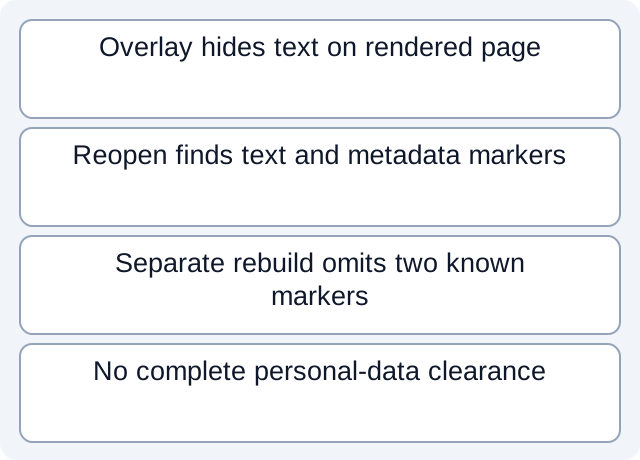
We generated two fictional one-page PDFs. The overlay file places a black rectangle over a known text marker while retaining another known marker in document metadata. Reopening with a PDF library still finds the covered text in the extracted text layer and the metadata marker in document properties. The rendered page hides the first marker visually, so appearance and retained content disagree.
The second file is a separately generated minimal document that omits those two markers. Reopening and inspecting its text/metadata does not find them. This is not an Acrobat-redacted version of the first file and is not a demonstration that every hidden layer was sanitized.
| Constructed file | Known text marker | Known metadata marker | Limited conclusion |
|---|---|---|---|
| Visual-overlay file | Found on extraction | Found in metadata | The overlay did not remove these contents |
| Separately rebuilt file | Not found by this check | Not found by this check | Only these two checks were negative |
The observations CSV and execution record bind the constructed file hashes and actual reopen observations. The teaching files contain no bank/customer data. Local PDF-library reads and page renders do not test Acrobat behavior, native bank PDFs, image OCR, every attachment or complete personal-data removal.
Use a failure test without turning it into a clearance certificate
Finding a known account number after saving is actionable evidence that the selected removal/check failed. Not finding it is weaker: text may have an unusual encoding, be present only in an image, occur elsewhere or exist in another object. Search and copy are useful checks, not complete certification.
Review visible repeats, image-based identifiers and the hidden-information categories actually covered by the chosen tool. Preserve the exact output version and unresolved scope. Applied-and-saved redaction in Adobe’s description concerns that tool’s removal operation; it does not remove earlier emailed, uploaded or downloaded copies.
Do not share a file merely because a rectangle looks convincing, and do not promise compliance or universal erasure from two absent markers. If the document’s sensitivity or intended use exceeds the checks you can perform, keep sharing on hold and obtain the appropriate authorized review.
Redaction and cloud-copy removal are different tasks; retain unresolved copy-history questions for the authorized owner. See privacy information for the product’s local-processing boundary. Download LocalExtract for local extraction of one PDF into date,description,amount CSV, then verify the rows. LocalExtract is not a PDF redaction or sanitization tool.
Official documentation checked October 17, 2026. Synthetic PDF demonstration only; no Acrobat or real-bank test.
LocalExtract Team
We build LocalExtract, a desktop bank statement converter. Questions or corrections? Contact · Editorial policy