
Mac bank-support screenshot: check notifications, paths and thumbnails
Updated · 4 min read
A support screenshot can expose more than the bank row you wanted to explain. A notification, document title/path or neighbouring thumbnail can disclose another client even when the selected transaction looks harmless. Check the exact saved attachment, including its edges, before deciding it is appropriate for the named recipient.
The desktop apps export date, description, and amount as CSV. Open CSV in Excel to save an XLSX workbook. Statement support varies: verify the result against your own PDF.
Define the issue before capturing the screen
Write down the support question and minimum context needed: application/version, the relevant date or row, expected behaviour and the observed problem. Confirm the recipient and approved support channel under the engagement. If an identifier is not needed for that question, do not include it merely because it is visible in the application.
A selected window is not necessarily a selected document region. Its title bar, sidebar and thumbnails can still be part of the image. Conversely, cropping too tightly can remove a minus sign or the error context that support needs. The target is a limited, intelligible issue image, not a whole-screen capture by default.
Capture the appropriate region on a Mac
Apple’s Mac screenshot instructions distinguish whole-screen, window and portion captures. Shift+Command+5 opens Screenshot controls, including portion selection and options for the saved location and floating thumbnail. Check the controls for the installed macOS version rather than assuming that every screenshot method produces the same boundaries.
- Prepare the agreed issue view without opening unrelated client records. Inspect notifications, the document title/path and any thumbnail/sidebar area around it.
- Choose the relevant portion in Screenshot and keep only the context necessary to understand the issue. A whole-window capture may retain the surrounding interface even when only one document is open.
- Save to the approved destination and note the actual filename. Do not assume its location is safe because it is called Desktop or Downloads; synchronization is a separate question.
- Reopen that exact saved image. Inspect all edges and each of the three named regions, then check that the required date, description, sign/amount and issue context remain legible. A transient floating thumbnail or an unsaved editor preview is not the final attachment.
- If more removal is needed, keep sharing on hold and use the approved image-handling process. Recheck the newly saved revision; do not carry over the earlier check. Confirm the actual file selected in the support form before submitting it.
For Preview inspection, use Apple’s image/PDF information guide matched to the installed macOS version. Reviewing the image and available properties is bounded by that tool’s actual scope; it does not certify that every metadata field or personal detail has been removed.
Three constructed stages reveal a remaining path
We created a fictional teaching layout, rendered it in a browser and saved full, partially selected and final selected-area images. It contains no bank/customer data and is not a macOS application screenshot. The vector illustrations below depict the source and final scenes; the accompanying record identifies the separate captured-image hashes and limited observations.
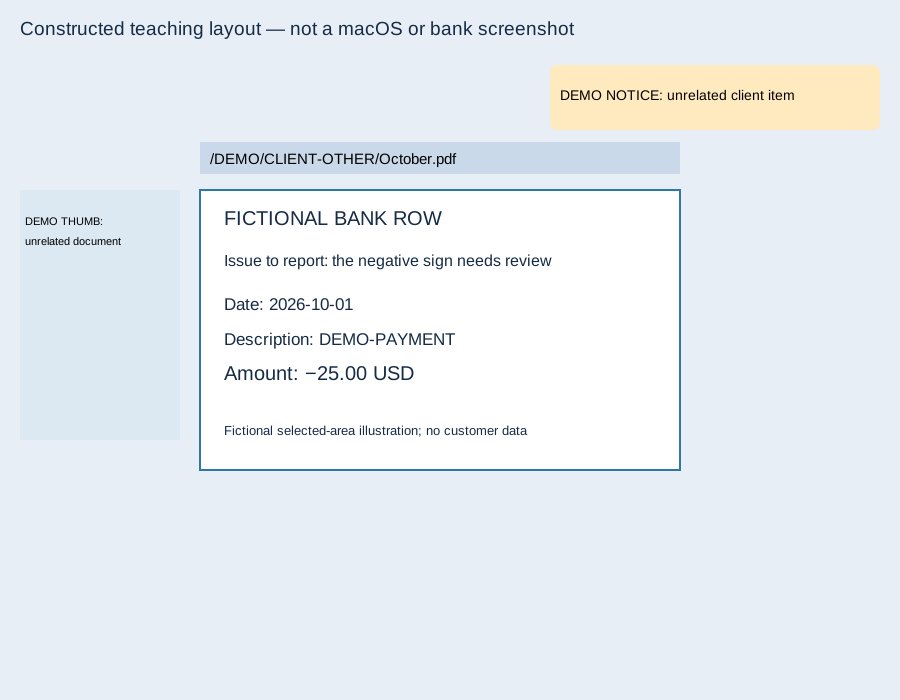
| Captured teaching stage | Notification | Path above the row | Unrelated thumbnail | Result for these regions |
|---|---|---|---|---|
| Full view | Visible | Visible | Visible | Reject this scope |
| Partial region | Excluded | Still visible | Excluded | Path check fails |
| Final region | Excluded | Excluded | Excluded | Three named visual checks pass |
The partial image still exposes the seeded path even though the notification and thumbnail are outside its bounds. That is why “I cropped it” is not the completed check. In the final image, the fictional date, description, −25.00 USD and issue question remain readable after excluding the three outside regions.
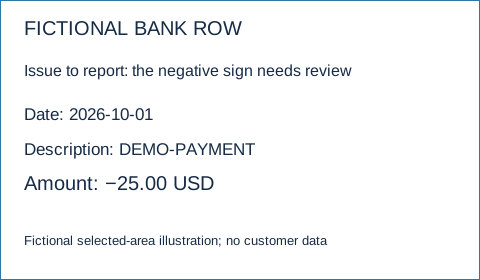
The finite observation record covers nine actual browser captures across the three teaching languages and their three stages. Geometry checks and reopening/visual inspection concern the seeded notification/path/thumbnail regions only. This does not test native Mac screenshot controls, every possible personal identifier, hidden metadata or irreversible erasure.
Keep the attachment decision distinct from document redaction
A screenshot of a PDF is a different file from the original PDF. Excluding a region from this image does not sanitize the source PDF, earlier attachments, mail notifications or cloud copies. If the original PDF itself must be shared, follow the separate applied-redaction and saved-output checks; a black rectangle is not proof of removal.
Record the final attachment’s identity, checked regions, retained issue context, reviewer and unresolved scope. Keep the original controlled and follow the engagement’s retention process rather than deleting evidence or another person’s history. If the intended recipient needs more detail, agree the specific addition and review a new attachment revision.
For statement extraction, LocalExtract processes one PDF at a time locally into date,description,amount CSV. It does not redact screenshots or PDFs and cannot approve a support attachment. See the file-location guide when a saved output’s location is uncertain.
Official sources and constructed image observations checked October 17, 2026.
LocalExtract Team
We build LocalExtract, a desktop bank statement converter. Questions or corrections? Contact · Editorial policy