
Google Drive bank file: inspect visible access routes and roles
Updated · 4 min read
This guide is for the bookkeeper or document owner assembling a read-only access record for the person authorized to manage sharing.
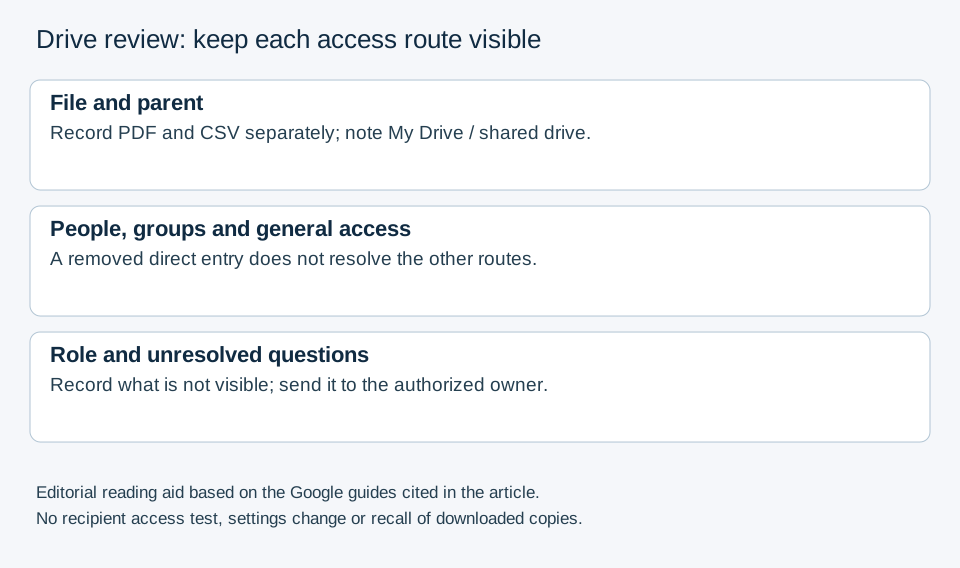
After a bank file’s sharing changes in Google Drive, inspect all visible access routes, not just the person removed from one list. Record the file, its parent folder, the drive type and your role. This read-only review helps the owner investigate remaining access; it does not certify that a recipient can no longer open or retain the document.
The desktop apps export date, description, and amount as CSV. Open CSV in Excel to save an XLSX workbook. Statement support varies: verify the result against your own PDF.
Record the file and its parent before changing anything
- In Drive on the web, select the particular bank PDF or derived CSV. Open its details through the item’s context menu,
File Information, thenDetails, and inspect the owner and access information. Where your permissions allow, openManage access. - Record whether the item belongs to My Drive or a shared drive, its parent folder and the account/role performing the review. Check that the PDF and CSV are actually the same sharing scope before treating them together.
- In the sharing dialog, inspect
People with accessandGeneral access. Record the displayed direct people, groups and link/organization access separately. A named person disappearing from one direct-entry list does not answer the group or general-access questions. - Inspect the parent folder’s sharing information too. Do not change permissions, move the bank file or enable limited access merely to test a theory; these actions can affect other collaborators.
Google’s sharing and inheritance guide says that files and subfolders inherit folder permissions and that reducing a single file’s access can require action at the parent or a dedicated limited-access folder. A file’s location is therefore part of the evidence, not an optional note.
Distinguish the limited-access controls and roles
Google’s limited-access guide separates enabling limited access from managing the people who can access the item. Use the conditions below when routing an unresolved case to the responsible person.
| Container | Who can turn limited access on or off for a folder? | Who can manage the access list? |
|---|---|---|
| My Drive | Owner; editors only when the editor-permissions setting allows it | Owner; editors under that setting |
| Shared drive | Managers | Managers; Content Managers only when sharing folders is allowed by the Manager |
The web interface supports these controls; Google says Drive for desktop cannot make the corresponding limited-access or membership changes. Do not interpret a missing desktop control as proof that the web setting is absent. Shared-drive Managers and My Drive owners retain access under the documented rules.
You can manually enable limited access on folders, not on an individual file. Google may have automatically applied limited access to some files during a system update. Those automatically limited files are a different case: turning the setting off cannot simply be undone by manually re-enabling it on that file. Record the displayed state and hand off rather than toggling it.
Treat an “Access removed” entry as one observation
The limited-access guide explicitly says People with access and General access override the Access removed list. A person listed as removed can still open the file through an authorized group or general-access route. Record those routes individually; do not label the person’s access fully revoked from the removed entry alone.
There is also a documentation conflict worth retaining in the handoff. Google’s stop-sharing page describes changing general access to Restricted as overriding inherited parent permissions, while its inheritance guide says a file cannot simply be made less accessible than its parent and points to parent changes or a limited-access folder. These pages do not establish one universal, safe “Restricted revokes all inherited access” procedure. Preserve the actual file/container/settings and ask the authorized owner or Workspace administrator to resolve the applicable behavior before a permissions change.
Use the author’s access-route worksheet to record separate observations for the PDF and CSV. Its columns are a review aid, not a Drive export or permissions validator; NOT_INSPECTED means an unanswered question, not denied access. Replace the fictional artifact aliases only within the authorized working copy and avoid placing bank details in a public worksheet.
Finish with an access-route record
For each source PDF and derived CSV, record the item identity, parent, My Drive/shared-drive context, reviewer role, direct entries, group questions, general-access setting, limited-access state and observation time. Use “not visible to this reviewer” for information your role cannot inspect; do not turn it into “no access.”
A fictional example: a direct user entry is removed, but a group containing that person remains in the access list. The direct-entry observation cannot establish revocation. If group membership is not visible to the reviewer, the membership question remains open; the example supplies no actual recipient test.
Keep the unresolved routes with the owner’s review request. No browser setting can retrieve copies someone already downloaded. For broader document-handling decisions, use the bookkeeper upload/privacy guide rather than repeating a general security checklist here.
If the authorized bank source exists only as PDF, LocalExtract prepares a CSV locally, one PDF at a time, with date,description,amount. Check the extracted rows and review the CSV’s storage/sharing separately; conversion does not alter Drive permissions.
Official documentation checked October 17, 2026.
LocalExtract Team
We build LocalExtract, a desktop bank statement converter. Questions or corrections? Contact · Editorial policy