
Wintrust: E-Documents, statements and delivery settings
Updated · 2 min read
The desktop apps export date, description, and amount as CSV. Open CSV in Excel to save an XLSX workbook. Statement support varies: verify the result against your own PDF.
Open the statement and its delivery controls
- From the home screen, select the account.
- Open View E-Documents.
- In the first E-Statements tab, select the month.
- For future delivery choices, use Manage Document Delivery.
The demo transcript separates statements, notices and tax forms. A tax tab's history description should not determine the statement range.
Check the account's actual available months
Official descriptions differ: the digital-banking page advertises up to 20 months, while the eStatement agreement describes 24 months of eStatements. This guide therefore does not guarantee a single archive length. Account age and nonmonthly issuance can further reduce the months shown. Ask the bank about an unavailable period.
| Needed result or situation | Bank route or condition | Decision |
|---|---|---|
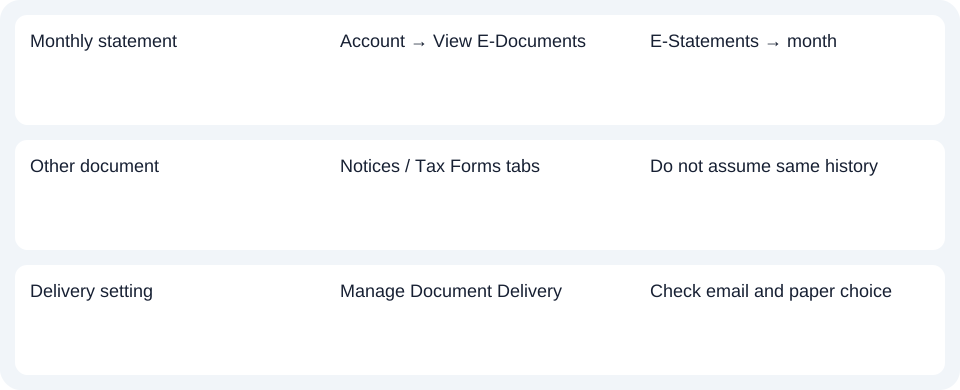
| Monthly statement | Account → View E-Documents | E-Statements → month |
| Other document | Notices / Tax Forms tabs | Do not assume same history |
| Delivery setting | Manage Document Delivery | Check email and paper choice |
Keep email valid before changing delivery
Electronic consent requires a valid email. An invalid or bounced address may be treated as withdrawal. Update it under Settings → Edit Contact when necessary.
Paper copies are not automatically mailed after electronic enrollment. A requested bank-mailed copy may cost a fee and must be requested within a reasonable time. Use the bank's telephone or secure-message channel for that request. Consent and paper-copy conditions.
For Wintrust, choose account and month in E-Statements, keep the consent email valid and confirm any unavailable archive period with the bank.
Use the record planner to record your chosen route and the outstanding document period.
The CSV (Comma-Separated Values) guide covers an obtained PDF (Portable Document Format). LocalExtract processes one PDF locally into date,description,amount CSV; Excel saves XLSX (Excel workbook format). Verify the rows. Downloads.
Official sources checked October 14, 2026.
LocalExtract Team
We build LocalExtract, a desktop bank statement converter. Questions or corrections? Contact · Editorial policy