
TSB statements: Digital Inbox PDFs and duplicate copies
Updated · 3 min read
The desktop apps export date, description, and amount as CSV. Open CSV in Excel to save an XLSX workbook. Statement support varies: verify the result against your own PDF.
Save the statement already in Digital Inbox
TSB’s paperless banking help says customers have a Digital Inbox even before going paperless. You can inspect it without first switching off postal delivery.
- Sign in to Internet Banking and select Your Inbox, at the top right.
- Open the required statement document.
- Save the PDF, or print it from the opened document.
PDF means Portable Document Format. TSB says these documents look like the paper versions. The Mobile Banking App also provides Digital Inbox access; the browser path above is the explicitly labelled route in its help.
Change delivery only if that is your intention
Use Paperless settings in the app’s main menu. On the website, TSB’s same help refers to Go Paperless and Manage online and paper preferences. These settings control delivery, rather than retrieving a missing statement. You can choose different preferences for different accounts and change them later.
TSB’s Paperless Terms and Conditions add two practical conditions:
- For a joint current or savings account, going paperless applies to all holders. Tell the other holders before changing delivery.
- Keep contact details current and check the Inbox regularly. Notifications may arrive by email, text or enabled app push notification; some documents may still arrive by post.
Turning off paper delivery is therefore not a way to guarantee that all future communications use one channel.
Save copies before closing the account
The paperless terms say documents remain unchanged while you hold the account. They specifically instruct customers to save or print wanted documents before closure. Afterwards, viewing that account’s documents requires another open TSB account.
If this is your last TSB account, finish the download before closing it. Do not interpret the help page’s general promise not to delete Inbox documents as a promise of continuing login access after every account is closed.
| What you need | Route to use |
|---|---|
| A file already in the Inbox | Open and save the PDF |
| Different future delivery | Change the account’s paperless preference |
| A duplicate paper statement | Request it through app chat and check charges |
Order a duplicate when saving or printing is insufficient
The copy-request instructions direct you to the chat icon at the top right of the app homepage; enter Order a statement. TSB warns that duplicate current-account or savings statements may carry a charge. That warning concerns requesting a duplicate, not a stated fee for saving an Inbox PDF. Check the applicable terms before confirming an order.
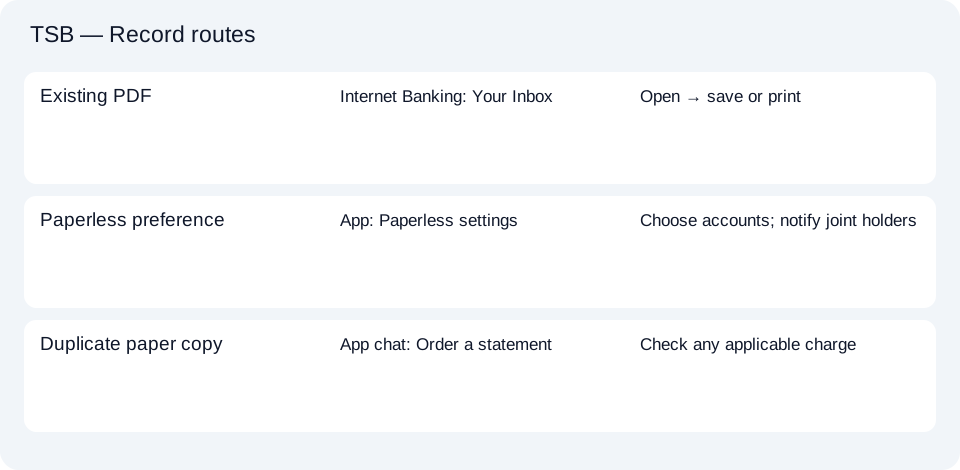
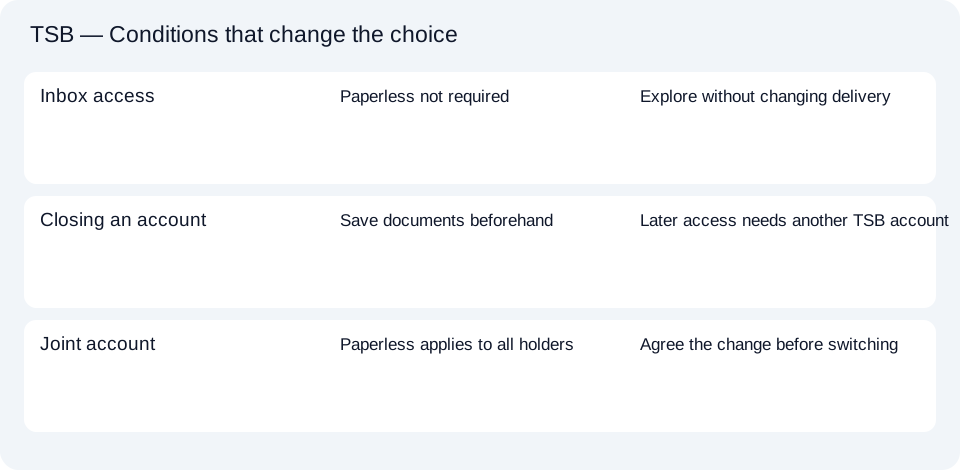
The TSB record planner separates an Inbox download from a delivery change and a copy request. If a PDF needs spreadsheet rows, follow the shared CSV preparation guide; changing paperless settings does not convert a file.
LocalExtract processes one PDF locally into date,description,amount CSV. Excel can save that CSV as XLSX. Check the extracted rows against the source. Download options and limits.
Official sources checked October 14, 2026. This guide brings the bank’s document and export choices together.
LocalExtract Team
We build LocalExtract, a desktop bank statement converter. Questions or corrections? Contact · Editorial policy