
Mari Savings: find, keep and print monthly statements
Updated · 2 min read
The desktop apps export date, description, and amount as CSV. Open CSV in Excel to save an XLSX workbook. Statement support varies: verify the result against your own PDF.
Find the issued Savings month
- Open the MariBank app and sign in.
- Tap Me, then e-Statement.
- Select the available monthly record you need.
The Savings access help gives this entry point and the two-year viewing limit. Confirm that the record belongs to Mari Savings before following a separate card-statement tutorial: a similar app label does not make the card's controls part of this Savings procedure.
Check issuance separately from archive access
MariBank generates the monthly Savings eStatement by the first week of the following month, with a push notification and/or email according to your preferences. That is a window for a monthly document to appear, rather than a promise that every previous month arrives on the first day. When statements are generated.
For a missing record, distinguish an unissued prior-month statement from one outside the two-year view. The same menu cannot resolve both causes. Record the intended month before contacting support so the question concerns generation or older access, rather than simply “the statement is missing.”
| Needed result or situation | Bank route or condition | Decision |
|---|---|---|
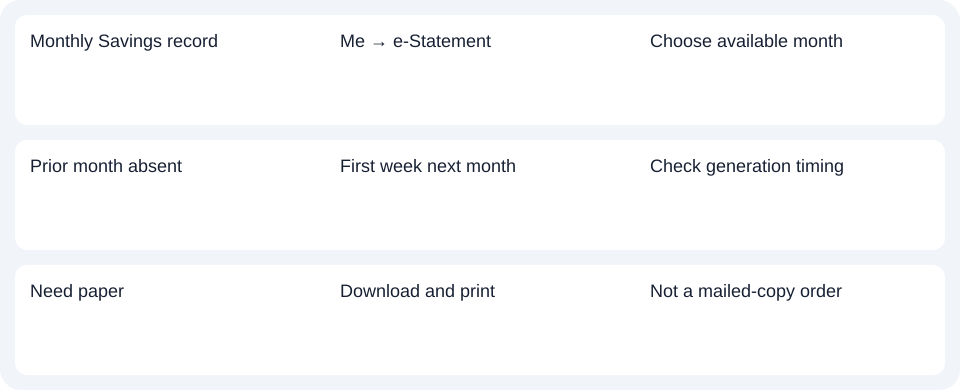
| Monthly Savings record | Me → e-Statement | Choose available month |
| Prior month absent | First week next month | Check generation timing |
| Need paper | Download and print | Not a mailed-copy order |
Obtain paper from the digital record
The Savings paper-copy FAQ directs customers to download the eStatement and print it. The published route is self-printing a digital statement, rather than ordering a mailed or certified replacement. If a recipient requires certification, clarify that requirement before treating a home printout as sufficient.
For MariBank, check Me → eStatement after the first week and select the required month within its two-year range.
Use the record planner to record your chosen route and the outstanding document period.
If the saved document is a PDF (Portable Document Format), the CSV (Comma-Separated Values) preparation guide covers spreadsheet work. LocalExtract processes one PDF locally to date,description,amount CSV; Excel can save it as XLSX (Excel workbook format). Verify the output against the original. Download options.
Official sources checked October 14, 2026.
LocalExtract Team
We build LocalExtract, a desktop bank statement converter. Questions or corrections? Contact · Editorial policy