
GXS Savings: monthly PDFs and the 12-month archive
Updated · 2 min read
The desktop apps export date, description, and amount as CSV. Open CSV in Excel to save an XLSX workbook. Statement support varies: verify the result against your own PDF.
Retrieve the month from Main Account
Use the personal GXS Savings Account route, rather than instructions for a GXS Biz or investment product:
- Open Main Account in the app.
- Select More Options, the three dots next to Account Balance.
- Choose View my Statement.
- Select the required month to download.
Those controls come from the Savings download help. The issued month is the selection unit here; the instructions do not describe generating an arbitrary start-and-end-date statement.
Diagnose the missing month before choosing a format
GXS says Savings eStatements become available on the third of each month. A newly begun month and a record beyond the archive window need different checks: first establish whether the monthly document has been issued, then whether it is still within the rolling twelve-month period. Generation date and viewing period.
| Needed result or situation | Bank route or condition | Decision |
|---|---|---|
| Issued statement | Main Account → More Options | View my Statement; select month |
| New month missing | Available on the third | Check issue timing first |
| Older record | Rolling 12-month window | Save available PDFs locally |
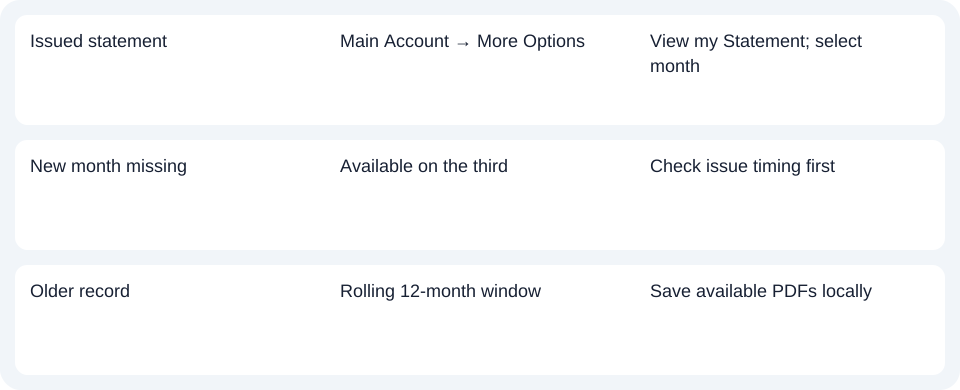
For GXS, save the selected Main Account month within the 12-month window and check the third-day issuance before reporting a missing record.
A saved local copy remains your separate record; repeatedly visiting the app does not extend its documented archive. Use the record planner to record your chosen route and the outstanding document period.
Use the available file and delivery route
The format FAQ specifies PDF only, meaning Portable Document Format. A spreadsheet file is therefore a later analysis copy, rather than a native GXS statement download in CSV (Comma-Separated Values) or Excel format.
GXS also states that it supplies electronic Savings statements and does not mail physical statements. If your task requires paper, distinguish printing the downloaded record from requesting a bank-mailed copy; the latter is not an offered route in this FAQ. Physical-statement policy.
The shared CSV guide explains the next step. LocalExtract handles one PDF locally and exports date,description,amount CSV, which Excel can save as XLSX (Excel workbook format). Check the rows against the PDF. Downloads and limits.
Official sources checked October 14, 2026.
LocalExtract Team
We build LocalExtract, a desktop bank statement converter. Questions or corrections? Contact · Editorial policy