
DoorDash US: match a payout, not the monthly sales total
Updated · 3 min read
For a US DoorDash merchant, start with the specific payout’s transactions, not the monthly sales total. A payout period can cross month-end, while the monthly statement covers a calendar-month transaction population. Comparing those totals without aligning membership can manufacture a missing-deposit problem.
The desktop apps export date, description, and amount as CSV. Open CSV in Excel to save an XLSX workbook. Statement support varies: verify the result against your own PDF.
Check membership before the payout formula
- Select the accessible US merchant store and retain the particular payout report, not a calendar-month total.
- Keep source timestamps/time-zone labels and each transaction’s payout membership before choosing a month boundary.
- Calculate Sales minus Commission & Fees minus Marketing Spend plus signed Amendments from the actual fields.
- Compare the resulting payout to independent bank evidence; keep unknown adjustments or receipt evidence open.
Admin/Manager access is limited to accessible stores. Select dates within the documented two-year range; generated reports remain downloadable for seven days. Retain the original rather than relying on the report link as permanent storage. These are merchant records, not Dasher earnings reports.
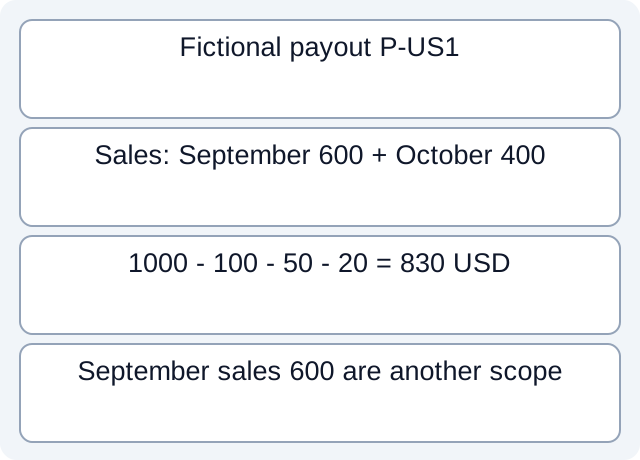
What the downloaded teaching files demonstrate
The fictional downloadable CSV assigns two sales rows to P-US1: 600 USD at September 30 UTC and 400 at October 1 UTC. September gross sales in this stipulated UTC window are 600; payout sales are 1000. With fee−100, marketing−50 and signed amendment−20, reading and summing the file gives 830. Omitting marketing gives 880, a false 50 difference. The UTC boundary is chosen only for this teaching case; it is not a claim that every DoorDash report uses that boundary.
Fictional CSV: tp-232-payout-components
Executed worksheet results. These local checks read only constructed files. They do not test vendor accounts, bank receipt, actual fee rates, imports or native report formats.
Use the complete field definition
DoorDash’s payout and monthly-statement guide provides the detailed relationship:
Net Total = Sales - (Commission & Fees + Marketing Spend) + Amendments
An abbreviated passage on the same page omits Marketing Spend. Use the complete definition and actual report columns, not a fees-only assumption. Paid cancellations and unpaid cancellations have different inclusion; error charges or amendments are not all refunds.
Compare the correct boundary to the bank
Obtain the monthly document through Financials → Statements separately. Record the actual UTC/local timestamps and store scope. A calendar-month statement and the sum of payouts received that month can legitimately cover different transactions.
Match the chosen payout’s destination, currency, reference and observed bank amount. A scheduled date does not prove receipt. Keep unresolved membership or adjustments on the review list instead of assigning every sales-period difference to refunds or changing payment settings.
Review worksheet
| Stipulated US payout component | USD | Effect |
|---|---|---|
| Sales | 1000 | Starting amount |
| Commission and fees | 100 | Subtract |
| Marketing spend | 50 | Subtract separately |
| Amendment | −20 | Signed adjustment |
| Net payout | 830 | Not 880 from ignoring marketing |
For a bank source available only as PDF, download LocalExtract. It processes one PDF locally into date,description,amount CSV; check the extracted rows against the issued statement before using them.
Related guide: Bank statement reconciliation: balances, matches and exceptions.
Documentation for the added task checked October 17, 2026.
LocalExtract Team
We build LocalExtract, a desktop bank statement converter. Questions or corrections? Contact · Editorial policy