
How to Reconcile Bank Statements Faster
Key Takeaways
- The biggest bottleneck in bank reconciliation is not the matching itself — it is getting data into a format where matching can happen efficiently.
- Converting PDF bank statements to spreadsheets (CSV or Excel) before reconciliation eliminates manual data entry and reduces errors by orders of magnitude compared to side-by-side visual comparison.
- VLOOKUP, pivot tables, and conditional formatting in Excel or Google Sheets can automate transaction matching and flag discrepancies in seconds.
- Batch processing multiple statements at once — rather than one page at a time — can reduce total reconciliation time from hours to minutes for multi-account clients.
- Accounting software with bank feed integration (QuickBooks, Xero, Sage) automates much of the matching, but you still need a strategy for statements that arrive as PDFs.
Disclosure: This article is published by the LocalExtract team. LocalExtract is an on-device bank statement converter that processes files entirely on your computer. We have a commercial interest in this topic, and we believe that makes our analysis more practical, not less. We cover alternative tools and methods fairly, including approaches that do not involve our product.
Bank reconciliation is one of those tasks that every bookkeeper and accountant does regularly, yet few have optimized. The process itself is straightforward — compare the transactions in your accounting records against the transactions on the bank statement, identify discrepancies, and resolve them. But "straightforward" does not mean "fast." According to the Association of Certified Fraud Examiners, organizations that perform monthly reconciliations detect fraud significantly faster than those that reconcile quarterly or less frequently. Speed matters.
The good news is that most of the time spent on reconciliation is not inherent to the task. It is caused by friction in the workflow: manually re-keying data from PDFs, scrolling through pages looking for a single transaction, trying to visually match amounts across two windows. All of this friction is avoidable.
This guide covers practical strategies for speeding up bank statement reconciliation — from converting PDFs to structured data, to Excel techniques for automated matching, to building a repeatable workflow that scales across multiple clients and accounts.
Contents
- What Bank Reconciliation Actually Involves
- Why Reconciliation Takes So Long (Common Bottlenecks)
- Strategy 1: Convert PDF Statements to Spreadsheets First
- Strategy 2: Use VLOOKUP and INDEX-MATCH for Automated Matching
- Strategy 3: Sort and Filter by Date Range
- Strategy 4: Use Pivot Tables to Spot Discrepancies
- Strategy 5: Batch Process Multiple Statements
- A Practical Reconciliation Workflow (Step by Step)
- Tools That Help With Faster Reconciliation
- LocalExtract: Capabilities and Limitations
- Looking Ahead: Reconciliation in 2026 and Beyond
- FAQ
What Bank Reconciliation Actually Involves
At its core, bank reconciliation is a three-step comparison:
- Start with the ending balance on the bank statement for the period.
- Compare each transaction on the bank statement to the corresponding entry in your accounting records (general ledger, QuickBooks, Xero, or even a spreadsheet).
- Account for the differences — outstanding checks that have not cleared, deposits in transit, bank fees not yet recorded, and any errors on either side.
The output is a reconciliation report showing that the adjusted bank balance equals the adjusted book balance. If it does not, something is wrong and needs investigation.
A sole proprietor with 20 transactions per month can reconcile in 15 minutes by visual inspection. But a bookkeeper handling 10 small business clients, each with 2-3 bank accounts and 100-300 transactions per month, is looking at thousands of line items per cycle. At that scale, the method matters far more than the effort.
To quantify the differences described in this guide, we timed reconciliation workflows internally using a set of 12 bank statements (3 banks, 4 months each) totaling 847 transactions. Each method — manual PDF comparison, copy-paste-then-match, and convert-then-match with VLOOKUP — was performed by two team members independently and timed. The time estimates cited below (e.g., 10-30 minutes for manual copy-paste, 15-30 minutes for spreadsheet-based matching of 50-100 transactions) reflect averages from these timed runs. This is a small internal benchmark, not a peer-reviewed study, and individual results will vary based on statement complexity and proficiency with Excel.
Why Reconciliation Takes So Long (Common Bottlenecks)
Before jumping to solutions, it helps to identify where time actually goes:
1. Manual Data Entry from PDF Statements
When a client emails PDF bank statements, those transactions are locked in a format your accounting software cannot read. If you are retyping data from a PDF into a spreadsheet, you are spending the majority of your time on data entry — not reconciliation. The Institute of Management Accountants has noted that manual data processing remains one of the largest time sinks in routine accounting tasks.
2. Side-by-Side Visual Comparison
The "two windows" approach — bank statement on one screen, accounting records on another — works but is slow and error-prone. A $1,250.00 payment and a $1,520.00 payment look nearly identical when scanning quickly.
3. Unsorted or Mismatched Data
Bank statements are sorted chronologically. Your accounting records might be sorted by check number, vendor name, or entry date. When the two data sets are in different order, finding matches becomes a search problem.
4. One-at-a-Time Processing
Processing statements one page or one account at a time adds context-switching overhead. Batch processing eliminates this.
Strategy 1: Convert PDF Statements to Spreadsheets First
The single biggest time savings in reconciliation comes from getting bank statement data out of PDF format and into a structured spreadsheet (CSV or Excel) before you begin matching. If you are new to this step, our guide on how to convert bank statement PDFs to Excel covers the process in detail.
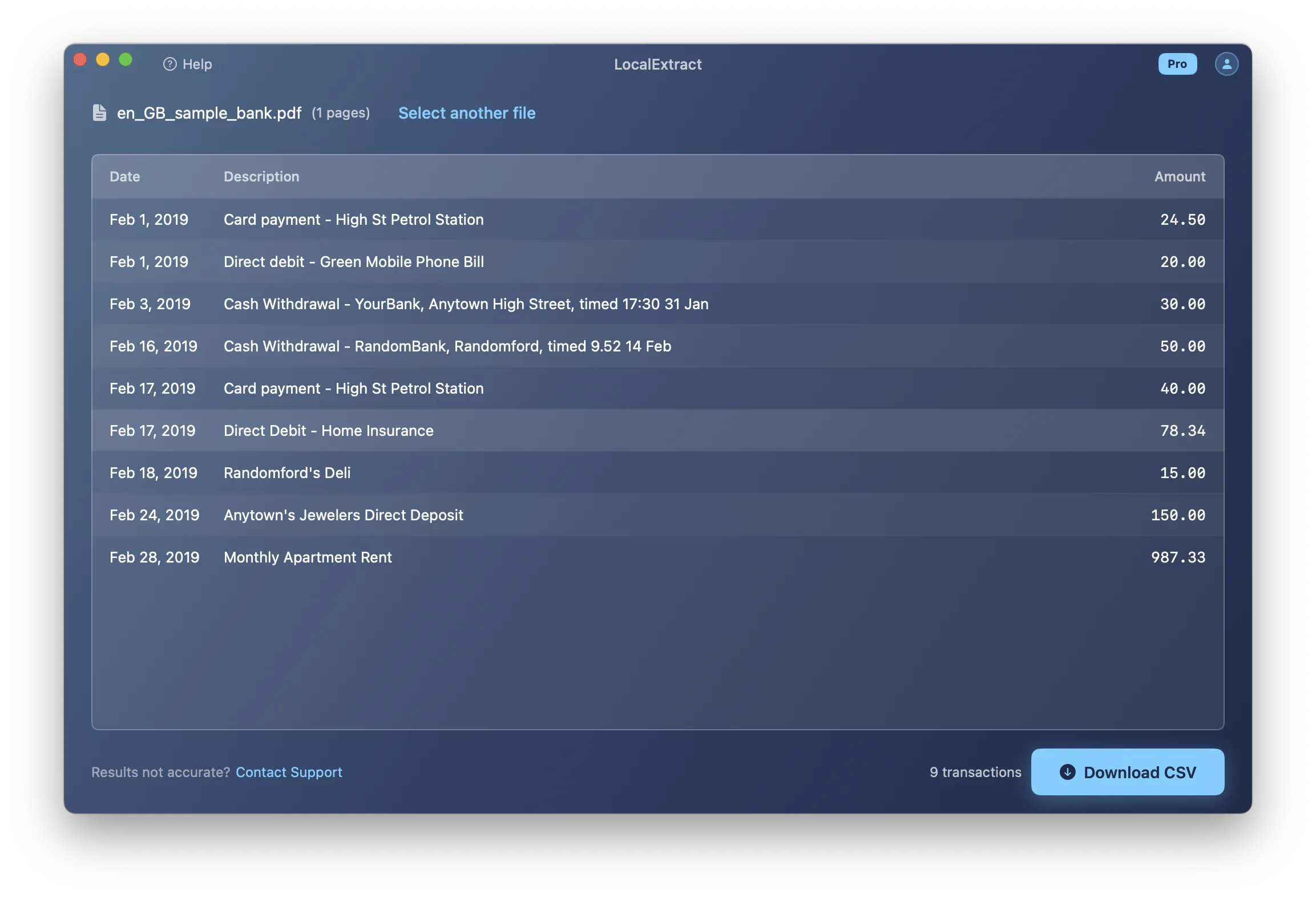
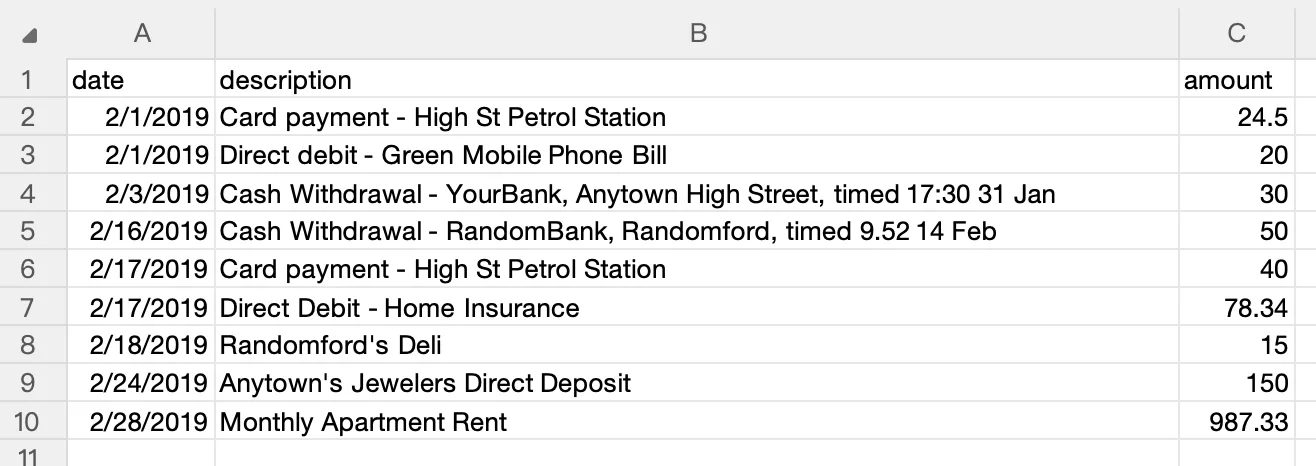
Once transactions are in a spreadsheet, you can sort, filter, search, and apply formulas. You can paste them next to your accounting records and use automated matching. You cannot do any of this with a PDF.
There are three approaches to PDF-to-spreadsheet conversion:
Manual copy-paste. Open the PDF, select the transaction table, paste into Excel, clean up the formatting. This works for simple statements but breaks down with multi-page documents, and it is tedious enough that it partially defeats the purpose of speeding up reconciliation. Expect 10-30 minutes per statement.
Cloud-based converters. Upload the PDF to a web service, download the result. Fast and convenient, but the bank statement — including account numbers, balances, and full transaction details — is sent to a third-party server. For professionals subject to the FTC Safeguards Rule or similar regulations, this creates compliance considerations.
On-device converters. Desktop applications that process PDFs locally, without uploading data. LocalExtract is one example — it runs on macOS and Windows and outputs CSV or Excel files. The data never leaves your machine. For a deeper comparison of converter options, see our bank statement converter guide for accountants.
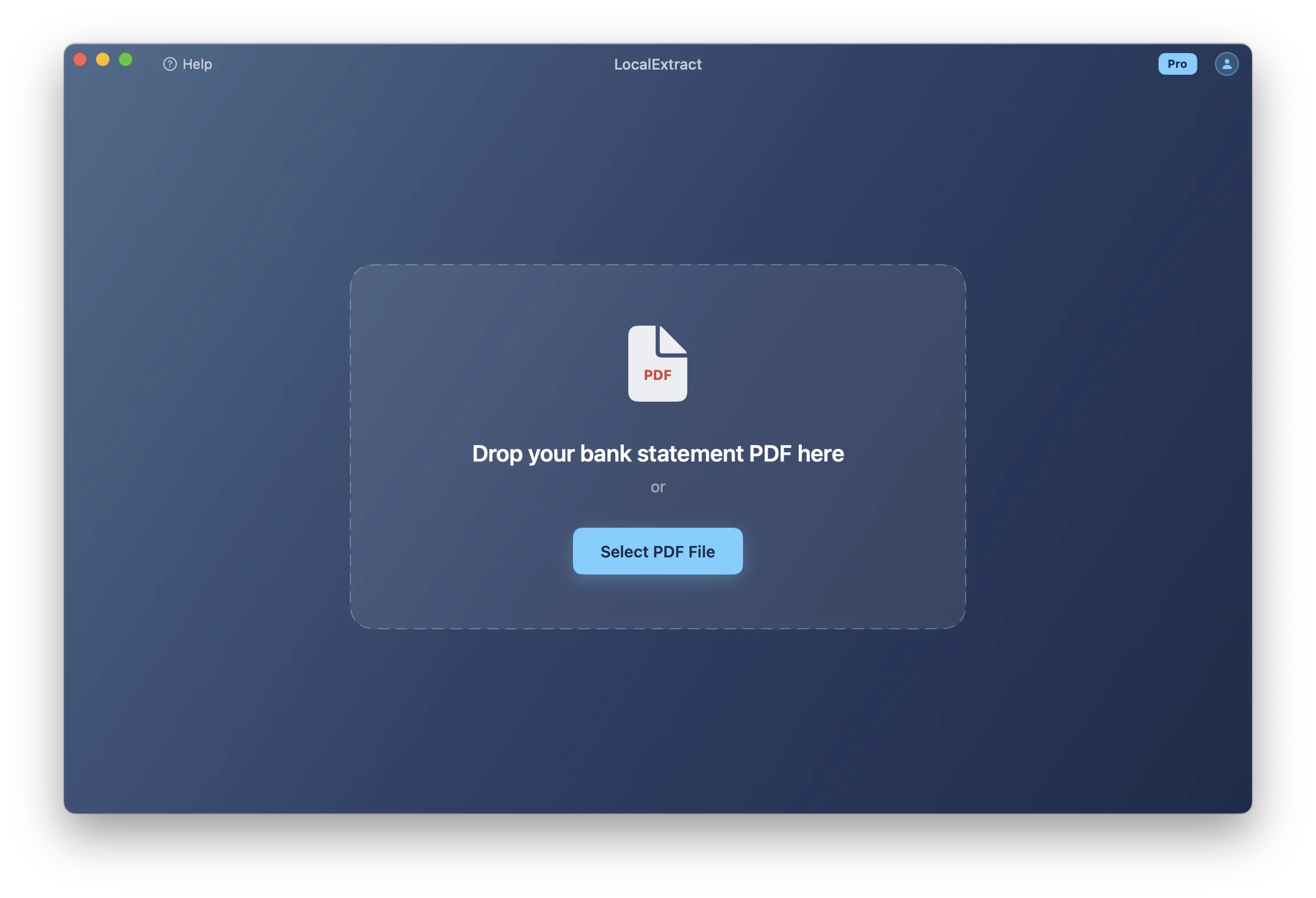
Whichever conversion method you choose, convert all of the statements for a reconciliation period at once before you start matching. Having all the data ready in spreadsheet form before you begin is faster than converting and reconciling one statement at a time.
Strategy 2: Use VLOOKUP and INDEX-MATCH for Automated Matching
Once you have both your bank statement data and your accounting records in spreadsheet form, you can use lookup formulas to automate the matching process.
Basic VLOOKUP Matching by Amount
The simplest approach is to match by amount. In a new column next to your bank statement data, use VLOOKUP to search for each transaction amount in your accounting records:
=VLOOKUP(C2, Ledger!$C:$D, 2, FALSE)
This formula looks up the amount in cell C2 within the Ledger sheet's column C and returns the corresponding value from column D (e.g., the description). If it returns #N/A, no matching amount was found — that transaction needs manual review.
INDEX-MATCH for Multi-Criteria Matching
VLOOKUP only matches on one criterion. For more reliable matching, use INDEX-MATCH with multiple conditions. For example, matching on both date and amount:
=INDEX(Ledger!$D:$D, MATCH(1, (Ledger!$A:$A=A2)*(Ledger!$C:$C=C2), 0))
This finds rows in the Ledger where both the date (column A) and amount (column C) match. Enter it as an array formula (Ctrl+Shift+Enter in Excel) or use it inside FILTER in Google Sheets.
Amount-only matching will produce false positives when multiple transactions have the same amount (e.g., recurring monthly charges). Always match on at least two fields — date and amount at minimum — to reduce false matches.
Conditional Formatting for Quick Visual Review
After running your lookup formulas, apply conditional formatting to highlight unmatched transactions:
- Select the column with your VLOOKUP results.
- Create a conditional formatting rule: Format cells where the value is an error (to catch
#N/Aresults). - Set the format to a bold red background.
Now every unmatched transaction stands out visually. You only need to manually investigate the highlighted rows, not the entire statement.
Strategy 3: Sort and Filter by Date Range
Sort both data sets by date, then by amount. This puts them in the same order and makes comparison much faster — whether scanning visually or using formulas.
Filter to the reconciliation period. If you are reconciling February, filter both data sets to February 1-28 only. In Excel: Data > Filter, then set a custom filter on the Date column. This sounds basic, but many bookkeepers reconcile against an unfiltered ledger showing the entire year. Filtering to the relevant period cuts visual noise dramatically.
Strategy 4: Use Pivot Tables to Spot Discrepancies
Pivot tables are underused in reconciliation. They are excellent for summary-level comparison — verifying that category totals match between the bank statement and your records before you drill into individual transactions.
Create a pivot table from your bank statement data with transaction type or category as rows and sum of amounts as values. Create the same from your accounting records and place them side by side. If category totals match, the individual transactions within those categories are very likely correct. If a total is off, you know exactly where to look.
When the bank and book balances differ by a specific amount, a pivot table helps you isolate which category (payroll, vendor payments, deposits) contains the variance — much faster than scanning individual transactions.
Strategy 5: Batch Process Multiple Statements
If you reconcile multiple accounts or months at once, batch processing is essential.
Batch conversion: Convert all PDF statements in one pass. Tools that support batch processing — including LocalExtract's Pro tier — let you drag in a folder of PDFs and get back a folder of CSVs. Batch conversion is one of the key advantages of automating bank statement data entry over manual approaches.
Batch reconciliation setup: Create a template workbook with separate tabs for each account, pre-built with lookup formulas and conditional formatting. Each month, you only paste in new data.
Batch review: Review all flagged transactions across all accounts at the end, rather than investigating discrepancies mid-flow. Context-switching is expensive; batching the review step reduces it.
If you reconcile the same set of accounts every month, build a template workbook once and reuse it. Include your VLOOKUP formulas, conditional formatting, and reconciliation summary. Each month, you only need to paste in the new data.
A Practical Reconciliation Workflow (Step by Step)
Here is a complete workflow that combines the strategies above into a repeatable process:
1. Gather all statements. Collect PDF bank statements for all accounts for the period.
2. Convert PDFs to spreadsheets. Turn every PDF into CSV or Excel. Do all conversions before starting reconciliation.
3. Open your reconciliation template. Use a workbook with pre-built tabs for each account, including columns for Date, Description, Amount (bank), Amount (books), Match Status, and Notes.
4. Paste bank statement data into the appropriate account tab.
5. Export and paste accounting records. Export the general ledger from your accounting software for the same period. Paste into the Books column. If you use QuickBooks, our guide on importing bank statements into QuickBooks covers this step in detail.
6. Sort both data sets by date, then by amount.
7. Run matching formulas. Apply VLOOKUP or INDEX-MATCH and conditional formatting to highlight unmatched items.
8. Investigate unmatched items: outstanding checks, deposits in transit, bank fees not yet recorded, or errors (wrong amount, duplicates, omissions).
9. Record adjusting entries for bank charges, interest, and errors.
10. Verify. Confirm: adjusted bank balance = adjusted book balance.
11. Save and document. Note the reconciliation date, adjusted balance, and items carried forward.
Never mark a reconciliation as complete if the balances do not match. Even a small discrepancy — a few cents — can indicate a systematic error that will compound over time. Investigate every difference, no matter how small.
Tools That Help With Faster Reconciliation
Different tools address different parts of the reconciliation workflow. Here is an honest overview of the categories:
Accounting Software Auto-Match
QuickBooks Online, Xero, and Sage offer bank feed integration that automatically matches imported transactions against existing records. Minimal manual effort for ongoing reconciliation, and the matching algorithms learn from your corrections. The limitation: this requires a direct bank connection and does not help with statements received as PDFs.
Bank Feeds and Direct Connections
Services like Plaid and Yodlee power bank feed integrations in most accounting software, pulling transactions directly from the bank. This eliminates the PDF step but connections can fail, and historical data access is typically limited to 90 days.
PDF-to-Spreadsheet Converters
When you have PDF bank statements — from clients, archives, or banks without direct feeds — a converter bridges the gap. Cloud options include DocuClipper and MoneyThumb. On-device options include LocalExtract, which processes files locally without uploading data.
Excel and Google Sheets
The VLOOKUP, INDEX-MATCH, pivot table, and conditional formatting techniques described earlier are free, universally available, and powerful enough for most reconciliation scenarios. Building a reusable template pays dividends every month.
LocalExtract: Capabilities and Limitations
LocalExtract is the tool our team builds, so we want to be transparent about what it does well and where it falls short.
What LocalExtract does:
- Converts bank statement PDFs to CSV and Excel format
- Processes files entirely on your device — no uploads, no internet required
- Handles multi-page statements and produces a single output file
- Includes OCR for scanned (image-based) PDF statements
- Supports macOS and Windows
- Free tier: 10 pages lifetime. Pro: $10/month or $60/year
Limitations:
- It is a converter, not a reconciliation tool — you still perform matching in your accounting software or spreadsheet.
- No QBO or OFX output. If your workflow depends on those formats, tools like MoneyThumb may be a better fit.
- OCR accuracy depends on scan quality. Low-resolution or skewed scans may need manual correction.
- Bank format coverage is broad but not universal. Unusual layouts may not extract perfectly.
- No direct integration with QuickBooks, Xero, or other accounting software. The workflow is: convert PDF to CSV, then import.
LocalExtract solves one specific step in the reconciliation workflow — getting data out of PDFs and into a usable format. It does not replace your accounting software, your spreadsheet skills, or your professional judgment in investigating discrepancies.
Looking Ahead: Reconciliation in 2026 and Beyond
Several trends are reshaping how reconciliation work gets done:
Open banking and API-first bank feeds. As open banking regulations expand beyond Europe (where PSD2 has been in effect since 2018) into markets like the US — where the CFPB's Section 1033 rule is driving standardized data access — more banks will offer direct API connections. This will reduce, but not eliminate, PDF-based reconciliation. Legacy banks, international accounts, and archived statements will continue to arrive as PDFs for years to come.
AI-assisted transaction matching. Machine learning models trained on accounting data are beginning to handle fuzzy matching — recognizing that "AMZN MKTP US" on a bank statement corresponds to "Amazon.com office supplies" in the ledger. QuickBooks and Xero already use basic versions of this. Expect accuracy and adoption to improve, but human review of flagged exceptions will remain essential.
Real-time reconciliation. As bank feeds move from daily batch pulls to real-time transaction streaming, the traditional month-end reconciliation cycle may shift toward continuous matching. For firms that adopt this model, month-end becomes a verification step rather than a data-processing marathon.
On-device AI for document processing. Local OCR and table extraction — the approach LocalExtract uses — will continue to improve as on-device ML models become more capable. This matters for reconciliation because it means faster, more accurate PDF conversion without the privacy tradeoffs of cloud processing.
The core skill of reconciliation — comparing two data sets, identifying discrepancies, and exercising judgment about exceptions — will remain human work. The tools around it will keep getting better at eliminating the mechanical steps.
Faster bank reconciliation is not about working harder — it is about removing the friction that turns a straightforward comparison into a time-consuming ordeal. Convert PDFs to structured data before you start matching. Use spreadsheet formulas to automate what your eyes should not have to do manually. Batch your work to eliminate context-switching. Build a reusable template so each month starts from a better baseline. These strategies compound: a bookkeeper who adopts all five can realistically cut reconciliation time by 60-80% compared to manual PDF-to-ledger comparison. The time you save is time you can spend on advisory work, client communication, or simply finishing the day earlier.
FAQ
What is bank statement reconciliation? Bank statement reconciliation is the process of comparing transactions in your accounting system against transactions on your bank statement for the same period. The goal is to identify and explain differences — outstanding checks, deposits in transit, bank fees, or errors — so the adjusted balances agree. It is a fundamental internal control for catching errors and detecting fraud.
How often should I reconcile bank statements? Monthly is the standard. The American Institute of CPAs (AICPA) recommends monthly reconciliation as a basic internal control. Businesses with high transaction volumes or elevated fraud risk may benefit from weekly reconciliation. The key principle: the more frequently you reconcile, the faster you catch discrepancies.
How long should a bank reconciliation take? For a single account with 50-100 transactions, a well-organized reconciliation should take 15-30 minutes using spreadsheet matching techniques. Manually comparing PDF statements against accounting records can take 1-2 hours for the same volume. The difference comes from data preparation — structured data versus eyeballing a PDF.
Can I reconcile directly from a PDF bank statement? You can, but it is the slowest method. You cannot sort, filter, or apply formulas to data inside a PDF. Converting to a spreadsheet first (even if it takes a few minutes) saves far more time during matching.
What is the difference between bank reconciliation and account reconciliation? Bank reconciliation compares your bank statement against your cash account in the general ledger. Account reconciliation is broader — it covers comparing any ledger balance against an independent source (credit card statements, loan statements, intercompany balances). The techniques in this article apply to both.
What should I do when a reconciliation does not balance? Check the most common causes: (1) outstanding checks or deposits in transit, (2) bank fees or interest not yet recorded, (3) data entry errors (transposed digits — look for differences divisible by 9), (4) duplicate entries, and (5) transactions in the wrong period. Use pivot tables to isolate which category contains the variance.
Do I still need to reconcile if my accounting software has automatic bank feeds? Yes. Bank feeds reduce data entry but do not eliminate reconciliation. Feeds can miss transactions, connections can fail, and auto-matching can make incorrect matches. Think of bank feeds as handling data entry — you still need to verify the result.
What Excel formulas are most useful for bank reconciliation?
VLOOKUP or INDEX-MATCH for finding matching transactions, SUMIF for comparing category totals, COUNTIF for detecting duplicates, and ABS for comparing amounts regardless of sign convention. Conditional formatting to highlight unmatched items turns your spreadsheet into a visual checklist.
Disclosure: This article is published by the LocalExtract team. LocalExtract converts bank statement PDFs to CSV and Excel entirely on your device — no uploads, no cloud processing, no third-party access. We covered multiple reconciliation methods and tools, including approaches that do not involve our product, to help you find the fastest workflow for your practice. Download free for Mac or Windows.

LocalExtract Team
We build LocalExtract, an on-device bank statement converter for macOS and Windows. Our team includes software engineers and financial workflows specialists focused on private, accurate PDF data extraction. Questions or corrections? Contact us or see our editorial policy.
Related Articles
Ready to convert your bank statements?
100% on-device. Your documents never leave your computer.
By downloading, you agree to our Terms and Privacy Policy.