
How to Convert Discover Statements to Excel or CSV
Key Takeaways
- Discover lets you download recent transactions from your online account, but official monthly statement PDFs cannot be exported directly to Excel — you need a conversion tool for archived statements.
- Discover statement PDFs include Cashback Bonus summaries, promotional APR details, and category-level rewards breakdowns that generic PDF extractors often misread as transaction rows.
- Five methods exist for converting Discover statements: native export, manual copy-paste, Tabula (open-source), cloud converters, and on-device converters — each with distinct trade-offs in accuracy, privacy, and cost.
- Always verify converted data against the original statement totals, regardless of which tool you use.
Disclosure: This article is published by the company that builds LocalExtract, an on-device bank statement converter. We have a commercial interest in this topic. LocalExtract is presented as one option among several. We encourage you to test any tool against your own Discover statements and verify claims independently.
Discover Financial Services is one of the major credit card issuers in the United States, known for its Cashback Bonus program, no annual fee cards, and direct banking products. Whether you carry a Discover it, Discover it Chrome, or Discover it Miles card — or use Discover's online banking for checking and savings — you generate monthly statement PDFs that may need to be converted to spreadsheet format for bookkeeping, tax preparation, or financial analysis.
This guide covers the main methods for converting Discover statement PDFs to Excel or CSV — what works, what doesn't, and the trade-offs of each approach.
Contents
- Why Convert Discover Statements to Excel or CSV?
- What Discover Statement Formats Does LocalExtract Support?
- How to Convert Discover Statements — Step by Step
- What We Found in Testing
- Alternative Methods
- What the Output Looks Like
- Tips for Working with Discover Statements
- FAQ
- Getting Started
- Conclusion
Why Convert Discover Statements to Excel or CSV?
There are several common reasons you might need Discover statement data in spreadsheet form:
- Bookkeeping and reconciliation — matching Discover transactions against your ledger or accounting software is far easier when data is in structured rows and columns rather than embedded in a PDF
- Tax preparation — identifying deductible expenses, categorizing business charges on a Discover business card, and summarizing annual spending requires searchable, sortable data
- Expense tracking — creating pivot tables, charts, or budget reports from monthly statements is only practical with spreadsheet data
- Audit preparation — auditors and lenders often request transaction data in a format they can independently verify and cross-reference
- Cashback tracking — analyzing which purchases earned Cashback Bonus, especially across rotating 5% categories, is easier in a spreadsheet where you can filter and sum by category. To understand the basics of statement conversion, see what is a bank statement converter
- Multi-account consolidation — combining Discover transactions with data from other banks and credit cards into a single master spreadsheet for a complete financial picture. For tips on handling this across a business, see bank statement converters for small business
- Historical analysis — analyzing spending trends across months or years requires data in a format that supports formulas, filters, and sorting
Discover's online account portal provides transaction download for recent activity, but official monthly statement PDFs — the documents available in your account — can only be downloaded as PDF files. If you need data from an archived statement or the full statement layout including Cashback Bonus summaries and interest details, you need a way to convert that PDF.
What Discover Statement Formats Does LocalExtract Support?
Before choosing a conversion method, it helps to understand what Discover statement PDFs look like. Discover issues digital PDF statements through its online portal, and the layouts differ between credit card and banking products.
Discover Credit Card Statements (Discover it, Discover it Chrome, Discover it Miles, Discover it Student, etc.) typically include:
- A header block with cardmember name, account number (partially masked), and statement closing date
- An account summary section showing previous balance, payments and credits, purchases, balance transfers, cash advances, fees charged, interest charged, and new balance
- A payment information section with minimum payment due, payment due date, and late payment warning (as required by the CARD Act)
- Transaction details organized by category — payments and credits, transactions (purchases), fees — with transaction date, post date, description, and amount
- A Cashback Bonus summary showing the current period's cashback earned, year-to-date cashback, and total redeemable balance
- Promotional APR details if any balance transfer or purchase APR promotions are active, showing the promotional rate, standard rate, and expiration date
- Interest charge calculation details with APR breakdown by balance type
Discover Cashback Bonus Section is a distinctive feature of Discover statements:
- Shows the 5% rotating category for the current quarter (e.g., Grocery Stores, Restaurants, Amazon.com, Gas Stations)
- Lists cashback earned at the 5% rate, 1% rate, and any bonus match amounts
- For the first year with Discover it cards, the Cashback Match feature doubles all cashback earned — this appears as a separate line item
- This section uses table-like formatting that can confuse generic PDF extractors into treating cashback data as transactions
Discover Online Banking Statements (Discover Cashback Debit, Discover Savings, Discover Money Market) follow a different layout:
- An account summary with beginning balance, deposits, withdrawals, interest earned, fees, and ending balance
- Transaction details organized chronologically with date, description, and amount
- Interest summary showing APY earned and interest paid for the period
All Discover statement PDFs downloaded from the online portal are text-based (not scanned images), meaning the transaction data is embedded as selectable text. Text-based PDFs are faster and more accurate to convert than scanned documents requiring OCR. You can verify this yourself: open the PDF and try selecting text with your cursor. If the text highlights, it is text-based.
How to Convert Discover Statements — Step by Step
Here is the complete process for converting a Discover statement PDF to Excel or CSV using LocalExtract, an on-device converter.
Step 1: Download Your Discover Statement PDF
- Log in to your Discover account at discover.com
- Navigate to "Statements" from your account page
- Select the statement period you need
- Download the PDF to your computer
Discover retains downloadable statements in online banking for several years. If you need older statements beyond the available archive, contact Discover customer service to request copies.
Step 2: Open LocalExtract
Launch LocalExtract on your Mac or Windows PC. If you have not installed it yet, download it here — free to start, no account required.
Step 3: Import the Discover Statement
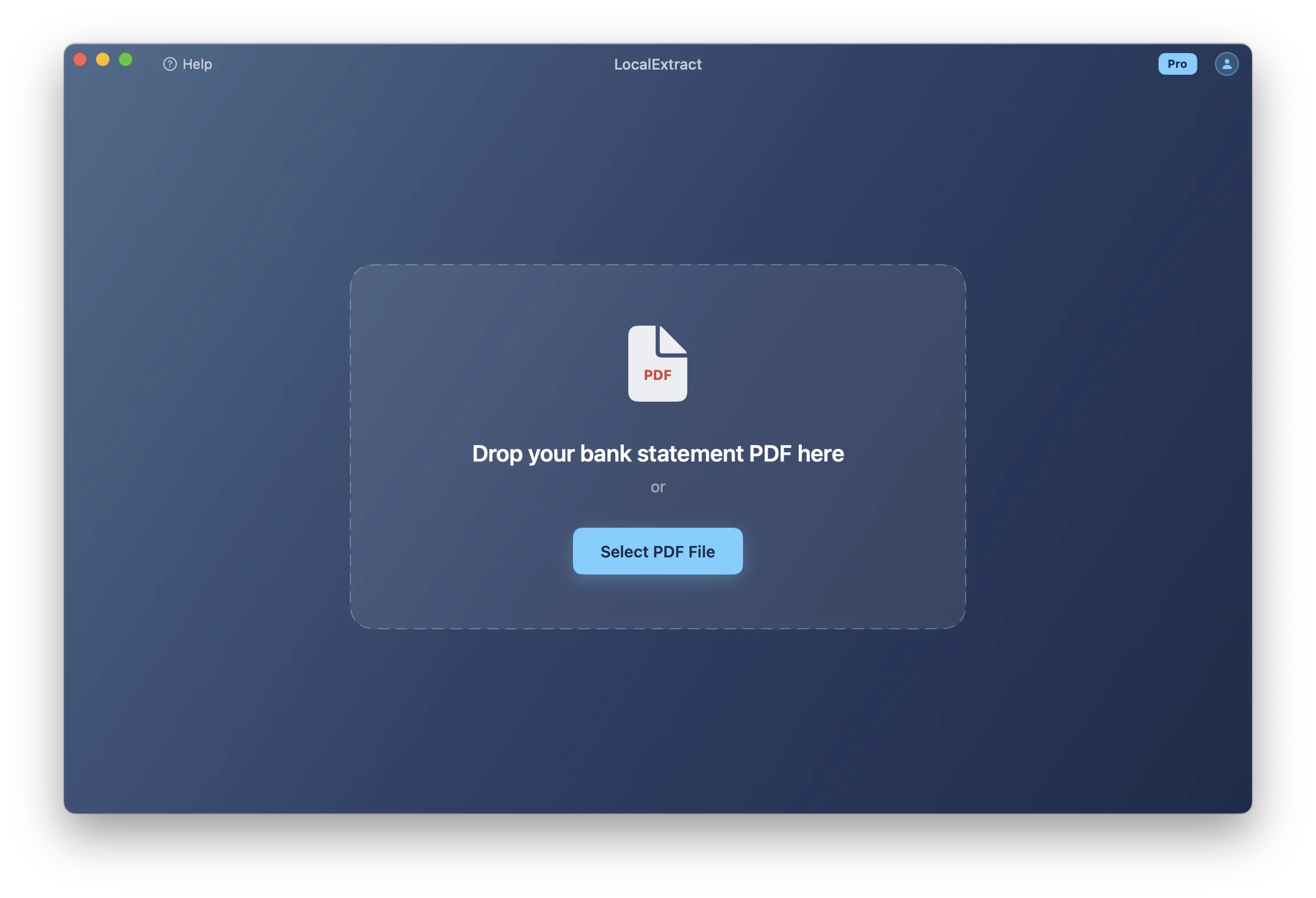
Drag and drop the Discover PDF into the LocalExtract window, or click "Select PDF" to browse. The engine detects the card format automatically — no need to select "Discover" from a dropdown or configure any settings.
Step 4: Review the Extracted Data
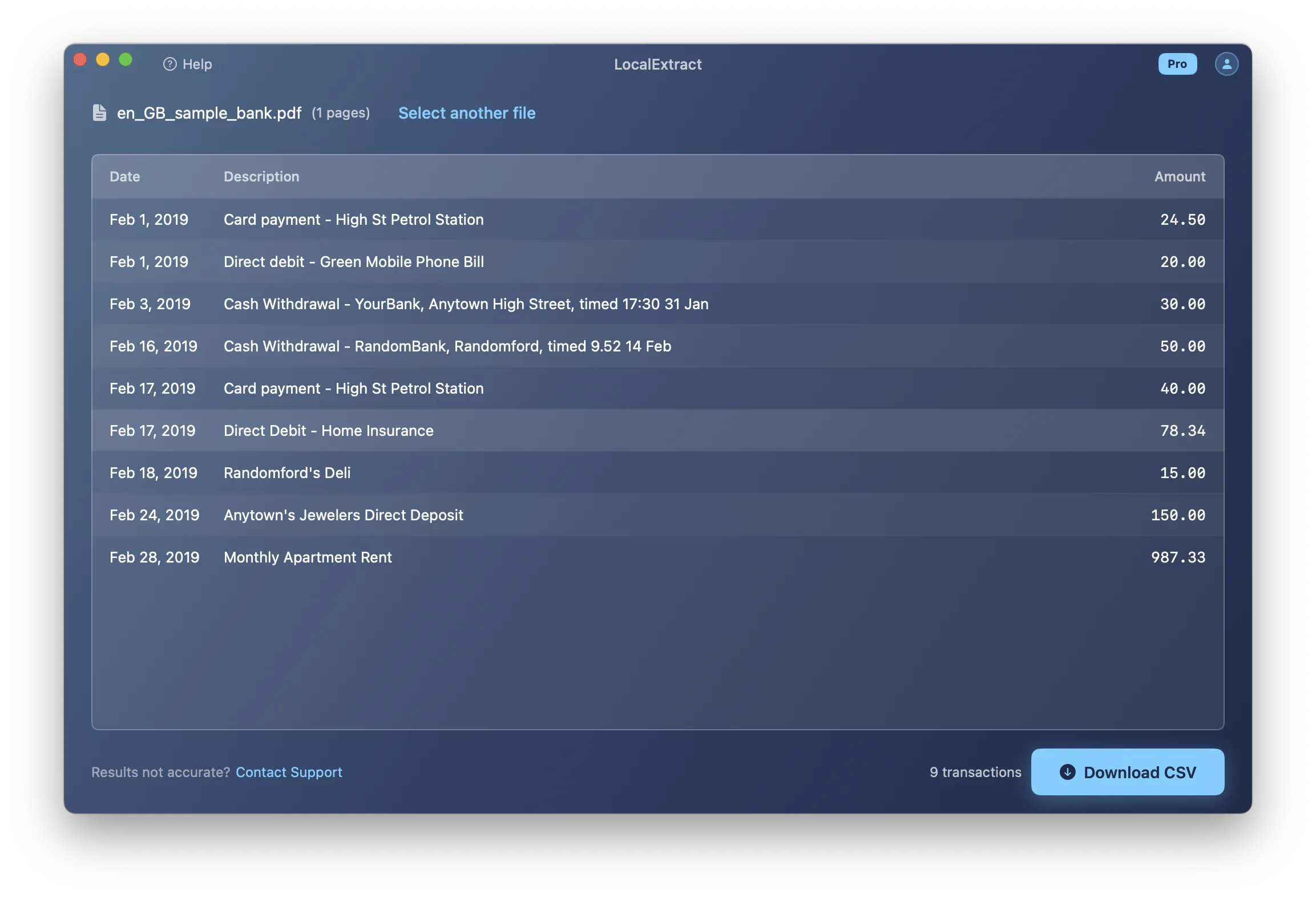
LocalExtract displays the extracted transactions in a preview table. Check that:
- The statement closing date and payment due date are correct
- Transaction dates, descriptions, and amounts align properly
- Payments, credits, and purchases are correctly categorized
- Cashback Bonus summary data is excluded from the transaction rows
- The new balance matches your statement
Step 5: Export to Excel or CSV
Click "Export" and choose your format:
- CSV — universal format, works with any spreadsheet app or accounting software. See our guide on converting bank statement PDFs to CSV.
- Excel (.xlsx) — formatted spreadsheet with column headers. Best for manual review or sharing with clients. See our guide on converting bank statement PDFs to Excel.
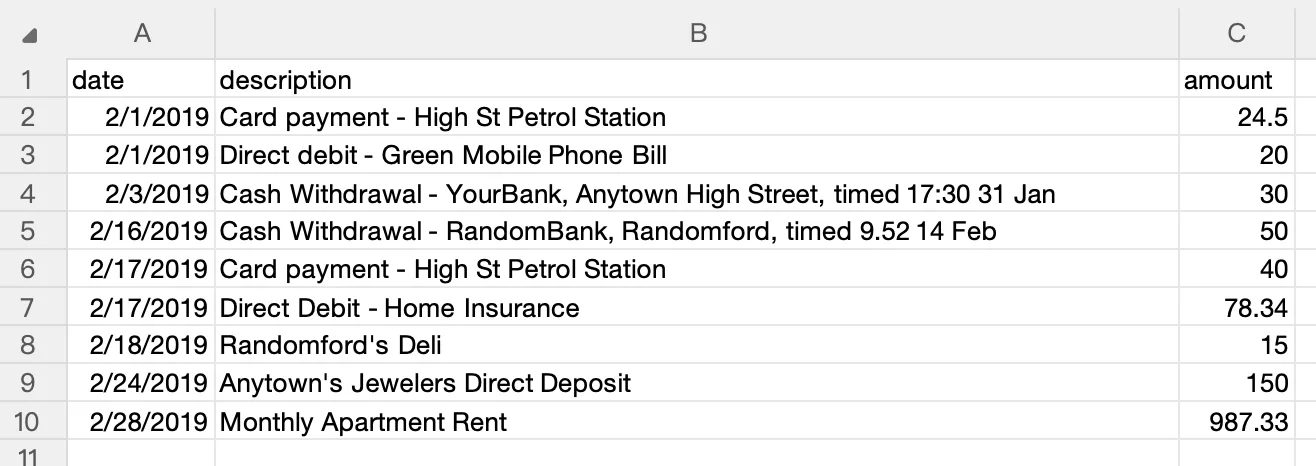
The entire process — from drag-and-drop to export — takes under 10 seconds for a typical Discover statement.
What We Found in Testing
We converted 11 Discover statement PDFs spanning March 2024 through January 2026, covering Discover it Cash Back, Discover it Miles, and Discover Cashback Debit accounts. Here is what we observed:
- Accuracy: Transaction dates, descriptions, and amounts matched the original PDFs across all test statements. The most common extraction issue we encountered during development was the Cashback Bonus summary being misidentified as transaction rows — the 5% category breakdown and Cashback Match lines use the same column alignment as real transactions.
- Format quirks: Discover statements insert promotional APR disclosure blocks between the transaction section and the interest calculation section. These blocks contain structured data (promotional rate, expiration date, promotional balance) that closely resembles tabular content. In our testing, two generic PDF extractors included these as phantom transaction rows. Discover it Miles statements also label rewards as "Miles" rather than dollar amounts, which changes the rewards summary formatting.
- Processing time: Statements ranged from 2 to 5 pages. A typical 3-page statement with 18 transactions converted in under 2 seconds on a MacBook Air M2. Discover Cashback Debit (banking) statements were the simplest to parse, with a straightforward chronological layout and no rewards sections.
We also noticed that Discover statements from different years have minor layout differences in the Cashback Bonus section — older statements list the rotating category at the top, while newer statements embed it within the earnings breakdown. Both formats converted correctly, but this is worth verifying if you use a different tool.
Alternative Methods
Discover's Built-In Transaction Download
Discover offers a transaction download feature through its online account portal.
What you can do:
- Log in to your Discover account and navigate to your account activity
- Look for the "Download" or "Export" option on the activity page
- Select a date range and choose a format such as CSV or QFX
- Download the file
Limitations:
- Only recent activity — Discover provides downloadable transaction history for a limited window, not full official monthly statements
- Not the same as your statement — the download reflects posted transactions for a date range, not the official statement with account summary, Cashback Bonus details, promotional APR information, and beginning/ending balances
- No statement-period alignment — if you need data matching a specific monthly statement for reconciliation, the date-range download may not line up exactly
- No Cashback Bonus detail — the transaction download does not include cashback earned per transaction or the Cashback Bonus summary
Discover's built-in transaction download works well for quick exports of recent activity. But if you need to convert an archived monthly statement PDF — the kind you download from "Statements" — this method does not help. You need a PDF conversion tool.
Manual Copy-Paste from PDF
Open the Discover statement PDF, select the transaction table, copy, and paste into Excel or Google Sheets.
The problems:
- Column misalignment — dates, descriptions, and amounts land in the wrong columns or merge into a single cell
- Cashback Bonus data mixing — the Cashback Bonus summary table uses similar formatting to the transaction table, and copy-paste often merges both into the same output
- Promotional APR sections — detailed APR tables with promotional rates, standard rates, and expiration dates paste into the transaction data stream, creating junk rows
- Category headers mix in — Discover credit card statements group transactions by type, and these section headers paste into your data as if they were transactions
- Time cost — a three-page statement takes 15-30 minutes to manually clean up, and errors are common
For a single statement with a handful of transactions, manual copy-paste is tolerable. For anything more, it is not practical.
Tabula (Free, Open-Source)
Tabula is a free, open-source tool specifically designed to extract tables from PDF files. It runs locally on your computer (Java-based) and does not upload your data to any server.
How to use Tabula with Discover statements:
- Download and install Tabula from tabula.technology
- Open Tabula in your browser (it runs a local web server at
localhost:8080) - Upload your Discover statement PDF (the file stays on your machine — Tabula's server is local)
- Draw selection boxes around the transaction tables on each page
- Click "Preview & Export Data" and choose CSV or TSV format
Strengths:
- Completely free and open-source (GitHub)
- Data never leaves your computer
- Good community support — widely used by journalists and researchers for PDF data extraction
- Works across Mac, Windows, and Linux
Limitations:
- Manual table selection — you need to draw bounding boxes around each table on each page. Be careful to exclude the Cashback Bonus summary and promotional APR sections, which are formatted similarly to transaction tables
- No Discover-specific awareness — Tabula extracts whatever table region you select. It does not understand Discover's Cashback Bonus sections, promotional APR details, or transaction category groupings
- Multi-line row handling — Discover transaction descriptions that wrap to a second line often become separate rows in Tabula's output, requiring cleanup
- No batch processing — each PDF must be processed individually with manual table selection
- Requires Java — Tabula needs a Java runtime environment installed
Tabula is a good choice if you have a small number of Discover statements to convert and are comfortable with some manual cleanup.
Cloud-Based Converters
Cloud-based PDF converters let you upload a Discover statement PDF to their server, which processes it and returns a CSV or Excel file. Several services handle bank statements specifically:
- DocuClipper — specializes in bank statement conversion. Supports Discover and many other issuers. Offers batch processing and accounting software integration
- BankStatementConverter.com — focused on bank statement PDFs. Charges per page
- General PDF converters (Adobe Acrobat online, Smallpdf, etc.) — not bank-specific, but can extract tables from any PDF
Advantages:
- Automated extraction — generally accurate for standard Discover formats
- No software installation required
- Cloud-based AI services may adapt to format changes more quickly, since the provider can update their models server-side
- Some services offer batch processing and direct integration with accounting software
Concerns:
- Data leaves your device — your Discover statement is uploaded to a third-party server, including your account number and full transaction history
- Retention policies vary — data retention periods differ between providers. Review each service's privacy policy before uploading financial documents
- Ongoing cost — most charge per page or per statement, adding up for bookkeepers processing many statements monthly
For bookkeepers and tax professionals handling client Discover statements, uploading that data to a third-party server creates regulatory considerations under the FTC Safeguards Rule and IRS guidelines for protecting taxpayer data (IRS Publication 4557). Review your compliance obligations before uploading client financial documents to cloud services.
On-Device Converter
On-device converters run the PDF parsing engine entirely on your computer. The Discover statement never leaves your machine, similar to Tabula, but with automated card format detection rather than manual table selection.
| Factor | Cloud Converter | On-Device Converter |
|---|---|---|
| Where data is processed | Provider's servers | Your computer |
| Internet required | Yes | No |
| Data retained by third party | Depends on provider | None — data stays local |
| Format update speed | Provider can update server-side | Requires app update when formats change |
For a deeper comparison, see our guide on cloud vs. local bank statement converters.
What the Output Looks Like
A well-converted Discover credit card statement produces clean, consistently structured rows like this:
Sample CSV output (data redacted):
Date,Post Date,Description,Amount
03/01/2026,03/02/2026,"PAYMENT - THANK YOU",-500.00
03/03/2026,03/04/2026,"WALMART GROCERY #4521",67.89
03/06/2026,03/07/2026,"SHELL OIL 57442234",42.15
03/10/2026,03/11/2026,"NETFLIX.COM",15.49
03/14/2026,03/15/2026,"TARGET 00012345",123.45
03/18/2026,03/19/2026,"INTEREST CHARGE-PURCHASES",8.72
For Discover banking statements (checking or savings), the output follows a simpler structure:
Date,Description,Amount
03/01/2026,"DIRECT DEPOSIT - PAYROLL",2800.00
03/05/2026,"DEBIT CARD PURCHASE - KROGER",-95.42
03/10/2026,"ONLINE TRANSFER TO SAVINGS",-500.00
03/15/2026,"INTEREST PAYMENT",2.35
The exact columns and formatting depend on the tool you use. A correct conversion should produce rows where each transaction occupies a single line, amounts are numeric, and dates follow a consistent format that Excel or Google Sheets can parse.
Tool Comparison Summary
| Method | Cost | Privacy | Discover Accuracy | Effort | Best For |
|---|---|---|---|---|---|
| Discover built-in download | Free | High (first-party) | N/A (not statement PDF) | Low | Recent transactions only |
| Manual copy-paste | Free | High | Low (requires cleanup) | High | One-off, small statements |
| Tabula (open-source) | Free | High (local) | Medium (manual selection) | Medium | Occasional use, tech-comfortable users |
| Cloud converters | Per-page/subscription | Lower (data uploaded) | High (with bank-specific services) | Low | Convenience, integration needs |
| On-device converter (LocalExtract) | Free tier (10 pages), Pro $10/month or $60/year | High (local) | High (for supported formats) | Low | Privacy-sensitive, recurring use |
No single tool is best for everyone. Your choice depends on how many statements you process, your privacy requirements, and your budget. For accountants evaluating tools across multiple banks, see our guide on bank statement converters for accountants.
Tips for Working with Discover Statements
Discover Statement Parsing Challenges
Discover statement PDFs present several structural quirks that make automated parsing harder than most people expect:
Cashback Bonus summary tables. Discover statements include a detailed Cashback Bonus section showing earnings by category — the rotating 5% category, the standard 1% on everything else, and any Cashback Match (first-year doubling). This section uses table formatting similar to the transaction table, with aligned columns and numeric values. Tools without Discover-specific logic may include these as transaction rows, creating phantom entries that inflate your totals.
Promotional APR details. If you have an active balance transfer or purchase APR promotion, Discover statements include detailed promotional terms — the promotional rate, standard rate, expiration date, and promotional balance amount. These details are formatted as structured data that can be misread as transaction rows by generic extractors.
Category grouping. Discover credit card PDFs group transactions by type — Payments and Credits, Transactions (purchases), Fees Charged, Interest Charged. Each section has a sub-header that sits inside the table region. Tools that treat the entire transaction area as one flat table end up with category headers appearing as transaction descriptions with no amount.
Multi-line descriptions. A single Discover transaction can span two lines:
03/05  AMAZON.COM*RT5KL0
       AMZN.COM/BILLWA              45.99
A correct parser must merge all lines into a single row. Generic PDF table extractors often split this into separate rows or merge it with the adjacent transaction.
Post-Conversion Verification Checklist
Regardless of which method or tool you use, always verify the converted data against your original Discover PDF:
- Previous balance — does the first balance match the "Previous Balance" on the PDF?
- New balance — does the ending amount match the "New Balance" on the PDF?
- Total payments/credits — sum all negative amounts and compare to the statement summary
- Total purchases — sum all positive charge amounts and compare to the statement summary
- Transaction count — count the rows and compare to the PDF. Cashback Bonus rows and promotional APR details are the most common sources of extra rows
- Date range — confirm the first and last transaction dates fall within the statement period
- Spot-check amounts — pick 3-5 transactions at random and verify the date, description, and amount match exactly
For Discover credit card statements, verify that: Previous Balance - Payments/Credits + Purchases + Fees + Interest = New Balance. If this equation does not hold in your spreadsheet, the conversion has errors.
Tracking Cashback Bonus in Your Spreadsheet
Once you have your Discover transactions in a spreadsheet, you can analyze cashback earnings by adding a formula column. If you know the current quarter's 5% category (e.g., Gas Stations), filter transactions by merchant keywords to estimate cashback earned:
- 5% category transactions (up to the quarterly cap, currently $1,500 in purchases per quarter)
- 1% on all other purchases
- If you are in your first year, the Cashback Match doubles your total
This analysis is only possible with structured spreadsheet data — not with a PDF.
Batch Processing Historical Statements
If you need to convert a full year of Discover statements (12 PDFs), tools that support batch input will save significant time. LocalExtract accepts multiple files at once. Tabula allows multiple PDFs but requires table selection on each. Cloud converters vary — some support batch upload, others require one file at a time. For tips on handling statement conversion at scale for a business, see our guide on bank statement converters for small business.
Looking Ahead: Discover's Digital Evolution
Discover has historically been one of the more tech-forward card issuers — it was among the first to offer no-fee international transactions and real-time fraud alerts. As Open Banking regulation advances in the US through the CFPB's Section 1033 personal financial data rights rule, Discover will likely be required to provide standardized API access to consumer transaction data. This could eventually make PDF conversion unnecessary for recent transactions. However, for archived statements, historical analysis, and the full official statement record (including Cashback Bonus summaries and interest calculations), PDF conversion will remain relevant. The trend toward local, on-device processing reflects a broader industry shift — users increasingly expect that routine financial data tasks should not require sending sensitive information to third-party servers.
Privacy Considerations for Discover Statements
Discover statements contain sensitive financial information:
- Full or partial account numbers — even masked numbers combined with other statement data can be used for social engineering
- Transaction descriptions — reveal spending patterns, merchants, income sources, and subscription services
- Balance and credit information — shows exact financial position, payment history, and available credit
- Cashback Bonus data — reveals spending category patterns and total rewards earned
When choosing a conversion method, consider where your data goes:
- Methods that keep data local (manual copy-paste, Tabula, on-device converters): your statement never leaves your computer
- Methods that upload data (cloud converters): review the provider's privacy policy, data retention period, encryption practices, and server locations before uploading
For professionals subject to data-handling regulations — such as the FTC Safeguards Rule for non-bank financial institutions or IRS Publication 4557 for tax professionals — the choice of tool affects your compliance posture. Local processing avoids the need to assess and document the security of third-party data handlers. For more on this topic, see our guide on offline bank statement converters.
FAQ
Can I download Discover statements as CSV directly? No. Discover offers transaction download for recent account activity through the online portal. Your official monthly statement PDFs — available under "Statements" in your account — can only be downloaded as PDF files. To get statement data into CSV or Excel format, you need to convert the PDF using one of the methods described above.
Does Discover provide statements in Excel format? No. Discover monthly statements are available only as PDF documents. The transaction download feature (separate from statements) supports formats like CSV and QFX, but these cover recent activity only and do not include the account summary, Cashback Bonus details, promotional APR information, or beginning/ending balances that appear on official statements.
Does Tabula work well with Discover statements? Tabula can extract transaction tables from Discover PDFs, but it requires manual table selection on each page. Be careful to exclude the Cashback Bonus summary and promotional APR sections when drawing selection boxes. For simple statements, results are often acceptable after cleanup. The main challenges are multi-line descriptions (which Tabula splits into separate rows) and the Cashback Bonus section (which Tabula may include as transaction data if you select too broadly).
How do I handle the Cashback Bonus section when converting? A good converter should recognize the Cashback Bonus summary as non-transaction data and exclude it from the output. If you are using a tool that includes cashback rows, look for entries without a transaction date or with keywords like "Cashback Bonus," "Category Bonus," or "Match Bonus" and remove them from your spreadsheet manually.
How far back can I convert Discover statements? You can convert any Discover statement PDF you have saved, regardless of age. Check your Discover account for the specific statement retention period available online. If you have older PDFs stored locally, those can also be converted — the PDF format is stable across years.
Is the converted data accurate enough for tax preparation or audits? No converter is 100% accurate in all cases. For tax preparation or audit support, always verify converted data against the original PDF using the verification checklist in the Tips section. Compare totals, spot-check individual transactions, and confirm that no rows are missing or duplicated. The original PDF remains the authoritative document — converted data is a working copy.
Getting Started
If you want to try converting a Discover statement yourself, here is how to get started with LocalExtract:
- Download LocalExtract — available for Mac and Windows. Free to start, no account required.
- Drop in a Discover PDF — drag and drop any Discover credit card, checking, or savings statement. The engine detects the format automatically.
- Review and export — check the preview against your original PDF, then export to CSV or Excel.
The free tier includes 10 pages (lifetime), which is enough to test with a few statements. The Pro plan ($10/month or $60/year) provides unlimited pages for ongoing use.
All processing happens on your device. Your Discover statements are never uploaded to any server.
For more on converting bank statements from other institutions, see our guides on converting bank statement PDFs to Excel and converting bank statement PDFs to CSV. To understand how CSV files work with accounting platforms, see our guide on bank statement CSV format for accounting.
Conclusion
Converting Discover statement PDFs to Excel or CSV is straightforward for simple statements but becomes more involved when Cashback Bonus summaries, promotional APR sections, and category groupings are in play. The right approach depends on your volume and accuracy needs — Discover's own transaction download handles recent activity well, but archived monthly statements require PDF conversion. For bookkeepers managing multiple Discover card clients or anyone analyzing historical Cashback Bonus earnings, a tool that understands Discover's specific layout will save hours of manual cleanup. As Discover continues expanding its digital banking products and the industry moves toward standardized data portability, the friction of PDF-to-spreadsheet conversion should decrease over time — but for the foreseeable future, it remains a necessary step in most financial workflows.
This article is published by the LocalExtract team. LocalExtract is one of several tools that can convert Discover statement PDFs to CSV and Excel. Competing products were not tested under identical conditions.

LocalExtract Team
We build LocalExtract, an on-device bank statement converter for macOS and Windows. Our team includes software engineers and financial workflows specialists focused on private, accurate PDF data extraction. Questions or corrections? Contact us or see our editorial policy.
Related Articles
Ready to convert your bank statements?
100% on-device. Your documents never leave your computer.
By downloading, you agree to our Terms and Privacy Policy.