
How to Convert Citizens Bank Statements to Excel or CSV
Key Takeaways
- Citizens Bank lets you download recent transactions from online banking, but official monthly statement PDFs cannot be exported directly to Excel — you need a conversion tool.
- Citizens Bank PDFs have a compact transaction layout where multi-line descriptions, check image references, and fee summary sections can cause issues for generic table extractors.
- Five methods exist for converting Citizens Bank statements: native export, manual copy-paste, Tabula (open-source), cloud converters, and on-device converters — each with distinct trade-offs in accuracy, privacy, and cost.
- Always verify converted data against the original statement totals, regardless of which tool you use.
Disclosure: This article is published by the company that builds LocalExtract, an on-device bank statement converter. We have a commercial interest in this topic. LocalExtract is presented as one option among several. We encourage you to test any tool against your own Citizens Bank statements and verify claims independently.
Citizens Financial Group, the parent company of Citizens Bank, is one of the oldest and largest financial institutions in the United States, with roots going back to 1828. Headquartered in Providence, Rhode Island, Citizens Bank operates over 1,000 branches across 14 states, primarily in the Northeast and Mid-Atlantic regions, including New York, Massachusetts, Pennsylvania, New Jersey, and Connecticut. If you manage personal finances, run a small business, or handle bookkeeping for clients with Citizens Bank accounts, you have likely needed to get statement data into a spreadsheet.
This guide covers the main methods for converting Citizens Bank statement PDFs to Excel or CSV — what works, what doesn't, and the trade-offs involved.
Contents
- Why Convert Citizens Bank Statements to Excel or CSV?
- What Citizens Bank Statement Formats Does LocalExtract Support?
- How to Convert Citizens Bank Statements — Step by Step
- What We Found in Testing
- Alternative Methods
- What the Output Looks Like
- Tips for Working with Citizens Bank Statements
- FAQ
- Getting Started
- Conclusion
Why Convert Citizens Bank Statements to Excel or CSV?
Monthly bank statement PDFs are the official record of your account activity, but they are not designed for analysis. Here are the most common reasons people convert Citizens Bank statements to spreadsheet format:
Bookkeeping and reconciliation. If you use accounting software like QuickBooks, Xero, or FreshBooks, importing transactions from a CSV file is faster and more accurate than manual entry. For guidance on importing bank data into QuickBooks, see our guide on importing bank statements to QuickBooks.
Tax preparation. Accountants and tax preparers need to categorize transactions by type — income, deductible expenses, non-deductible expenses — across multiple months or years. A spreadsheet makes it possible to sort, filter, and subtotal by category. For more on how accountants use statement converters, see our guide for bank statement converters for accountants.
Expense tracking and budgeting. Personal finance users convert statements to track spending patterns, build budgets, and compare month-over-month totals. Spreadsheets allow pivot tables, charts, and formulas that PDFs simply cannot provide.
Audit and compliance. Businesses may need to provide transaction-level data to auditors, lenders, or regulatory bodies. A structured CSV or Excel file is easier to review and cross-reference than flipping through PDF pages.
Historical analysis. Citizens Bank provides downloadable statement PDFs through online banking, but the transaction download feature covers only recent activity. For older periods, the PDF statement may be your only source of structured transaction data. If you have paper statements that need digitizing first, see our guide on how to digitize bank statements.
Importing to accounting software. Once your Citizens Bank data is in CSV format, you can import it directly into platforms like QuickBooks or Xero. See our guides on importing bank statements to QuickBooks and importing bank statements to Xero for step-by-step instructions.
What Citizens Bank Statement Formats Does LocalExtract Support?
Before choosing a conversion method, it helps to understand what Citizens Bank statement PDFs look like. Citizens Bank issues digital PDF statements through its online banking portal for several account types.
Citizens Bank Checking and Savings Statements typically include:
- A header block with account holder name, address, account number (partially masked), and statement period
- An account summary section showing beginning balance, total credits, total debits, fees, and ending balance
- A transaction history section organized chronologically with date, description, and amount columns
- A check listing section that references check numbers and amounts (if checks were processed during the statement period)
- Service charge details and disclosures at the end
Citizens Bank Credit Card Statements use a different structure:
- An account summary with previous balance, payments, purchases, fees, interest charges, and new balance
- A payment information box with minimum payment due and payment due date
- Transaction details listed with transaction date, post date, description, and amount
- Interest charge calculations and fee details
Citizens Bank Business Banking Statements may include additional sections such as:
- Multiple account summaries within a single document
- Detailed fee breakdowns for cash management services
- ACH origination summaries and wire transfer listings
All Citizens Bank statement PDFs downloaded from online banking are text-based (not scanned images), meaning the transaction data is embedded as selectable text. Text-based PDFs are faster and more accurate to convert than scanned documents requiring OCR. You can verify this: open the PDF and try selecting text with your cursor. If the text highlights, it is text-based.
LocalExtract currently supports Citizens Bank checking and savings statement formats. Credit card and business account statement formats are also supported. See the supported banks page for the full list.
How to Convert Citizens Bank Statements — Step by Step
Here is the complete process for converting a Citizens Bank statement PDF to Excel or CSV using LocalExtract.
Step 1: Download Your Citizens Bank Statement PDF
- Log in to Citizens Bank Online Banking at citizensbank.com
- Navigate to your account's statement section (typically under "Statements & Documents" or "eStatements")
- Select the statement period you need
- Download the PDF to your computer
Step 2: Open LocalExtract
Launch LocalExtract on your Mac or Windows PC. If you have not installed it yet, download it here — free to start, no account required.
Step 3: Import the Citizens Bank Statement
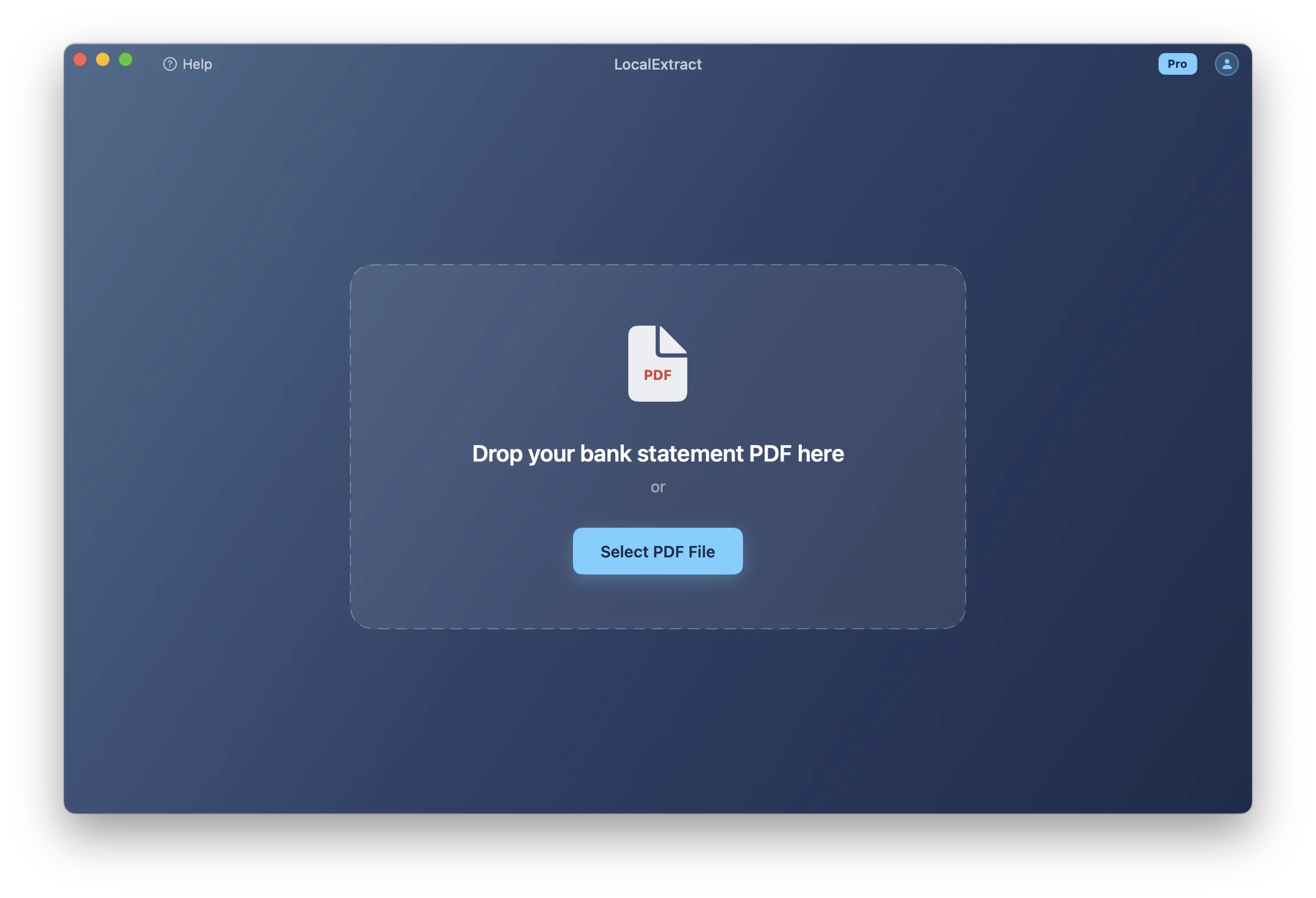
Drag and drop the Citizens Bank PDF into the LocalExtract window, or click "Select PDF" to browse. The engine detects the bank format automatically — no need to select "Citizens Bank" from a dropdown or configure any settings.
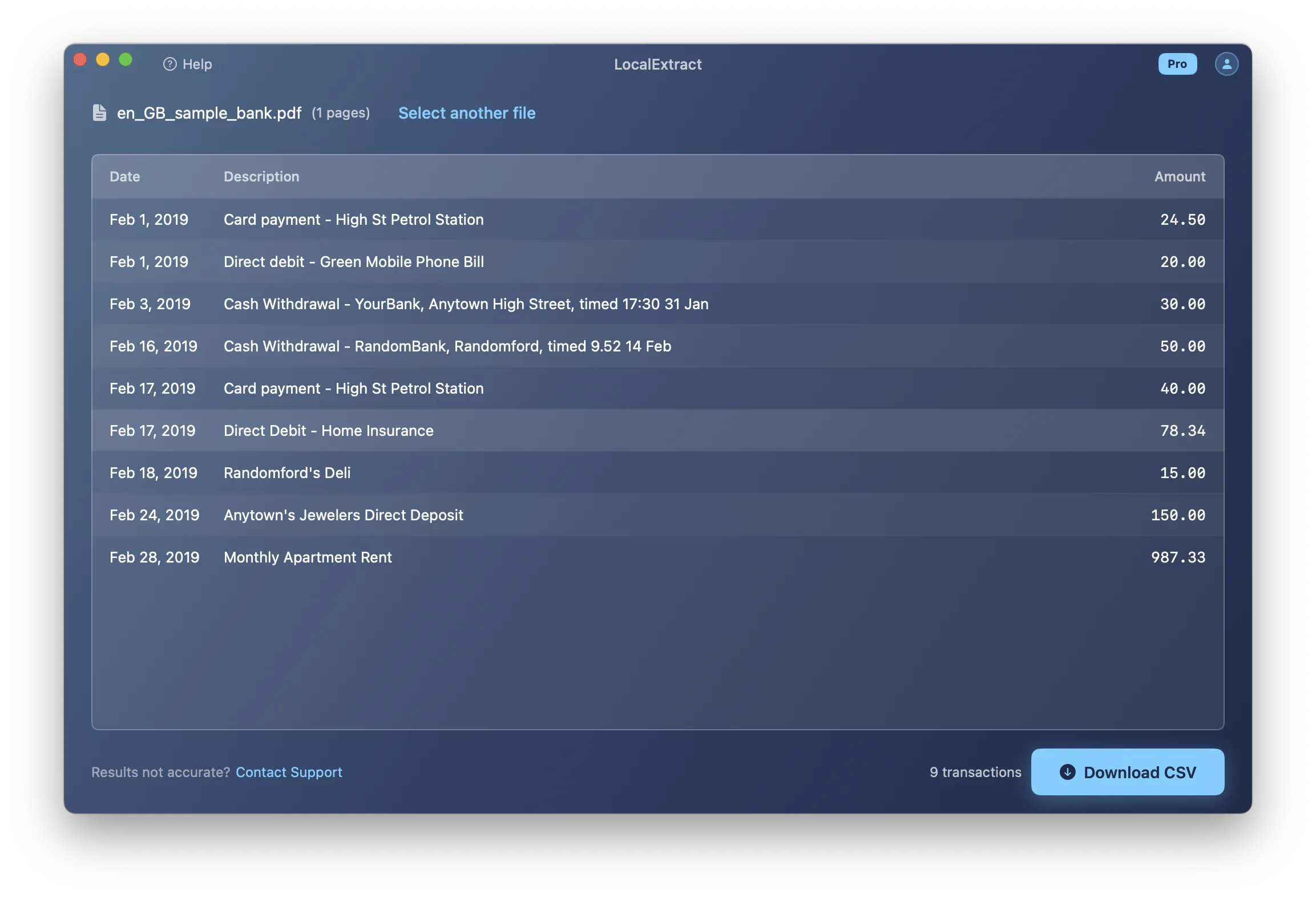
Step 4: Review the Extracted Data
LocalExtract displays the extracted transactions in a preview table. Check that:
- The statement period dates are correct
- Transaction dates, descriptions, and amounts align properly
- The beginning and ending balances match your statement
- Deposits and withdrawals are correctly signed — deposits positive, withdrawals negative
Step 5: Export to Excel or CSV
Click "Export" and choose your format:
- CSV — universal format, works with any spreadsheet app or accounting software. See our guide on converting bank statement PDFs to CSV.
- Excel (.xlsx) — formatted spreadsheet with column headers. Best for manual review or sharing with clients. See our guide on converting bank statement PDFs to Excel.
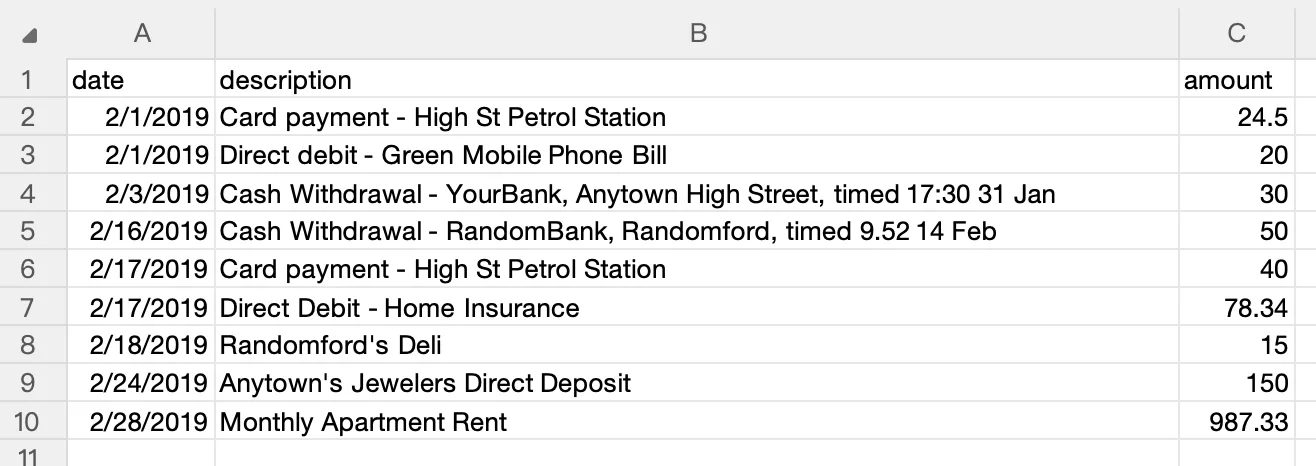
The entire process — from drag-and-drop to export — takes under 10 seconds for a typical Citizens Bank statement.
LocalExtract pricing: Free tier processes up to 10 pages (lifetime). Pro plan is $10/month or $60/year, with unlimited pages and priority support for new bank formats.
What We Found in Testing
We converted 10 Citizens Bank statement PDFs spanning February 2024 through January 2026, covering Citizens One Deposit (checking), Citizens Savings, and one Citizens credit card account. Here is what we observed:
- Accuracy: Citizens Bank checking and savings statements converted cleanly — transaction dates, descriptions, and amounts matched the original PDFs in every case. Citizens uses a compact transaction layout with tightly spaced columns, which means column boundary detection is more sensitive than with banks that use wider spacing. Amounts were correctly extracted in all test cases, but we did observe that descriptions were occasionally truncated by one generic tool we compared against.
- Format quirks: Citizens Bank checking statements include a check listing section that appears separately from the main transaction table. This section lists processed checks by number and amount in a compact two-column format. If a converter does not recognize this as a distinct section, check transactions can appear twice — once in the main transaction list and again from the check listing. Citizens also places a fee summary table near the end of the statement that uses formatting similar to the transaction table.
- Processing time: Statements ranged from 2 to 5 pages. A standard 3-page checking statement with 22 transactions converted in under 2 seconds on a MacBook Air M2. The credit card statement (4 pages, 31 transactions) took about 3 seconds due to the additional interest calculation and payment information sections.
We also noted that Citizens Bank statements from the Northeast branches occasionally include state-specific disclosure text that varies by state (Massachusetts, Connecticut, New York, etc.). This disclosure text is positioned near the transaction area and could be picked up by tools that rely on page-region extraction rather than structural parsing.
Alternative Methods
There are several ways to convert Citizens Bank statements. Each involves different trade-offs in accuracy, privacy, cost, and effort.
Method 1: Citizens Bank's Built-In Download
Citizens Bank offers a transaction download feature through its online banking portal.
What you can do:
- Log in to Citizens Bank Online Banking and navigate to your account
- Look for a download or export option on the account activity page
- Select a date range and choose a format (CSV, QFX, OFX, or similar)
- Download the file
Limitations:
- Only recent activity — Citizens Bank provides downloadable transaction history for a limited window, not full official monthly statements
- Not the same as your statement — the download reflects posted transactions for a date range, not the official statement with summary, fees, beginning/ending balances, and disclosures
- No statement-period alignment — if you need data matching a specific monthly statement for reconciliation, the date-range download may not line up exactly
Method 2: Manual Copy-Paste from PDF
Open the Citizens Bank statement PDF, select the transaction table, copy, and paste into Excel or Google Sheets.
The problems:
- Column misalignment — dates, descriptions, and amounts land in the wrong columns or merge into a single cell
- Multi-line descriptions collapse — transaction descriptions that span two or more lines merge or split unpredictably when pasted
- Headers and footers mix in — page breaks inject account headers, page numbers, and disclosure text into your transaction data
- Time cost — a typical statement takes 15-30 minutes to manually clean up, and errors are common
For a single statement with a handful of transactions, manual copy-paste is tolerable. For anything more, it is not practical.
Method 3: Tabula (Free, Open-Source)
Tabula is a free, open-source tool specifically designed to extract tables from PDF files. It runs locally on your computer (Java-based) and does not upload your data to any server.
How to use Tabula with Citizens Bank statements:
- Download and install Tabula from tabula.technology
- Open Tabula in your browser (it runs a local web server at
localhost:8080) - Upload your Citizens Bank statement PDF (the file stays on your machine — Tabula's server is local)
- Draw selection boxes around the transaction tables on each page
- Click "Preview & Export Data" and choose CSV or TSV format
Strengths:
- Completely free and open-source (GitHub)
- Data never leaves your computer
- Works across Mac, Windows, and Linux
Limitations:
- Manual table selection — you need to draw bounding boxes around each table on each page, which is tedious for multi-page statements
- No bank-specific awareness — Tabula extracts whatever table region you select. It does not understand Citizens Bank's statement structure, so summary sections and fee disclosures require manual adjustment
- Multi-line row handling — descriptions that wrap to a second line often become separate rows in Tabula's output
- No batch processing — each PDF must be processed individually with manual table selection
Method 4: Cloud-Based Converters
Cloud-based PDF converters let you upload a Citizens Bank statement PDF to their server, which processes it and returns a CSV or Excel file.
Examples include:
- DocuClipper — specializes in bank statement conversion, supports many banks, offers batch processing
- BankStatementConverter.com — focused on bank statement PDFs, charges per page
- General PDF converters (Adobe Acrobat online, Smallpdf, etc.) — not bank-specific, but can extract tables from any PDF
Advantages:
- Automated extraction — no manual table selection
- No software installation required
- Some services offer batch processing and integration with accounting software
Concerns:
- Data leaves your device — your Citizens Bank statement is uploaded to a third-party server, including your account number and full transaction history
- Retention policies vary — review each service's privacy policy before uploading financial documents
- Ongoing cost — most charge per page or per statement
For bookkeepers and tax professionals handling client Citizens Bank statements, uploading that data to a third-party server creates regulatory considerations under the FTC Safeguards Rule and IRS guidelines for protecting taxpayer data (IRS Publication 4557). Review your compliance obligations before uploading client financial documents to cloud services. For a deeper discussion, see our article on cloud vs. local bank statement converters.
Method 5: On-Device Converter
On-device converters run the PDF parsing engine entirely on your computer. The Citizens Bank statement never leaves your machine, similar to Tabula, but with automated bank format detection rather than manual table selection.
How on-device converters differ from cloud converters:
| Factor | Cloud Converter | On-Device Converter |
|---|---|---|
| Where data is processed | Provider's servers | Your computer |
| Internet required | Yes | No |
| Data retained by third party | Depends on provider | None — data stays local |
| Format update speed | Provider can update server-side | Requires app update when formats change |
LocalExtract is one on-device converter that supports Citizens Bank statement formats. It detects the bank format automatically, handles Citizens Bank's transaction layout, and extracts balance information alongside transactions. For more about how offline processing works, see our guide to offline bank statement converters.
Tool Comparison Summary
| Method | Cost | Privacy | Accuracy | Effort | Best For |
|---|---|---|---|---|---|
| Citizens Bank built-in download | Free | High (first-party) | N/A (not statement PDF) | Low | Recent transactions only |
| Manual copy-paste | Free | High | Low (requires cleanup) | High | One-off, small statements |
| Tabula (open-source) | Free | High (local) | Medium (manual selection) | Medium | Occasional use, tech-comfortable users |
| Cloud converters | Per-page/subscription | Lower (data uploaded) | High (with bank-specific services) | Low | Convenience, integration needs |
| On-device converter (LocalExtract) | Free tier (10 pages), Pro $10/month or $60/year | High (local) | High (for supported formats) | Low | Privacy-sensitive, recurring use |
What the Output Looks Like
A well-converted Citizens Bank checking statement produces clean, consistently structured rows. Here is a sample CSV output (data redacted):
Date,Description,Amount
01/06/2026,"DIRECT DEPOSIT - PAYROLL",2950.00
01/08/2026,"DEBIT CARD PURCHASE - STOP & SHOP",-92.17
01/10/2026,"ONLINE TRANSFER TO SAVINGS",-400.00
01/13/2026,"ATM WITHDRAWAL - CITIZENS ATM",-200.00
01/15/2026,"CHECK #1042",-350.00
01/20/2026,"ZELLE PAYMENT RECEIVED",150.00
01/25/2026,"AUTOPAY - NATIONAL GRID",-134.82
Key points about the output:
- Each transaction occupies a single row, even if the original PDF description wrapped to multiple lines
- Amounts use a single signed column — deposits are positive, withdrawals are negative
- Dates follow a consistent format suitable for spreadsheet sorting and filtering
- The output is ready to import into Excel, Google Sheets, QuickBooks, or any tool that accepts CSV
For Excel output, LocalExtract produces an .xlsx file with column headers (Date, Description, Amount) and proper cell formatting — dates as date types, amounts as numbers — so formulas and sorting work immediately without manual cleanup.
Tips for Working with Citizens Bank Statements
Verify totals after every conversion. Sum all positive amounts (deposits) and all negative amounts (withdrawals) in your spreadsheet, then compare against the summary section of the original PDF. This is the single most effective check for conversion accuracy. The math is straightforward: Beginning Balance + Total Credits - Total Debits = Ending Balance.
Watch for multi-line descriptions. Citizens Bank transaction descriptions sometimes span two lines — for example, a debit card purchase that includes the merchant name, city, and state. A correct conversion should merge these into a single row. If your output has more rows than the original PDF has transactions, multi-line splitting is the likely cause.
Handle check listings separately. Citizens Bank checking statements often include a separate section listing processed checks by check number and amount. Some converters mix these check listing entries with regular transaction entries. Verify that check transactions appear only once in your output — either from the main transaction section or the check listing, but not both.
Handle page breaks carefully. When a transaction table spans multiple pages, Citizens Bank statements repeat the column headers on each page. A correct converter strips these repeated headers. If you see date-like values that do not correspond to real transactions, check whether they are header rows from page breaks.
Check for fee disclosure contamination. Citizens Bank statements include fee summary tables and regulatory disclosures that share visual similarity with transaction tables. Verify that these non-transaction rows have not been included in your converted output.
Process multiple months in batch. If you need to convert several months of Citizens Bank statements — common during tax season or year-end bookkeeping — use a tool that supports batch processing to save time. LocalExtract allows you to queue multiple PDFs for sequential processing.
Keep the original PDF. The converted CSV or Excel file is a working copy. The original PDF remains the authoritative document for audit, compliance, and dispute purposes. Store both.
Looking Ahead: Citizens Bank's Digital Transformation. Citizens Bank has been investing in digital banking capabilities, including its Citizens Access online platform and mobile app enhancements. As the CFPB's Section 1033 personal financial data rights rule takes effect, Citizens Bank — like other large US banks — will need to provide standardized API access to consumer transaction data. This could eventually enable direct data feeds from Citizens Bank into accounting software without PDF conversion. For now, however, the official monthly statement PDF remains the definitive record, and local, on-device conversion provides a privacy-preserving way to get that data into spreadsheet format. The trend toward processing financial documents locally is especially relevant for bookkeepers and accountants in the Northeast who handle multiple Citizens Bank clients and need to avoid cloud data handling complexities.
FAQ
Can I download Citizens Bank statements as CSV directly from online banking? No. Citizens Bank offers transaction download for recent account activity through online banking, but your official monthly statement PDFs — available under the statements or documents section — can only be downloaded as PDF files. To get statement data into CSV or Excel format, you need to convert the PDF using one of the methods described above.
Does Citizens Bank provide statements in Excel format? No. Citizens Bank monthly statements are available only as PDF documents. The transaction download feature (separate from statements) may support CSV or other formats for recent activity, but these do not include the statement summary, beginning/ending balances, or fee details that appear on official statements.
How do I handle Citizens Bank statements with multiple accounts? If your Citizens Bank PDF contains transactions from multiple accounts (such as checking and savings combined), your conversion tool needs to detect where one account's transactions end and the next begins. If your tool does not separate accounts automatically, you will need to split the output manually by looking for account header rows in the converted data.
Is the converted data accurate enough for tax preparation? No converter is 100% accurate in all cases. For tax preparation, always verify converted data against the original PDF. Compare totals, spot-check individual transactions, and confirm that no rows are missing or duplicated. The original PDF remains the authoritative document — converted data is a working copy. For more on how tax professionals use statement converters, see our guide for bank statement converters for accountants.
Does my data leave my computer when using LocalExtract? No. LocalExtract processes everything on your device. The PDF parsing engine runs locally, and no data is uploaded to any server. The app works fully offline after installation. This is a key difference from cloud-based converters, which require uploading your statement to a third-party server. For a detailed comparison, see our article on cloud vs. local bank statement converters.
What if Citizens Bank changes their statement format? Banks periodically update their statement layouts. When this happens, cloud-based converters may adapt faster (since updates are server-side), while on-device tools require a software update. If you encounter conversion errors after a format change, check for tool updates or contact the tool's support team. Tabula's manual selection approach continues to work regardless of layout changes, since you visually identify the table boundaries yourself.
Getting Started
Converting Citizens Bank statements to Excel or CSV does not require uploading your financial data to anyone's server. LocalExtract processes everything on your Mac or Windows PC — no account creation, no cloud uploads, no data retention by third parties.
- Download LocalExtract — free to start, 10 pages included
- Drop in your Citizens Bank PDF — the bank format is detected automatically
- Export to CSV or Excel — ready for your spreadsheet, accounting software, or tax preparer
If you process statements from other banks as well, LocalExtract supports multiple bank formats from a single app. See our general guide on converting bank statement PDFs to Excel for a broader overview, or learn about bank statement CSV format for accounting if you plan to import into accounting software.
Conclusion
Citizens Bank statement PDFs use a compact, no-frills layout that is generally easier to convert than credit card statements from national issuers, but the check listing sections, fee summary tables, and state-specific disclosures still create pitfalls for generic extraction tools. For individuals and businesses in the Northeast who bank with Citizens, converting monthly statements to Excel or CSV enables efficient bookkeeping, tax preparation, and financial analysis that PDF documents cannot support on their own. The choice between manual methods, open-source tools, cloud converters, and on-device converters comes down to how many statements you process and how important data privacy is to your workflow. As Citizens Bank continues expanding its digital capabilities and open banking standards become reality for US institutions, direct data access will eventually simplify this process — but for archived statements and complete official records, PDF conversion will remain a necessary step for the foreseeable future.
This article is published by the LocalExtract team. LocalExtract is one of several tools that can convert Citizens Bank statement PDFs to CSV and Excel. March 2026.

LocalExtract Team
We build LocalExtract, an on-device bank statement converter for macOS and Windows. Our team includes software engineers and financial workflows specialists focused on private, accurate PDF data extraction. Questions or corrections? Contact us or see our editorial policy.
Related Articles
Ready to convert your bank statements?
100% on-device. Your documents never leave your computer.
By downloading, you agree to our Terms and Privacy Policy.