
QuickBooks Desktop: review a bank feed against an existing check
Updated · 3 min read
An unmatched Bank Feeds observation does not prove a missing check. In QuickBooks Desktop for Windows, US edition, identify the existing check first, then inspect its state in the actual Bank Feeds mode. Adding another payment is a different operation from matching an existing one.
The desktop apps export date, description, and amount as CSV. Open CSV in Excel to save an XLSX workbook. Statement support varies: verify the result against your own PDF.
Start with the version, mode and existing check
Retain an appropriate company-file backup before authorized changes. Record the installed Desktop version and whether Bank Feeds uses Express, Classic or Advanced. Compare the existing check’s bank account, check number, amount, date and payer with independently retained bank evidence.
- Open Banking → Bank Feeds → Bank Feeds Center to inspect observations already available. This bounded review does not require initiating a new sync.
- For the documented Classic/Express comparison, inspect Match Transactions, verify Financial Institution, and use View and Show Register to compare statement and register information.
- In Advanced mode, inspect Match to Existing Transactions for the appropriate category. Partially recognized observations can have several candidates.
- After establishing the intended candidate’s identity, inspect its actual state and mode-specific restrictions. Stop before Match, Confirm match, Save, Approve, Add or Ignore.
Intuit’s matching guide describes full operational routes that can include downloading or saving. Here they are adapted only to inspect already available observations; we did not execute a no-download vendor workflow or change any record.
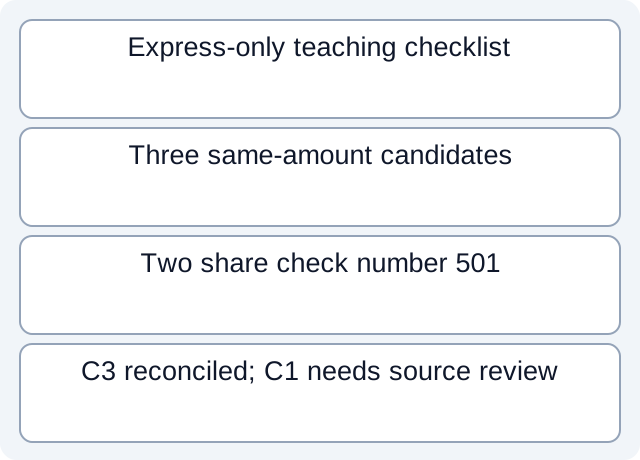
An Express-only candidate worksheet
The fictional file has three 100 USD candidates. C1 and C3 have check number 501; C2 has 502. C3 is explicitly marked reconciled in the Express checklist. Reading and filtering the file gives three same-amount candidates, two with number 501, and C1 remaining for further independent inspection.
| Teaching object | Check number | Express reconciled flag | Meaning |
|---|---|---|---|
| C1 | 501 | No | Candidate still requiring source identity review |
| C2 | 502 | No | Equal amount does not match the given number |
| C3 | 501 | Yes | Inspect the documented Express state restriction |
This is an author-designed checklist, not the QuickBooks matcher or proof that C1 is the correct live check. Account, payee, date and source identity still need evidence. If the bank record has no check number, the example’s number-based narrowing cannot be applied.
Keep Express blockers within Express scope
The official Express section describes an already reconciled CLR checkmark and a prior-download lightning symbol that can prevent another match. Do not present those symbols as universal Classic/Advanced behavior, alter reconciliation flags to make a candidate selectable, or enter another check to bypass the restriction.
The download guide separately requires actual .qbo Web Connect files. Renaming CSV or QFX does not establish that format. This article does not diagnose a particular bank’s Web Connect compatibility or migrate/reset a company file.
Download the fictional Express checklist and executed candidate counts. No download, saved match or duplicate-prevention outcome was tested.
For a PDF-only bank record, LocalExtract exports a local CSV from one PDF with date,description,amount. It does not produce QBO or connect to QuickBooks. The QuickBooks Online CSV guide addresses a different product and must not supply Desktop menu instructions.
Official documentation checked October 17, 2026.
LocalExtract Team
We build LocalExtract, a desktop bank statement converter. Questions or corrections? Contact · Editorial policy