
How to Download NatWest Bank Statements as PDF
Updated · 6 min read
Select an issued NatWest statement cycle, then save its PDF. This guide covers the UK product and the task described below.
The desktop apps export date, description, and amount as CSV. Open CSV in Excel to save an XLSX workbook. Statement support varies: verify the result against your own PDF.
Select the issued cycle in the current document menu
NatWest’s statement-copy help describes the browser route Statements & transactions → Statements under Your statements. Set the account and year, then select the needed cycle link. The PDF downloads according to the browser’s settings; save or print that file. In the app, the help describes the selected account’s three-dot menu, statement choice and export control. Use the options actually presented.
These are public UK product instructions, not authenticated tests. Choose the intended account before selecting a year: the first highlighted account may not be the one you need. Check the cycle’s actual dates rather than assuming a month label defines them. A card record and a current-account document have different meanings even if both appear in the statement service.
| What you need | Select | Verify |
|---|---|---|
| The issued statement | The account/year and specific cycle link | Original PDF and its printed boundaries |
| Selected transactions | Separate transaction-search controls | Search filters and exported coverage |
| A paper copy you cannot print | The bank’s current support route | Requirements for that product and record |
Do not substitute transaction search for the document
NatWest’s transaction-search guide describes activity search and export choices including Excel and PDF. The search guide uses a Statements menu. The two published tasks differ: searching movements and downloading an issued cycle are distinct tasks. Use the labels offered for the selected task; no dated interface change was established.
A PDF generated from selected search results can be a filtered activity report. It is not automatically the same issued cycle document. Keep it labelled with its account, chosen dates and conditions. For spreadsheet use, the NatWest Excel/CSV guide addresses this distinction.
Finish the save operation and check the copy
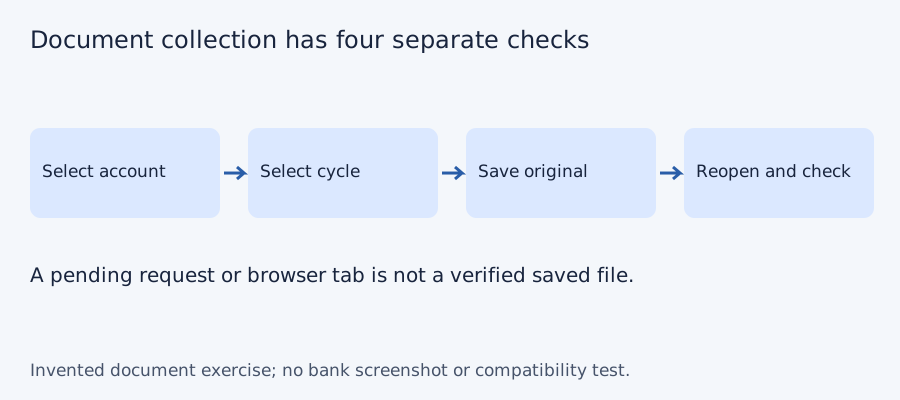
After selecting a cycle, look for the file in the browser’s configured downloads or the viewer’s actual save control. Reopen the saved file outside Online Banking. Confirm the bank, account alias, document title, actual dates and readable pages. A viewer tab or export dialog alone does not establish a local file.
For several records, keep one checklist row per actual requested period. Verify account and dates inside each original before calling two filenames different records. Mark an unavailable period and ask NatWest about that product’s document through official help rather than replacing it with a custom search PDF. Keep the original unchanged and put later spreadsheet edits into a separate working file. This protects the distinction between bank-issued evidence and your own analysis.
A repeatable handover check
This task is for a UK account holder giving an issued period record to a bookkeeper. An issued cycle is the bank document's printed interval; an activity export is the set selected by your search. A source register is a private file list that records that distinction.
- Choose the intended account, year and specific cycle in the statement-copy route.
- Save and reopen the original PDF; check the printed dates and readable pages before recording it as received.
- Label a searched transaction PDF activity report and record its filters, even if its filename contains the same month.
- When a required issued cycle is absent, record the gap and contact NatWest about that exact account and period. Do not replace it with a partial search report.
The handover should let the recipient tell which record came from the bank's issued-document service and which was assembled from selected transactions.
Test the collection checklist with four invented periods
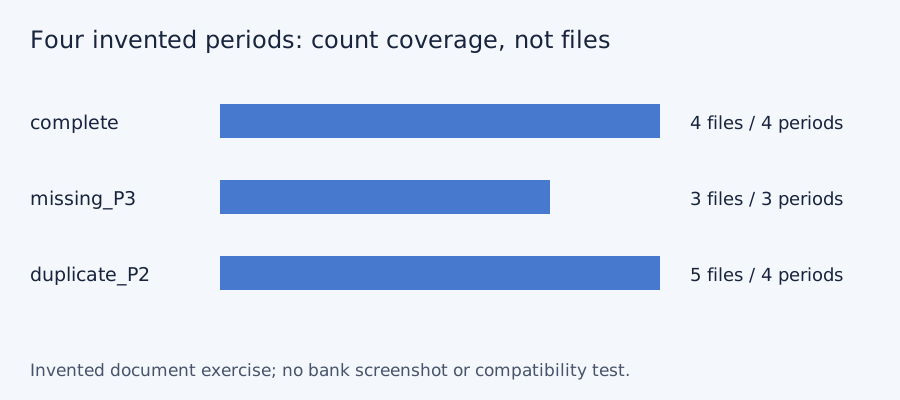
We checked set membership for three deliberately constructed document lists on October 11, 2026. The desired periods are P1, P2, P3 and P4; these aliases do not represent a bank’s actual monthly cadence or archive. A complete list has four files and four unique periods. Omitting P3 leaves three files and a gap. Downloading P2 twice gives five files but still only four unique periods. More files do not necessarily mean more coverage. No bank account, PDF, OCR output or LocalExtract result was tested.
| Invented case | File count | Unique periods | Missing period |
|---|---|---|---|
| Complete | 4 | 4 | None |
| P3 absent | 3 | 3 | P3 |
| P2 saved twice | 5 | 4 | None |
Blank document-collection checklist · constructed CSV results · inputs and method in JSON. Use aliases rather than full account numbers; adapt the actual period list to the documents your account issues.
Frequently Asked Questions
Which browser route obtains the issued PDF?
The current help describes Statements & transactions, then Statements under Your statements; select the account, year and cycle link.
Why does the search guide say Statements alone?
It describes an activity-search task. Follow the task-specific controls actually offered; the sources do not establish a dated old-to-new interface change.
Is an exported search PDF the monthly statement?
Not automatically. Inspect the document type and filters. A filtered activity report is a different source from the issued cycle.
What proves the download finished?
A saved, reopened and readable file for the intended account and period. An open tab or export prompt alone is insufficient.
If PDF is the relevant source
LocalExtract processes one PDF at a time on the device and exports CSV with date,description,amount. Parsing and OCR do not require uploading the statement. This is a working table that needs comparison with the original; no bank compatibility was validated here. There is no direct XLSX, QBO or OFX export, bulk queue or automatic accounting sync. To obtain XLSX, import the checked CSV and save from Excel.
The free evaluation covers ten pages in total. Pro is USD 10/month or USD 60/year. Account, subscription, update and periodic Pro checks need network access. See downloads and product scope.
Sources and verification scope
Public official guidance checked October 11, 2026. Account controls, document availability and bank layouts were not authenticated-tested. The method exercises use invented records, not actual bank samples or measured extraction results.
Updated October 11, 2026: Clarified the document route, product limits and file-coverage checks. No bank format or app output was validated.
Save the specific issued cycle and verify its account, dates and pages. Keep any searched activity file separately labelled before using it in a workbook.
LocalExtract Team
We build LocalExtract, a desktop bank statement converter. Questions or corrections? Contact · Editorial policy