
NAB Statements to Excel: Spreadsheet Exports, Cycles and CSV Checks
Updated · 8 min read
Inspect the native personal spreadsheet and 731-day selection first; use a checked PDF-to-CSV route only for a suitable PDF actually obtained. This guide covers the Australia product and the task described below.
The desktop apps export date, description, and amount as CSV. Open CSV in Excel to save an XLSX workbook. Statement support varies: verify the result against your own PDF.
Distinguish the issued statement from named report formats
NAB's personal document guide describes up to seven years of statements on web and two in the app. Closed-account web access requires online statements opted in before closure. Most account cycles default to six months unless otherwise requested; do not assume twelve monthly originals for every year.
The prose explicitly names PDF for recent transaction reports and CSV/PDF for interest reports, rather than proving those formats for every issued account statement. Use the actual file offered and retain that distinction. The guide's multiple-statement selection does not create an App batch-conversion feature.
Inspect the offered spreadsheet instead of assuming CSV or XLSX
The personal transaction-history guide describes 731 days through Accounts → Transaction history → filter/search → Export. It offers a spreadsheet, QIF or PDF. The actual spreadsheet extension is not established here: CSV/XLSX must be read from the file and its type, not inferred from NAB Connect business instructions or an interest-report CSV button.
If the offered spreadsheet supplies the required account, dates and detail, use that native source and inspect the import/opening according to its actual file type. Do not rename it XLSX to pretend a conversion happened. A731-day transaction selection still has its own scope and is not automatically an issued six-month statement. If the relevant original you actually possess is a readable PDF, the manual route below creates a checked CSV. Otherwise keep the actual format and use its appropriate working method rather than asserting a PDF you have not received.
| Offered source | Working decision | Limit |
|---|---|---|
| Personal transaction spreadsheet | Inspect actual file type and rows | CSV/XLSX extension unknown in this guide |
| Interest-report CSV | Use only for its report purpose | Not full transaction-history proof |
| Issued source cycle | Keep its actual format and endpoints | Do not invent monthly files |
Create a CSV from a PDF you have actually obtained
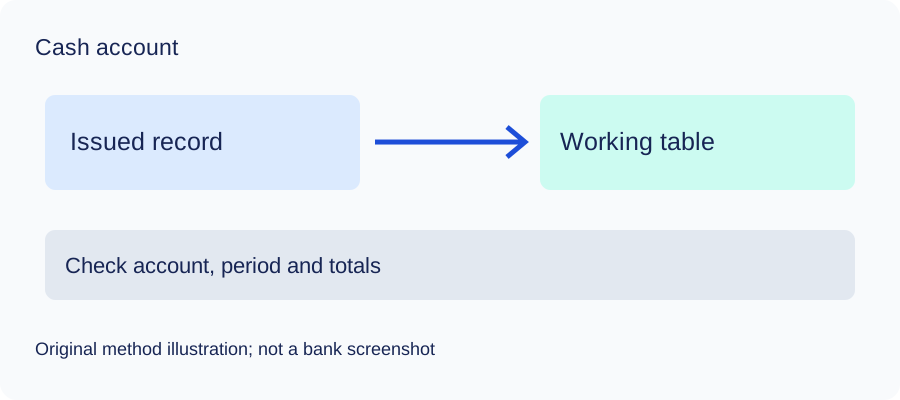
This step starts with a suitable original already in your possession. It does not establish an unverified bank download control. Keep that file unchanged and make a separate working table. A native export that already supplies the required account, dates and detail can bypass PDF conversion.
Manual route: build and check the table
- Open the original in a trusted local viewer. Record the account alias, currency, printed start/end and any page references in a private source register. Read the complete transaction section, including continuation pages.
- Decide what the source calls each date. Use the posted date when that is the chosen task; if another relevant date is present, retain it in an additional private worksheet column. Do not use the file's download date as a transaction date.
- Create a working sheet with
date,description,amount. Transcribe each included posted movement once. Join a description continuing onto another line only when it belongs to that same movement. Do not insert section headers, carried balances or summary totals as transactions. - For this deposit cash table, use positive inflows and negative outflows. Read the actual source's debit/credit or sign convention before mapping it. Do not assume a borrowing or card balance uses the same convention. Keep different accounts and currencies separate.
- Compare the worksheet with the original page by page. Mark each source movement checked once; inspect dates, description text, decimal points and signs. If text selection loses columns or joins unrelated lines, transcribe from the visible original instead. If a scanned or unclear page cannot be read reliably, obtain a clearer copy or leave the affected rows unresolved.
- Save a separate CSV working copy using your editor's CSV format. Inspect the actual delimiter and encoding; changing a file extension does not create a CSV. The small comma-delimited example below shows the chosen fields, not bank-export headers. Preserve any richer private worksheet columns separately if the three-field copy omits information you need.
Optional LocalExtract route: inspect output before importing
Open LocalExtract and select one PDF for the operation. Let the local parser/OCR process it, inspect the resulting transaction table against every relevant page, and export CSV. The current export contains date,description,amount; it does not supply a complete replica of every field in the original. Compare dates, signs, missing or duplicate movements and continued descriptions before relying on it. The original remains the authority for this check. No actual bank PDF or output was tested for this guide, so neither the public help route nor the invented exercise establishes extraction compatibility.
Keep any unresolved row out of a claimed complete reconciliation. A visually plausible table and an equal closing total can still hide offsetting errors. After the checks, import the actual CSV in Excel as described below, inspect the preview and save XLSX from Excel if a workbook is needed. LocalExtract does not export XLSX directly.
Choose dates and amounts, then inspect the Excel import
For a deposit cash account, use positive inflows and negative outflows after reading the original's actual convention. Keep another needed date, currency and source reference in additional private worksheet columns; the three-field CSV does not encode them automatically. One entirely invented comma-delimited example is:
date,description,amount
2026-09-01,Example receipt,250.00
2026-09-02,"Example purchase, supplies",-100.00
2026-09-03,Example fee,-10.00
These are chosen learning fields, not the bank's native headers or a tested statement layout. The comma in a description is protected by quotes, consistent with RFC4180. In Excel use Data → From Text/CSV, inspect delimiter, date types, decimal amounts and signs, then load. Microsoft's import help explains the preview. Save XLSX in Excel after checking.
When the source supplies comparable endpoints for the same complete account/currency/interval, compare opening plus signed movements with closing. A filtered subset, loaded fragment or different interval cannot be reconciled as that complete cycle. Without comparable balances, record that limit and check every row; an equal net total cannot prove each date or description.
Check the method with invented records
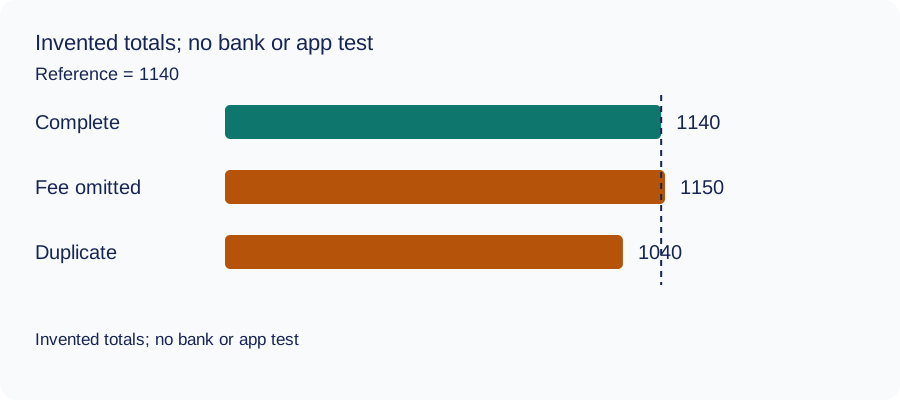
We recomputed three deliberately constructed cases on October 11, 2026 using decimal arithmetic: complete rows, an omitted fee and a duplicated movement. The reference total and every number are invented. This checks the reconciliation method only: no bank account, real PDF, OCR result or LocalExtract output was tested. The same learning aid is used across these guides.
| Case | Calculated closing total | Difference from reference |
|---|---|---|
| Complete rows | 1140 | 0 |
| Fee omitted | 1150 | 10 |
| Movement duplicated | 1040 | -100 |
Illustrative units, not a real account balance.
Download the blank document checklist or synthetic check data. CSV · JSON.
Frequently Asked Questions
Is the native spreadsheet definitely CSV?
Its extension is not established by the cited transaction-history guide; inspect the actual file.
Does interest-report CSV prove transaction CSV?
No. They are different report tasks.
Can I rename a file to XLSX?
Renaming does not convert its contents. Use the correct import/opening for its actual type.
Was a NAB PDF tested?
No. The file-based method is conditional; no customer statement or App output was tested.
If PDF is the relevant source
LocalExtract processes one PDF at a time on the device and exports CSV with date,description,amount. Parsing and OCR do not require uploading the statement. This is a working table that needs comparison with the original; no bank compatibility was validated here. There is no direct XLSX, QBO or OFX export, bulk queue or automatic accounting sync. To obtain XLSX, import the checked CSV and save from Excel.
The free evaluation covers ten pages in total. Pro is USD 10/month or USD 60/year. Account, subscription, update and periodic Pro checks need network access. See downloads and product scope.
Sources and verification scope
Public official guidance checked October 11, 2026. Account controls, document availability and bank layouts were not authenticated-tested. The method exercises use invented records, not actual bank samples or measured extraction results.
Updated October 11, 2026: Added task-specific source decisions, date/amount examples and CSV import checks. No bank format or app output was validated.
Keep the source task and product conditions explicit, preserve the original and leave missing records or rows unresolved. Check the actual file before using it.
For the next task, see the same bank’s document collection guide.
LocalExtract Team
We build LocalExtract, a desktop bank statement converter. Questions or corrections? Contact · Editorial policy