
Regions statements: PDF downloads, enclosures and software exports
Updated · 3 min read
The desktop apps export date, description, and amount as CSV. Open CSV in Excel to save an XLSX workbook. Statement support varies: verify the result against your own PDF.
Save the issued statement
Regions’ online-statements instructions distinguish the channels:
| Channel | Route |
|---|---|
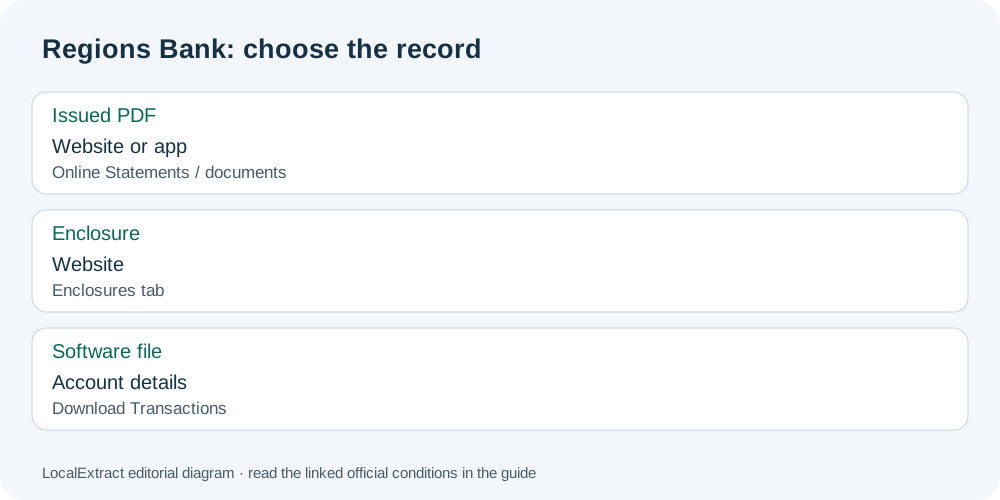
| Website | Accounts → Online Statements → required statement → view/download PDF |
| Mobile app | Select account → View statements & documents → filter document type/year → view/download PDF |
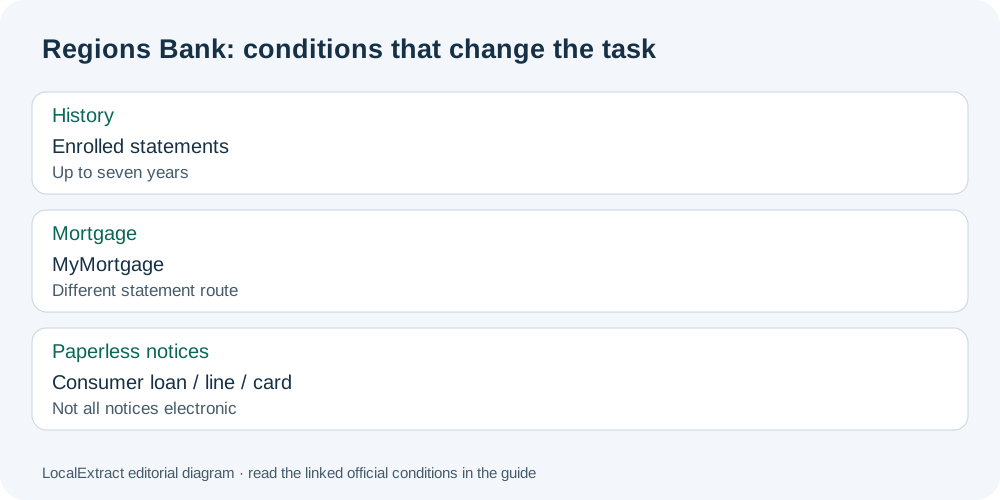
Enrolled customers can view, download and print up to seven years of statement history. Mortgage statements use MyMortgage. Check the product before trying to apply the ordinary account route to a mortgage.
Find accompanying material in the website’s Online Statements & Documents → Enclosures tab. Some enclosures require the website. Check there when the app statement does not contain the material you need.
Download transactions for financial software
The bank’s Web Connect download instructions describe a different operation:
- Open the account details.
- Select Download Transactions, above and to the right of pending activity.
- In Select a Format, choose the financial-management software.
- Select the account and Select Date Range.
- Choose Submit and follow the prompts.
Web Connect transfers transaction information to Quicken or QuickBooks without its own bill-payment or fund-transfer function. The instructions do not identify a CSV (comma-separated values) file type. Select the format intended for your software; a statement PDF and a software import are not interchangeable records.
Choose the connection with the needed capabilities
Regions’ Quicken connection comparison calls Web Connect a one-way transaction download. Direct Connect adds two-way functions including bill payment and fund transfers through the financial software. For a file-only task, use the documented Web Connect download rather than assuming the broader connection is required.
Keep delivery settings separate from missing-document searches
The online-statements page says some delivery preferences require the primary account owner. It also distinguishes consumer loan, line and credit-card statements from other notices: enrolling those statements does not make every account notice electronic.
This distinction changes what “paperless” means when assembling records. A statement found online is evidence of that issued statement, not evidence that no separate notice was mailed. If the problem is a missing enclosure, use its dedicated tab; if it is a delivery preference, first confirm the appropriate owner can make that change.
Plan a complete retrieval
The Regions record planner separates the statement, enclosure and software transaction file. Note the required cycle or export interval against the correct row; do not enter login details. Keep the original statement alongside any later spreadsheet analysis so the issued period remains identifiable.
For an existing PDF, LocalExtract processes one file locally to date,description,amount CSV. Excel can then save an XLSX workbook. The common CSV formatting and verification guide explains the import checks. Download options and limits.
Use Online Statements for the issued PDF, Enclosures for its accompanying material, and Download Transactions for the software file. This keeps a document request from turning into an unnecessary delivery-setting change.
Official sources checked October 13, 2026. This revision replaces repeated conversion advice with Regions’ separate record routes.
LocalExtract Team
We build LocalExtract, a desktop bank statement converter. Questions or corrections? Contact · Editorial policy