
Chase Credit-Card CSV: Dates, Payments and Refunds Explained
Updated · 7 min read
Chase card data needs an explicit date rule and amount convention before it becomes a useful spending sheet. Use the posted cycle to reconcile a statement, and keep payments and refunds separate from purchases. This guide explains the method; it does not promise a particular Chase CSV screen or a tested PDF layout.
This guide is for account holders preparing their own records; it does not retrieve records for someone else.
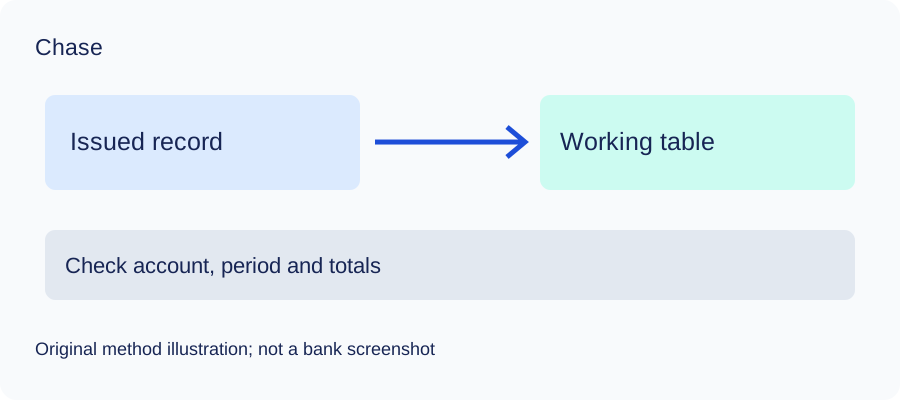
PDF preserves the document’s pages. CSV is a text table of separated values; XLSX is an Excel workbook. A working table is your analysis copy, not the issued bank record.
The desktop apps export date, description, and amount as CSV. Open CSV in Excel to save an XLSX workbook. Statement support varies: verify the result against your own PDF.
What the bank source establishes
| Bank fact | Scope to preserve | Source |
|---|---|---|
| Chase describes up to seven years of statements, depending on account type. Do not confuse a credit-card billing cycle with a calendar month. | A current retail CSV menu has not been verified here. Chase UK instructions do not apply to Chase US. | Chase |
Keep two date questions separate
A transaction date answers when the purchase was made. A posting date answers when it entered the account ledger. A purchase made near the end of a cycle can appear in the next one if it posts later. For reconciliation, use the dates and membership of the issued cycle; for purchase timing, retain the original transaction date in a separate column if the document provides it.
Do not infer a missing year from your computer’s current year. Use the statement’s start and end dates, especially when a cycle crosses December and January. Store a full date such as 2025-12-30 and label what that date represents.
Define amounts before adding totals
For a liability sheet, purchases, interest and fees increase the amount owed; payments and credits reduce it. For a spending sheet, you might use negative expenses and positive refunds. Either can work, but the choice must be explicit. The sum of signed spending is not automatically the card’s amount owed.
Use separate transaction types: purchase, refund, payment, interest, fee and other credit. A payment from your checking account moves money between your own accounts and is not a second purchase. A refund corrects spending; it is not the same as salary or a card payment.
A worked example with invented numbers
Suppose the opening amount owed is 500. The cycle contains purchases of 120 and 80, a refund of 30, a payment of 200 and a fee of 5. Under a liability convention:
500 + 120 + 80 - 30 - 200 + 5 = 475
The new amount owed is 475. Purchase spending after the refund is 170; it is not 475. The payment remains 200 in a transfer/payment category. This is a synthetic arithmetic example, not a Chase sample or extracted app output.
If a refund relates to a purchase from an earlier cycle, keep it in the current posted reconciliation while attaching the original purchase reference for spending analysis. Do not move the bank entry into a different cycle merely to make a category report look tidier.
Statement credits and payment obligations
Chase’s Offers FAQ says an Offers statement credit is not counted as a payment. Your spreadsheet should therefore not silently reclassify every credit as a payment. Check the card’s actual payment information and bank instructions rather than using a category total to decide whether a bill has been paid.
A working table you can reproduce
- Preserve the original document and record its account, currency and period.
- Enter one posted movement per row; do not copy a page heading or balance as a transaction.
- Choose the date meaning from the actual document and preserve any second date in a separate manual column.
- Carry debit/credit meaning into the amount sign. Compare every page and resolve unreadable entries.
- Save CSV only after the checks, then open it in Excel and save XLSX there if needed.
Use opening balance plus signed movements for a deposit account, or opening amount owed plus liability-signed movements for a card. Compare the result with the closing figure on your original document. A zero difference checks this total only; it does not prove descriptions, dates or every individual row are correct.
Microsoft’s CSV import guidance explains delimiter and date interpretation. Review both before calculating totals. RFC 4180 describes quoting commas and quotation marks in CSV; the learning files use that common convention.
Check the method with invented records
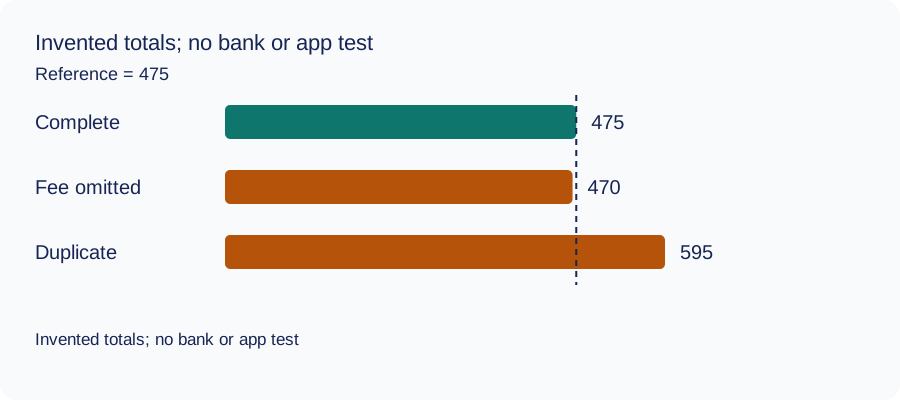
We recomputed three deliberately constructed cases on October 11, 2026 using decimal arithmetic: complete rows, an omitted fee and a duplicated movement. The reference total and every number are invented. This checks the reconciliation method only: no bank account, real PDF, OCR result or LocalExtract output was tested. The same learning aid is used across these guides.
| Case | Calculated closing total | Difference from reference |
|---|---|---|
| Complete rows | 475 | 0 |
| Fee omitted | 470 | -5 |
| Movement duplicated | 595 | 120 |
Illustrative units, not a real account balance.
Download the blank document checklist or synthetic check data. CSV · JSON.
Frequently Asked Questions
Can I use the Chase UK CSV instructions?
No. Chase UK publishes a different app workflow. This guide concerns Chase US; the current native US transaction-export menu has not been established by the cited sources.
Does this prove my PDF works with LocalExtract?
No. Public bank instructions and synthetic arithmetic are not bank-format validation. Try the free evaluation on your own file and check the result against it.
Can I replace the issued statement with the CSV?
Keep the issued document. A working table omits document layout and may omit fields; ask the recipient which original record it requires.
Can I share the original publicly for help?
Avoid publishing complete statements, account numbers or access codes. Use the bank’s authenticated support for banking questions and minimise/redact any conversion-support material.
If your source is a PDF
LocalExtract processes one PDF at a time on your device and exports CSV with date,description,amount. It does not directly create XLSX, QBO, OFX or JSON, supply a conversion API, or automatically synchronise accounting software. No real bank sample/output pair was validated for this guide. The free evaluation covers ten pages in total; Pro is USD 10/month or USD 60/year. Parsing and OCR are local; account, subscription, update and periodic Pro checks need network access.
See downloads and current product limitations.
Sources and verification scope
Public official guidance checked on October 11, 2026. Account screens were not tested. Follow the current product-specific interface; this guide does not guarantee extraction accuracy or bank acceptance.
Updated October 11, 2026: clarified the actual bank-document scope, added a document checklist and synthetic reconciliation data, and removed inaccessible references where present. These changes do not establish bank-format compatibility.
Choose the appropriate bank record first, complete the checks above, and keep the original alongside your spreadsheet.
LocalExtract Team
We build LocalExtract, a desktop bank statement converter. Questions or corrections? Contact · Editorial policy